


- Resource
- Email - Instructor
- How to use the E-Mail in the Learning Hub
How to use the E-Mail in the Learning Hub
How to Send an E-Mail Using the Learning Hub
Option 1:
1. Go to a course and click course tools -> Classlist.

2. Check off the names of people in your course you wish to e-mail from the classlist.
3. Click the Email link located just above the classlist on the left side of your screen.
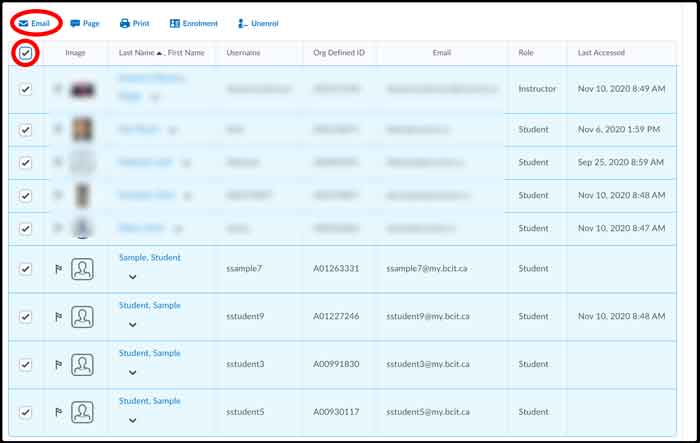
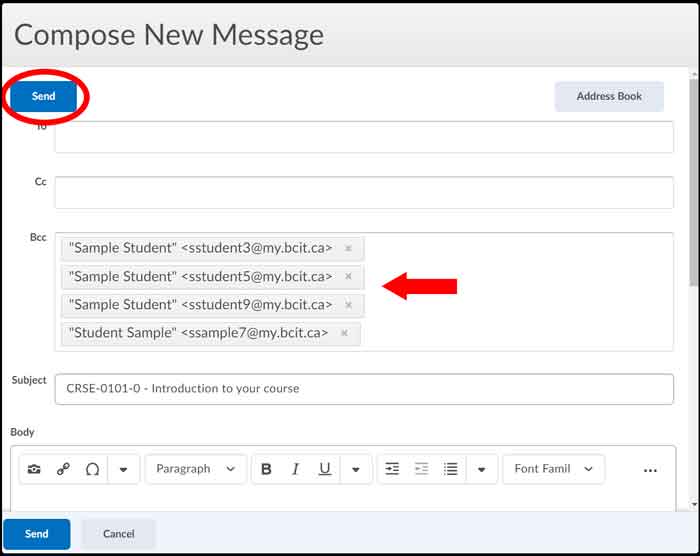
4. A new window will pop up with the users you selected in the Bcc field.
5. Write your email and click send.
Option 2:
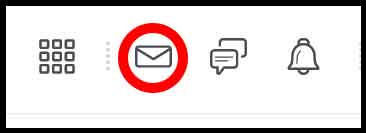
1. Click on the envelope icon at the top of any Learning Hub page
2. Click email
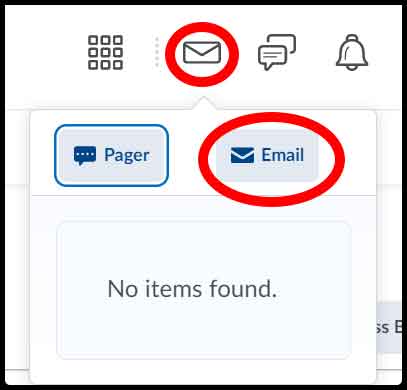
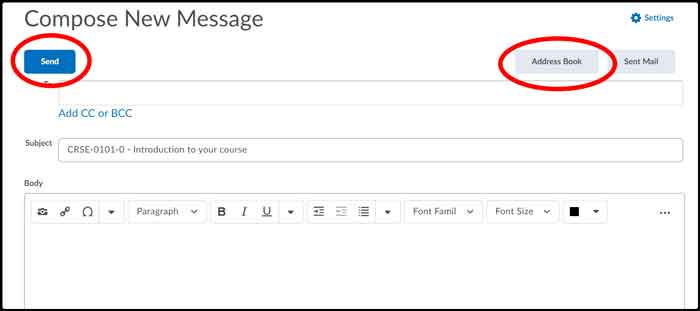
3. Add e-mail addresses by typing them in, or by using your address book.
4. Write your email and click send.
How to View Your E-Mail Inbox
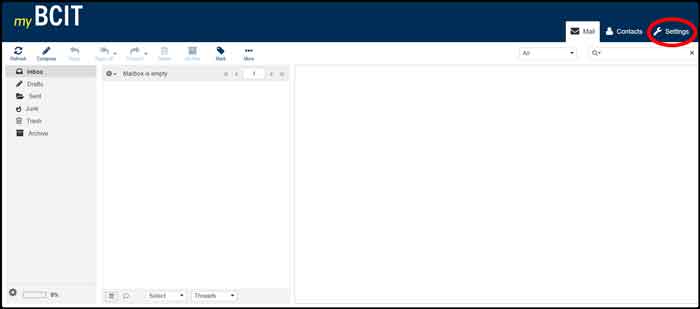
Click on the ‘E-Mail’ link in the Learning Hub navbar at the top of your homepage or at the top of any learning hub course.

This will take you to the new email system which is the same system you access through my.bcit.ca
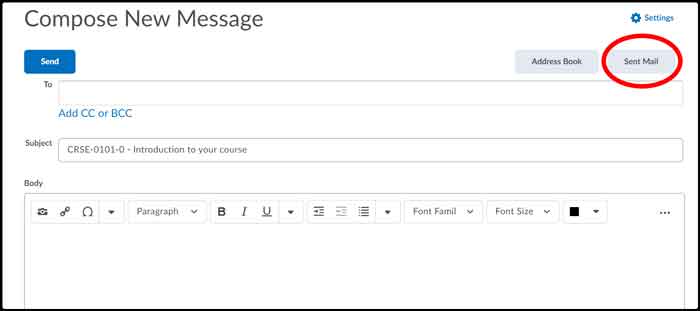
Accessing Previously Sent E-mails in the Learning Hub
Click the envelope icon at the top of the learning hub.
click e-mail
Click the Sent E-mail button
Working Securely On Public Computers
- This e-mail system is separate from Learning Hub. If you wish to log out of both systems you will need to click log out in each system individually. This can be important if you are logging in from a public computer.
- This is no different that any other system’s behavior on the internet. When you finish using a public computer, you should always be sure to log out of websites, close browsers, and log out of the computer.
Using the New E-Mail System to Filter Your E-Mails From a Specific Class
How it works:
- Messages coming in from the learning hub sent from a specific course will have the name of the course in the subject line by default.
- You setup a new folder in the new email system for a specific class.
- You then create a filter that filters on the class name being in the subject field to send emails to that folder.
How to set it up:
Go to the new email system
click settings
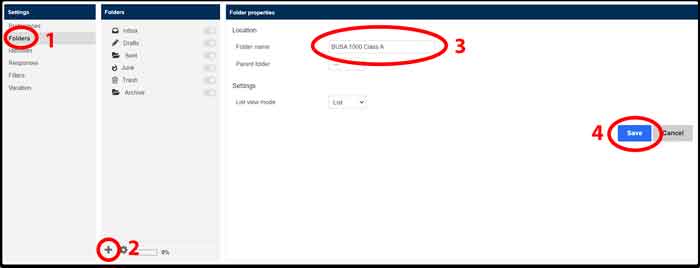
click folders (1)
click the + icon under the folder list (2)
enter your class as the folder name, for example ‘BUSA 1000 Class A’ (3)
click save (4)
click filters from the left settings menu (1)
under the Filters box (NOT the filter sets box) click the + at the bottom (2)
name your filter (3)
in the for incoming mail: section set ‘subject’ from the first dropdown
select ‘contains’ from the second dropdown
enter the exact course name in the third field (to get this go to your course in the learning hub -> edit course -> course offering information copy the course offering name field)
NOTE: you do not need to include the full name necessarily. For example you could just filter by ‘BUSA 1000’ instead of ‘BUSA 1000 – How to Business – 12345.202030’. But if you had multiple BUSA 1000 courses you would want to filter more accurately.
click save (4)
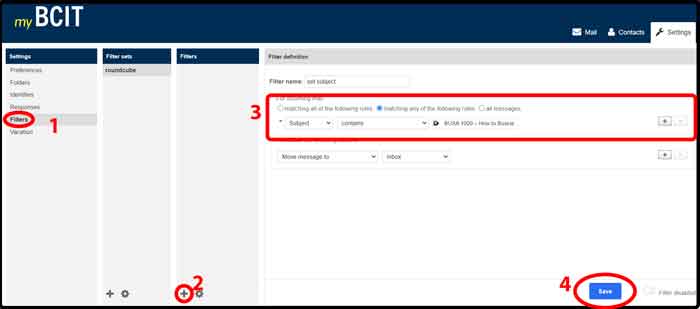
Any email sent to you from that course in the learning hub will be filtered and sent to the new folder you created
Forward emails
You can forward the emails from mybcit to your outlook or to your personal email. The link below shows how you can forward your mybcit email to another email account.
https://kb.bcit.ca/student/forwarding-your-mybcit-email-124/
Related Posts
