


- Resource
- Assignment - Student
- Troubleshoot submitting in the Assignments tool
Troubleshoot submitting in the Assignments tool
If you have having issues submitting your assignment please try applying the following solutions and tips:
General Issues
- Do you have any special characters such as \ / : * ? ” < > | ~ # % & + { } in the file name? D2L does not accept those characters and will prevent the file from uploading. Try renaming the file.
- How long is the file name? We recommend that you keep the file name under 45 characters.
- Are there any leading or trailing spaces in the file name? Delete any leading or trailing spaces.
- Are there one or two periods before the file extension (for example ..doc)? There should be only one.
- Does the file have a valid file extension (such as .doc, .docx, .pdf)?
- Word documents often save two files, one is the document file: assignment.docx and the other is a temporary file: ~$assignment.docx. Ensure you are uploading the actual document and not the temporary file, as the temporary file will not open and contains no data.
- “Field is required” error. This error message appears when you click Add before your file has completely uploaded. Wait until the green loading bar on your file name has completed loading, and then click Add.
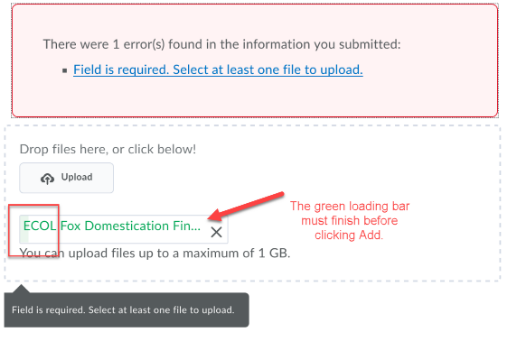
“File restriction” error: Make sure your file is saved as one of the accepted filetypes – html, doc, docx, hwp, odt, rtf, wpd, txt, ps, pdf, pptx, ppt, ppsx, pps, xls, xlsx, gdoc, then re-submit.

File size
- The maximum file size which can be uploaded in the Learning Hub is 1GB per file. Audio, video, and media rich PowerPoint presentations can result in large files.
- File size can be reduced if there are images in the file by reducing the resolution or size of the images.
- If there are many pages in the file, split the document into two files, Part A pages 1-10, and Part B pages 11 – 21
Internet Connection
- Files are uploaded in the Learning Hub in 10MB chunks and times out if a 10MB chunk takes longer than 2 minutes to upload. It may appear that your file is continuing to upload after the two minutes, however it is not.
- Your upload speed is dependent on your internet connection.
- We recommend uploading from a wired connection rather than wireless whenever possible.
- To check your internet speed go to http://www.speedtest.net/ and select Go.
Note: When submitting an assignment in the learning Hub, it is imperative to allow enough time for the file to upload. If your file does not finish uploading before the end date deadline for the assignment, your file will not be submitted. Do not wait until the last minute to upload your file.
Browser
- We recommend using Chrome or Firefox.
- If your browser is being unresponsive, try clearing your browser’s cache. Browser specific steps are detailed
- Switch to a different browser.
Related Posts
