


- Updates
- December 2025 Learning Hub Updates
December 2025 Learning Hub Updates
Assignments – Group Assignment evaluation email enhancements | Updated
This release introduces enhancements to the Email Group button in Group Assignment Evaluation.
If a group has no members, or if the users in the group do not have an internal D2L email set up or an external email linked, the Email Group button no longer appears. The button now displays only when it is actionable, reducing confusion and improving interface clarity.
This update enhances the overall experience by aligning with accessibility and usability best practices, ensuring that only relevant options are shown to users.
Previously, the Email Group button appeared even in groups with no users, which caused confusion.
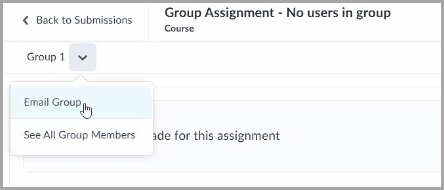
Figure: The Email Group button in Group Assignment Evaluation before this update if a group has no members.
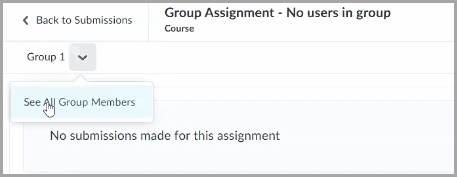
Figure: The Email Group button no longer appears in Group Assignment Evaluation after this update if a group has no members.
Technical Details
Impact:
- Slight impact to administrators and instructors, who benefit from a more streamlined workflow and more efficient communication with group members.
Availability:
- This feature is available to all clients.
To enable:
- This functionality is automatically enabled for all users.
- This functionality is not dependent on any new or existing permissions or configuration variables.
Awards – Control notifications for Awards earned | Updated
In response to continued feedback for more flexibility with Awards, administrators can now control which Org Units trigger the pop-up notification when a user is issued a certificate or badge.
The visibility of this notification is controlled by the new d2l.Tools.Awards.DisplayAwardEarnedNotification configuration variable at the Org Unit level. By default, this variable is ON, meaning the pop-up notification will be shown to users when they earn an Award.
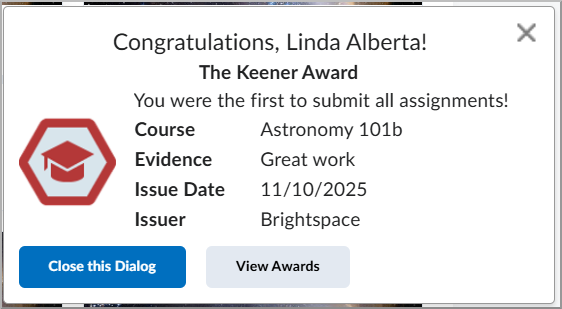
Figure: Notification presented to a user when they are issued an Award.
 |
Note: This update does not change the existing functionality. If no action is taken, users will continue to receive the pop-up notification when an Award is issued. Changing the new configuration variable to OFF will prevent the pop-up notification from appearing for users within that Org Unit. |
This feature implements the following PIE item:
- D11913 – Suppress the Awards pop-up (“toast”) modal in Brightspace.
Technical Details
Impact:
- Slight impact to all roles with permission to access the Config Variable Browser tool.
Availability:
- This feature is available to all clients.
To enable:
- This functionality is controlled by the d2l.Tools.Awards.DisplayAwardEarnedNotification configuration variable at the Org Unit level, which is ON by default.
- This functionality is not dependent on any new or existing permissions.
Course Import – Filter message types in Import Log for easier troubleshooting | Updated
To help administrators and instructors identify and resolve issues more efficiently during course imports, the Course Import History Log now includes message-type filtering options. This update lets users filter and review specific message types, such as errors, warnings, or informational notes.
Previously, the Import Log displayed all message types in a single view, which made it difficult to review and prioritize relevant information during troubleshooting.
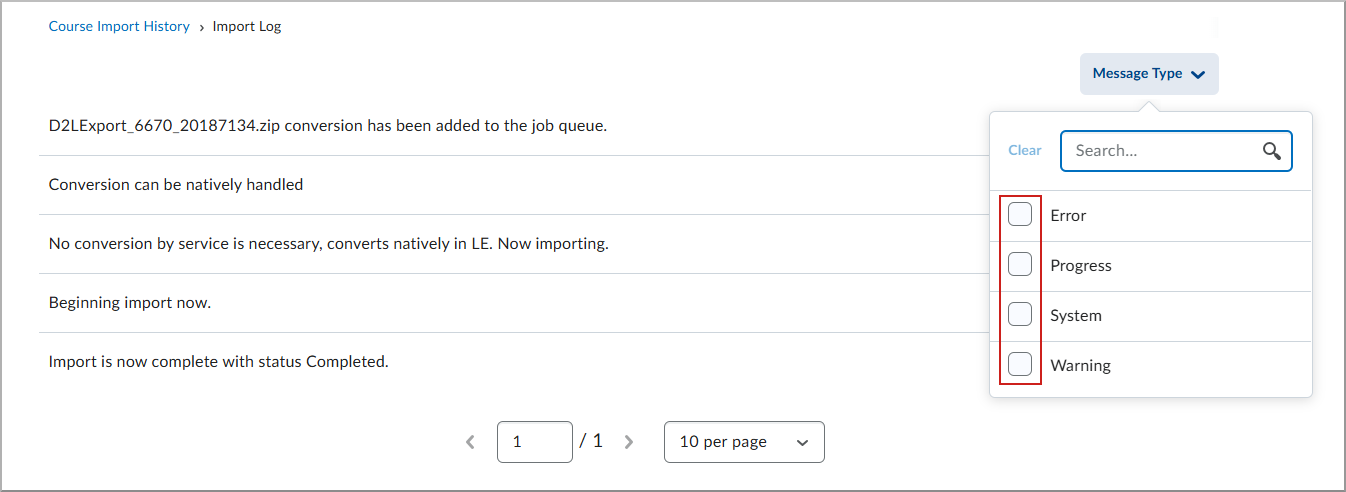
Figure: On the Course Import History Log page, the filter drop-down in the Import Log allows users to display specific message types, such as errors, warnings, or informational messages.
 |
Tip: Users can apply multiple filters simultaneously to view combined message types. |
Technical Details
Impact:
- Slight impact to administrators and instructors due to the availability of the filter to improved troubleshooting efficiency.
Availability:
- This feature is available to all clients.
To enable:
- This functionality is automatically enabled for all users.
- This functionality is not dependent on any new or existing permissions or configuration variables.
Discussions – Enforce timely learner engagement with first post due dates | Updated
To ensure timely learner participation, instructors can now specify a due date for the first post in a discussion topic. This supports course pacing, institutional policies, and consistent expectations for learner engagement. This mirrors the behavior of Assignments and Quizzes, making the course experience more consistent and predictable.
Previously, instructors could not set due dates for initial discussion posts, which made it difficult to assess timely engagement or enforce deadlines. This update improves grading accuracy, simplifies compliance with participation policies, and supports smoother course migrations from learning management systems that already include this functionality.
The first post due date follows the same behavior as Assignments and Quizzes:
- Due dates must be between the start and end dates of the discussion topic.
- Availability types (for example, Hidden, Visible with access restricted, Visible with submission restricted) are respected.
Additional improvements include:
- Calendar tool integration: The first post due date appears in the calendar.
- Notifications: Administrators can enable notifications. When enabled, the due date will trigger a notification in Brightspace and push notification (Pulse App).
- Grading: Discussion due dates support automatic-zero grading.
- Other enhancements:
- In Manage Dates, first post due dates are visible and editable.
- In the Discussion List, due dates appear next to each topic.
- In New Content Experiences, Overdue and Late indicators appear when deadlines are missed. Classic content will continue to show the due date on the content topic.
- In Quick Eval and Consistent Evaluation, first post due dates appear in evaluation workflows.
- In the Work to Do widget, due dates appear.
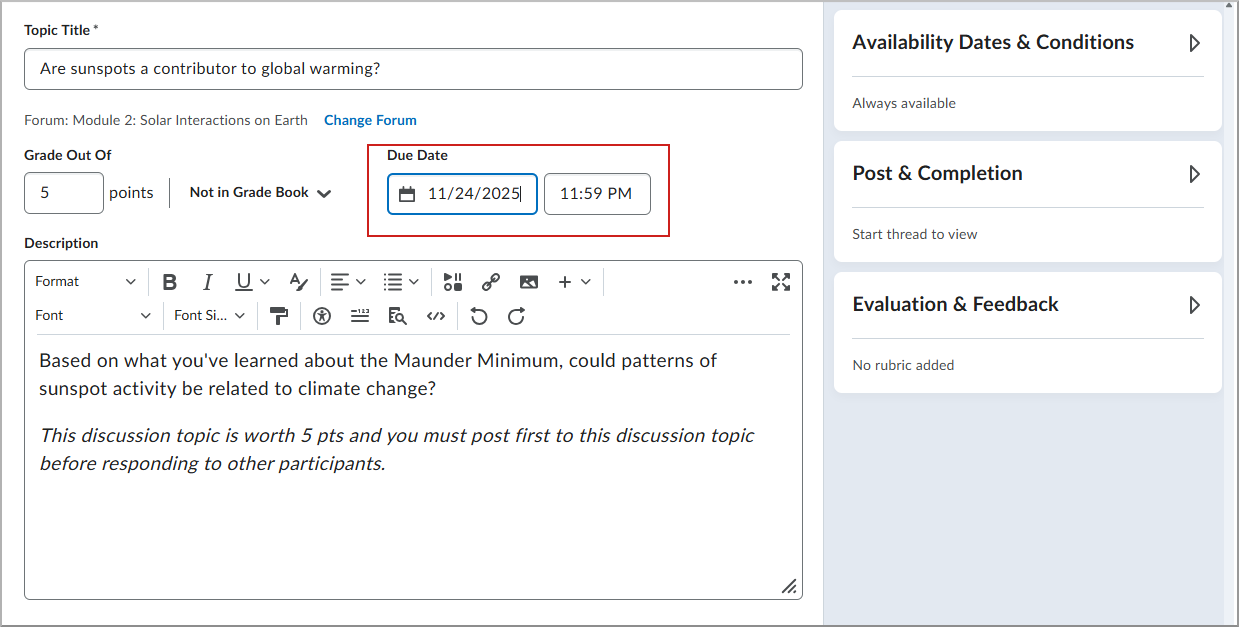
Figure: Instructor view of a discussion topic with a first post due date.
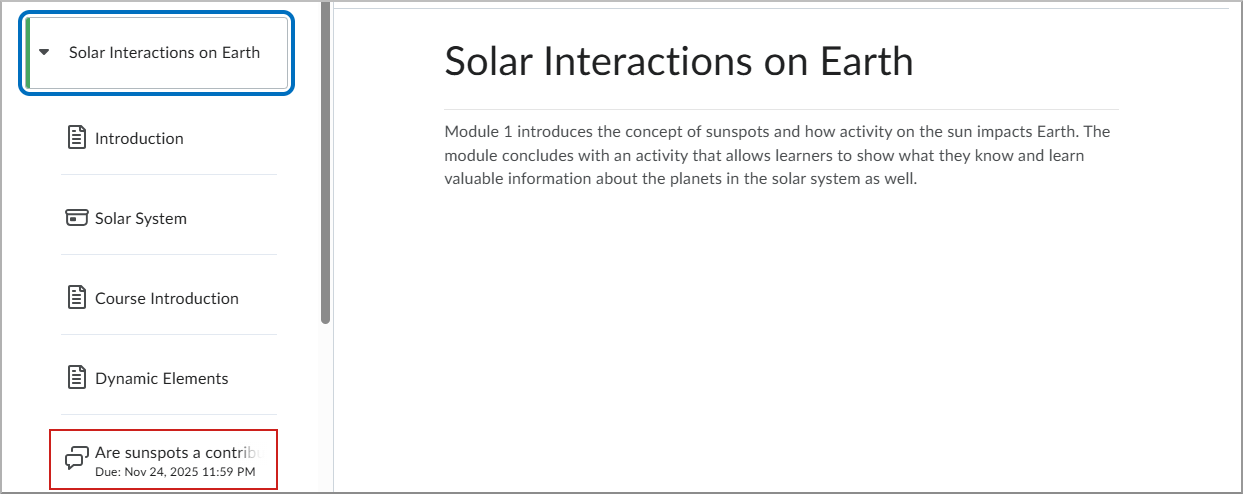
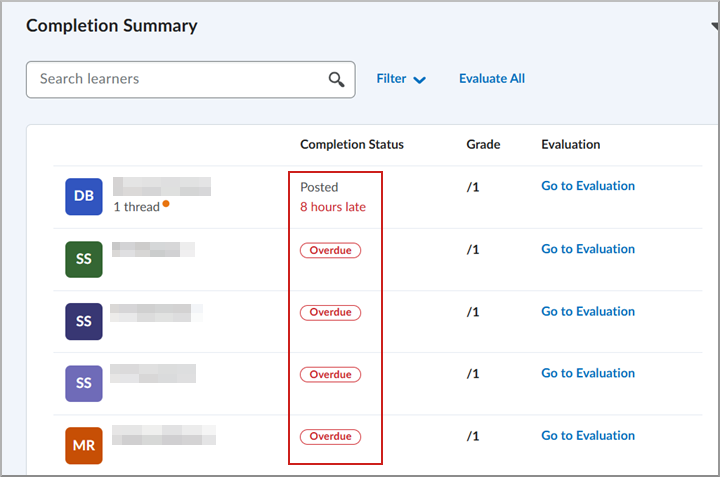
Figure: Learner view of a discussion topic with a first post due date.
|
|
Note: Discussion due dates must fall within the topic’s availability window to appear in the calendar and trigger notifications. |
This feature implements the following PIE item:
- D143 (Due Date for First Post for Discussions)
Technical Details
Impact:
- Slight impact to administrators and instructors due to the availability of the filter to improve troubleshooting efficiency.
Availability:
- This feature is available to all clients.
To enable:
- This functionality is automatically enabled for all users.
- This functionality is not dependent on any new or existing permissions or configuration variables.
Groups – Group deletions now processed via background job | Updated
To support the ongoing expansion of the Groups tool, all group deletion workflows are now processed asynchronously to reduce timeouts and errors.
Previously, when deleting groups within Brightspace, the web request would sometimes time out when there were too many groups to process.
When a user initiates a deletion, the background process deletes all groups, categories, and their associated activities. While processing, groups and categories appear in the recycling bin indicating that deletion is in progress, and the Restore option is not available. The Restore option becomes available only after the deletion is completed, which may take a few minutes.
This feature applies to all group deletion methods, including via the Manage Groups page, Org Unit Editor, SIS integrations such as Banner or IPSIS, or API deletion routes.
Technical Details
Impact:
- Slight impact to administrators and instructors who may note the potential delay in group deletion.
Availability:
- This feature is available to all clients.
To enable:
- This functionality is automatically enabled for all users.
- This functionality is not dependent on any new or existing permissions or configuration variables.
New Content Experience – Ability to rename Units, Lessons, and Folders | New
With the latest update to the New Content Experience (NCE), administrators can now rename Units, Lessons, and Folders to Modules and Submodules using a new configuration variable:
d2l.Languages.Terminology.ModuleHierarchy.
This update gives organizations the flexibility to customize content terminology, allowing a more tailored experience for instructors and learners. By enabling this feature, institutions can align the content hierarchy with their preferred structure.
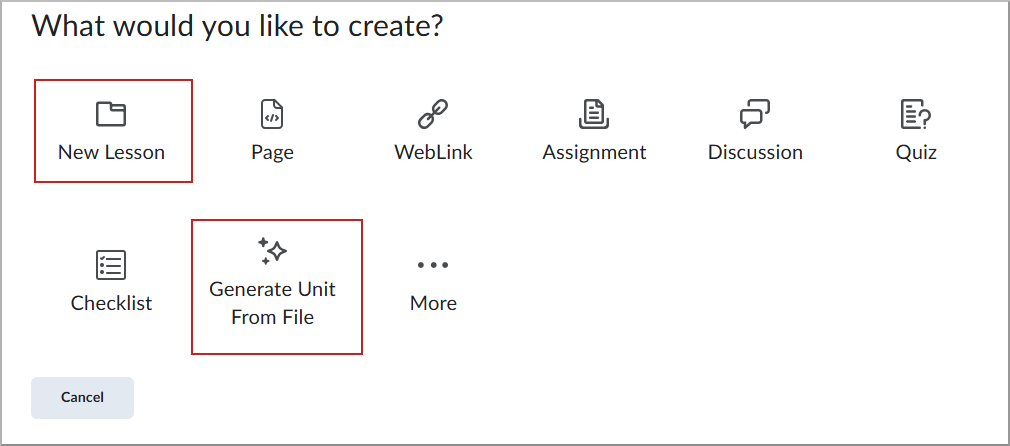
Figure: Create dialogue showing Unit > Lesson > Folders content hierarchy for New Lesson and Generate Unit from File (available with D2L Lumi Pro).
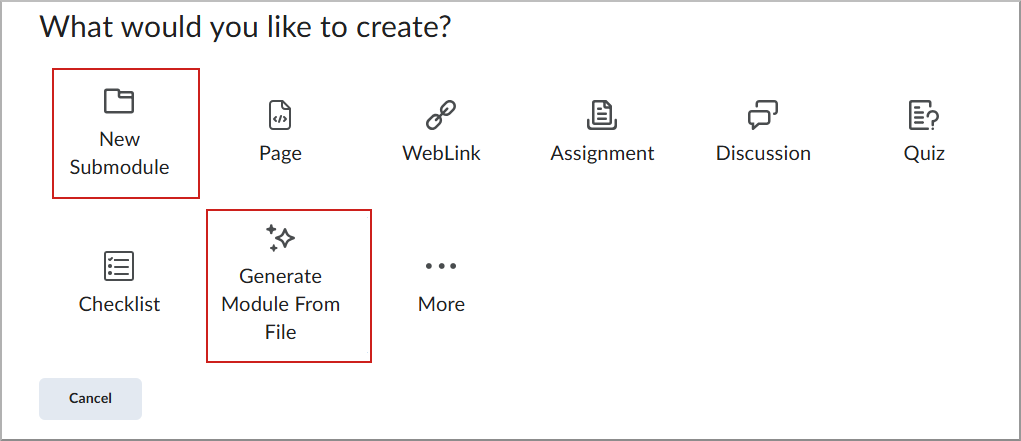
Figure: Create dialogue showing Modules > Submodules content hierarchy for New Submodule and Generate Module from File (available with D2L Lumi Pro).
|
|
Note: This update does not change the existing terminology unless the configuration variable is enabled. The default terminology of Units, Lessons, and Folders will remain unless the configuration variable is modified. |
Technical Details
Impact:
- Slight impact for instructors, learners, and administrators due to the ability to customize terminology.
Availability:
- This feature is available to all clients.
To enable:
- Enable the d2l.Languages.Terminology.ModuleHierarchy configuration variable at the Org Unit level. The default setting is OFF.
- This functionality is not dependent on any new or existing permissions.
New Content Experience – Control content visibility outside of availability dates | New
To help administrators manage how learners interact with content outside its availability window, a new configuration variable allows control over content visibility in the New Content Experience (NCE).
By default, content topics outside of set availability dates are hidden from learners. With this update, administrators can choose to:
- Hide content entirely outside availability dates (default behavior)
- Display the topic in the Table of Contents while keeping it inaccessible to learners.
This flexibility helps institutions give learners visibility into past or upcoming content without granting access, improving pacing awareness and supporting varied instructional strategies.
This change also aligns Brightspace behavior with institutional preferences and eases migration from other platforms.
|
|
Note: This feature only applies to the New Content Experience (NCE). The configuration variable is disabled by default to preserve current behavior. |
This feature implements the following PIE item:
- D12807 – Fix Date Availability Experience in New Content Experience.
Technical Details
Impact:
- Slight impact for instructors and learners due to visibility changes.
- Slight impact for administrators managing configuration at the org unit level.
Availability:
- This feature is available to all clients.
To enable:
- Administrators must enable the following configuration variables:
- d2l.Tools.Content.EnableLessonsEnhancedTOC to use the enhanced the Table of Contents experience.
- d2l.Tools.Content.DisplayContentOutsideofAvailabilityDates to allow topics to appear in the Table of Contents.
- This functionality is not dependent on any new or existing permissions.
New Content Experience – Visibility settings for Assignments and Discussions are accurately reflected in NCE | New
With this update, visibility settings for Assignments and Discussions are now accurately reflected in the Content tool, ensuring the correct status for each topic.
In Assignments and Discussions, instructors can select from the following availability options:
- Visible with access restricted
- Visible with submission restricted
- Hidden
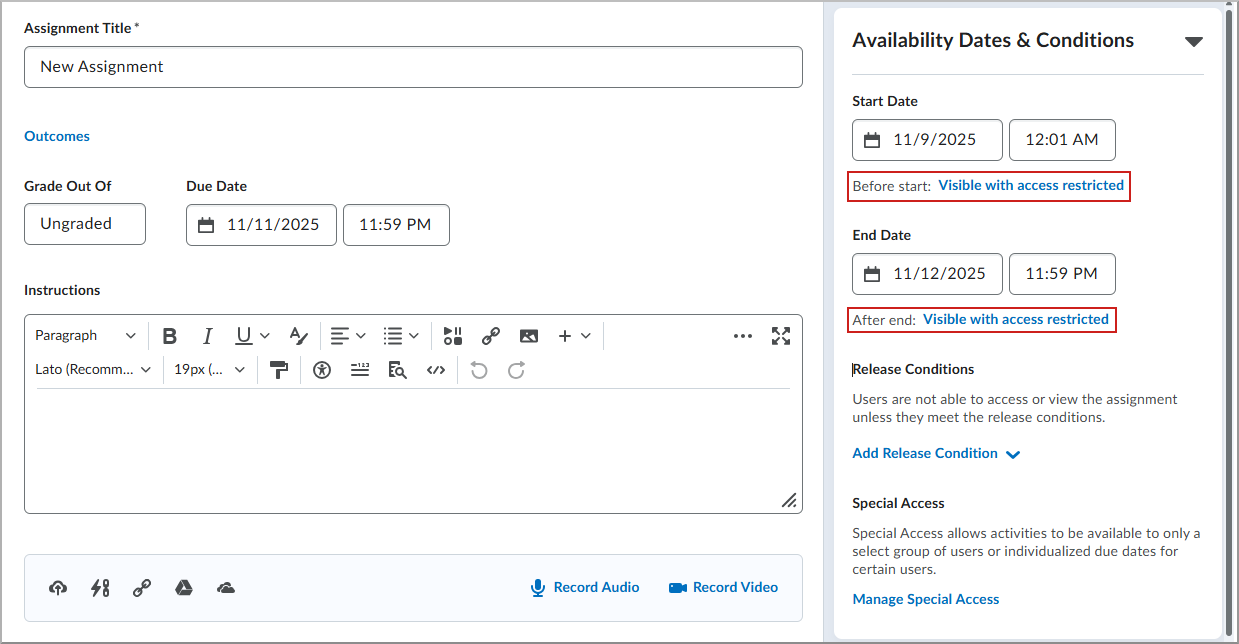
Figure: On the New Assignment page, click Visible with access restricted to view the visibility options.
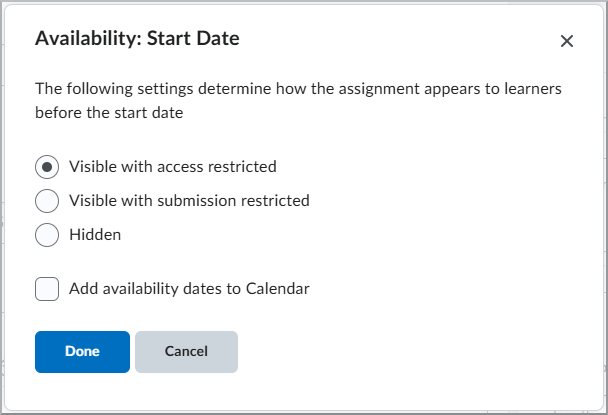
Figure: Select the visibility option desired for learners prior to Start date and click Done.
Previously, these settings were not properly reflected in the New Content Experience (NCE), with all Assignments and Discussions being hidden outside of their availability dates, regardless of the selected visibility settings.
Technical Details
Impact:
- Slight impact for instructors, learners, and administrators due to improved handling of visibility settings in Assignments and Discussions.
Availability:
- This feature is available to all clients.
To enable:
- The d2l.Tools.Content.EnableLessonsEnhancedTOC configuration variable must be enabled for the enhanced Table of Contents.
- This functionality is not dependent on any new or existing permissions.
Quizzes – Zero point quiz questions | New
Instructors can now assign 0 (zero) points to a quiz question to collect non-graded information, for example, feedback or personal input.
This feature eliminates the need for workarounds such as assigning 0.01 points or manually adjusting scores after submission. Instructors can enter zero points in the points field for any question type within the quiz, ensuring that these questions do not contribute to the quiz’s total points. This feature is especially useful for gathering additional information from learners during a quiz or for implementing an “Honesty Code” question at the beginning of the quiz.
Previously, instructors were restricted from entering zero points for quiz questions.
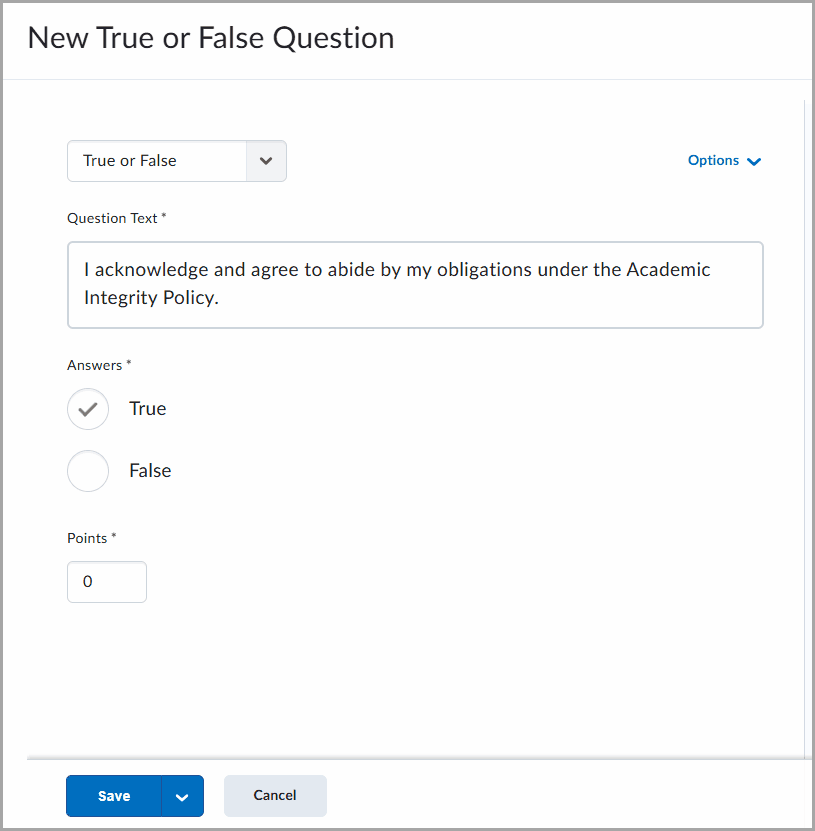
Figure: Example of a quiz question displaying a statement on academic integrity with answer options for True and False, and the points field set to zero.
This feature implements the following PIE item:
- D706 (Quiz question with no points value)
Technical Details
Impact:
- Slight impact to instructors, who can now assign zero points to quiz questions.
Availability:
- This feature is available to all clients.
To enable:
- This functionality is automatically enabled for all users.
- This functionality is not dependent on any new or existing permissions or configuration variables.
For more detailed information, please visit the D2L Brightspace Community – December 2025 Updates
** Not all features listed on the link are used with the BCIT Learning Hub