


- Updates
- April 2025 Learning Hub Updates
April 2025 Learning Hub Updates
Assignments and Discussions – Bulk feedback for instructors | New
This feature enables instructors to provide bulk feedback to learners directly within the Assignments and Discussions submission pages, enhancing efficiency and user experience.
Key capabilities:
- Add and save bulk feedback as a draft if none exists.
- Update existing drafts or published evaluations for multiple learners simultaneously.
- Apply feedback to selected learners using Add Feedback or to all learners using Add Feedback to All.
- Display a warning message when saving an empty Feedback dialog as bulk feedback, as this action overwrites existing drafts or published evaluations.
Notes:
- Due to how Quizzes records attempts and completion summaries, bulk feedback is not supported for Quizzes
- The Grid View in Discussions does not support bulk feedback.
File Attachments with Bulk Feedback
When using bulk feedback in Assignments or Discussions:
- Brightspace Editor includes the Insert Stuff functionality but does not support file uploads from My Computer. Instructors can insert links to YouTube videos or other external resources. These links are stored in Manage Files.
- Insert Image supports image file uploads from My Computer and the system stores them in Manage Files.
This feature implements the following PIE items:
- D10673 (Bulk Edit Discussion / Dropbox Feedback)
- D4921 (Bulk grading & Feedback in Dropbox / Assignments)
- D6429 (Bulk feedback upload for non-submitted assignments)
- D6739 (Assignment Bulk Edit Features)
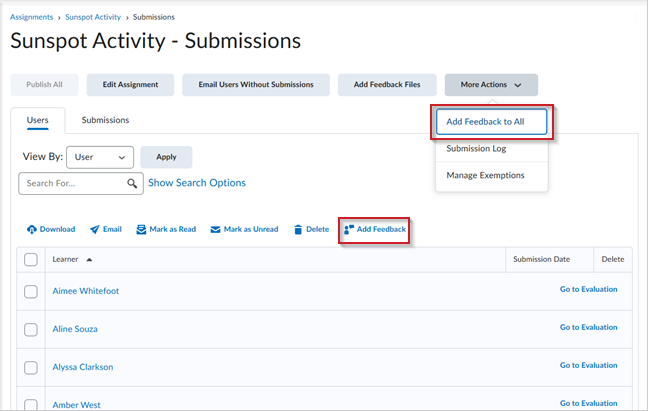
Figure: The Submissions page in Assignments displays options to add bulk feedback, including Add Feedback to All and Add Feedback (for selected learners).
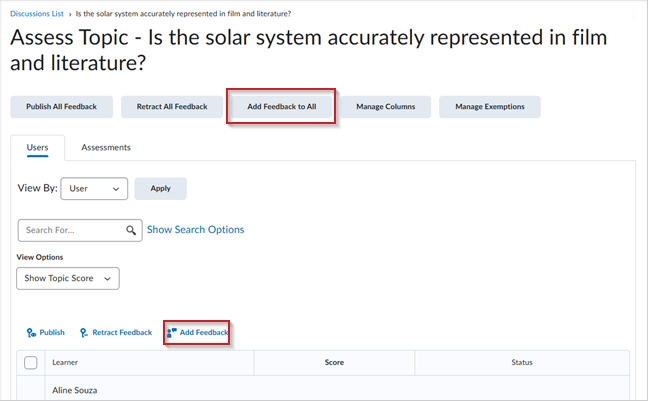
Figure: The Assess Topic page in Discussions displays options to add bulk feedback, including Add Feedback to All and Add Feedback (for selected learners).
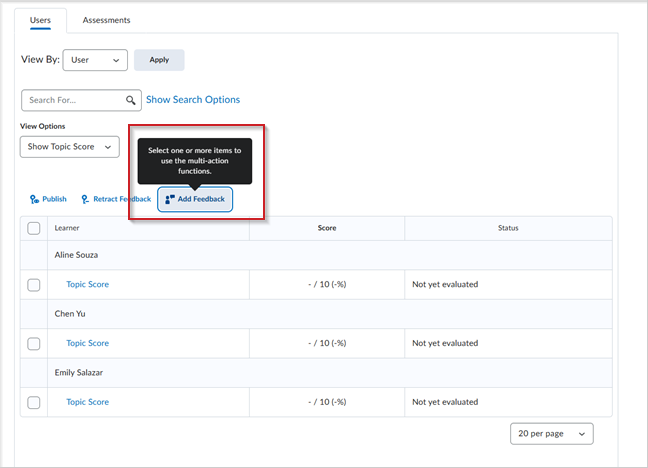
Figure: On the Assess Topic page in Discussions, select learners to add feedback, then click Add Feedback.
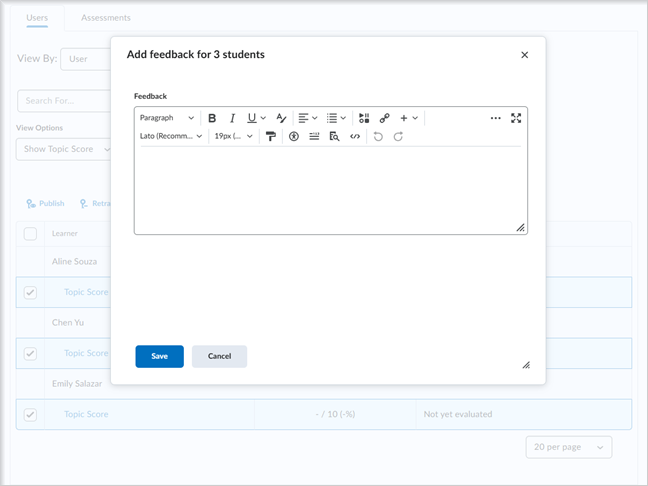
Figure: On the Assess Topic page in Discussions, after selecting learners and clicking Add Feedback, the Add Feedback dialog box opens, allowing feedback entry.
Technical Details
Impact:
- Slight impact to administrators as they can control whether instructors can submit bulk feedback in Assignments and Discussions submission pages.
- Slight impact to instructors due to the ability to submit bulk feedback in Assignments and Discussions submission pages.
Availability:
- This feature is available to all clients.
To enable:
- Set the d2l.Tools.LE.AllowBulkFeedback configuration variable (default: OFF) to ON.
- In three months (July 2025) this configuration variable will be set to ON with the option to opt out.
- In six months (October 2025) this functionality will be turned on by default and this configuration variable will be removed.
- This functionality is dependent on the following role permissions:
- To use bulk feedback in Assignments, users should have the following permission for giving feedback:
- Assignments > Give Feedback
- Additionally, the following permissions are required:
- Assignments > See and Manage Assignments
- Assignments > View Submitted Files
- Assignments > View Feedback
- To use bulk feedback in Discussions, users should have the following permission:
- Discussions > Assess Topics
- Discussions > View Discussions
- To use bulk feedback in Assignments, users should have the following permission for giving feedback:
Grades – Access Quiz Feedback | New
This new feature allows learners to quickly access quiz attempt feedback from the Grades page.
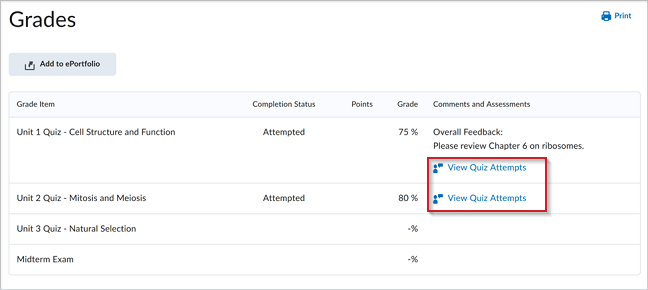
Figure: On the Grades page, click View Quiz Attempts to access feedback on quiz attempts.
Previously, learners could view quiz attempt feedback only in the Quizzes tool, depending on how the instructor configured the review process. This option remains available.
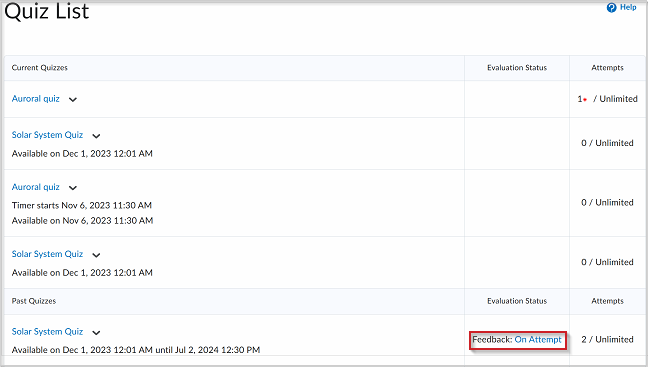
Figure: Before, learners could access quiz attempt feedback only through the Quizzes tool on the Quiz List page.
This feature implements the following PIE items:
- D5170 (Learner Access Quiz feedback via Grades)
Technical Details
Impact:
- Slight impact to learners due to the ability to view quiz attempt feedback from the Grades tool.
Availability:
- This feature is available to all clients.
To enable:
- This functionality is automatically enabled for all users.
- This functionality is not dependent on any new or existing permissions or configuration variables.
Quizzes – New Quiz Evaluation Experience transitioning to default, with opt-out until July 2025 | Updated
Originally released for the Quizzes tool in September 2024 / 20.24.9, this update now turns on the new Quiz Evaluation Experience by default for all clients, promoting broader adoption while still allowing users to opt out until July 2025, at which time it will be made the default experience for all users.
Additionally, the existing configuration variable d2l.Tools.Activities.CEQuizzesOptIn, the default is ON (Opt-in), determines how the new experience is applied: setting it to ON (Opt-in) allows users to choose whether to turn on or off the new Quiz Evaluation Experience, while setting it to OFF disables the new experience entirely, preventing users from opting in.
This update streamlines the transition to the new Quiz Evaluation Experience, enhancing grading workflows and ensuring consistency while allowing clients to adjust settings before the opt-out option is removed. Administrators can continue to offer users the choice to manually opt into the new Quiz Evaluation Experience through the June 2025/20.25.06 release. However, starting with the July 2025/20.25.07 release, all clients will be automatically transitioned to the new experience, and the opt-out option will no longer be available.
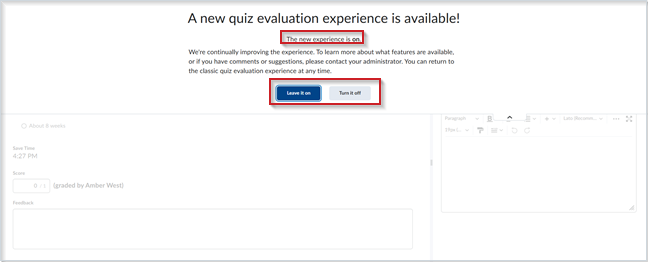
Figure: The new quiz evaluation experience is enabled by default on the quiz evaluation page. Click Turn it off to revert to the classic experience or Leave it on to continue using the new experience.
Previously, administrators or instructors had to manually enable the new Quiz Evaluation Experience as an opt-in feature.
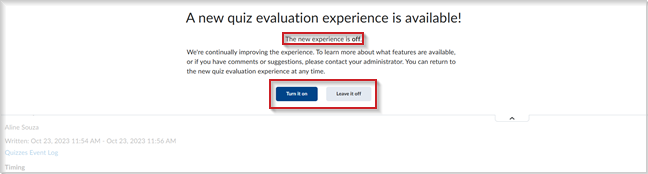
Figure: On the quiz evaluation page, users could select Turn it on to enable the new quiz evaluation experience or Leave it off to continue using the classic version.
Technical Details
Impact:
- Large impact to administrators due to default enablement of the new experience.
- Large impact to instructors as they will experience the new workflow unless they opt out.
Availability:
- This feature is available to all clients.
To enable:
- This functionality is automatically enabled for all users.
- This functionality is not dependent on any new or existing permissions.
- This functionality is controlled by the existing d2l.Tools.Activities.CEQuizzesOptIn configuration variable.
For more detailed information, please visit the D2L Brightspace Community – April 2025 Updates
** Not all features listed on the link are used with the BCIT Learning Hub