


- Updates
- October 2026 Learning Hub Updates
October 2026 Learning Hub Updates
New Content Experience – Adjustable side navigation for Immersive View | New
To provide a more flexible viewing experience, users can now collapse and resize the navigation panel in the New Content Experience when the Immersive View is enabled. Collapsing the panel maximizes the content viewing area, while dragging the divider with a mouse or keyboard resizes it. Previously, the panel remained fixed while viewing content topics.
 |
Note: This feature is currently available only for New Content Experience courses using Immersive View. The Immersive View was introduced to the New Content Experience in the 20.26.07 release. Support for the default view is planned for a future release. |
Before:
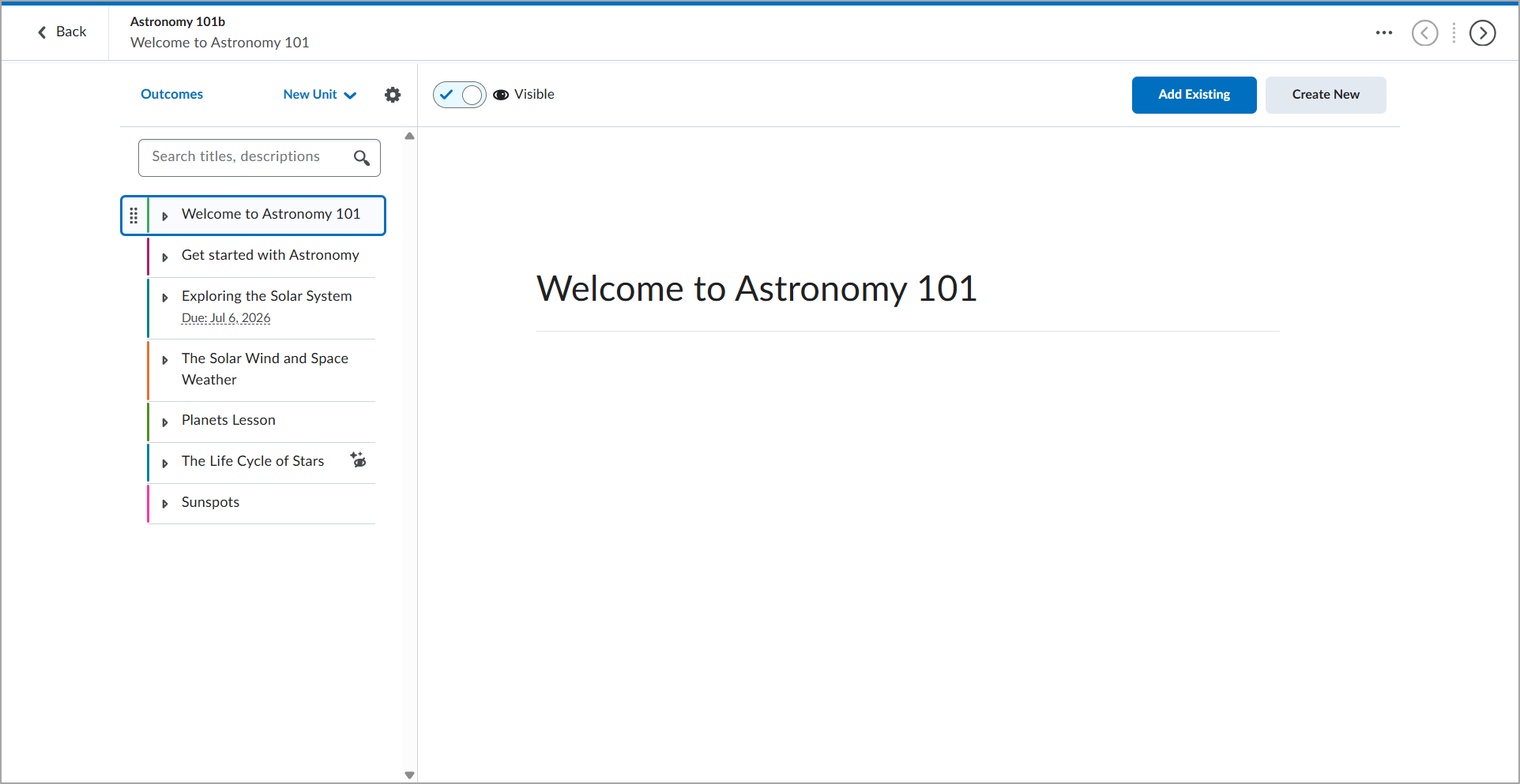
Figure: The previous instructor experience of the Immersive View.
After:
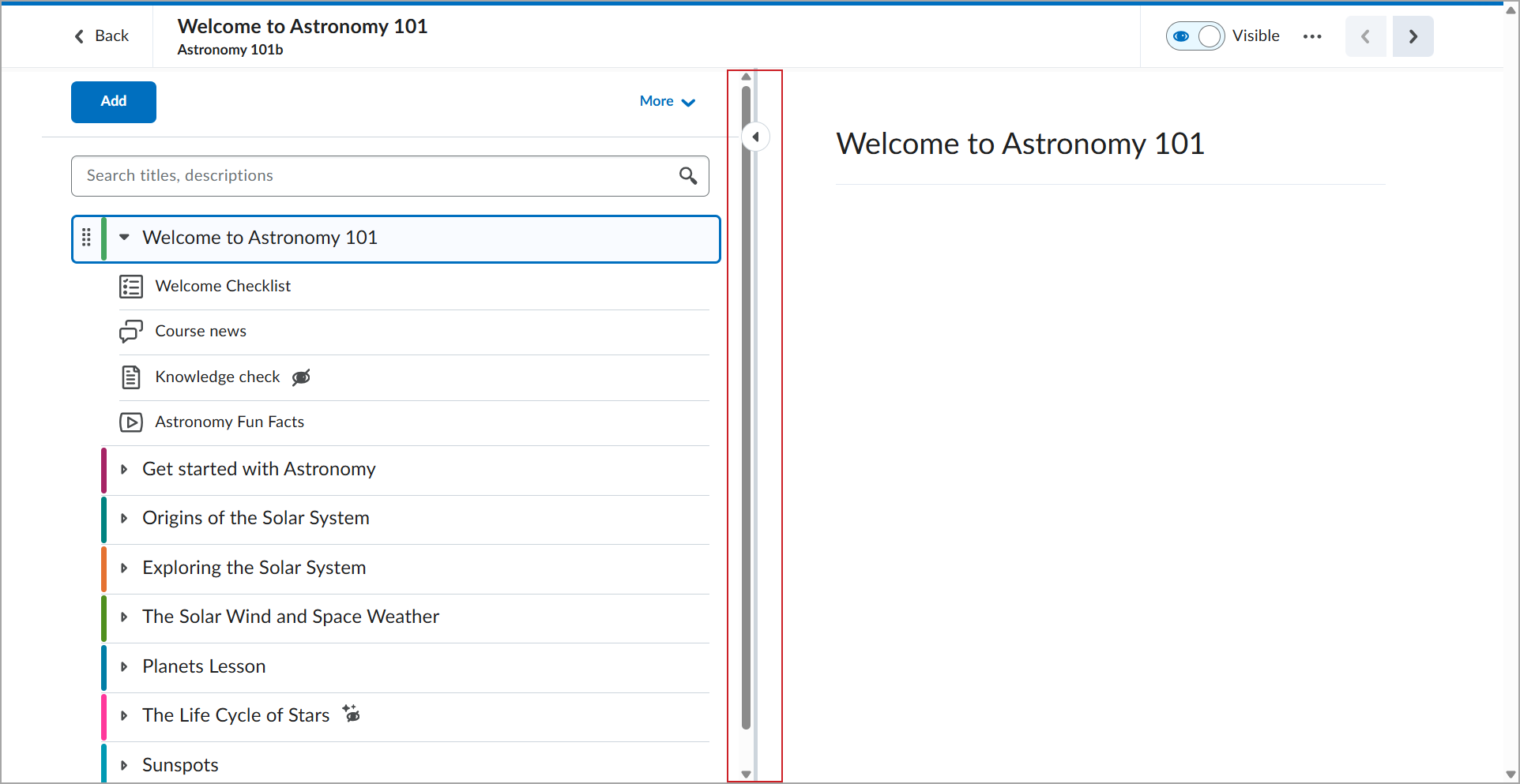
This feature implements the following PIE item:
- D13644 (Ability to extend/enlarge table of contents NCE)
Technical details
Impact:
- Moderate impact to instructors and learners due to the ability to customize their content viewing experience by resizing the navigation panel.
Availability:
- This feature is available to all Brightspace Core clients.
New Content Experience – General workflow improvements - Immersive View | Update
To improve workflows and usability for instructors and learners in Content, this update introduces several interface and workflow improvements for Immersive View:
- Breadcrumbs in the top navigation bar now display the main topic title first and the topic location second.
- The Course Options gear is now a More menu.
- The Outcomes Alignment link is now available only from the More menu and no longer appears in the (…) context menu.
- Search now filters the table of contents (TOC) instead of displaying results in a drop-down list from the search bar.
- The search bar now scrolls with the TOC to use space more efficiently, particularly on smaller screens.
- Descriptions no longer overlap topic material.
- PDFs now use an updated renderer that better aligns with other content experiences.
- Editing activities that previously allowed users to edit only a content object’s title now link to the edit page for the associated item. For example, Survey activities link to the Survey edit page.
- For topics that do not support inline rendering, the Open in a new tab page now uses a link instead of a button to improve accessibility. The page also provides additional context about the content that opens when users select the link.
|
|
Note: These updates are currently available only for New Content Experience courses using Immersive View. The Immersive View was introduced to the New Content Experience in the 20.26.07 release. Support for the default view is planned for a future release. |
This feature implements the following PIE items:
- D11979 (Improvements for Search in New Content Experience)
- D12036 (New Content Experience (Lessons) PDF Viewer Functionality)
- D13897 (New Content Experience (NCE) PDFs and Descriptions)
- D7069 (New content experience: Improve responsive design by removing margins on mobile devices)
Technical details
Impact:
- Moderate impact to instructors and learners due to workflow, navigation, search, and display changes in Content.
Availability:
- This feature is available to all Brightspace Core clients.
New Content Experience – Improved add content workflow in Immersive View | Updated
To simplify adding content in the New Content Experience when the Immersive View is enabled, instructors now use a single Add menu instead of separate Create New and Add Existing options. After selecting an activity type, instructors can choose to create a new activity or reuse an existing one. The expanded menu displays more activity types at once, making it easier for instructors to access third-party tools.
|
|
Note: This feature is currently available only for New Content Experience courses using Immersive View. The Immersive View was introduced to the New Content Experience in the 20.26.07 release. Support for the default view is planned for a future release. |
Before:
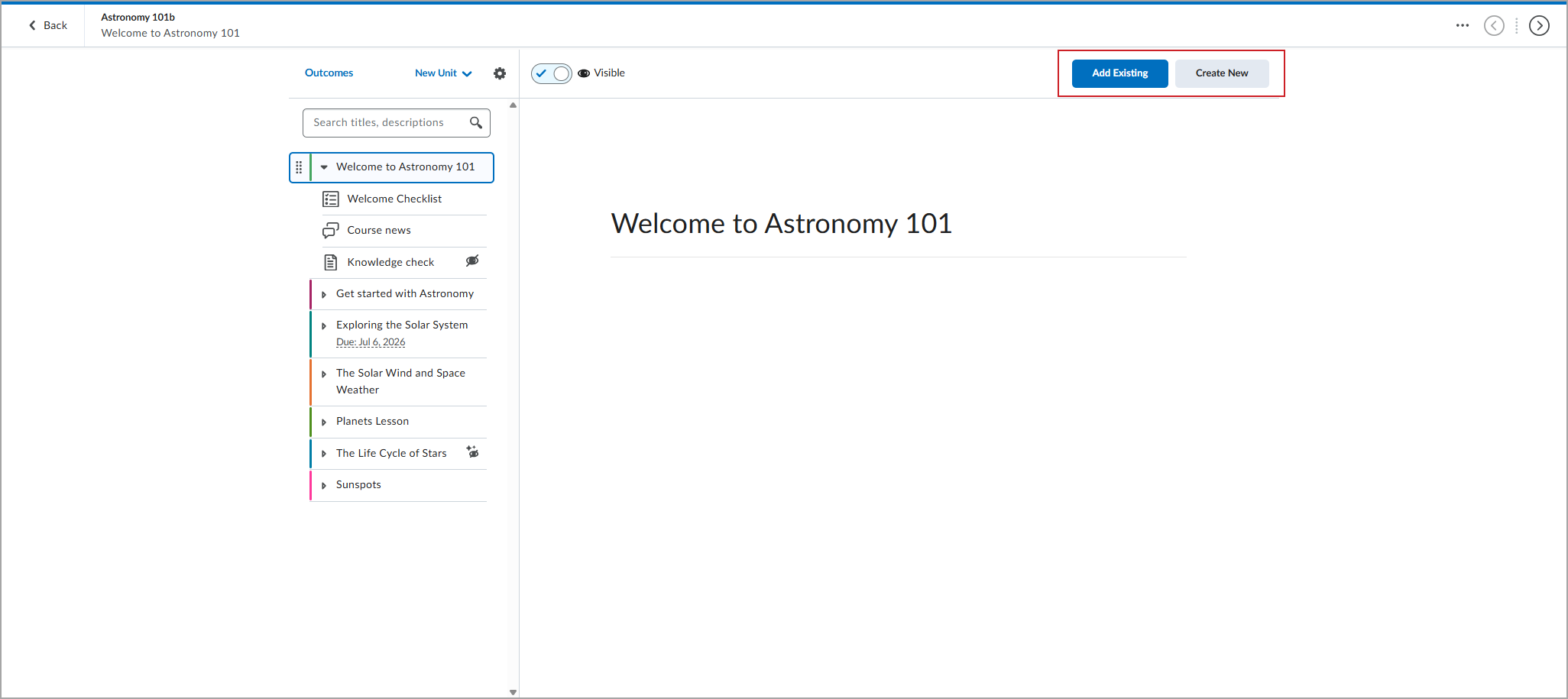
Figure: The previous Create New and Add Existing buttons.
After:
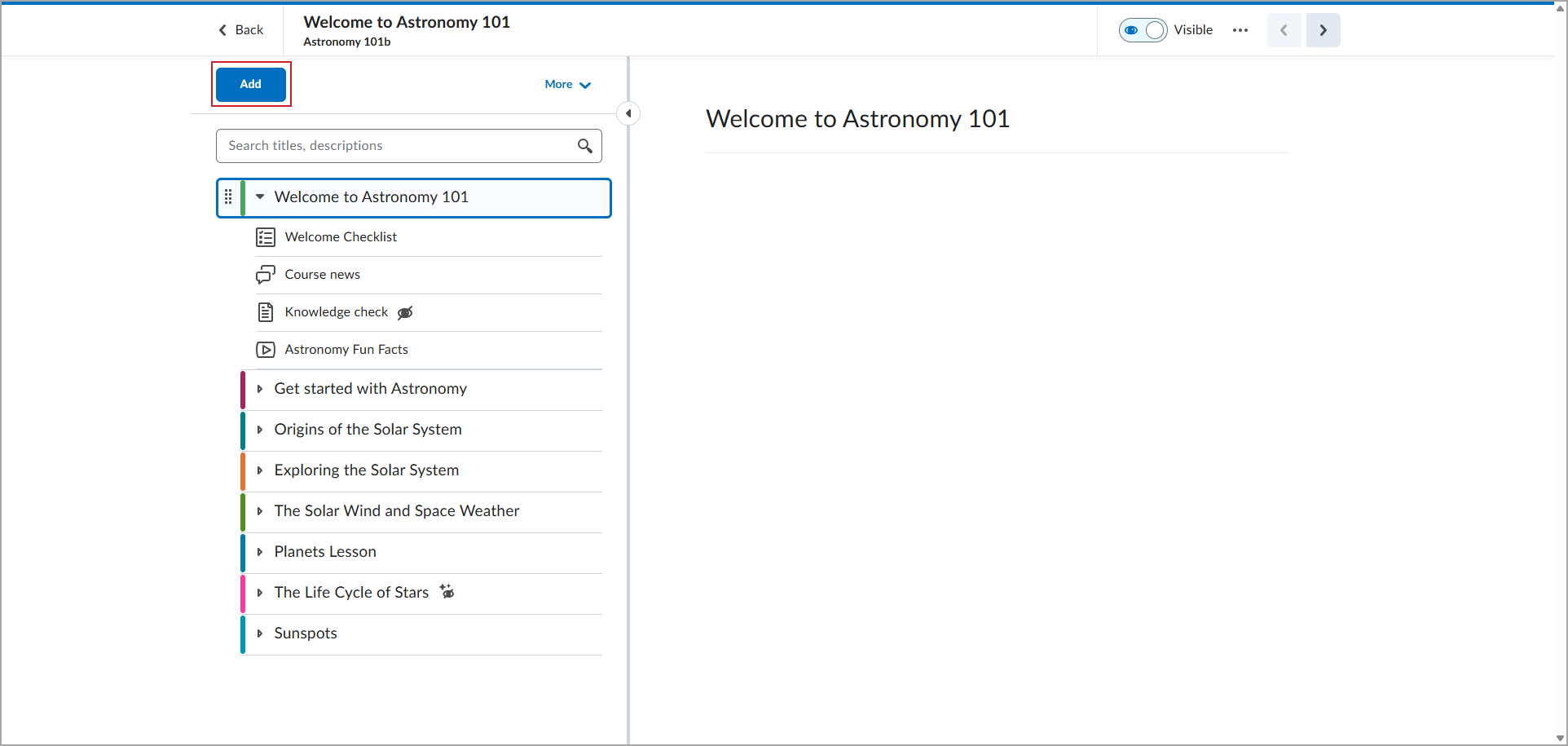
Figure: The new Add menu streamlines the workflow for creating or reusing course activities.
This feature implements the following PIE items:
- D12862 (Ability to re-order the display of external learning tools in “Add Existing”)
- D13549 (New Content Experience – Upload File)
Technical details
Impact:
- Slight impact to instructors due to the simplified workflow for creating new content or reusing existing content from a single Add menu.
Availability:
- This feature is available to all Brightspace Core clients.
For more detailed information, please visit the D2L Brightspace Community – October 2026 Updates
** Not all features listed on the link are used with the BCIT Learning Hub