


- Updates
- September 2023 Learning Hub Updates
September 2023 Learning Hub Updates
Synchronous Quiz
This release updates the Quiz Creation experience for instructors and learners by adding a new synchronous quiz option.
With this release, instructors can facilitate quizzes where learners take their attempts simultaneously, which is convenient for in-class sessions. The new addition of synchronous quizzes enables instructors to set up a quiz where the quiz timer starts on the start date for all learners rather than when the learner launches the quiz (asynchronous). The quiz timer then ends for all learners at the same time.
To set up a synchronous quiz:
- From a quiz page, expand the Timing & Display area.
- Click Timer Settings.
- In the Timing dialog, under Quiz Start, select Synchronous: Timer starts on the start date.
- Click OK.
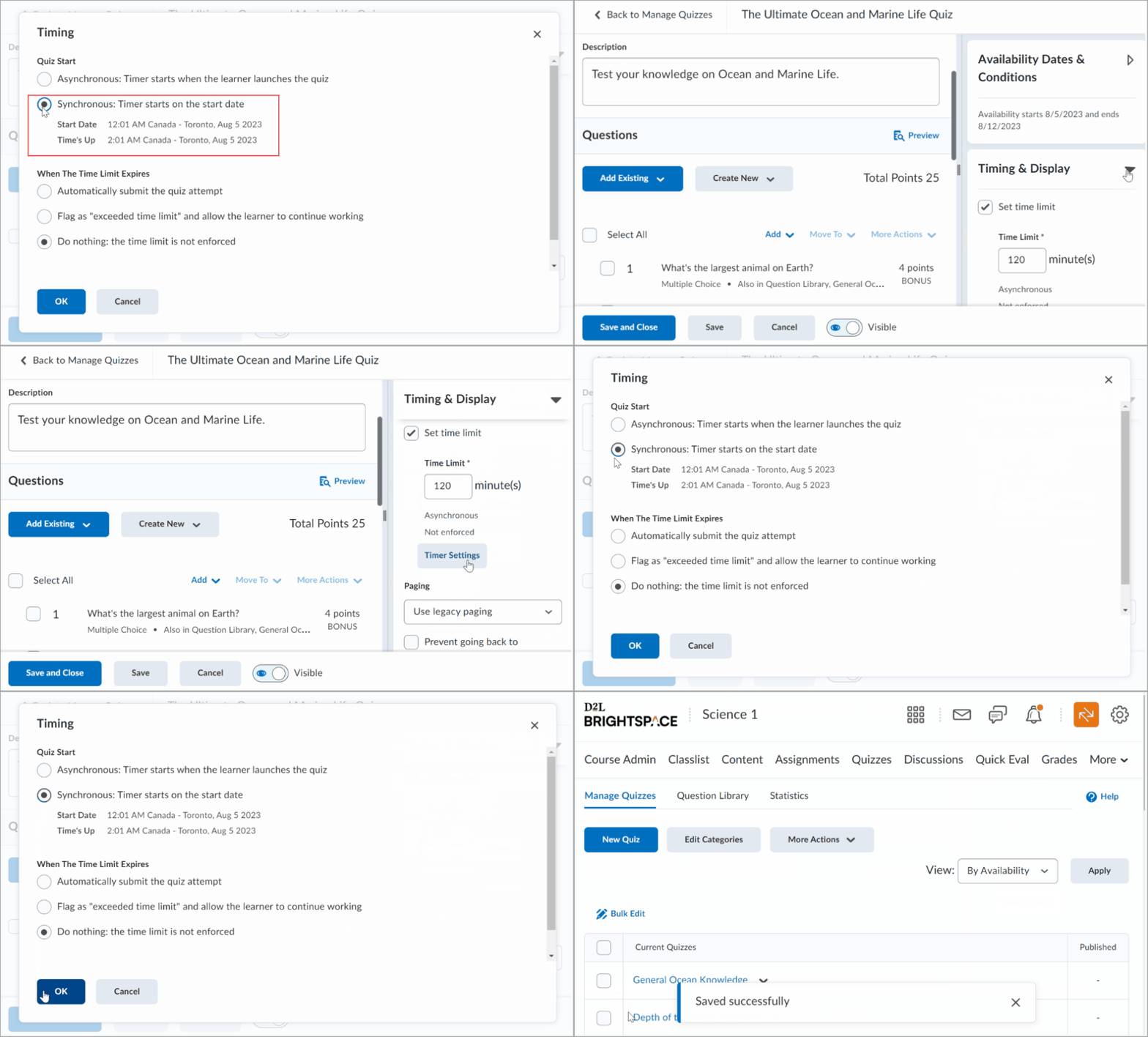
Note: If no start date and time is set for the synchronous quiz, the No Start date set alert appears under the selected option, and you cannot save the quiz. The Due Date option is disabled for synchronous quizzes.
To ensure that learners are aware of upcoming synchronous quizzes, instructors should create instructional or manual solutions:
- Make a synchronous quiz visible in the calendar:
- Instructors can select Add availability dates to Calendar or set up an event showing the whole time.
- Instructors should use the Start Date parameter when setting up a synchronous quiz and leave the End Date field empty.
- Learners must have the Allows Out of Date Quizzes to be Viewed in the User Quiz List permission to see the quiz in their calendar.
- Create an announcement with information about the synchronous quiz.
- Set up an event and give a link to the quiz to provide more context.
Instructors must modify or review quizzes one by one to avoid accidentally modifying quiz availability dates for synchronous quizzes.
A synchronous quiz starts at the Start Date and ends when the time limit has lapsed, regardless of any action taken by the learner. For example, if a learner clicks Start Quiz! 15 minutes after the start date on a 1-hour quiz, they only have 45 minutes left to complete it. To indicate when a quiz becomes available, learners have a countdown timer on the Quiz Information and Start Quiz pages. The Start Quiz! button becomes available when the start date and time is reached.

Figure: A countdown timer on the Start Quiz page.
Instructors can provide learners with information about a synchronous quiz before it starts. Learners can access this information in the Quiz Information page if they have the Allows Out of Date Quizzes to be Viewed in the User Quiz List permission.
If this permission needs to be disabled for any reason, administrators must ensure that instructors can do the following:
- Make sure the activity is visible in the calendar (optional)
- Check that learners are aware of an upcoming quiz
- Provide effective reminders
Discover – Quickly find enrollment rules with enhanced search | Update
This feature improves upon the Discover – Create and add rules to multiple courses with Enhanced Enrollment Rules | New feature released in August 2023/20.23.8. To further help users manage enrollment rules at scale, users with the correct permissions can:
- Search for existing enrollment rules from the Enrollment Rules page.
- Search within a list of courses applied to a rule from the Create Enrollment Rule page.
- Select all courses to add from the Add Courses dialog.
- Add or remove existing enrollment rules directly from the Course Offering Information page of a course using the Add Enrollment Rules button.
Previously, users could not search for existing enrollment rules from the Enrollment Rules page or search for courses from the Create Enrollment Rule page. Additionally, users could not add or remove existing rules directly from the Course Offering Information page.
For more detailed information, please visit the D2L Brightspace Community – September 2023 Updates
Please note, not all features listed on the link are used with the BCIT Learning Hub