


- Resource
- Accessibility Services
- How to Download Read and Write Software
How to Download Read and Write Software
Read&Write is available for free for BCIT students in order to remove barriers to participation in education activities and is voluntary. These guidelines address the steps to follow when installing and downloading Read&Write on different devices under BCIT’s license.
Please ensure that your computer stays on and is connected to the Internet until installation is completed.
Create a Microsoft Account
- To access Read&Write under BCIT’s license, you must first have BCIT create a Microsoft Account linked to your @my.bcit.ca email address.
- Follow these instructions to give consent and create this account. Wait 24 hours for the account to be created.
Download Read & Write
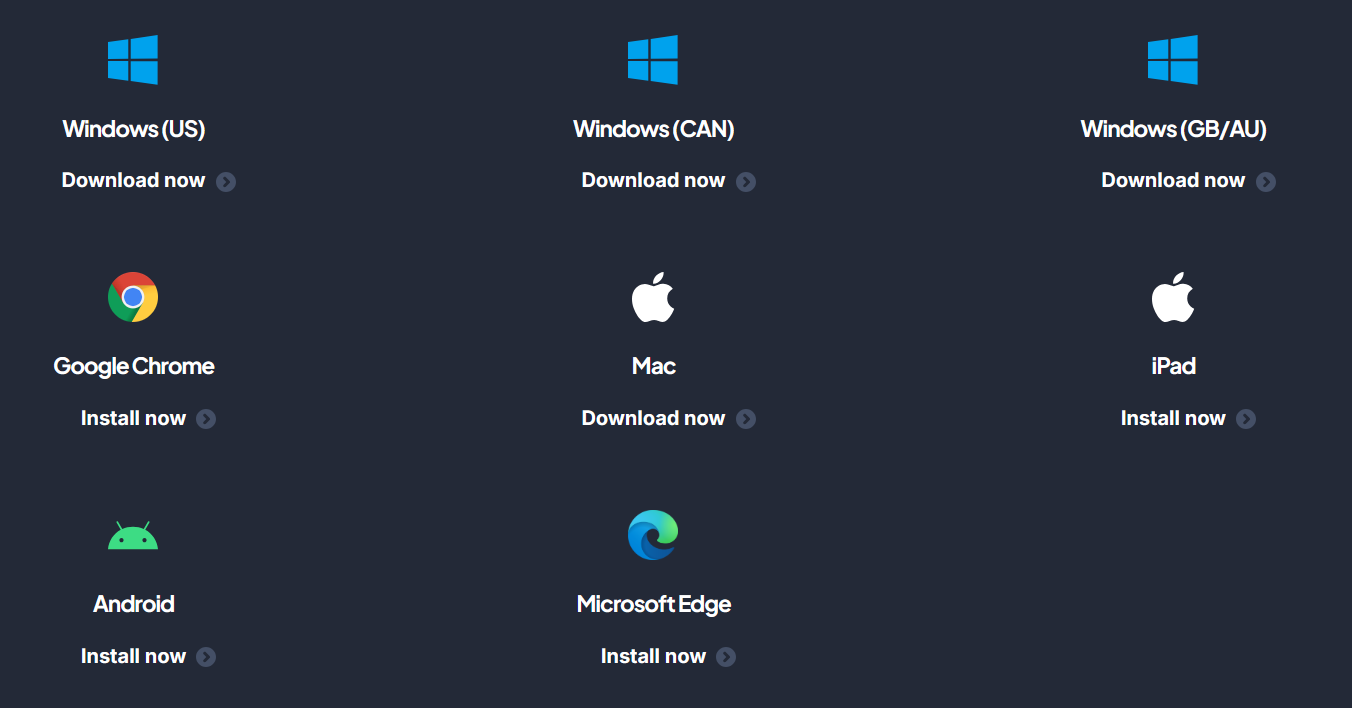
Visit Everway Academy’s Student Resources page to download Read&Write for your appropriate device (Windows, Google, Edge, MacOS, iPad, Android).
Open your downloads folder and open ‘Read&Write.exe.’ A Setup Launcher pop up should appear, then type in your BCIT email address and password. For staff, you may need to use the Make Me Admin app to allow installation.
Install and Launch
- After installation, you should see the purple Read&Write icon on your desktop. Double-click on the shortcut.
- A small toolbar with the Read&Write logo will pop up. Click on the logo and a webpage will open.
- Choose the Microsoft login, then sign in with your BCIT login again.

- After, the Read&Write toolbar will appear and is ready to use.

- Note: that if you are working offline, you will only be able to use Read&Write’s default voices.
Troubleshooting
If you encounter issues, such as downloading, installation or running the Read&Write:
- See the Read&Write Knowledge Base page.
If you are still having issues, contact the Everway Technical Support:
- Phone: 1-800-697-6575, Monday – Friday, 8:00am-7:30pm EST
- Email: na-support@everyway.com
- If you still need help, you can reach us by phone at 604-451-6963 or email at accessibility@bcit.ca.
Concept
- Read&Write is a literacy software that students can use in higher education to help them you with reading, writing, study skills and more.
- Read&Write is a great tool for you if you have reading/writing accommodations and used a human reader/scribe in the past. It is also great for optimizing writing and study skills.
- Once downloaded, the you can adjust toolbar settings to meet your unique needs.
Privacy Notice and Disclosure
-
- Your personal information is collected under the authority of section 26(c) of the Freedom of Information and Protection of Privacy Act (FIPPA). This information is used by BCIT to provide you with access to Read&Write (Texthelp Ltd.) literacy software for the purpose of supporting learning and teaching.
- BCIT provides Read&Write with your BCIT email address to validate your identity and ensure that you are eligible to use the Read&Write platform. This information will be stored by Read&Write on servers located outside of Canada. We encourage you to view Read&Write Privacy Policy
For questions about BCIT’s collection and use of your personal information, contact:
Ashley Bentley
Associate Director Student Wellbeing & Accessibility
3700 Willingdon Avenue
Burnaby, BC, Canada V5G 3H2
Email: ashley_bentley@bcit.ca
Tel: 604-432-8660
By using the Read&Write software, you consent to the collection, use, and disclosure of your personal information as described above.