


- Updates
- August 2024 Updates
August 2024 Updates
Assignments – Email status message no longer displayed after an assignment submission | Removed
With this release, the Confirmation Email Sent Successfully message is no longer displayed for learners in the Email Status field after they submit an assignment. However, when a learner submits an assignment, an email as a receipt of the submission is still sent to them.

Figure: The Review Assignment Submission page with the Email Status field.

Figure: The Review Assignment Submission page without the Email Status field.
Previously, even if a confirmation email was not sent to a learner, they also received the Confirmation Email Sent Successfully message in the Email Status field on their Submission History page.
Technical Details
Impact:
- Slight impact to learners who no longer receive the Confirmation Email Sent Successfully message in the Email Status field after they submit an assignment.
Availability:
- The email status on the Assignment Submission page no longer appears to all clients. Learner email receipts are still sent after an assignment submission.
To disable:
- This message is automatically removed for all users as of the August 20.24.8 release.
Discussions – Consistent deletion and restoration workflows for group-restricted discussions | Updated
This release updates the deletion and restoration workflow for discussions associated with a group. When a user deletes a group, the associated activities, including discussions, are also deleted. These discussions cannot be restored unless their associated group is restored first.
Once the group has been restored, associated discussions can be restored using the Discussions restore workflow. This updated workflow is consistent with other group-associated activities such as assignments and lockers.
Previously, discussions that were deleted when their associate group was deleted could nominally be restored independently using the Discussions restore workflow. In practice, restoring these discussions resulted in errors and other issues.
Technical Details
Impact:
- Moderate impact to administrators and instructors due to the need to restore associated groups before restoring discussions.
Availability:
- This feature is available to all clients.
To enable:
- This functionality is automatically enabled for all users.
- This functionality is not dependent on any new or existing configuration variables or permissions.
Discussions – Reading View improvements | Updated
To improve the user experience for learners, this release introduces several updates to the learner Reading View in Discussions. These improvements include the following:
- The Start New Thread button is duplicated at the bottom of the page when viewing a topic, eliminating the need to scroll back to the top of the page.
- The Add Attachments section is opened by default when creating a new post or new topic. Previously learners had to open the section manually to add attachments.
- The Add Attachments section is wider on screen when learners create a new thread.
This feature implements the following PIE item:
- D8141 (Add a second Start a New Thread button to the bottom all threads)
Technical Details
Impact:
- Slight impact to learners due to improvements in the user experience in Discussions with Reading View.
Availability:
- This feature is available to all clients.
To enable:
- This functionality is automatically enabled for all users.
- This functionality is not dependent on any new or existing configuration variables or permissions.
Outcomes Management – Release condition based on Checkpoints in Course Overall Achievement | New
This feature introduces a new Overall level of achievement release condition to Learning Outcomes. The condition is based on the learner’s overall level of achievement for a given outcome in a course.
This new release condition allows instructors to set up competency-based education (CBE) workflows when using the Outcomes Management tool. Previously, instructors had to trigger content or events from the Competencies tool, or employ workarounds using other triggers less aligned with the achievement level in order to set up CBE workflows.
For more information about CBE, refer to The Complete Guide to Competency-Based Education.
Technical Details
Impact:
- Slight impact to instructors due to the ability to set up Overall level of achievement release conditions in their course.
- Slight impact to learners due to having Overall level of achievement release conditions set up in their course.
Availability:
- This feature is available to all clients.
To enable:
- This functionality is automatically enabled for all users.
- This functionality is not dependent on any new or existing configuration variables or permissions.
Portfolio – Add submitted assignments to Portfolio | New
With this release, instructors can use the Assignments tool to add learner-submitted assignments directly to a learner’s Brightspace Portfolio. When an instructor adds an assignment submission to Portfolio, all submission versions, feedback, and grades are added to Portfolio.
Instructors can navigate to the Assignments tool and click an assignment to open it. Then, from the Users tab of an assignment, instructors can click + Add to Portfolio to add a learner’s assignment submission to Portfolio.
From Brightspace Portfolio, instructors and learners can review the submission as evidence. Instructors can share it with parents and guardians. Portfolio evidence includes all associated grade evaluations, feedback, and submission versions.
Once an instructor adds a learner’s submission to Portfolio as evidence, it is permanently available independent of the Assignments tool. Therefore, assignment submissions added to Portfolio as evidence remain in the learner’s Portfolio after the course has ended.
Previously, instructors could not add assignment submissions directly to Portfolio from the Assignments tool.
 |
Important: Assignment submissions that are added to Portfolio do not automatically update when an instructor adds grades or feedback to the assignment submission from the Assignments tool. If an instructor wants updated grades or feedback to be included with a submission added to Portfolio, they must add the submission to Portfolio again to update it. The newer version of the submission is added as a new and separate piece of Portfolio evidence and does not replace the original submission. |
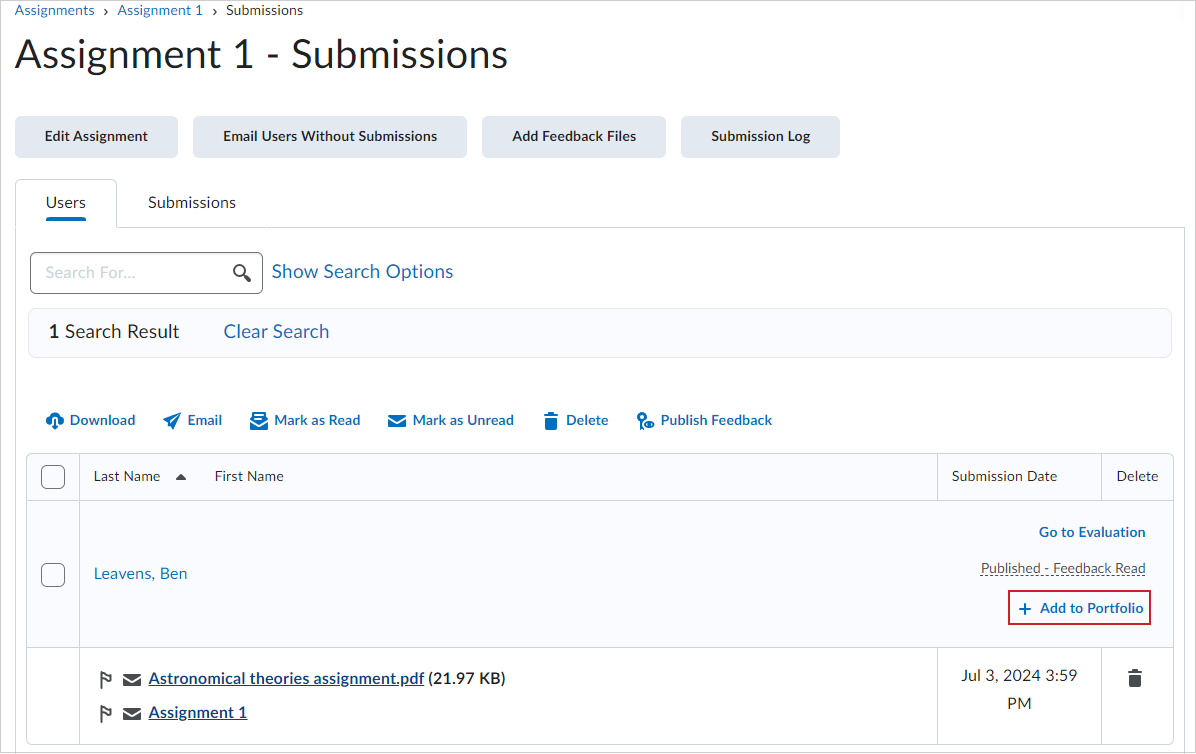
Figure: From the Assignments tool, click + Add to Portfolio to add submissions directly to Portfolio.
This feature implements the following PIE items:
- D4253 (Portfolio: Assignment/Dropbox tool – students add file from their Brightspace Portfolio)
- D10766 (Add to Portfolio from a Course Offering)
Technical Details
Impact:
- Moderate impact to instructors due to the ability to add assignment submissions directly to Portfolio from the Assignments tool.
Availability:
- This feature is available to all clients.
To enable:
- This functionality requires that learners and instructors already have required permissions to use Assignments and Portfolio.
- Instructors must be granted the new Portfolio > Can Add Assignment Submissions to Portfolio role permission.
- Instructors must be granted the existing Portfolio > Can Access the Portfolio Instructor View permission.
- This functionality is not dependent on any new or existing configuration variables.
For more detailed information, please visit the D2L Brightspace Community – August 2024 Updates
** Not all features listed on the link are used with the BCIT Learning Hub