


- Updates
- July 2026 Learning Hub Updates
July 2026 Learning Hub Updates
Assignments – Publisher selection dropdown locks after learners begin an activity | Updated
After learner submissions begin, instructors can no longer change the Publishers setting on the assignment creation page. Locking the Publishers setting after submissions begin ensures that publishing rules remain clear and predictable during evaluation and publishing workflows. Changing publisher rules after activity is underway can affect who can publish evaluations and may result in conflicts that require additional intervention. This update provides a smoother, more reliable evaluation and publishing experience.
 |
Important: To change the publisher selection after the dropdown locks, instructors must recreate the assignment and ask learners to resubmit. To avoid this scenario, review publisher selections during course setup and before the assignment is available to learners. For assignments that use Advanced Assessment, confirm which publishers can publish evaluator evaluations before submissions or evaluations begin. |
Instructors can use start dates or hide assignments until the required configuration is complete. After submissions or evaluations begin, instructors can still add, update, enroll, or unenroll publishers. Only the publisher selection dropdown is locked.
Previously, instructors could change the Publishers configuration after receiving submissions.
Rubric Icon in Assignments, Discussions, and Quizzes is enabled by default | Updated
As of the June 2026/20.26.06 release, instructors can identify which assignments, discussions, and quizzes have attached rubrics from their list pages. The d2l.Tools.Activities.ShowRubricsIcon configuration variable controls this feature and is now set to ON. Administrators can continue to override this value until the adoption period ends in the September 2026/20.26.09 release.
Discussions – Anonymous Discussion posts are visible when assessing learners and viewing statistics | New
With this update, instructors with the See Anonymous Post Author permission can view anonymous posts when assessing individual learners in Discussions. Anonymous posts display an Anonymous post label to indicate that the learner posted anonymously.
Previously, instructors with the See Anonymous Post Author permission could reveal a learner’s name on an anonymous discussion post, but they could not see anonymous posts when assessing learners or view discussion statistics that included anonymous posts.
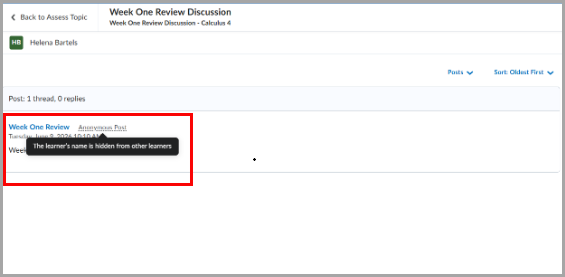
Figure: Instructor view of an anonymous discussion post, showing that the learner’s name is visible to the instructor but hidden from other learners.
Instructors without the See Anonymous Post Author permission continue to be unable to assess anonymous posts.
Discussion statistics now include anonymous post counts for roles with permission to see anonymous post author information. Statistics include counts only for anonymous posts created after this feature is introduced.
When learners view linked discussion activities in Content, the My Work area now includes their anonymous posts. These posts are labeled Anonymous post.
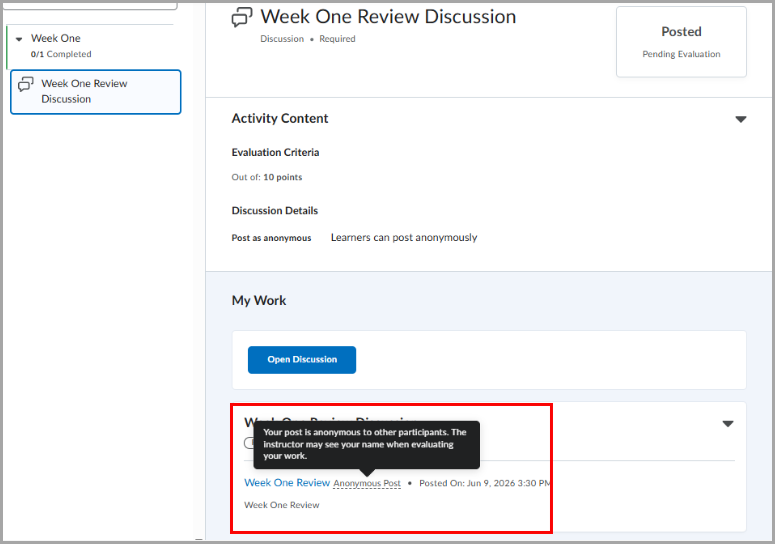
Figure: Learner view of an anonymous discussion post, showing the Anonymous Post label and tooltip explaining how anonymity applies to classmates and instructors.
New Content Experience – Immersive View | New
To improve content navigation and course review for learners and instructors, the New Content Experience (NCE) now includes a full-width Table of Contents (TOC) landing page and an immersive view for content items.
Previously, course content and the TOC displayed in a fixed layout. With this release, the full-width TOC becomes the Content landing page, making it easier to review course structure, navigate modules and topics, and resume course progress.
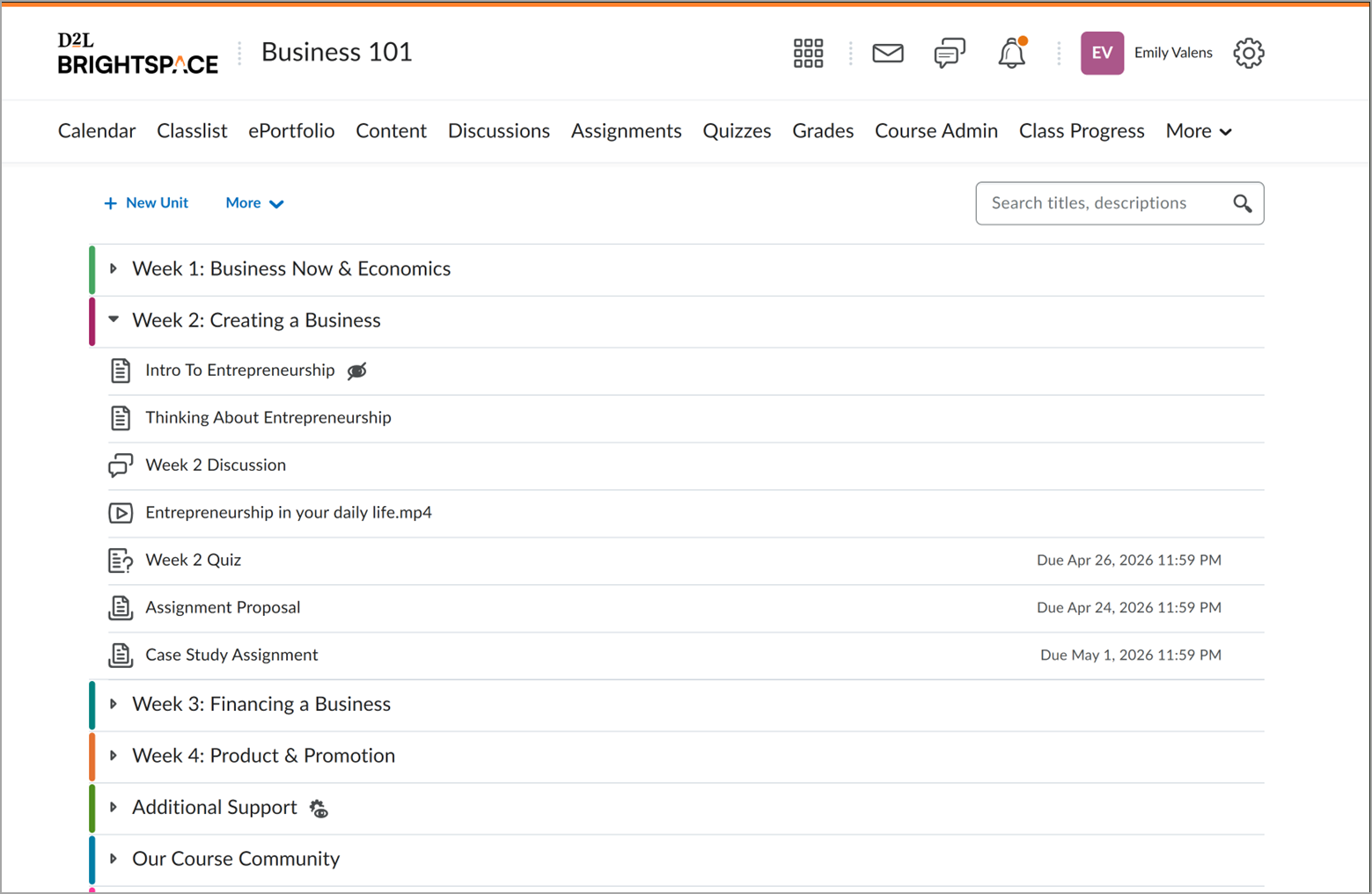
Figure: Review and navigate modules and topics in an immersive, full-screen table of contents view.
When users select a content item from the TOC, Brightspace opens it in an immersive view with a dedicated navigation bar that replaces the standard Brightspace navigation. This experience provides a wider content area with fewer on-screen distractions, helping users focus on course content.
The Immersive View navigation bar includes breadcrumbs that identify the selected content item and its location in the course structure.
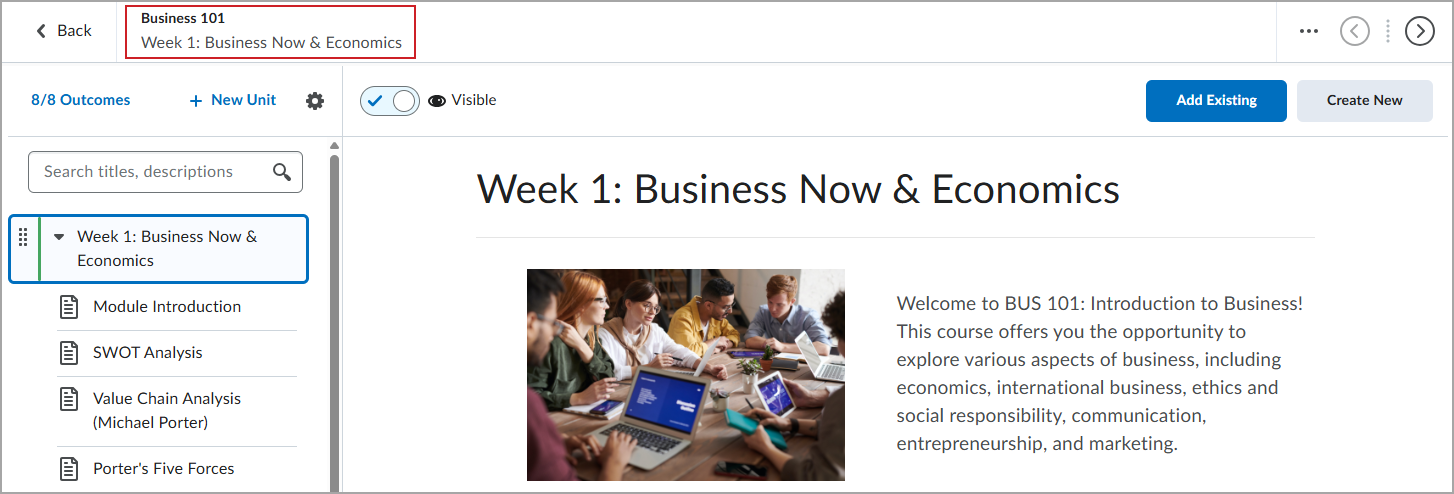
Figure: Use the breadcrumb navigation to identify your current location in the course structure.
For more detailed information, please visit the D2L Brightspace Community – July 2026 Updates
** Not all features listed on the link are used with the BCIT Learning Hub