


- Updates
- June 2025 Learning Hub Updates
June 2025 Learning Hub Updates
Groups – Bulk enroll and unenroll users by CSV file import | New
Instructors can now bulk enroll or unenroll learners in existing groups using a comma-separated values (CSV) file in the Groups tool. This feature adds a new Import button to the Manage Groups page and an Import option in the Category drop-down menu. Clicking Import opens a guided workflow with detailed instructions for correctly formatting the CSV file. Each line in the file must represent a single action: either enrolling or unenrolling a learner from a specific group in the course. Only learners currently enrolled in the course can be modified using a CSV file.
Once uploaded, the system validates the CSV file. If the file contains no errors, the enroll or unenroll actions are performed and once completed, the import results are displayed immediately. If there are any errors found in the file, the process stops and generates a list of errors found.
Cancelling the process does not reverse completed actions. Only one import process can run at a time.
Administrators can configure the CSV file format in the Form Elements tool using the new form element BulkGroupEnroll. The following form element properties are customizable:
- Username
- Org Defined Id
- Group Name
- Group Code
Either Username or Org Defined Id, and Group Name or Group Code, are required to ensure there is enough information to complete the enrollment or unenrollment action.
The new workflow is available to roles with the Groups and Sections Management > Create/Edit/Delete Groups and Categories permission enabled.

Figure: The new Import option appears on the Manage Groups page and in the Category drop-down menu.

Figure: The new Import page includes instructions to create a CSV file for enrolling and unenrolling users.

Figure: After uploading a file, the Import page displays the process and checks for errors in the file.
Technical Details
Impact:
- Slight impact to administrators due to the permission change and option to customize the form element for CSV files used in Groups.
- Slight impact to instructors due to the added functionality for managing group enrollments by CSV file import.
Availability:
- This feature is available to all Brightspace Core clients.
Quizzes – IPv6 support for IP Restrictions | New
IPv6 addresses can now be used as IP restrictions in Quizzes, improving access for institutions and learners on IPv6-only networks.
Instructors can now restrict quiz access based on either IPv4 or IPv6 address ranges. This provides more flexibility and better network compatibility when securing quizzes.
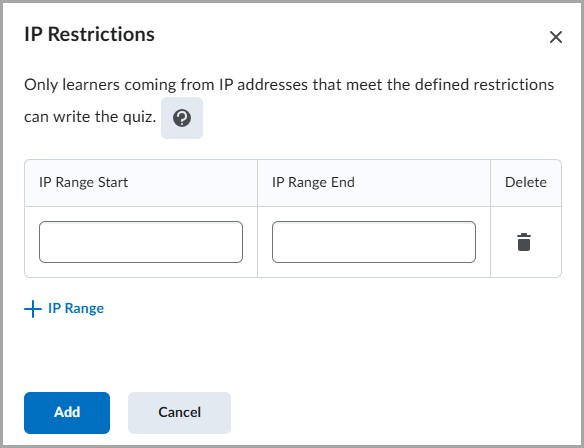
Figure: Navigate to the Availability Dates & Conditions section when creating or editing a quiz, and click Manage Restrictions to add IPv6 IP addresses in the IP Range Start and IP Range End fields.
For additional guidance, click the ? (question mark) icon next to IP Restrictions.

Figure: Clicking the ? (question mark) icon opens the Information: IP Restrictions dialog.
Technical Details
Impact:
- Slight impact to administrators and instructors who can now enter both IPv4 and IPv6 addresses within the IP Restrictions dialog.
Availability:
- This feature is available to all clients.
To enable:
- This feature is enabled automatically.
- This functionality is not dependent on any new or existing permissions or configuration variables.
For more detailed information, please visit the D2L Brightspace Community – June 2025 Updates
** Not all features listed on the link are used with the BCIT Learning Hub