


- Updates
- November 2025 Learning Hub Updates
November 2025 Learning Hub Updates
Announcements – Email a copy of an announcement to your Classlist | New
In response to multiple Product Idea Exchange (PIE) submissions, when Instructors create a new announcement in a Course Offering, they can now choose to send a copy to all users in their Classlist as an email, sent as if from the instructor themselves.
In the user interface for creating or editing an announcement, a new Send Email Copy checkbox now appears when an instructor creates or edits an announcement.
This feature implements the following Product Idea Exchange (PIE) items:
- D1923 (Email Notification Option when Creating New News Items)
- D3817 (Default email notification when publishing a news item)
When an instructor selects the new checkbox, the system emails the content of the announcement to all users in the Classlist on publishing.
Users who are not subscribed to receive a notification for announcements will also receive an email, ensuring that important information contained within the announcement is delivered to every learner.
For consistency with automated emails in Intelligent Agents and assignment submissions, the system sends the message to internal email addresses if users have them. If users do not have internal email addresses, the system sends it to their external email address.
Users without a valid email address will not receive an emailed copy of the announcement.
For announcements scheduled to publish at a later date, clicking the Send Email Copy checkbox emails the copy to users in the Classlist at the time that the announcement is published.
Technical Details
Impact:
- Slight impact to instructors who can now email a copy of an announcement to their Classlist.
Availability:
- This feature is available to all clients.
To enable:
- Ensure the Announcements > Send Email Copy permission is granted to Instructors at the Course Offering level.
- This functionality is not dependent on any new or existing configuration variables.
Assignments – Advanced Assessment now shows when an evaluation has no designated evaluator | Updated
A new alert in the assignments user interface now notifies instructors when an evaluation currently has no evaluator assigned, so they can quickly identify the problem and take steps to assign a new evaluator.
This update helps prevent unexpected evaluation errors and improves clarity, especially for institutions with large enrollments and multiple sections.
Previously, if an instructor used Advanced Assessment features to delegate evaluation to a user who later became unenrolled from a course, there was no way to identify which submissions needed to be assigned a new evaluator. Learner submissions could remain unevaluated for extended periods of time, causing confusion and errors.
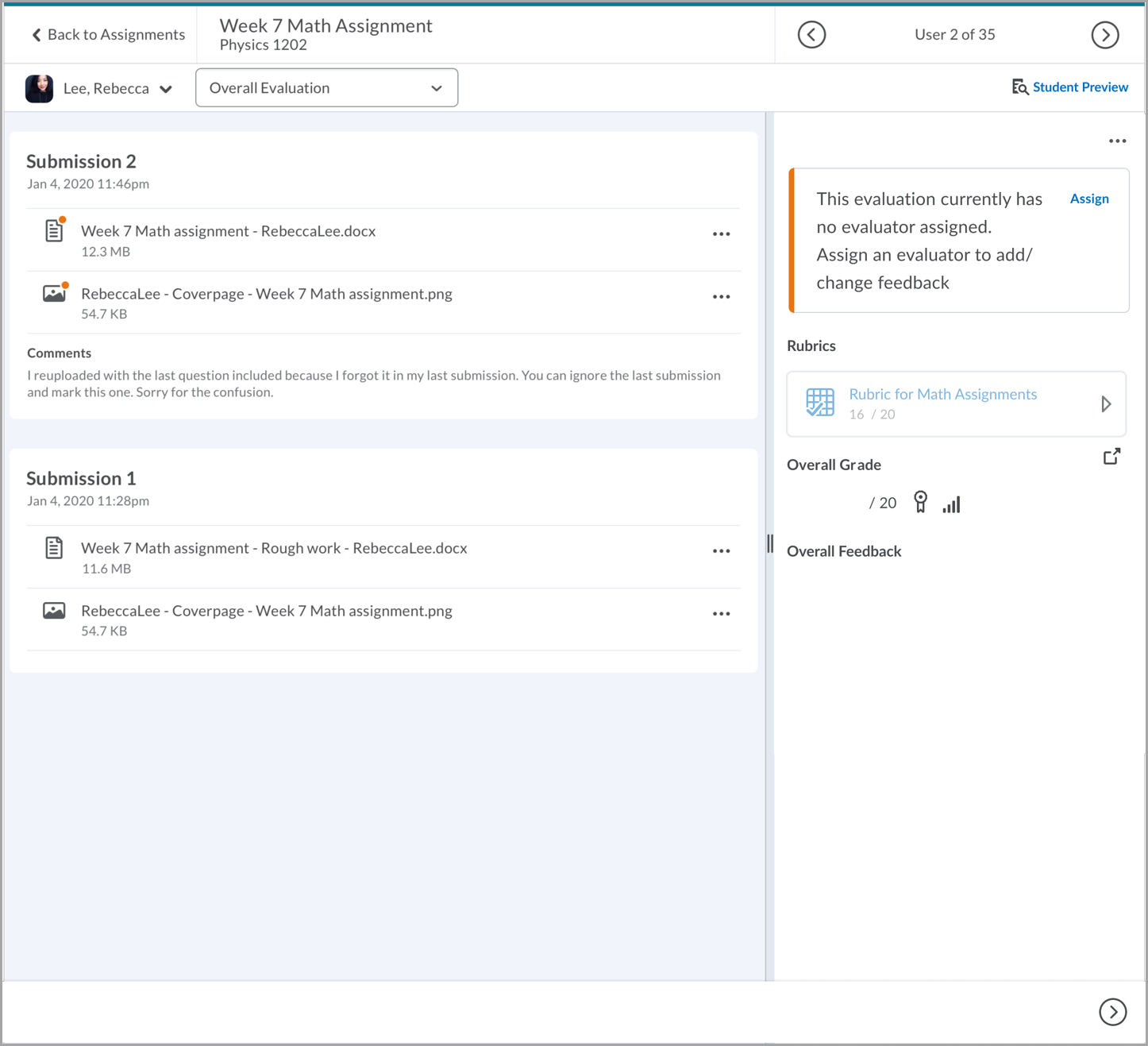
Figure: An example of a warning message when an assignment has no assigned evaluator.
Technical Details
Impact:
- Slight impact to instructors who can now understand when an assignment has no designated evaluator, and learners who no longer need to wait for unassigned assignments to receive a new evaluator.
Availability:
- This feature is available to all clients.
To enable:
- This functionality is not dependent on any new or existing configuration variables.
Brightspace – Progress bar for uploading files | New
With this release, Brightspace improves visual consistency and accessibility by updating progress bar indicators across several tools. These improvements enhance support for screen readers and assistive technologies.
Visual indicators have been updated in the following areas:
- New Content Experience – Upload a file
- Quizzes – Add Existing Question
- Import Quiz Questions – Upload a file
- Quiz Study Support – Check if the quiz meets the study support requirements
- Generate Question – Choose a file to generate a question
- Content Uploader – Upload a file
- Manage Groups – Export progress bar
- Upload File (Classic Content) – Upload a file
Technical Details
Impact:
- Slight impact to all users due to improved visibility of ongoing tasks, such as uploading files.
Availability:
- This feature is available to all clients.
To enable:
- This functionality is automatically enabled for all users.
- This functionality is not dependent on any new or existing permissions or configuration variables.
Grades – Bulk edit now supports excluding items from final grade | Updated
- Instructors can now use the Exclude from Final column when bulk editing grade items in the Grades tool. Selecting this option excludes the grade item from the final grade calculation.
Previously, this setting was only available when editing individual grade items. This enhancement helps instructors manage large grade books more efficiently by allowing them to update multiple items at once.

Note: This option is only available in courses using the Points grading system. Courses using Weighted or Formula grading systems can exclude items by assigning a weight of 0 or excluding them from the formula, respectively. 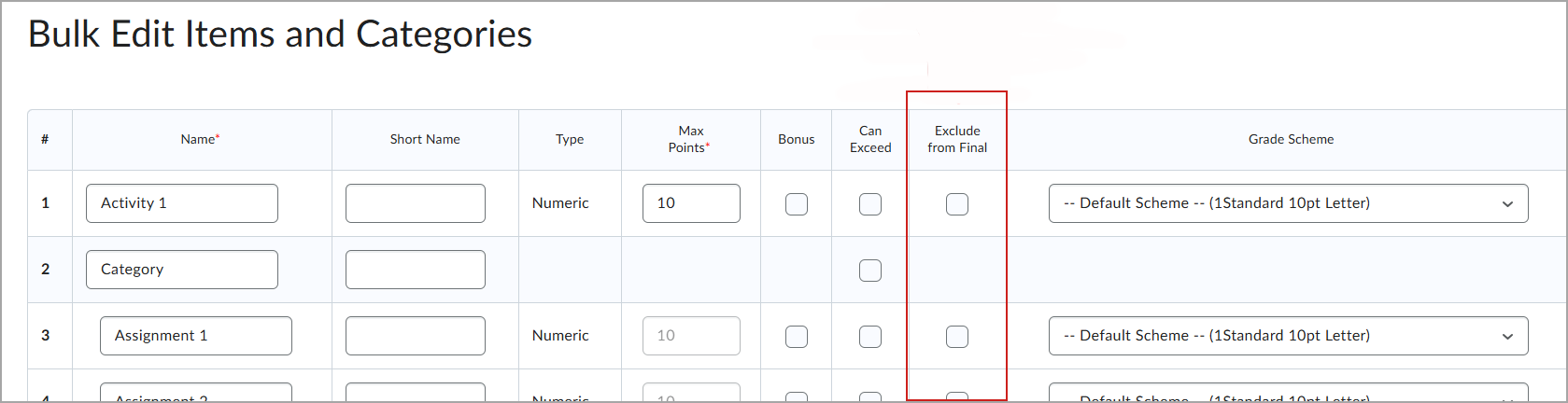
Figure: In the Bulk Edit Items and Categories page, select Exclude from Final for each item to omit from the final grade.
This feature implements the following PIE items:
- D1773 (Bulk Edit Grade Item)
- D9984 (Course-level configuration to include/exclude grade from Final Grade)
- D8386 (Gradebook – Bulk edit)
- D8515 (Add a category in the bulk edit)
Technical Details
Impact:
- Slight impact to instructors due to additional functionality when bulk editing.
Availability:
- This feature is available to all clients.
To enable:
- This feature is automatically enabled for all users.
- This functionality is not dependent on any new or existing configuration variables or permissions.
For more detailed information, please visit the D2L Brightspace Community – November 2025 Updates
** Not all features listed on the link are used with the BCIT Learning Hub