


- Updates
- September 2026 Learning Hub Updates
September 2026 Learning Hub Updates
D2L Editor – Additional heading options | Updated
To make creating accessible content easier, the Brightspace Editor now includes Heading 5 and Heading 6 in the Format drop-down menu. Previously, the menu only displayed Heading 1 through Heading 4, and instructors had to use keyboard shortcuts or the Source Code editor to apply the additional heading levels. This update ensures that instructors can easily apply all standard heading levels directly from the Format menu, supporting compliance with accessibility standards.
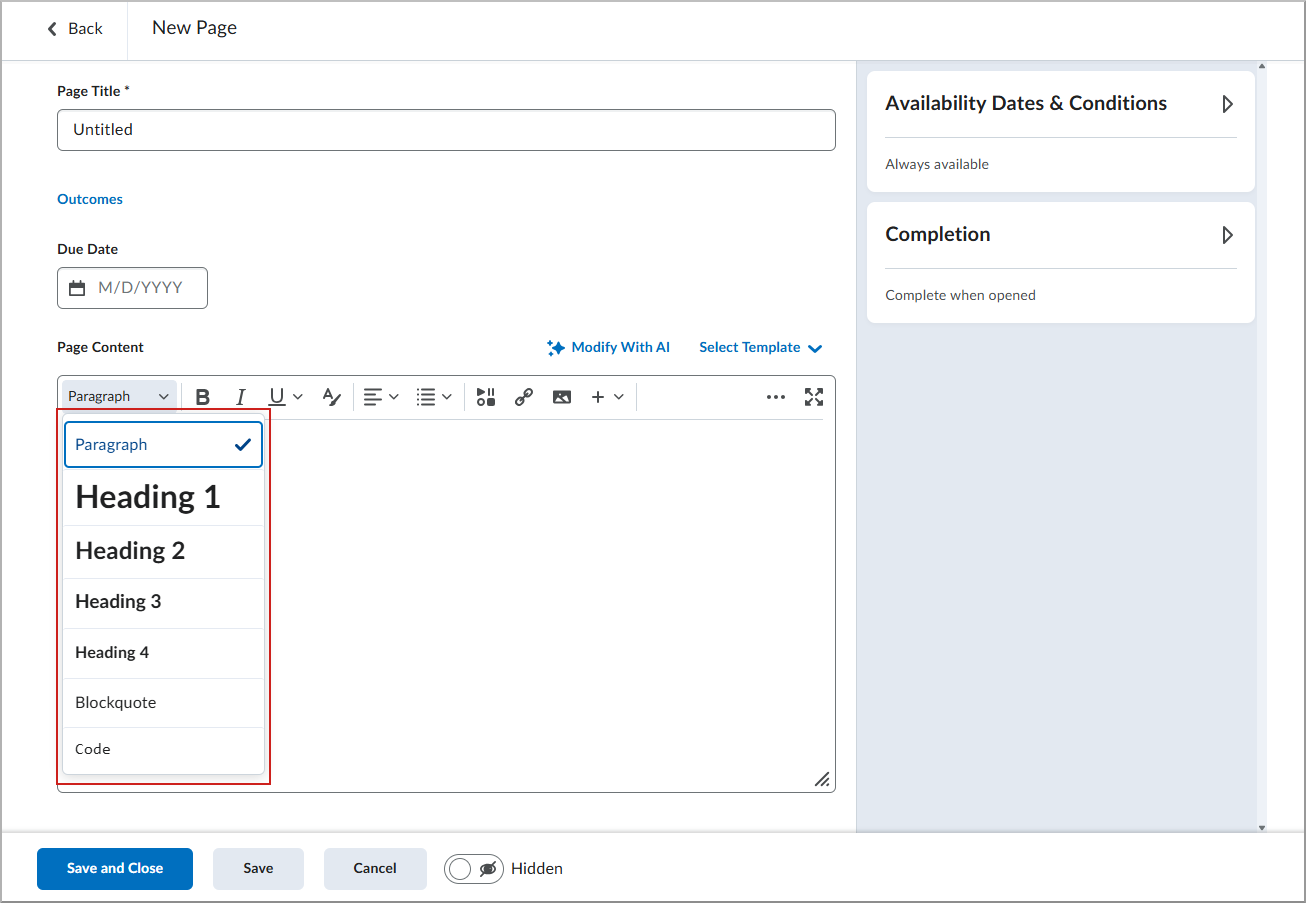
Figure: The current Format drop-down menu showing only Heading 1 to Heading 4.
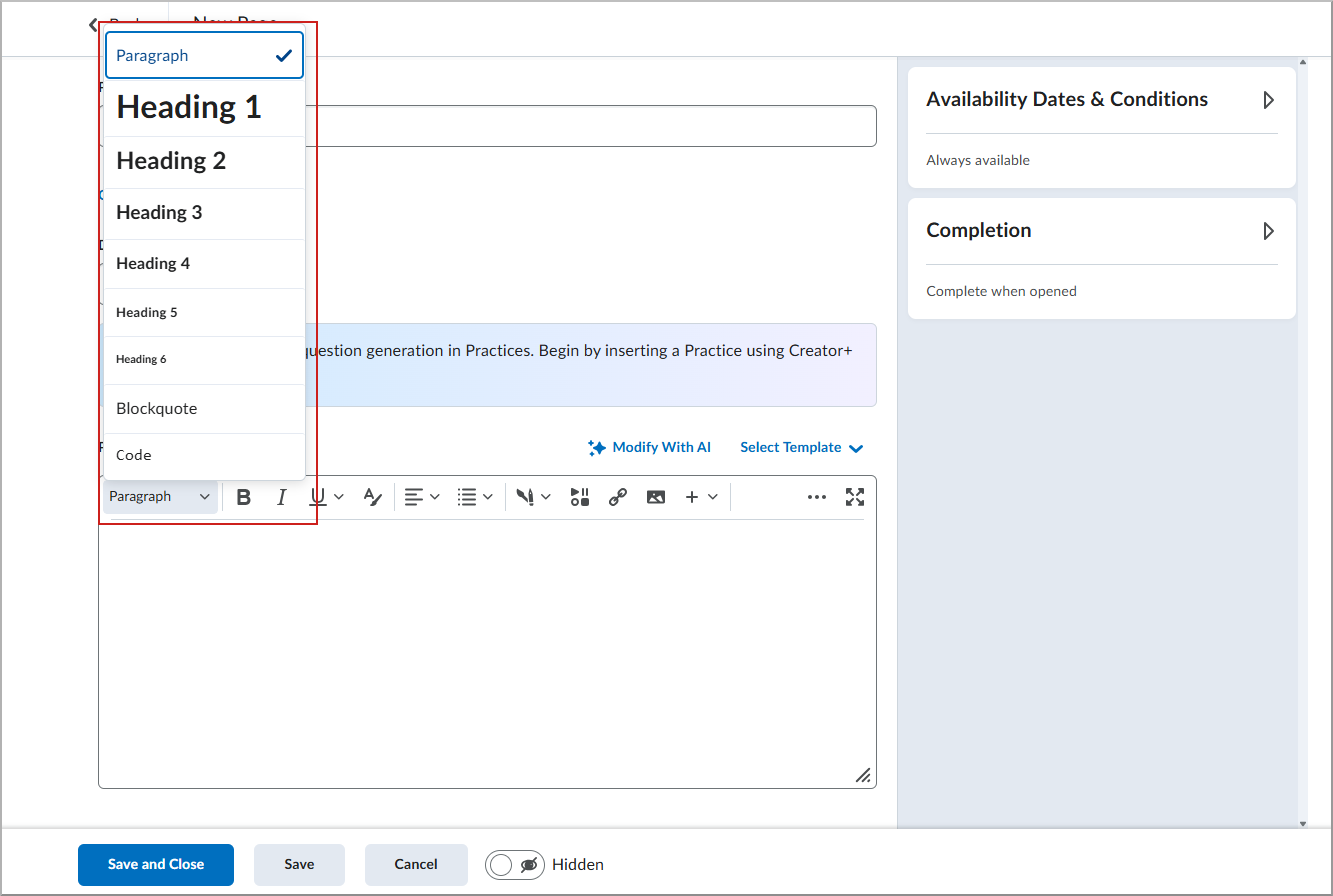
Figure: The new Format drop-down menu showing Heading 1 to Heading 6.
Groups – Bulk edit group names and codes | Updated
To improve efficiency when managing large numbers of groups, the new Manage Groups experience now allows instructors to bulk edit group names and codes within a category. Previously, instructors had to select each group individually to edit its details. Instructors can now click Edit Group Names to update the names and codes for one, multiple, or all groups from a single interface, saving time and reducing administrative effort.
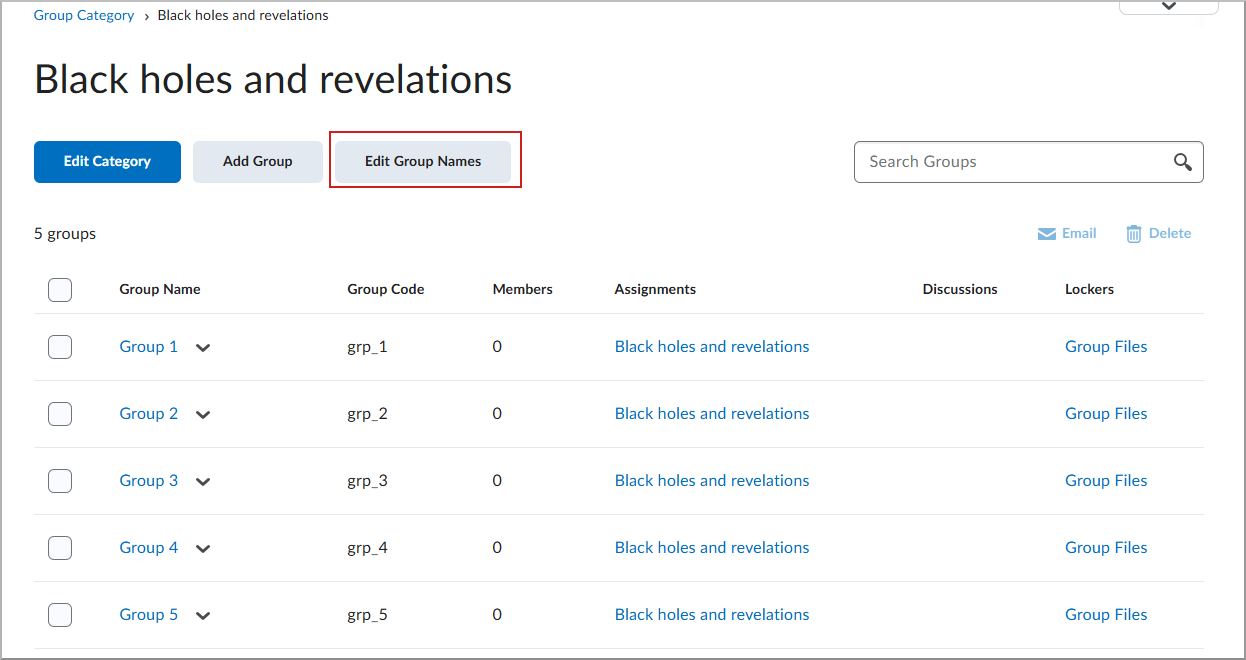
Figure: On the Group Category page, instructors click Edit Group Names to edit one, multiple, or all groups.
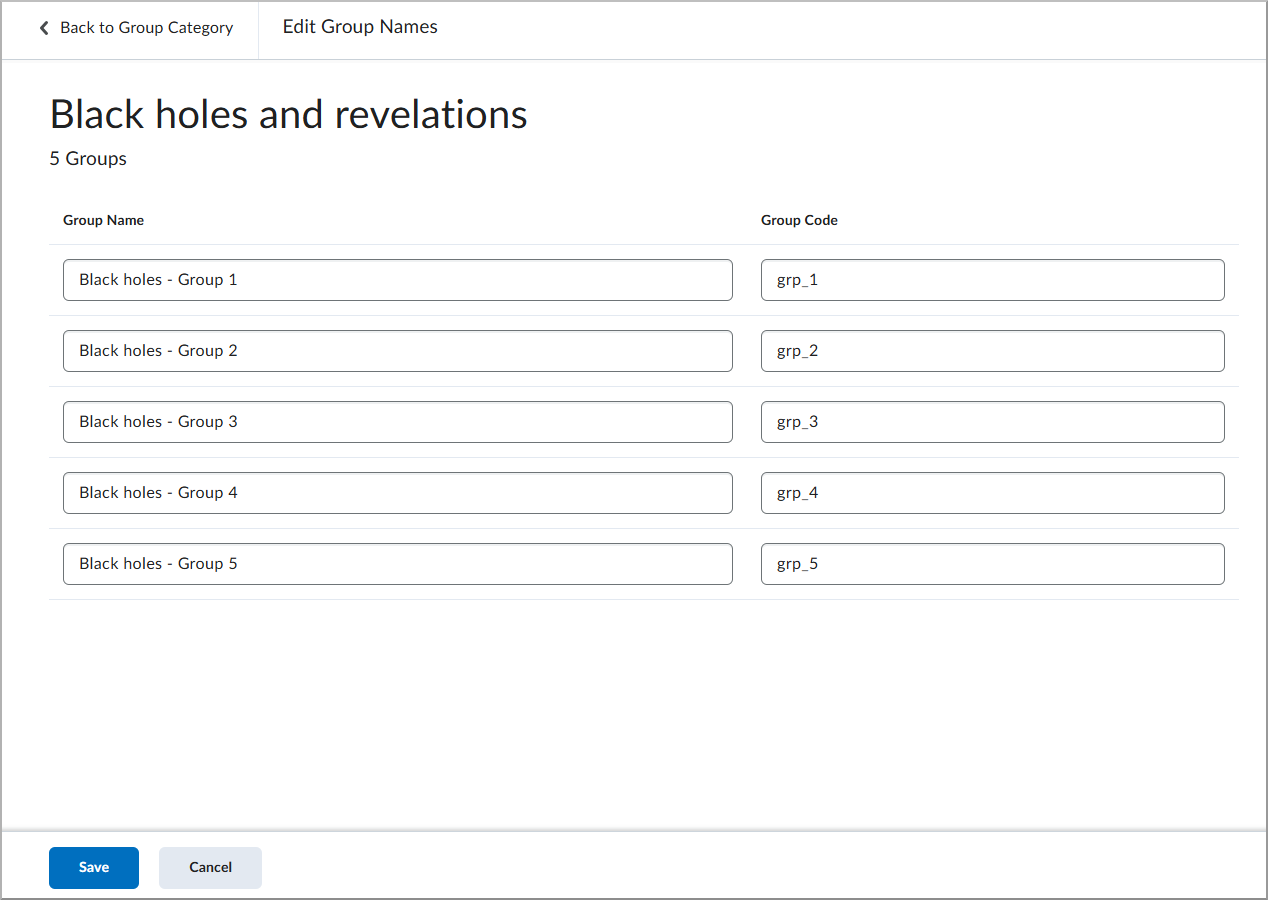
Figure: On Edit Group Names, instructors can edit the Group Name and Group Code for all groups.
New Content Experience – Assessable activities are only displayed inline | Updated
Assessable activities, including Assignments, Quizzes, Discussions, and instructor LTI links, now display inline by default in the New Content Experience. This change provides learners with a consistent, embedded experience when accessing assessable course activities.
With this update, assessable activities display inline by default, simplifying the learner experience and providing a consistent presentation for assessable content throughout the New Content Experience.
Before:
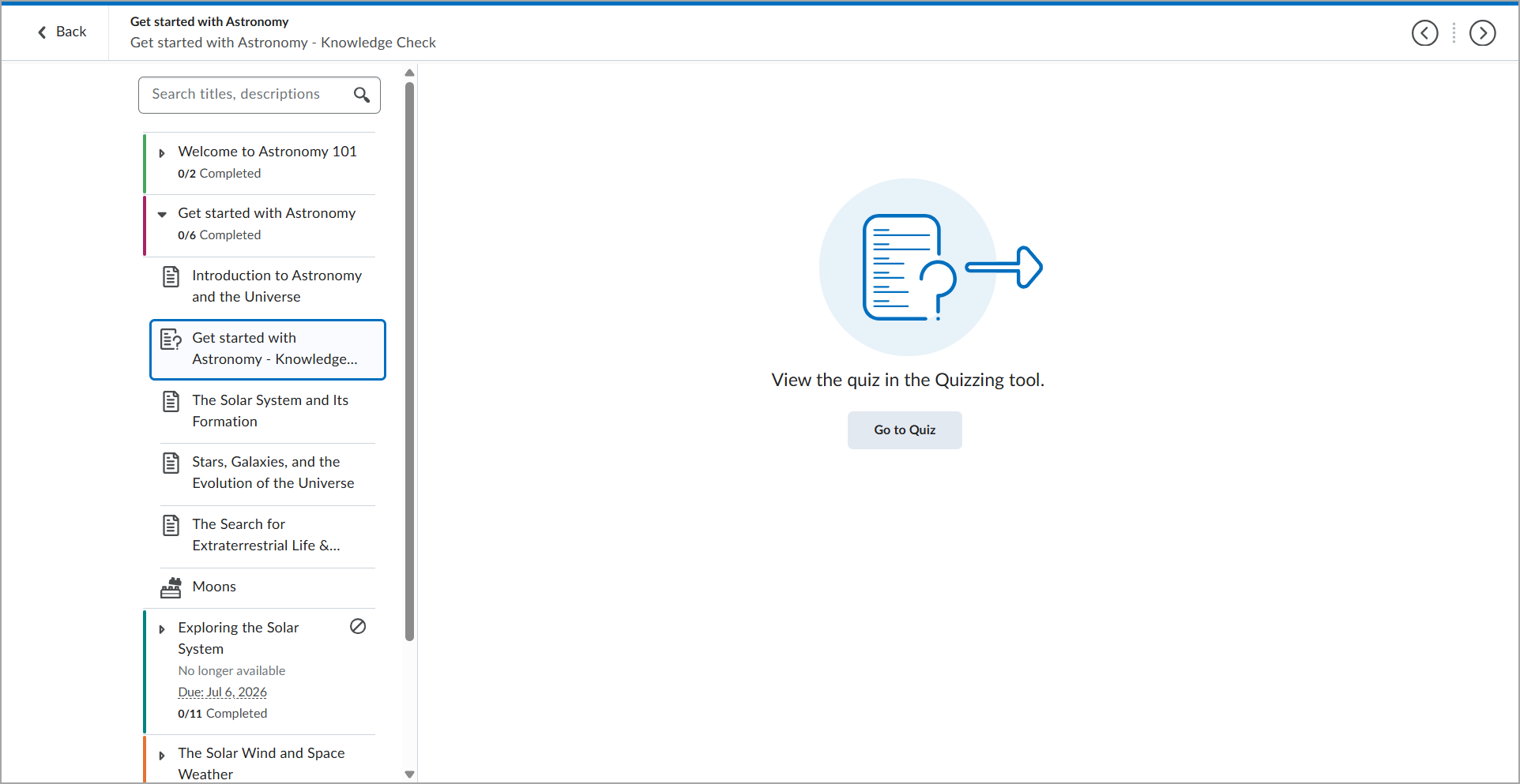
Figure: Previous quiz experience for learners in the New Content Experience without assessable activities displayed inline enabled.
After:
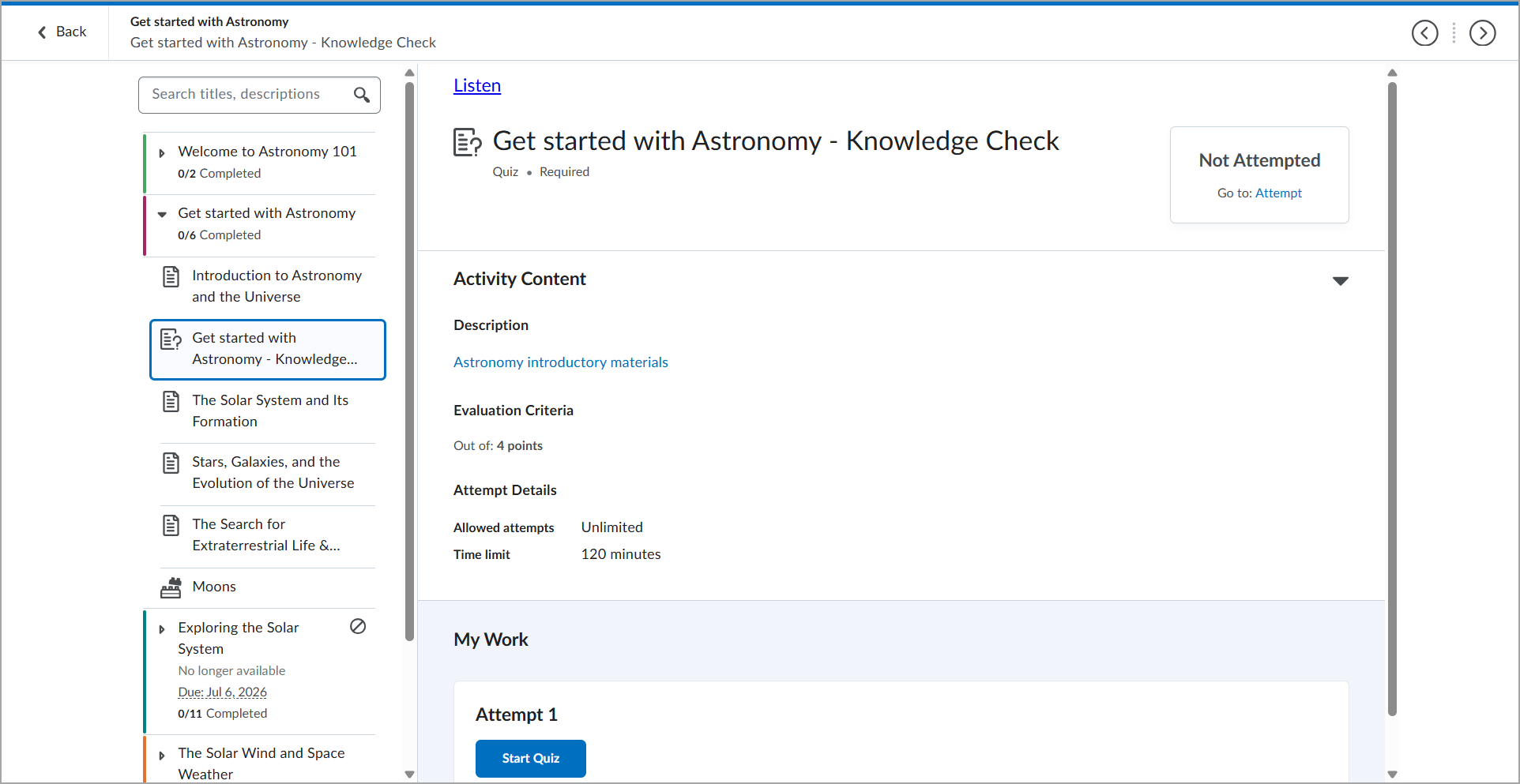
Figure: Updated quiz experience for learners with assessable activities displayed inline in the New Content Experience.
For more information on the New Content Experience, refer to New Content Experience Resources.
New Content Experience – Enhanced Table of Contents is the only Table of Contents view | Updated
The enhanced Table of Contents (TOC) is now the only available TOC view in the New Content Experience. This change provides instructors and learners with a consistent navigation experience when accessing course content.
With this update, the configuration variable has been removed and the enhanced Table of Contents is the default experience.
The enhanced Table of Contents includes the following improvements:
- Support for unlimited module and topic hierarchy depth.
- Learner completion progress indicators for topics and modules.
- Support for the Course Overview if it was previously used in Classic Content.
- Improved accessibility and keyboard navigation to make restructuring course content easier.
- Expand and collapse modules without navigating away from the page.
- Open content items in a new browser tab from the context menu.
- Condensed display for smaller screens.
- Visual design and interactions that are consistent with the rest of the Brightspace platform.
Before:
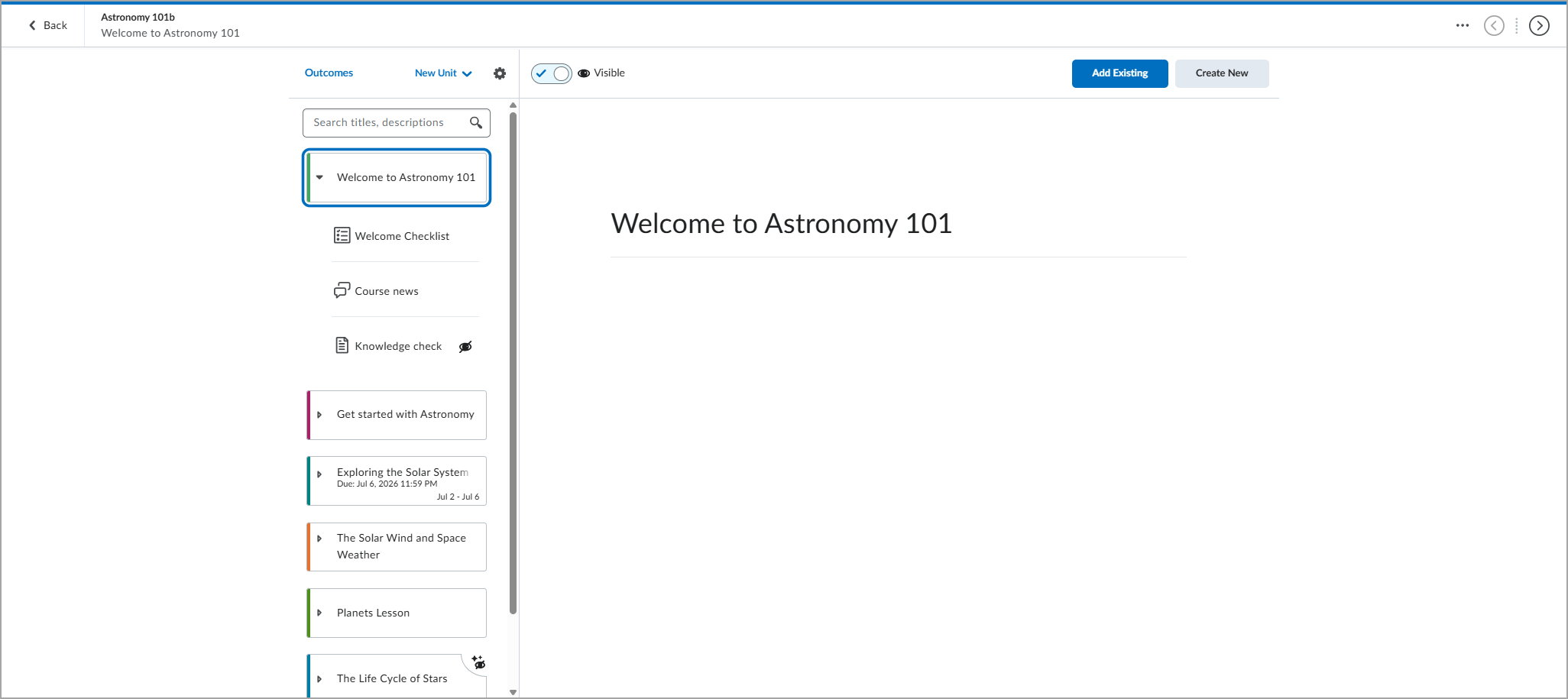
Figure: Previous instructor view of the Table of Contents in the New Content Experience with Immersive View enabled.
After:
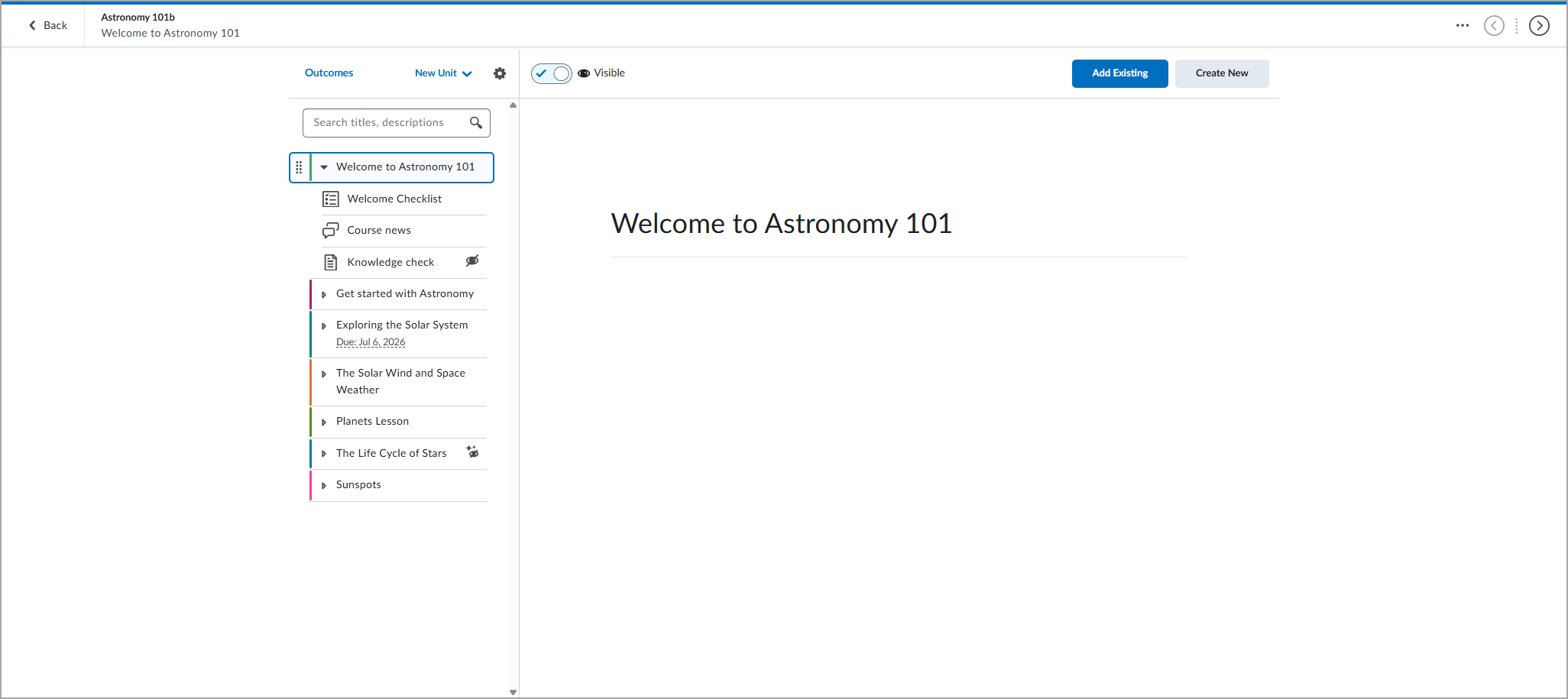
Figure: Instructor view of the enhanced Table of Contents in the New Content Experience with Immersive View enabled.
For more information on the New Content Experience, refer to New Content Experience Resources.
New Content Experience – Removing the Preview as a Student option | Removed
To provide a more accurate representation of the learner experience, the Preview as a Student option is removed from the New Content Experience.
Previously, the Preview as a Student option was available in Content, but it did not accurately reflect the learner experience. This preview had several limitations. For example, it did not correctly apply availability dates and release conditions, and it displayed the instructor view instead of the learner view for Assignments, Quizzes, and Discussions.
Before:
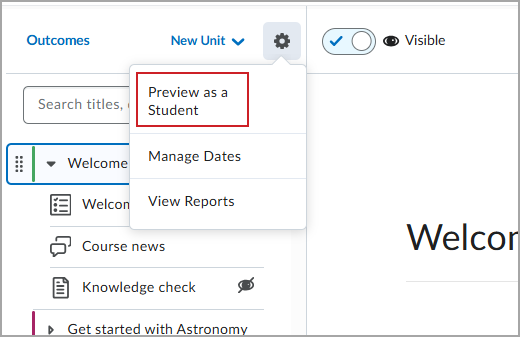
Figure: The Preview as a Student option previously appeared in the Settings menu in the New Content Experience.
After:
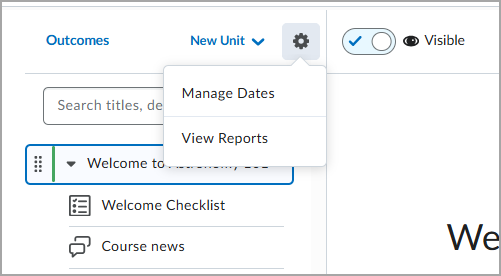
Figure: The Preview as a Student option is no longer available in the Course options menu in the New Content Experience.
To view your course from a learner’s perspective, use one of the following supported options:
- Role Switch: From your user profile, use the Change Role feature to switch to a learner role.
- Impersonate: Impersonate a test or demo user to experience the course exactly as a learner does across all supported tools.
While each option has its own considerations, both provide a more accurate representation of the learner experience than the previous Preview as a Student option. For more information, refer to Preview your course.
For more detailed information, please visit the D2L Brightspace Community – September 2026 Updates
** Not all features listed on the link are used with the BCIT Learning Hub