


- Resource
- How To - Instructors
- How to Download and Install Respondus Campus Edition Exam Software
How to Download and Install Respondus Campus Edition Exam Software
About Respondus Campus Edition
Respondus Campus edition simplifies the creation and editing of questions, quizzes and exams to be used in the Learning Hub. Questions and exams can be created or edited in either the easy-to-use offline application or in MS Word(R) documents.
For Home Use
The Respondus license allows you to install this software on a home computer, but you are not allowed to provide the software or the password information to anyone who is not affiliated with BCIT.
Step by Step Instructions
Download and Install the Software
Please note that Respondus is only available for Windows OS. Respondus is not compatible with Mac or Linux
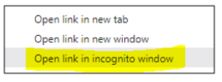
Download the Respondus installation package by right clicking the following url, and choose Open link in incognito window as shown here:
 http://learn.bcit.ca/shared/respondus/respondus4campus-408-06.zip
- For Chrome users, when the incognito page opens, right click and select Reload (CTRL + r), the file should download automatically
After the package has finished the download, locate the file from the downloads directory (or the folder your downloads normally go to) and open it to start the installation program. During the installation process you will be asked to enter the name of the institution, the local support contact, and the installation password.
You will need to contact ETS for the institution information and password. This license is for BCIT only. Please email us at BCIT_Studenthelp@bcit.ca
Please remember to include your BCIT ID number and include “Respondus” in the subject field.
We recommend that you accept the default settings for where the program is installed. During the install, choose “D2L Brightspace” as your LMS Personality.
Additional Guides
Context-sensitive help is available throughout the software by pressing the F1 key. It is also available by selecting “Help” from the pull-down menu on the toolbar.
Quick Start Guides
Essential information for getting started with Respondus can be found at: http://www.respondus.com/quickstart
Demonstration movies are available at: http://www.respondus.com/demo.
Respondus User Guides can be downloaded from: http://www.respondus.com/products/userguide.shtml.
General Guides
General Resources: https://web.respondus.com/he/respondus/resources/
Training Resources: https://web.respondus.com/support/training/
Our license with Respondus, Inc. does not permit instructors to obtain support directly from Respondus, Inc. If our staff is unable to solve a particular question or problem, we will contact Respondus, Inc. on your behalf.
How to Format your Word File for Respondus
Formatting your document that contains all of your quiz/test questions is required
Visit this page to learn how : How to Format a Word File for Respondus Campus Quiz tool
Related Posts
