


- Resource
- How To - Program Administrators
- How to Enroll or Add an Individual to a Course
How to Enroll or Add an Individual to a Course
The following instructions applies to only those who have either Program Assistant or Program Head access inside a course. Those with Instructor level access CANNOT enroll students into a course. If you are an instructor that wishes to have someone enrolled or removed from your course please contact your Program Head or Supervisor about this. Ideally, most people should be registered via Banner.
Go to the Classlist
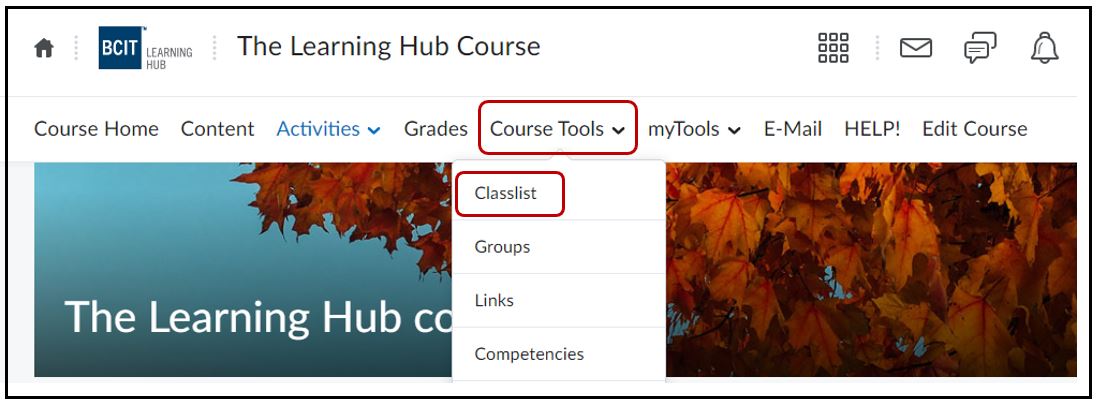
Select Course Tools > Classlist from the Navbar of the course.
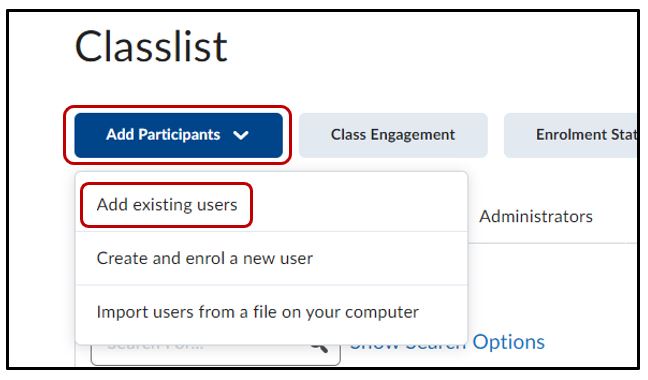
Select Add Participants > Add existing users
Search for User
Under the subheading that says Add existing users search for the user that you would like to add to the course. You can filter your search results by ticking the checkboxes either on or off. Once entered either press Enter or the magnifying icon to search
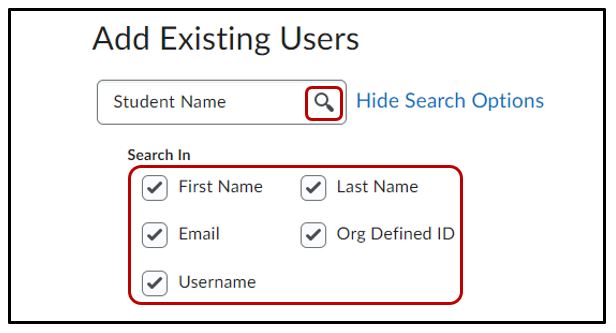
* For quicker search results, de-select the search options you don’t want the system to search for. For example, only select Org Defined ID and search by the person’s BCIT ID number (A01234567).
Enroll User
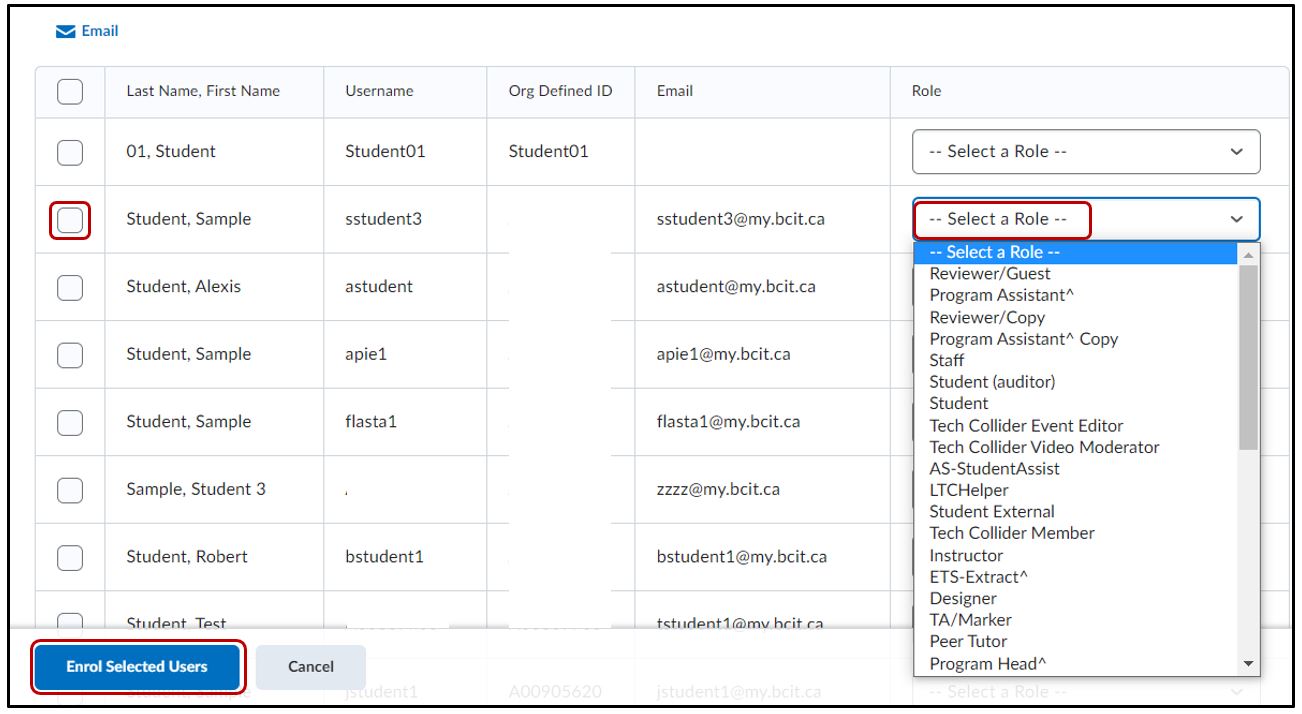
To add a specific individual to your course, tick the checkbox on the leftmost column and under the Role column select the role you wish the individual to have in this course. Once you are finished click on the blue button Enrol Selected Users below to enroll the individual in the course.
Related Posts
