


McGraw Hill – Connect (Textbook) Student Guide
Some course instructors may choose to create and teach their courses using resources provided by the McGraw textbook publisher. In such cases students will have to purchase their textbooks online through McGraw Hill directly or by using an access code provided by the BCIT Bookstore. In additional to this, students will also have to create an account with McGraw Hill.
The following guide will show you how get started using McGraw Hill Connect inside your course on the Learning Hub.
Please check with your instructor
Please note that the instructions provided down below do not apply to all situations and it is always recommended that you contact your course instructor directly for all questions related to accessing material inside your specific course.
McGraw Hill Connect – How to Access and Register

How to access McGraw Hill Connect inside your course
Step 1: Log into D2L and navigate to your course.
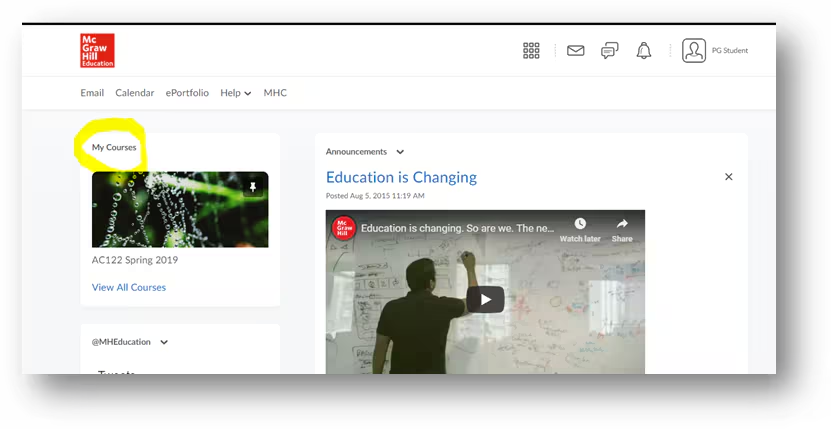
Step 2: Under Content, locate and click on a McGraw Hill Connect external tool link OR a Connect assignment link.
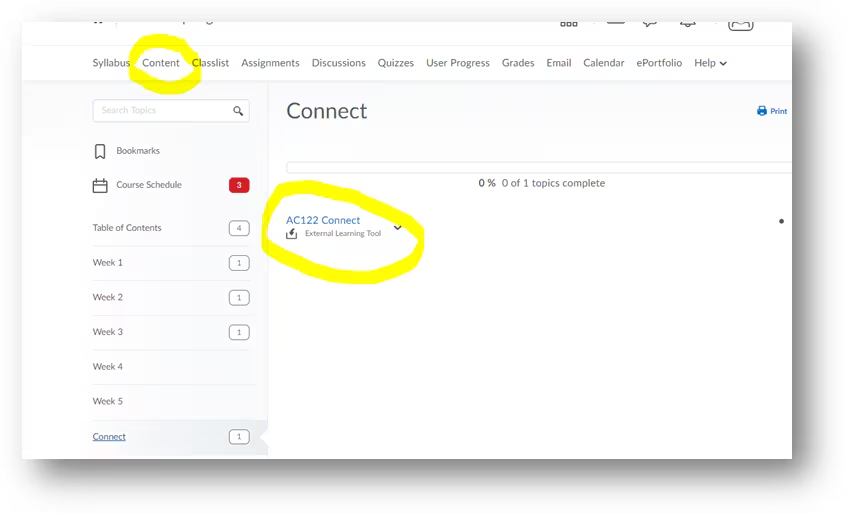
Step 3: Click Begin.
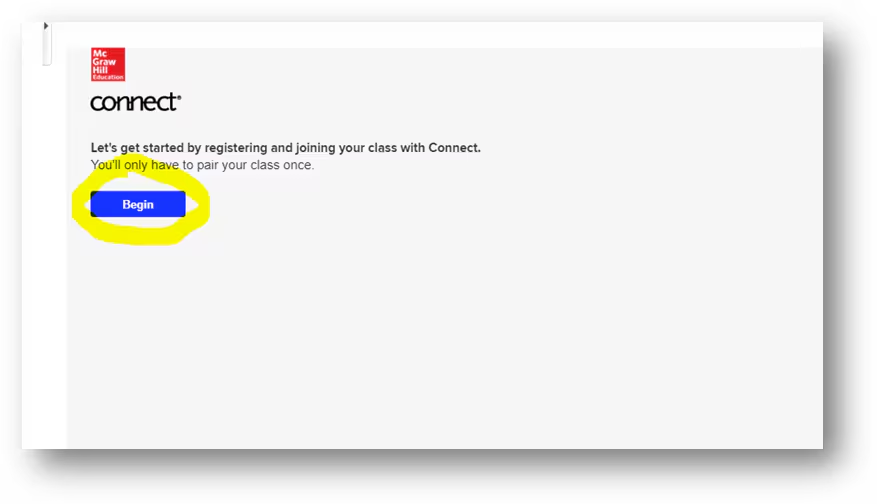
Step 4: If you’re a new Connect user, click on Create Account. If you’re a returning Connect user, enter your Email Address and Password and click Sign In. If your school email is the same as an existing account, you will be prompted to log in to that account.
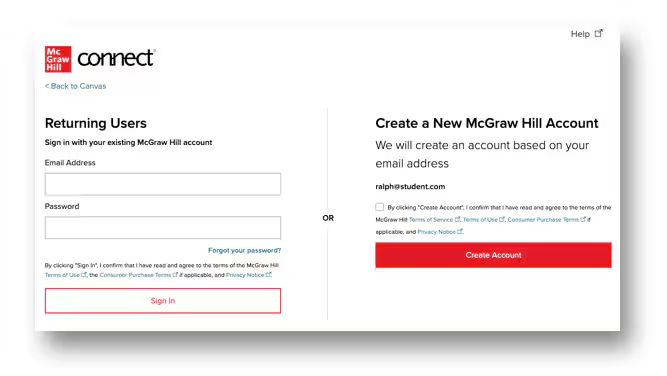
Step 5: Select the appropriate registration option to complete the Connect registration process.
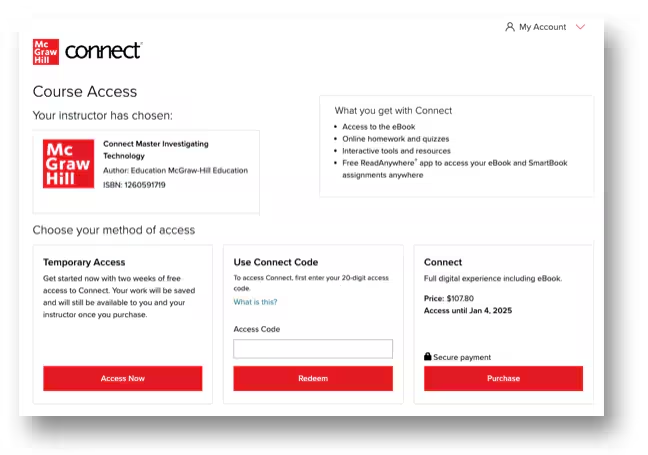
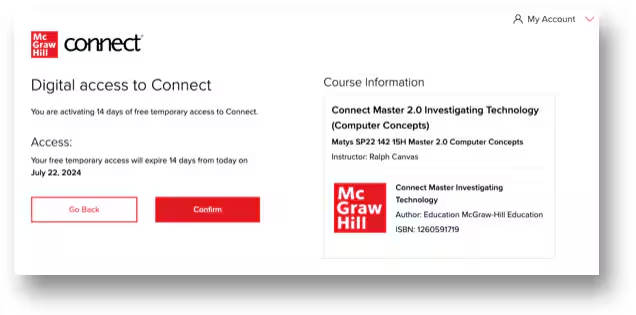
Step 6: Click Confirm.
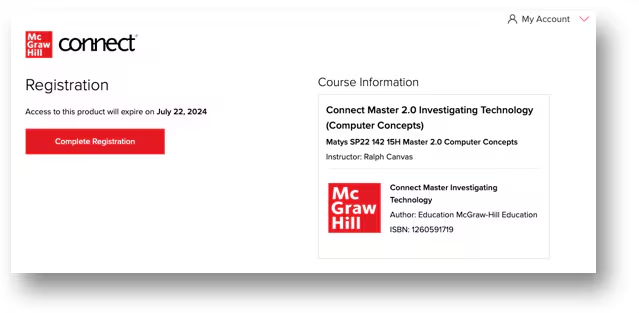
Step 7: Click Complete Registration.
How to take assignments with McGraw Hill Connect
Step 1: Log into D2L and navigate to your course.
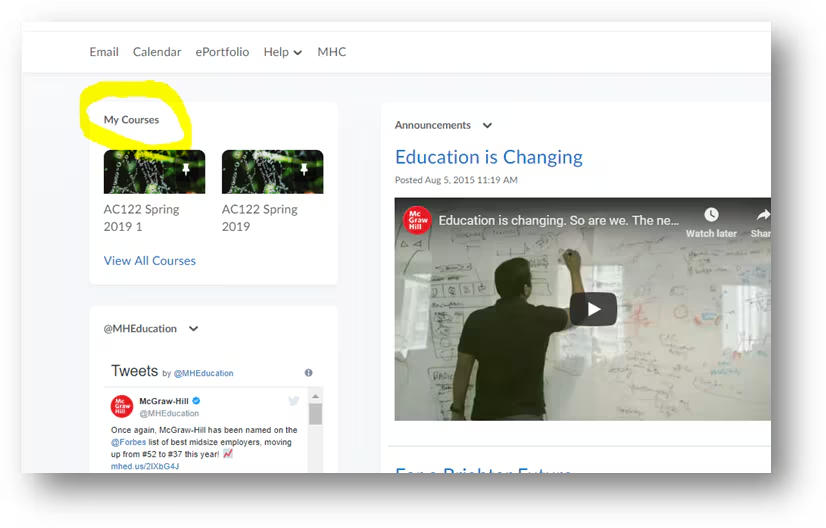
Step 2: Click on Content.
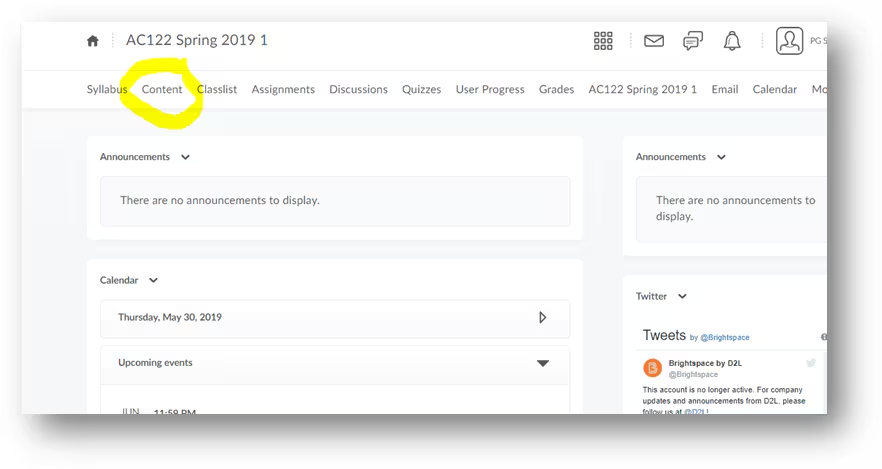
Step 3: Locate and click on a Connect assignment link. The assignment will launch in a new browser tab. If it fails to launch, adjust your browser settings to allow pop-ups.
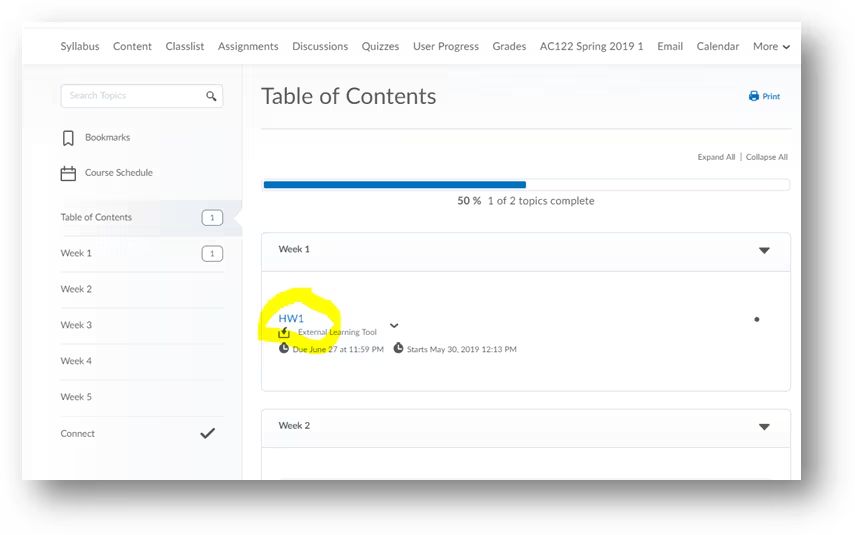
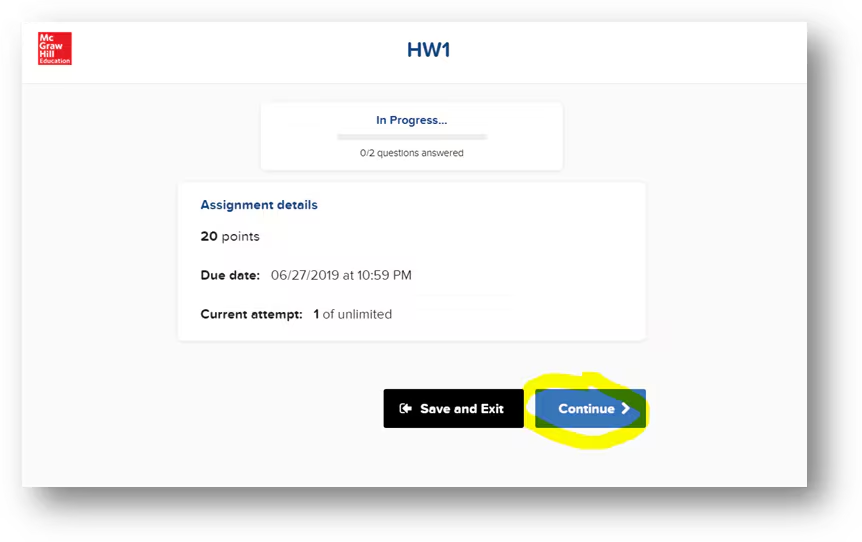
Step 4: Click on Continue to open the assignment.
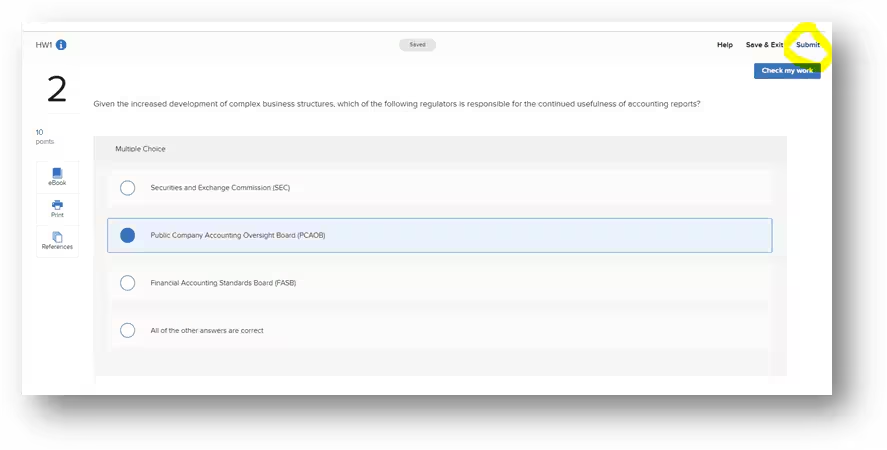
Step 5: After completing the assignment, click Submit. Your grade will automatically sync to the D2L gradebook.
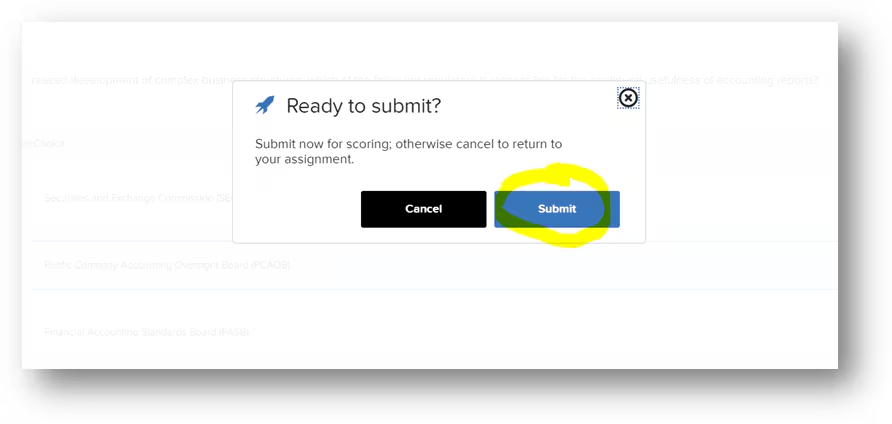
Step 6: Click on View Results to see feedback and assignment results.
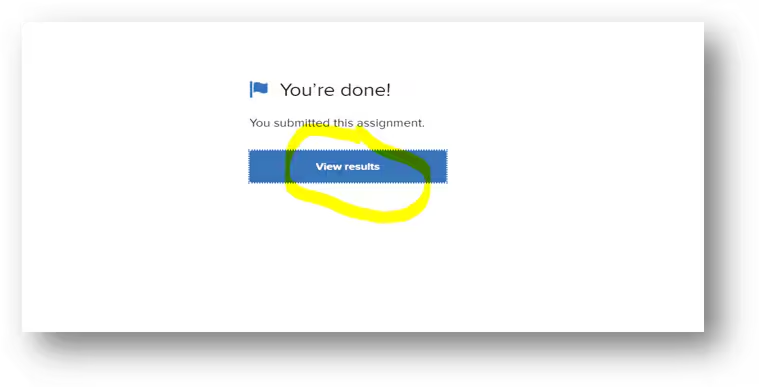
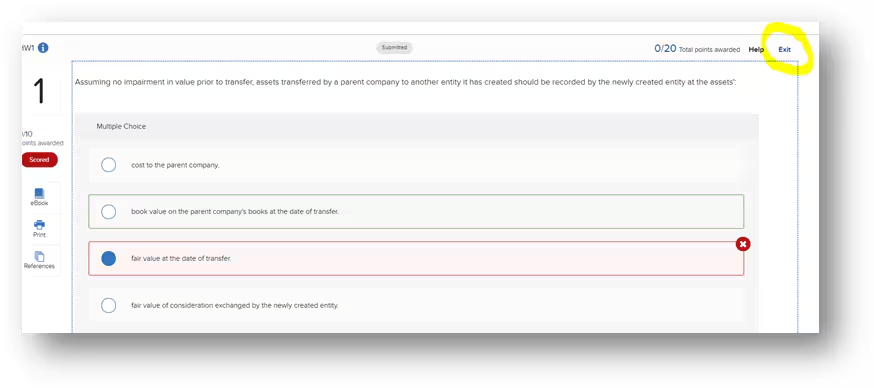
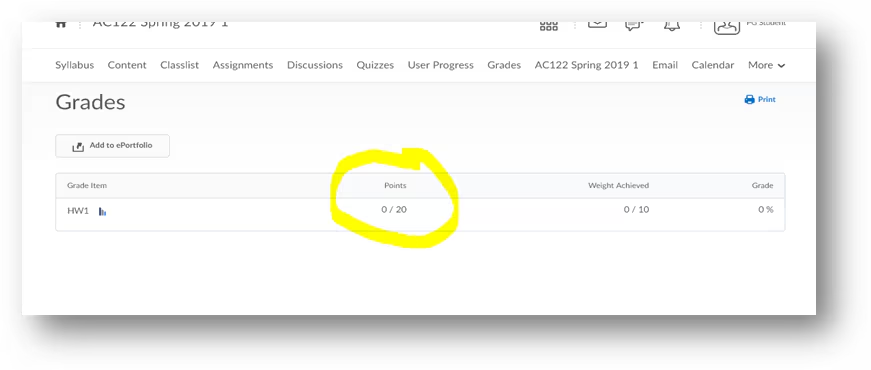
Step 7: Click Exit to return to D2L. Your grade should now be visible in the D2L gradebook.
Downloadable Step By Step Guide
Additional Information
Ordering the correct course material
Students need to check with their instructor as to whether the course textbook and/or Connect are required and what the correct ISBNs are (book order numbers). This information should also be available when students order books via the BCIT bookstore (after the instructor has informed the bookstore).
Code purchasing options:
- New textbook with Connect code (typically, used books will not have a code or the code will be used) from BCIT Bookstore
- Connect digital code from BCIT Bookstore
- Connect online access from your instructor’s Connect textbook site
Technical Support
If you have technical difficulties using the McGraw Hill Connect resources visit https://www.mheducation.com/highered/support/support-at-every-step/student/connect or call (800) 331-5094
Hours of Operation:
Email & Live Chat:
Sunday: 12:00 PM to 12:00 AM ET
Monday-Thursday: 24 hours ET
Friday: 12:00 AM to 9:00 PM ET
Saturday: 10:00 AM to 8:00 PM ET
Phone:
Sunday: 12:00 PM to 1:00 AM ET
Monday-Thursday: 8:00 AM to 1:00 AM ET
Friday: 8:00 AM to 9:00 PM ET
Saturday: 10:00 AM to 8:00 PM ET
Related Posts
