


- Resource
- Class for Teams
- Class for Teams – Collaborate – Add Files
Class for Teams – Collaborate – Add Files
The share files feature allows you to post files to the classroom and make them available for download by learners.
Add a File
Join a class > select Collaborate > Files
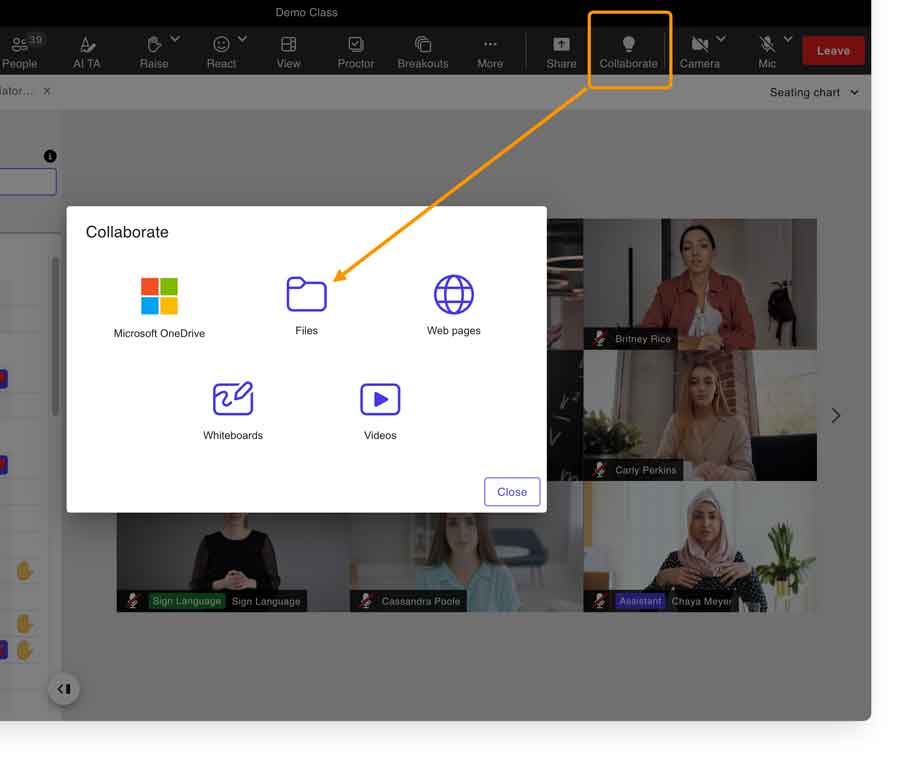
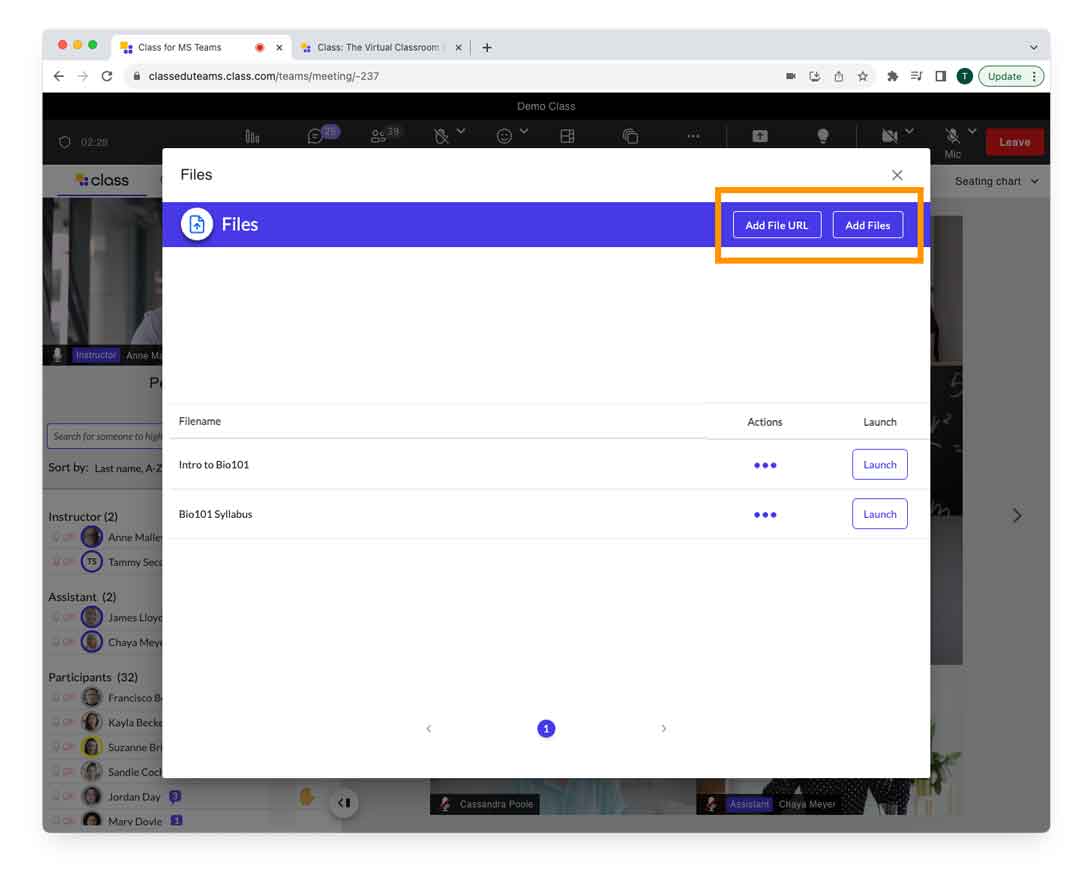
You can add files from the web or from your computer. Files are stored in the class and can be used later.
Supported files are PDF, DOCX, JPG, PNG, PPT, PPTX, TXT, RTF, CSV, XLS, and XLSX. Limit each file to 128MB.
- From a class, select Collaborate.
- Select Files. A pop up window appears. If you don’t see the new window, check your browser settings to see if pop ups are blocked.
- Select Add Files. (Add files URL is not available in BCIT instance)
- Add Files: Add the file from your computer.
- Select ADD.
The added file can now be shared with the class.
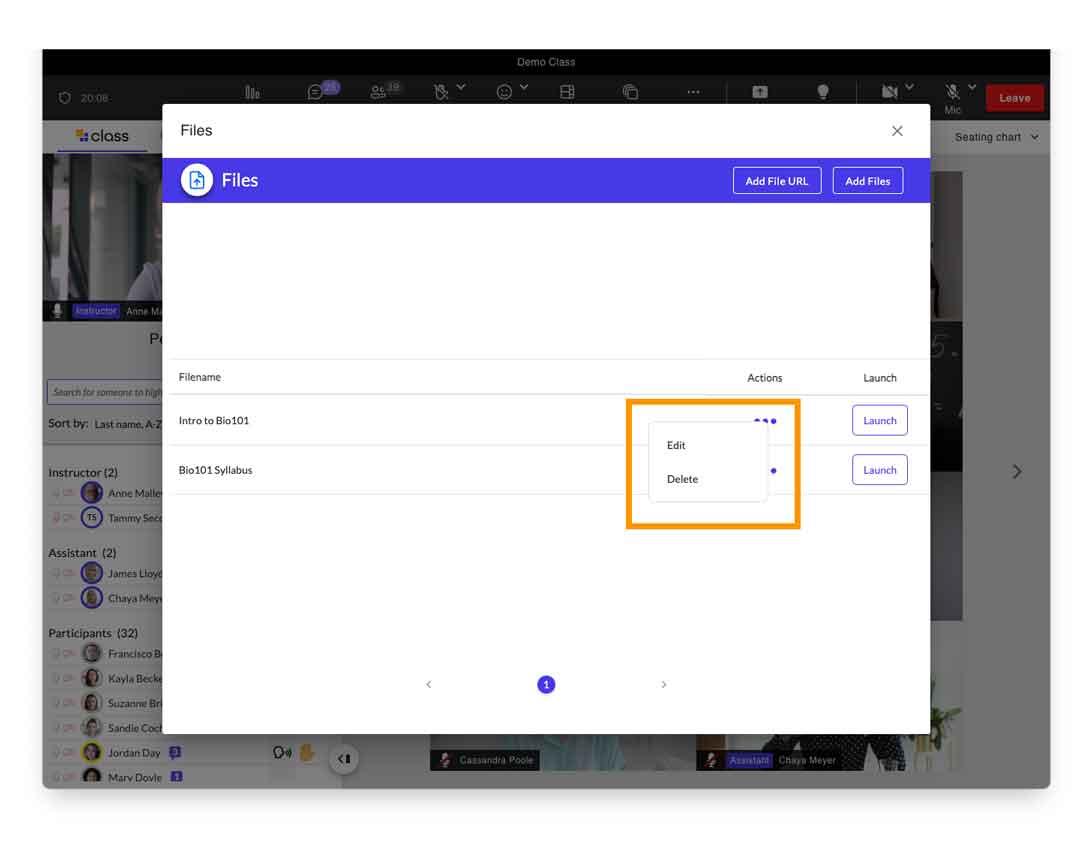
Edit or Delete a File
- Select Collaborate.
- Select Files.
- Select the Actions ellipses for the file you want.
- Select Edit or Delete.
Related Posts
