


Kaltura Media Gallery – Settings and Layout
Use the Settings & layout tab to choose a layout for your media gallery and control which sections are visible to viewers.
Access Settings and Layout
From inside the course Kaltura Media Gallery, click Actions and then Configure.

The ‘Details’ page displays by default.

In the left navigation panel, click Settings & layout.

Configure your Media Gallery using the directions in the next section below. Be sure to click Save at the top right when you finish.
Configure Settings and Layout
Channel layout
Use the Channel layout section to choose how content is organized on the Media Gallery front page.

Available layouts include:
- Tabs view – Content is organized into tabs across the page
- Vertical view – Content is displayed in a single, scrollable layout
The layout currently in use is marked as Active.
The image below shows an example of the page being set to Tabs view:

The image below shows an example of the page being set to Vertical view:

Header Links
Header links let you add custom links to the media gallery header, giving viewers quick access to related resources such as external websites or documentation.
- Click Add custom link.
- Additional fields appear.
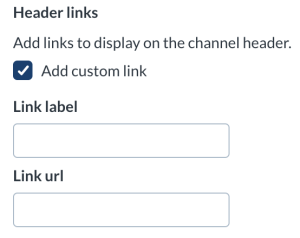
- Enter the link label (the text users see).
- Enter the link URL.
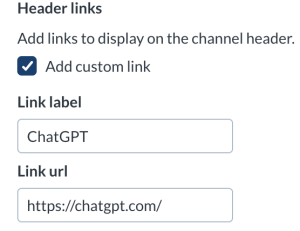
- Repeat to add a second link if needed. You can add up to two custom links.
Viewers will see the custom links in the Media Gallery header, as shown in the image below:

Visible Sections
Use Visible sections to control which sections appear on the Media Gallery. Select or clear the checkbox next to each section to show or hide it.

Sessions
The Sessions section is non-functional cannot be enabled as the BCIT instance of Kaltura does not support Kaltura Live Sessions
Available sections include:
- Playlist
- Media
- About (displayed as Learn more on the front page)
Hidden Sections
- Sections with no content are automatically hidden.
- Hidden sections can be re-enabled at any time.
Default Section
Use Default section to choose which section appears first when users open the Media Gallery.

The available options are:
- Media
- Playlist
- About (displayed as Learn more on the front page)
Sessions
- The Sessions section is non-functional
- If the selected section has no content, the media gallery opens to the next available section automatically.
Media View Mode
Use Media view mode to choose how media items are displayed in the media gallery.
Available options include:
- Grid – Media items are shown in a tiled grid
- Detailed – Media items are shown with additional details
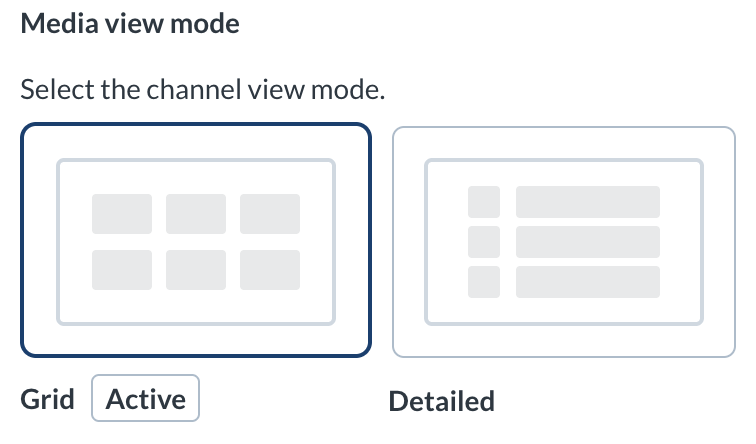
The active view mode is marked as Active.
Playback in Context
Playback in Context is a non-functional option inside the Learning Hub, please ignore this. Inside other Kaltura products this would normally force videos watched inside a Gallery to include the name or id number of the Gallery in its URL.
Related Posts
