


Kaltura Quiz – Analytics and Reporting
Quiz creators can access detailed reports on quiz attempts and responses using the analytics dashboard. This tool provides insights into user submissions, scores, and question-level data.
Access the analytics dashboard
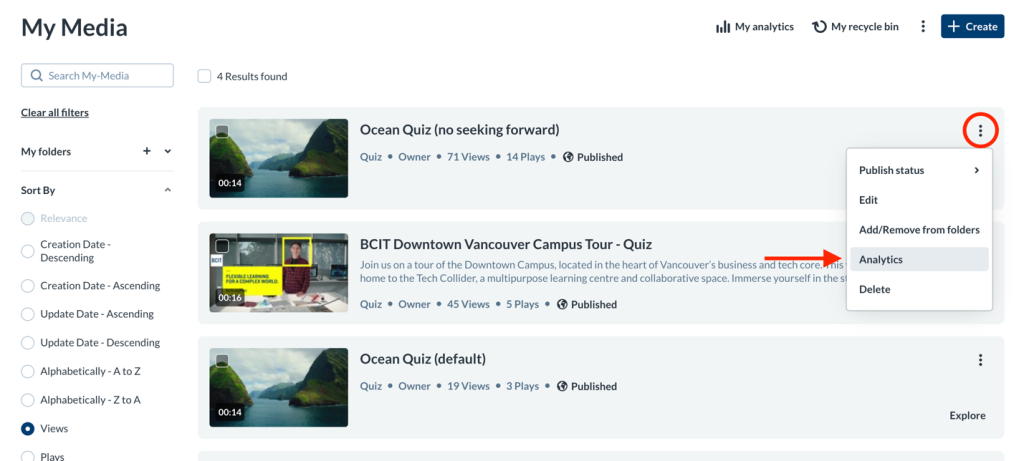
First, go to Kaltura My Media which can be access inside any Learning Hub course under myTools menu.
Next, click the ellipses next to the desired entry and select the Analytics option.
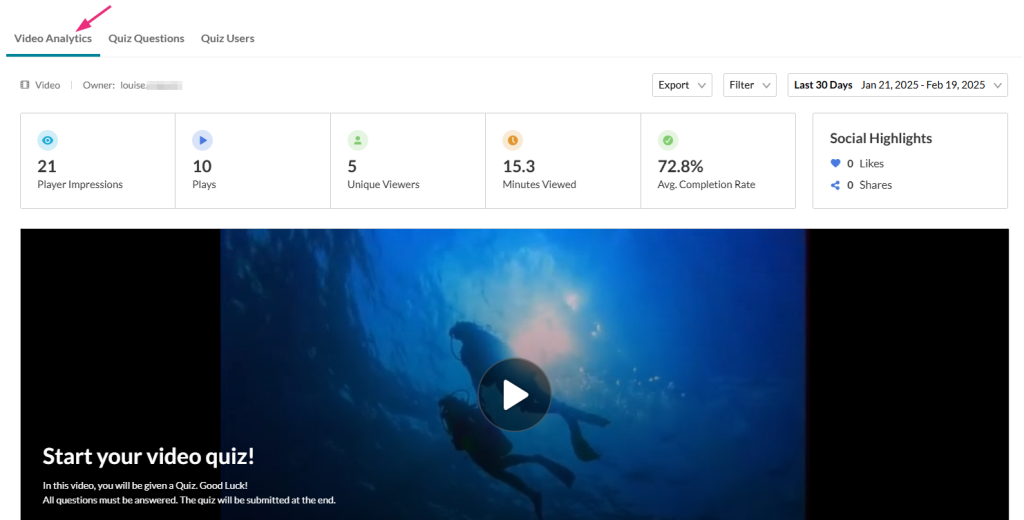
Video Analytics Tab
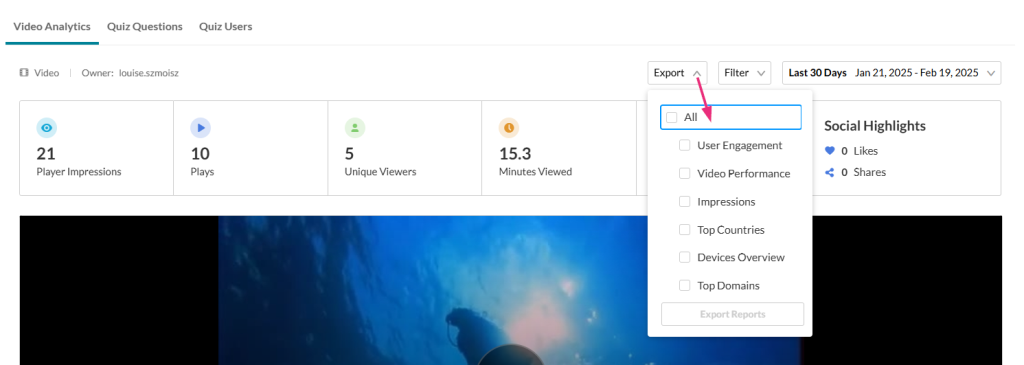
Under the Video Analytics tab, you can view analytics for all users who have taken the quiz until now.
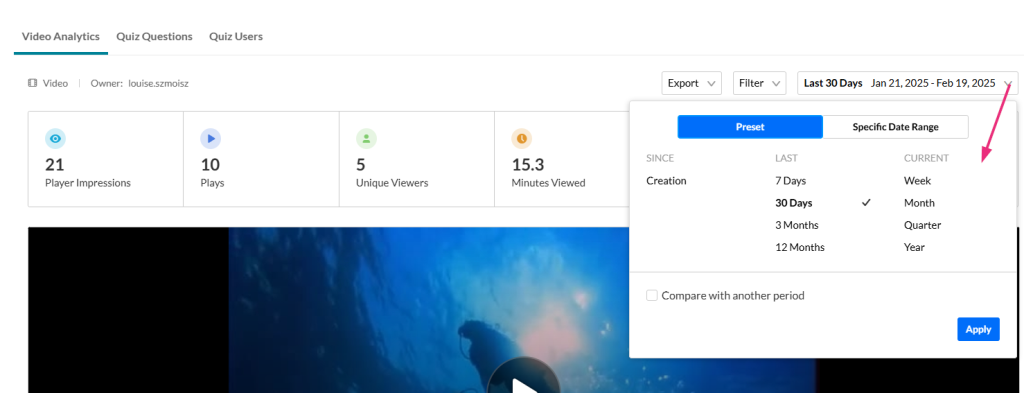
Adjust the timeframe
Use the date picker (top right) to set a specific time period.
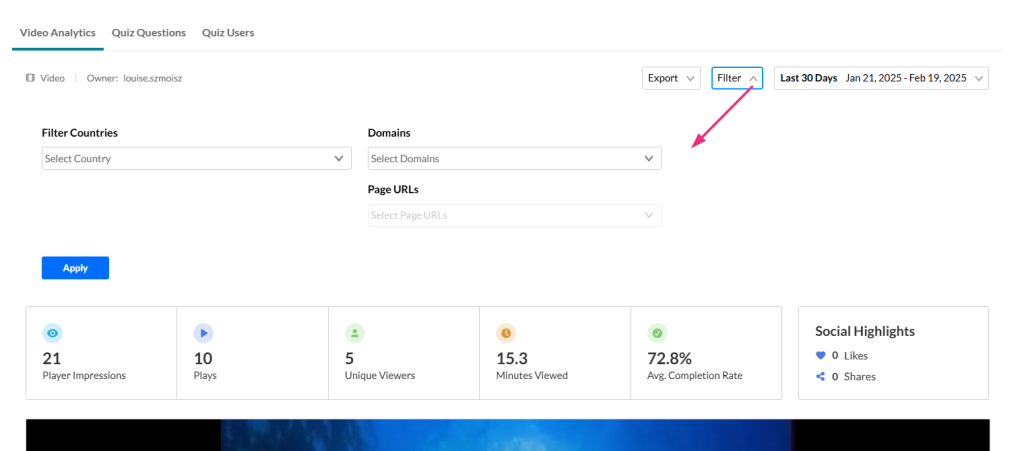
Filter data
Click Filter to refine the displayed data.
Export data
- Click Export to open the drop-down list.
- Select one or more data sets to download in CSV format.
Quiz Questions Tab
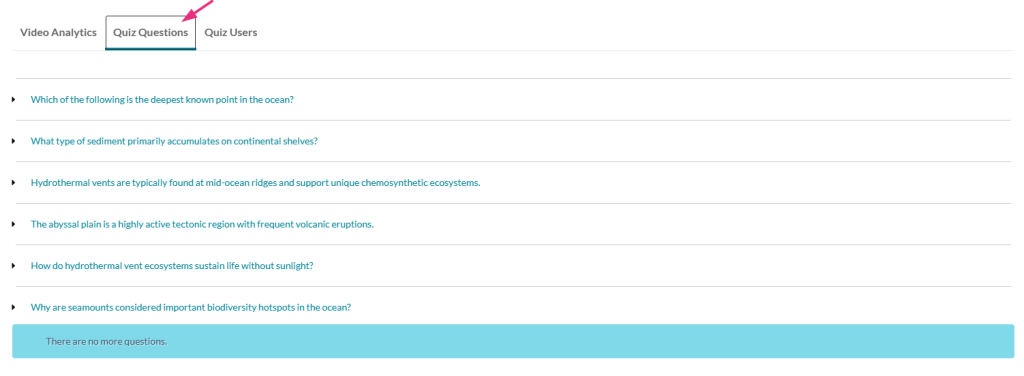
The Quiz Questions tab provides a detailed breakdown of how quiz takers responded to each question. Use this tab to review answers, add notes to open-ended responses, and export or print answers for individual questions.
View Answers
Click the Quiz Questions tab.
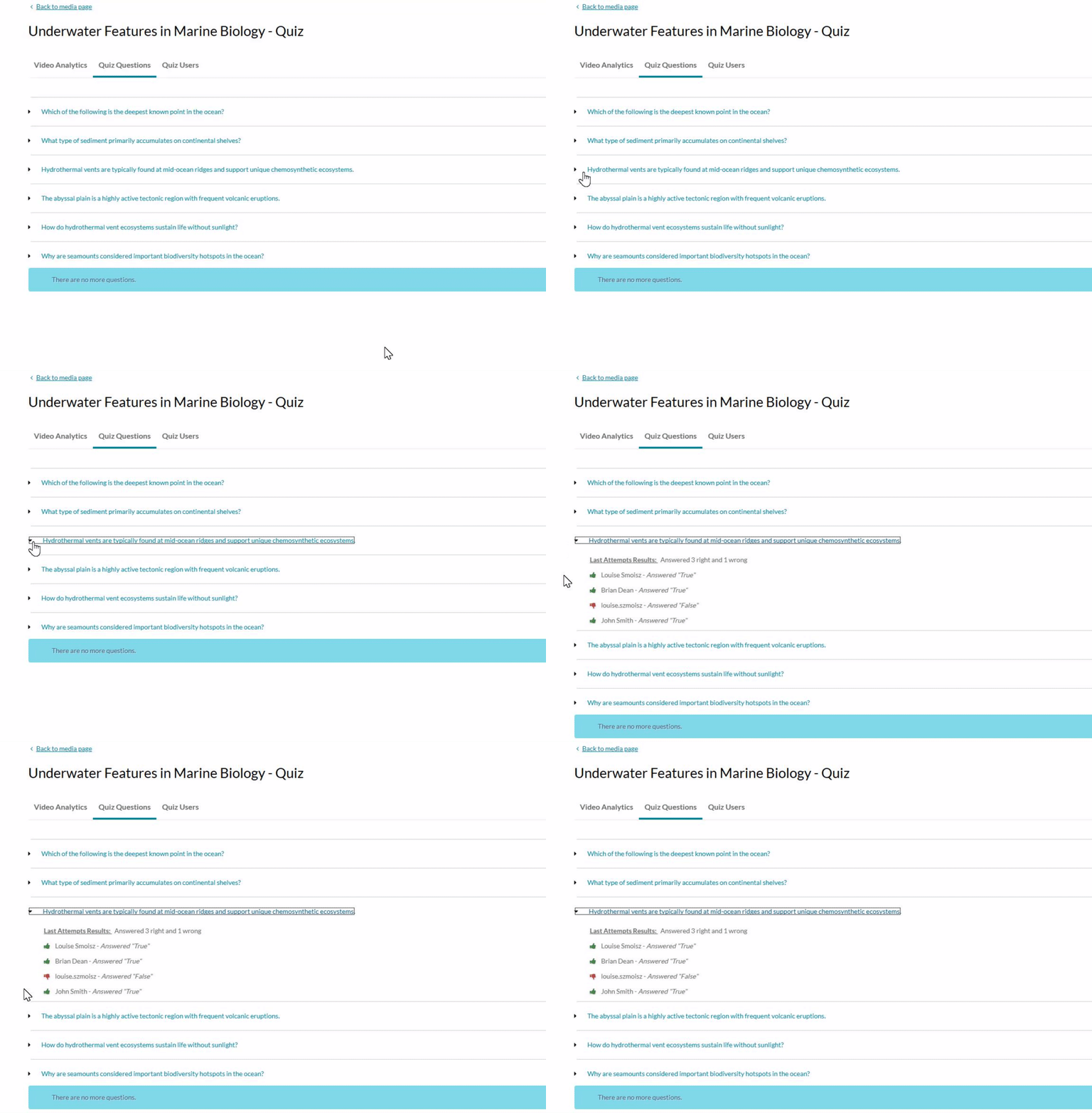
Expand a question using the arrow on the left to see all users’ answers.
Add Notes
Once a student submits an answer to an open question, you can review their response and add a note to provide feedback or clarification. Added notes can be seen by the student the next time they click play on the quiz they have completed and submitted.
Open Ended Questions Only
The ability to add a note is available for open questions only.
To add a note, click the arrow to the left to expand the question.
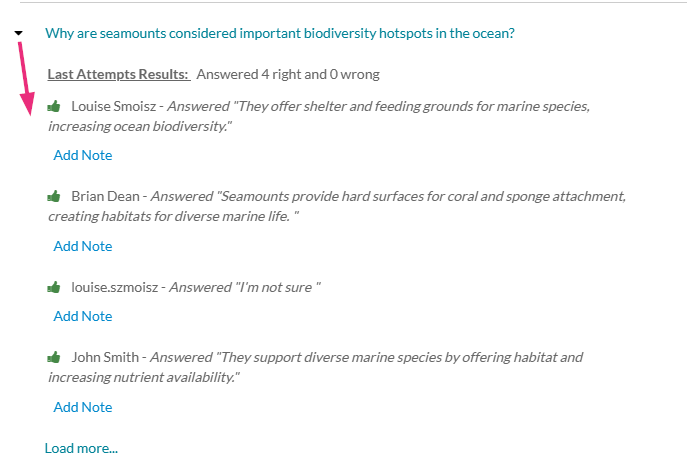
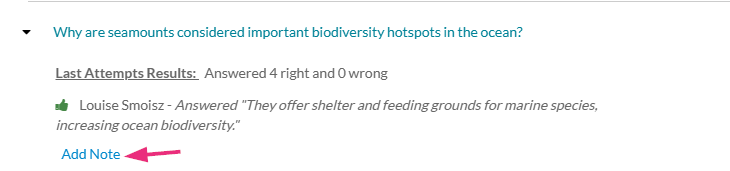
Below the answer, click Add Note.
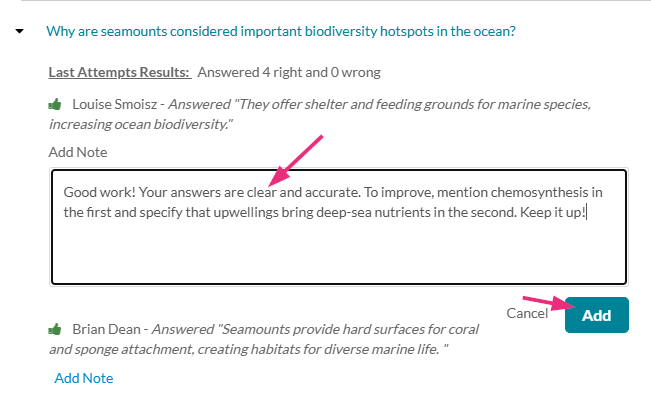
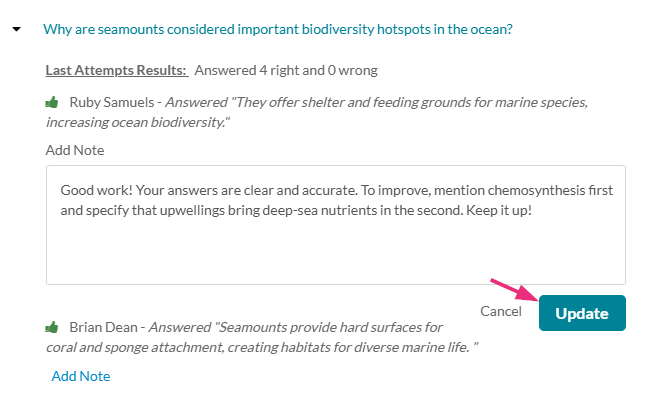
Type in your note and click Add.
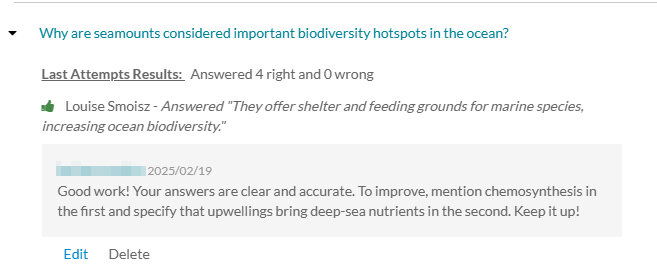
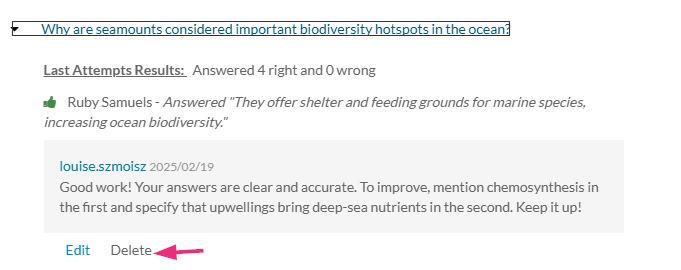
Your note displays below the answer.
Edit a note
- Access the desired note (see Add notes above).
- Below the note, click Edit.
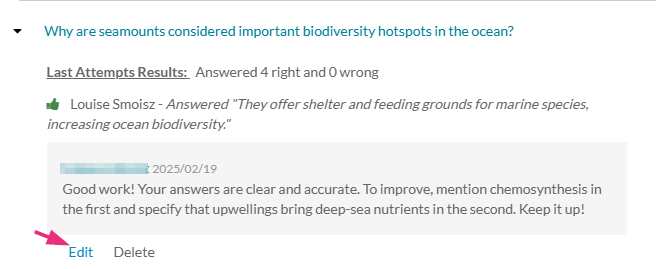
- Make your changes and click Update.
Delete a note
- Access the desired note.
- Below the note, click Delete.
Export or Print Answers
Click the Export to CSV or Printable Version buttons next to a question.

Quiz Users Tab
To view user scores and attempts, click the Quiz Users tab.
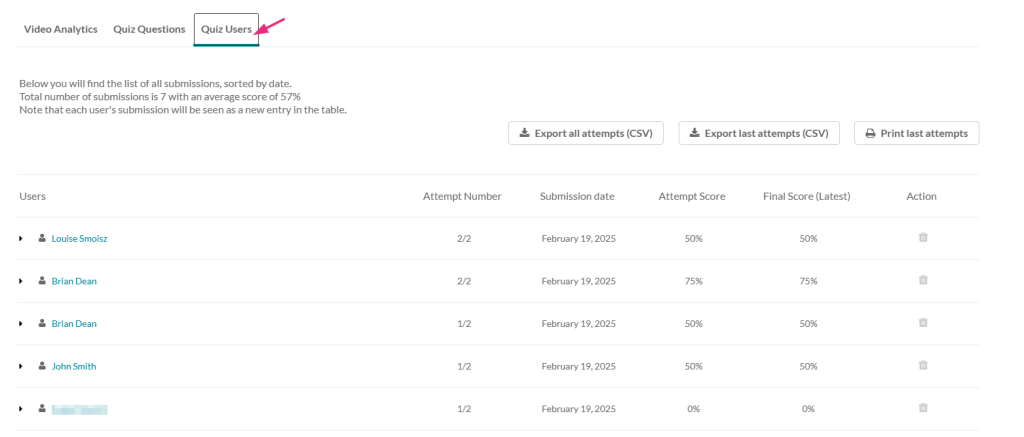
The Quiz Users tab provides a breakdown of key details for each user, organized into the following columns:
- Users – Click a name to view more details.
- Attempt number – Displays all attempts, sorted by submission date, with the latest attempt at the top. If multiple attempts is not enabled by your administrator for quizzes, this will show as Attempt: 1/1. Learn how to enable multiple attempts in our article Set up a video quiz.
- Submission date – Displays the date the quiz was submitted.
- Attempt score – Displays the score for each individual attempt.
- Final Score – The final score is determined by how the quiz was set up:
- If the quiz was set up to allow only one attempt, the final score is simply the score from that attempt.
- If multiple attempts are allowed, the final score follows the scoring rule that was set for that quiz (e.g., Highest, Latest, First, Lowest, or Average Attempt). The score is recorded when the quiz is submitted, so each attempt may have a different final score.

- Action – Click the trash can icon to delete all attempts. To delete only the user’s last attempt, see Users details section further below
Learning Hub Gradebook Report
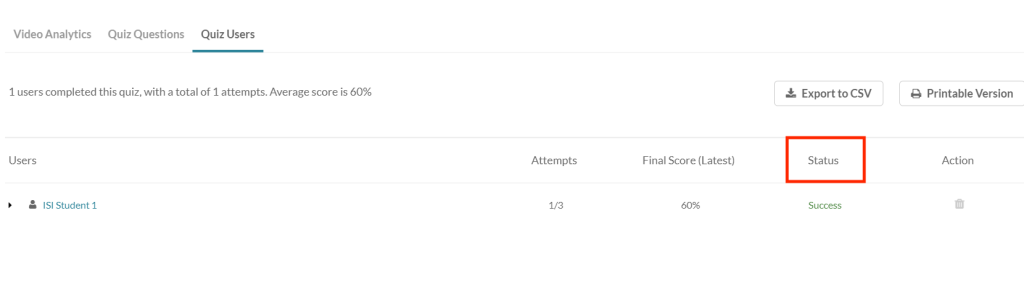
If embedded into the Content area of Learning Hub course (see Kaltura BSE – Embed Kaltura Quizzes), after a user completes a quiz, their score is recorded into the course Gradebook.
The Status column, presents the sync status.
- Success – if the score was reported successfully
- Error – if the score was not reported
Quiz Reports
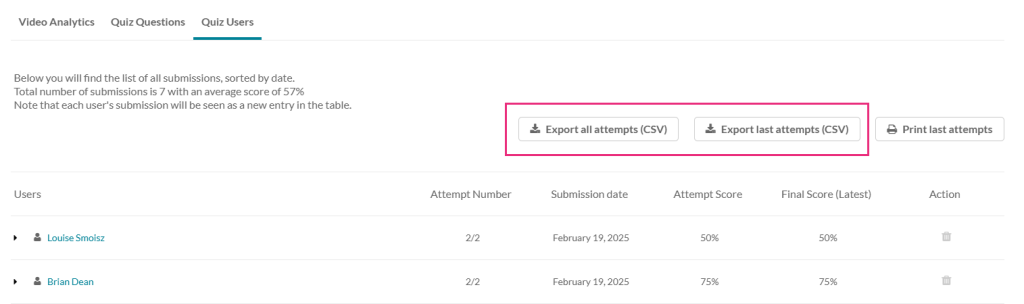
You can download quiz data in CSV format:
- Export All Attempts (CSV) – Click to download a report that includes all user attempts.
- Export Last Attempt (CSV) – Click to download a report that shows only the last recorded attempt for each user.
Submission Dates
Submission dates are included in the CSV file in GMT format.
User Details
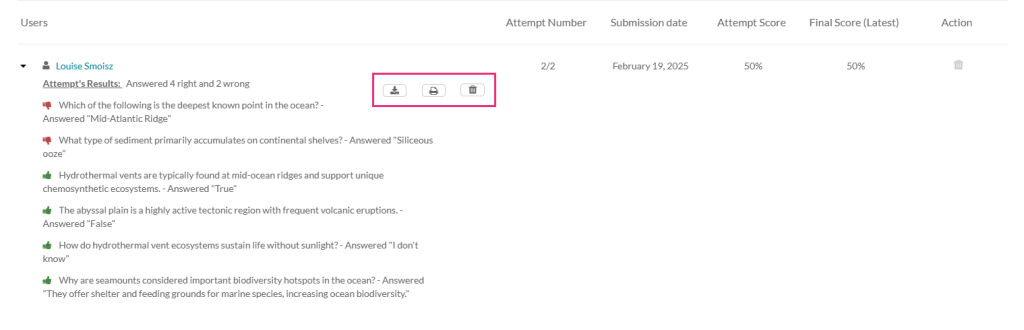
Click a user’s name to expand their last Attempts Results.
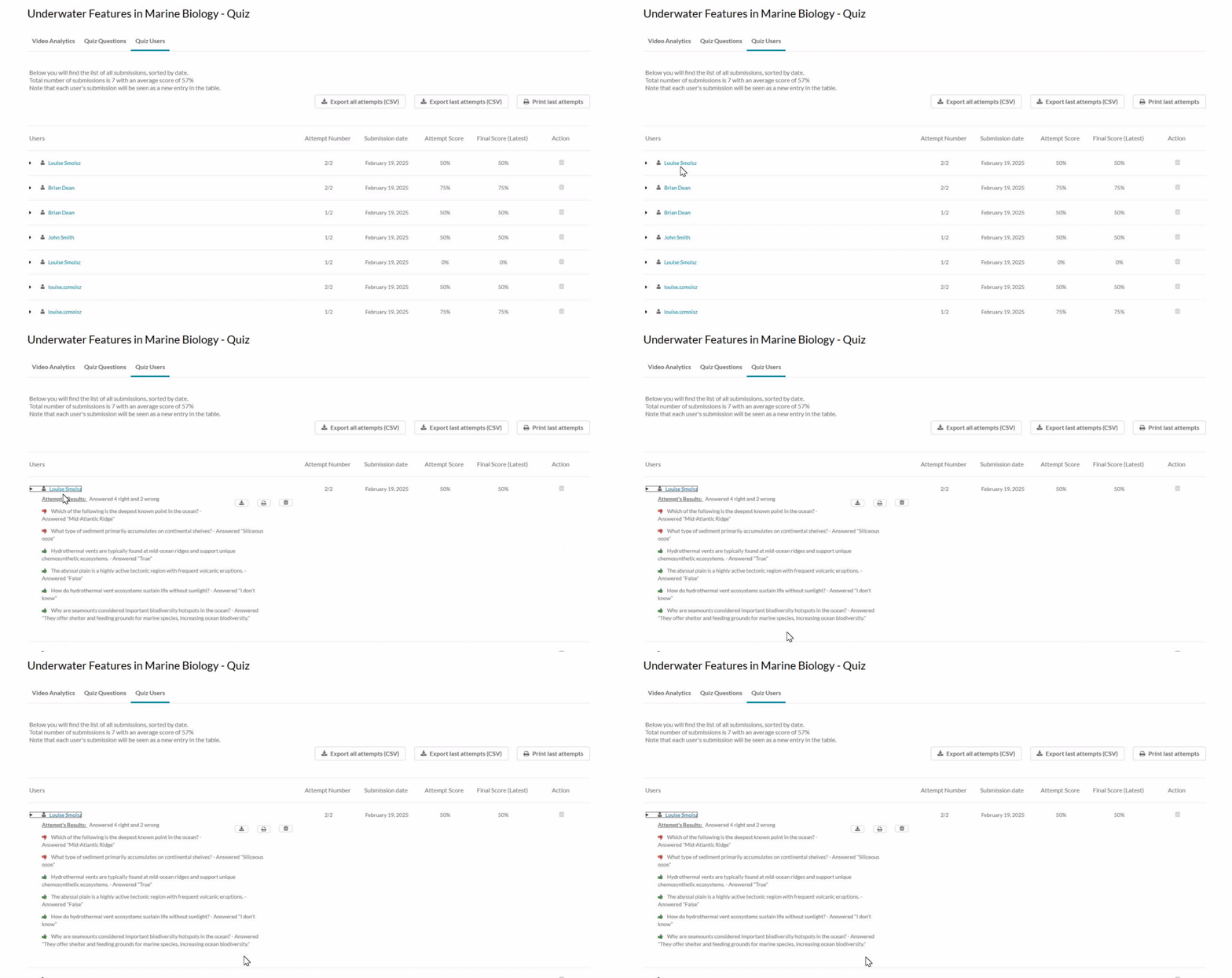
To the right of the user’s answers, there are three buttons (hover to see the button’s function):
- Export to CSV – Click to download the report data.
- Print – Click to print the report.
- Delete – Click to remove the last attempt. Note the delete icon appears only for the most recent attempt.
Related Posts
