


Kaltura Media Gallery – Adding Media
The Media Gallery is a centralized space within your course where you can organize and share multimedia content, like recorded lectures, presentations, or tutorials.
This guide explains how to add media to your media gallery, either by selecting your media or by creating new content.
Adding your media to the gallery
- Go to your course.
- Click Kaltura Media Gallery in the course navigation under Activities.
- The Media Gallery opens.
- On the Media Gallery page, click +Add to Media Gallery at the far right (this button only appears if you have permission to add media to the Media Gallery).

- The Select Media window opens with the list of entries that exist inside your My Media
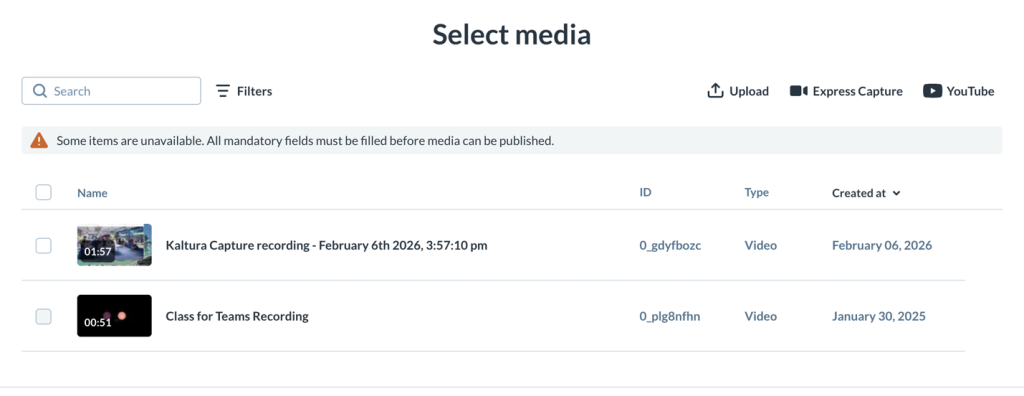
- Search or filter to find the media you want to add.
- Check the box next to each item you want to add. To select all items on the page, use the checkbox at the top of the table.

- If a checkbox is greyed out and already checked, it means the media is already in the channel. You’ll also see an alert message confirming this.
- If a checkbox is greyed out and not checked, it means the media is missing required fields and can’t be published yet. You’ll see a message prompting you to fill in the required information before publishing.
- Alert messages show at top for media already added, as well as missing required fields.

- Click Select at the bottom right (this button becomes active once at least one item is selected).

- A confirmation message displays at the top of the screen.
- Once added, your media appears in the Media Gallery. If moderation is enabled, it may take time before the media is visible to others.
Add new media
Need to upload or record a new entry? You can create a new entry by clicking one of options on the top right.
- Upload – Upload one or multiple media files from your computer at once.
- Express Capture – Create a recording using Kaltura Express Capture.
- YouTube – Create a new entry using a YouTube video.

Auto Saved to My Media
A newly created item will automatically be saved as an entry inside My Media.
Related Posts
