


- Resource
- Uncategorized
- Kaltura – Preview Page
Kaltura – Preview Page
The Kaltura Preview Page (also known as the Media Page) is where you can preview Kaltura entries. Depending on whether the media is private or published, you can access the Preview Page from either My Media or a Course Media Gallery.
Accessing Preview from My Media
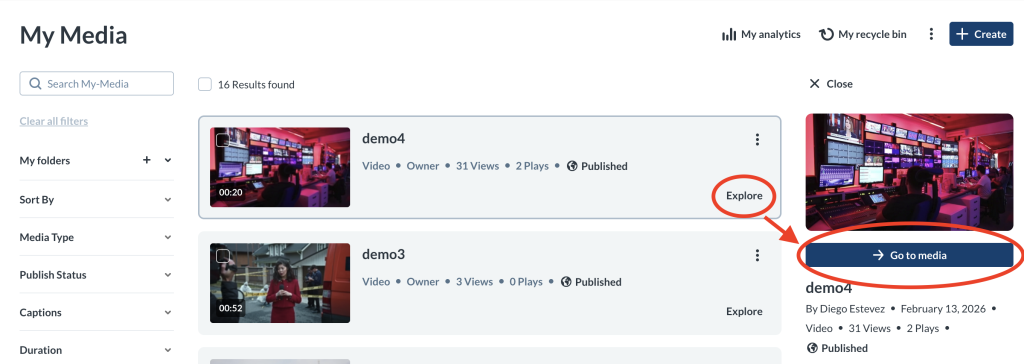
- Go to My Media.
- Locate the media entry.
- Click Explore → Go to Media.
Accessing Preview from Media Gallery
Use this method to view published entries.
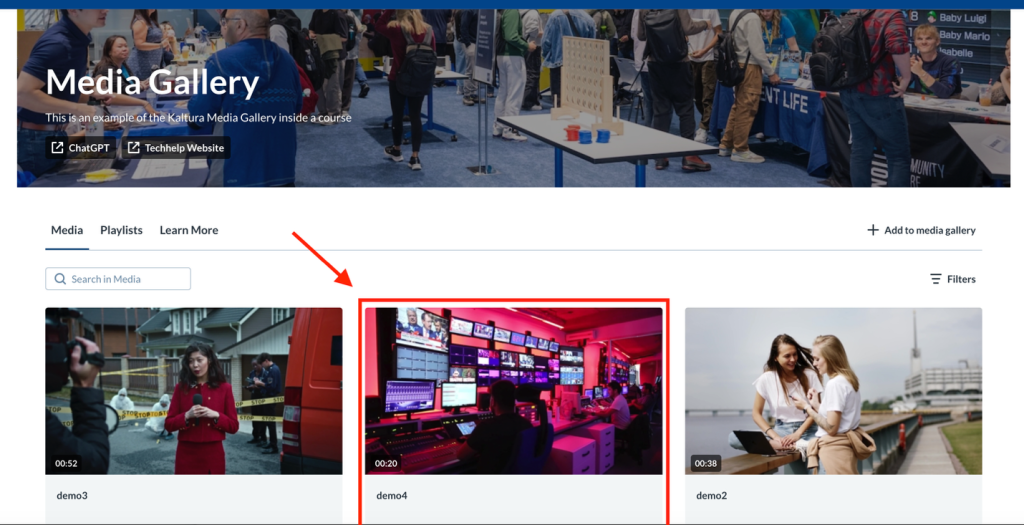
- Enter the course Media Gallery.
- Locate the media entry.
- Click the entry title to open the Preview Page
About the Preview page
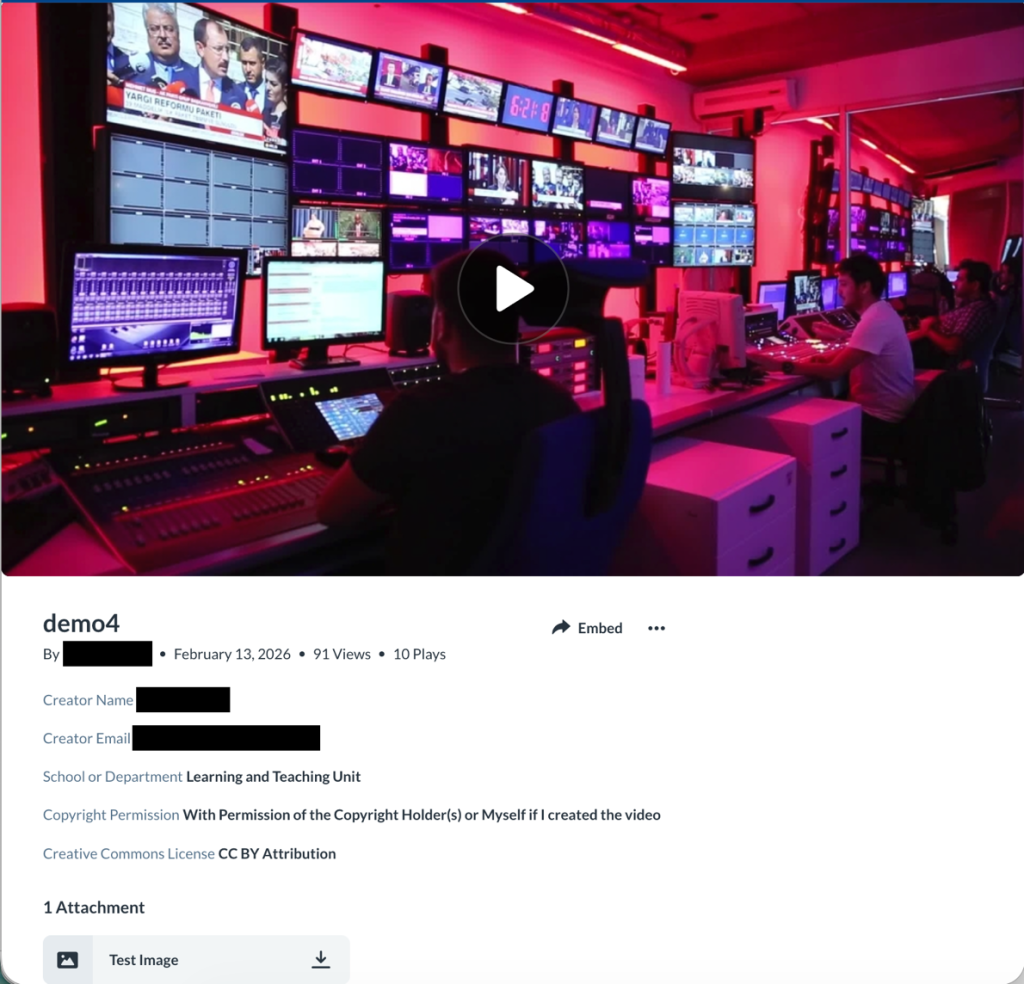
The Preview Page provides playback access and detailed information about a media entry.
Key elements
- Views and Plays
- A view is counted when the Preview Page loads.
- A play is counted when the Play button is selected.
- Embed (Admin Only)
- Select Embed to open the Kaltura embed developer options.
Embedding Kaltura Media
Please note that Embed option is an admin. In order to comply with BCIT privacy guidelines the Embed option has been disabled for most staff and students.
Embedding Kaltura media should always be done within the context of the Learning Hub and can be handled using the Kaltura Browse and Embed tool. Please see the Kaltura BSE – Overview for guidelines.
If you require embedding Kaltura media outside of the Learning Hub, please contact ETS directly.
- Entry Information
- Displays all metadata associated with the media item. See Kaltura My Media – Metadata
- Attachments (if enabled, see Kaltura My Media – Attachments)
- Hover over an attachment to view:
- Media title
- File name
- Description
- File size
- Ellipses Menu (⋯)
- Provides access to editing tools. See Kaltura My Media – Editing
- Only visible to users who can access the entry in their My Media repository. Please see the next section
- Hover over an attachment to view:
Ellipses Menu (accessible for owned entries only)
The following options are available to the creator or owner of the Kaltura entry only:
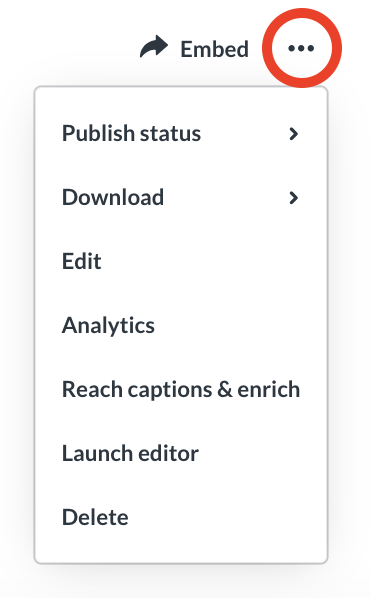
- Publish Status
- Publish the entry to one or more course Media Galleries you have access to. Once published, the course name appears on the media page. See Kaltura – Publishing for details.
- Download
- Download a specific media flavor to your device. See Kaltura My Media – Download for guidance.
- Edit
- Edit media details and settings. See Kaltura My Media – Editing.
- Analytics
- Access the VOD analytics dashboard for entry-level insights. See Kaltura My Media – Entry Analytics.
- Reach captions & enrich
- Order captions or enrichment services. Please note that Auto-captions are generated for all videos with an audio track. Use this option only if automatic captioning has not occurred. See Kaltura My Media – Captions.
- Launch editor
- Open the Kaltura Video Editor to trim or modify the video. See Kaltura – Video Editor Tool.
- Delete
- Delete the entry and move it to the Recycle Bin. See Kaltura My Media – Delete.
Related Posts
