


Kaltura My Media – Editing
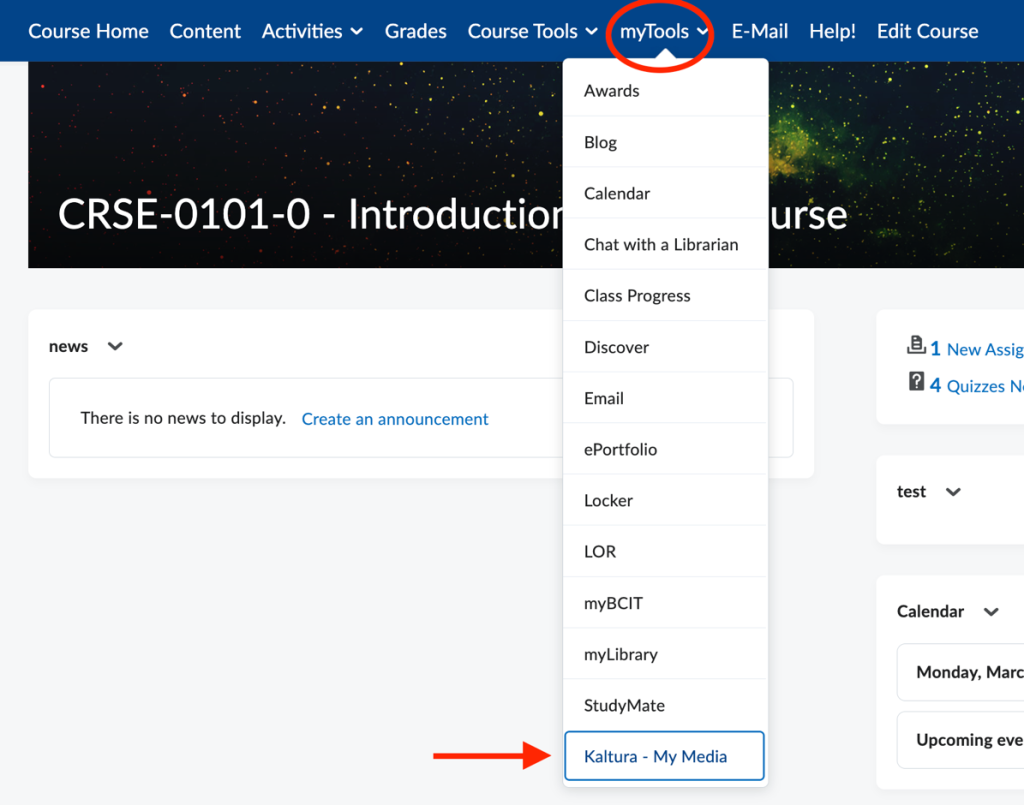
This job aid will show how to access the Edit Page for your created media entries inside Kaltura. To start, access Kaltura My Media from the myTools menu inside a Learning Hub course.
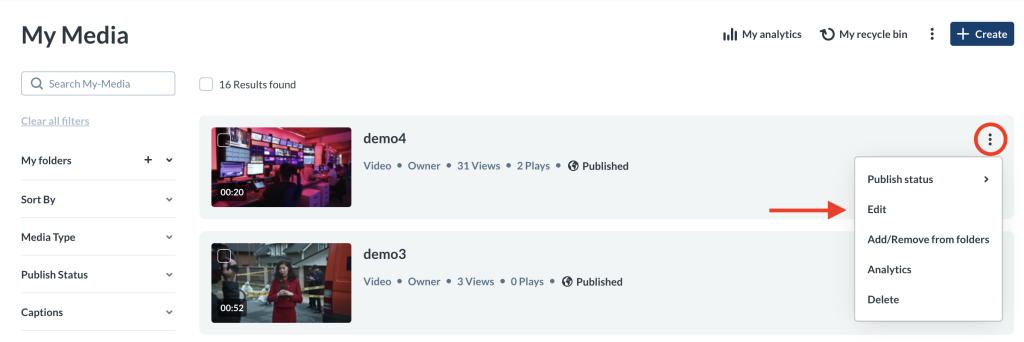
Next, select the entry you would like to edit. Click on the ellipses menu of the entry and then select Edit.
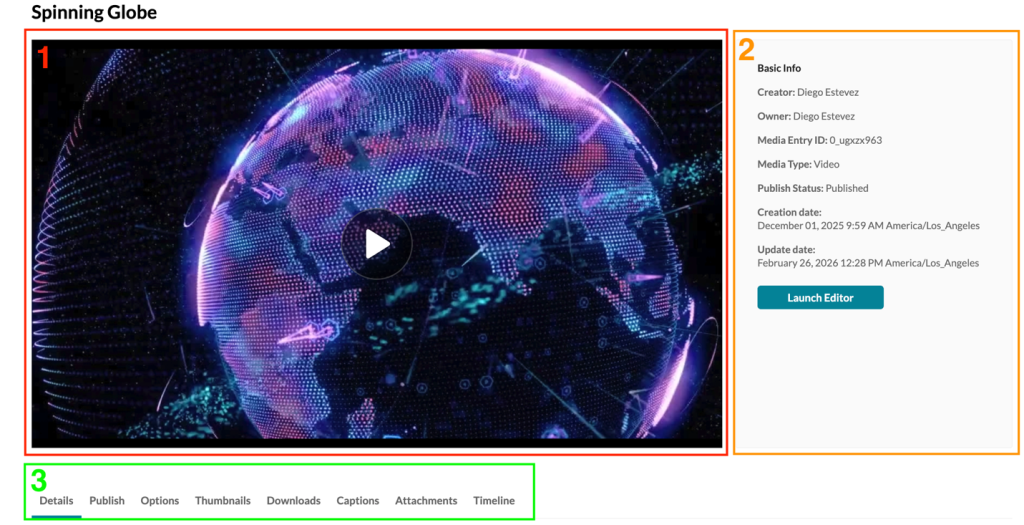
You will be taken to the Edit page of the entry.
Edit Page
The Edit page can be broken up into distinct three areas.
- The Media Player
- The Information widget
- The Editing tabs
The Media Player
The Media Player will allow you to preview your entry. You can click to play, pause, and watch your content directly on this page. Any modifications made in the Editing tabs will immediately take affect here.
The Information Widget
The Information Widget will display basic information about your entry as well as a button to Launch the Kaltura Editor Tool. The following information will be display for the entry:
- Creator: The user who originally created the media.
- Owner: The user who has currently access to the entry inside My Media.
- Media Entry ID: A unique identifier generated by Kaltura for this entry. Please reference this number when requesting technical support
- Media Type: The entry’s media type (video, image, document or audio).
- Publish Status: Shows the status of the entry (private or published).
- Creation Date: The date when the media was first created.
- Update Date: The last time any changes were made to the entry.
The Editing Tabs
The Editing Tabs allow you to modify your entry according to the options displayed below:
- Details – Update metadata (required for publishing)
- Publish – Publish the entry to selected courses
- Options – Allows viewers to create clips or copy an entry
- Thumbnails – Upload, capture, or auto‑generate a thumbnail
- Downloads – Enable or disable downloading
- Captions – View or edit captions
- Attachments – Upload supporting files (PDFs, Word docs, etc.)
- Timeline – Add chapters or slides
- Replace Video (YouTube only) – Replace a YouTube shared link

Please note that the options shown above depend entirely on the type of entry being edited and some entry types may not have all these options available.
Related Posts
