


Kaltura Media Gallery – Configuring Media Gallery
The Media Gallery is a centralized area in your course for organizing and sharing multimedia content, including lecture videos, recordings, and student-submitted media. Using the Manage Media or Configure options, instructors can control gallery details, moderation settings, and how media is presented to students.
Accessing Gallery Configurations
- Open your course in the Learning Hub.
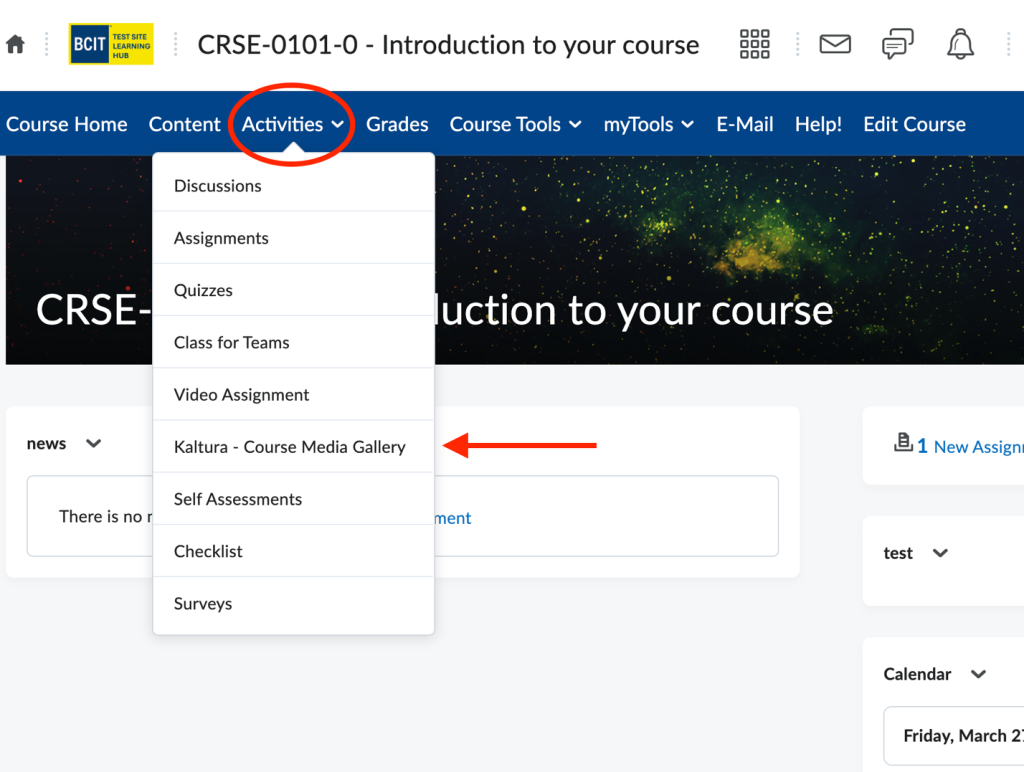
- Select Activities, then choose Course Media Gallery.
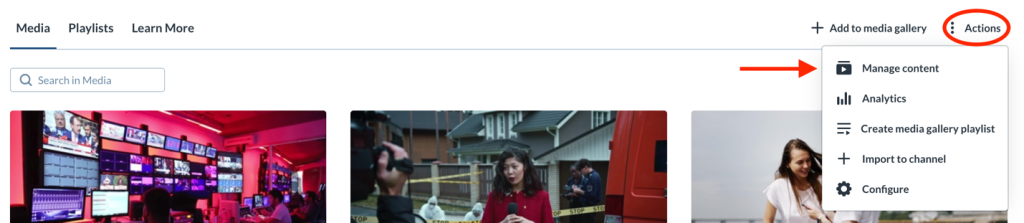
- From the top-right corner, open the Actions
- Select Manage Content
or Configure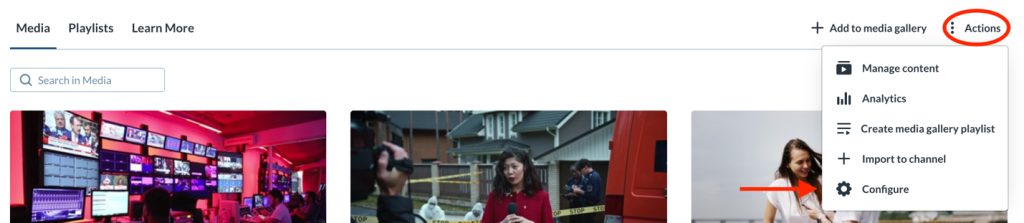
- Which option you choose does not matter, both take you into the configuration area.
About the configuration area
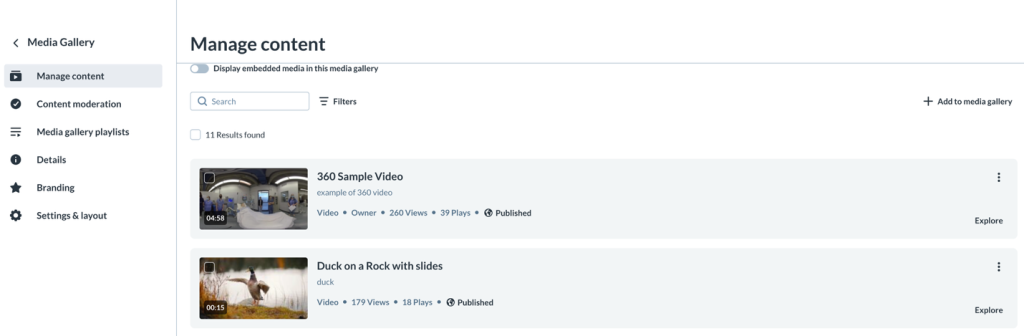
The Media Gallery configuration area includes several options, listed in the left-hand menu. Each option controls a different aspect of how the gallery looks or functions:
- Manage Content – View, organize, and manage media items.
- Content Moderation – Review and approve media before it becomes visible to students.
- Media Gallery Playlists – Create and manage curated playlists.
- Details – Edit basic gallery information and descriptions.
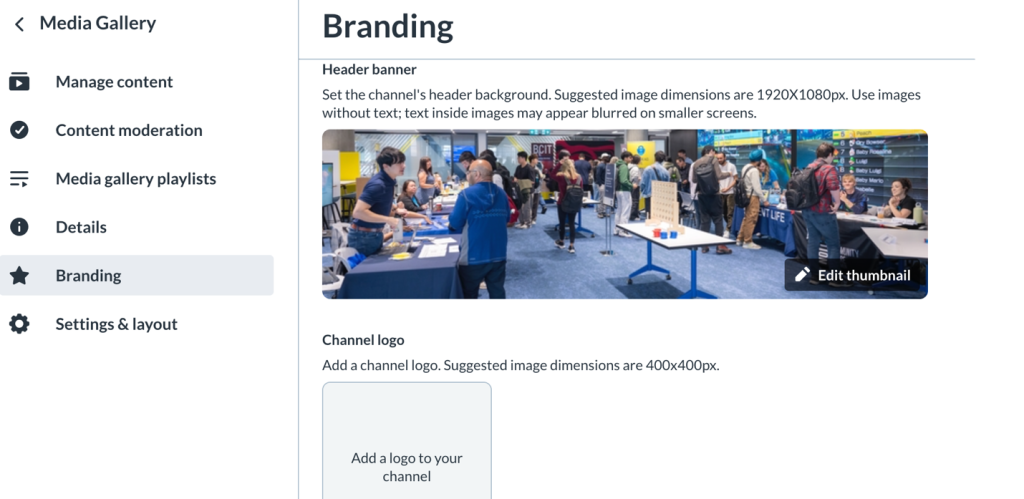
- Branding – Customize the gallery’s visual appearance.
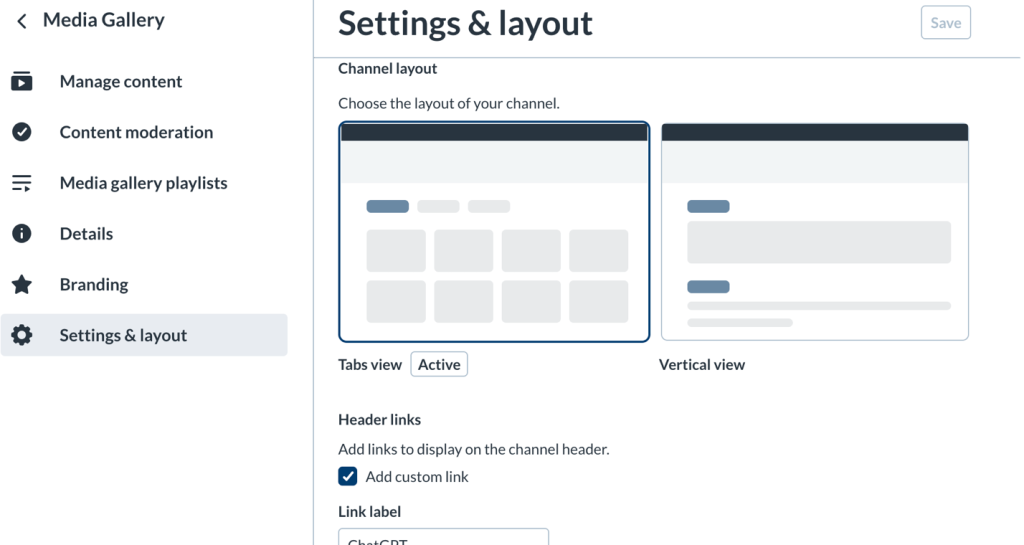
- Settings and Layout – Control display options and gallery behavior.
Each of these options are described below briefly with links to the specific job aid that will go over that specific option in greater detail.
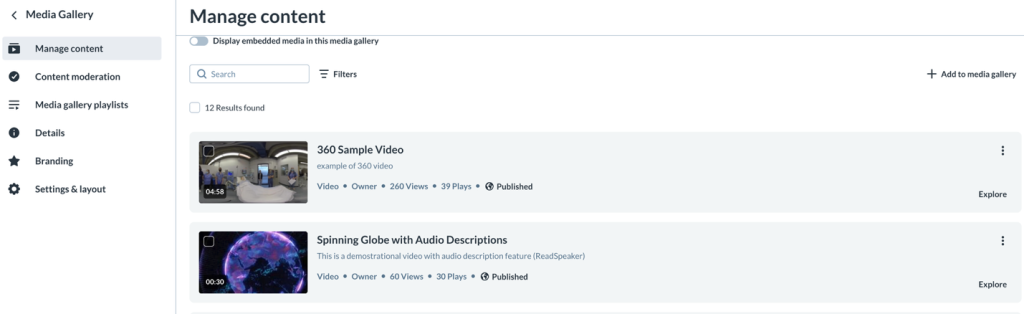
Manage Content
Use Manage content to control the media that appears in your Media Gallery. From this page, you can add media, remove media, organize content, and perform bulk actions – all from a single, media-focused view. See Kaltura Media Gallery – Managing Media.
Content Moderation
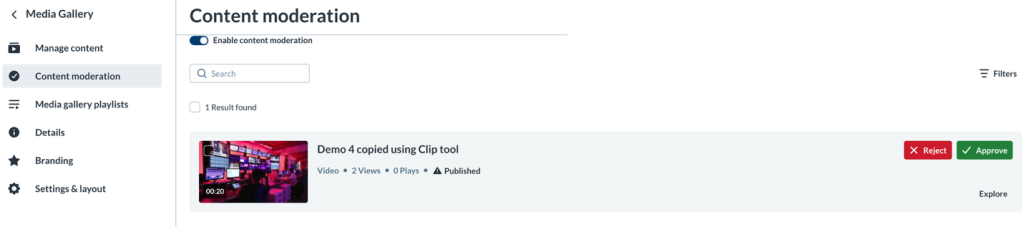
Use Content moderation to enable moderation inside your Media Gallery. When moderation is enabled, all student‑submitted media must be approved before it appears in the course Media Gallery. See Kaltura Media Gallery – Moderation.
Media Gallery Playlists
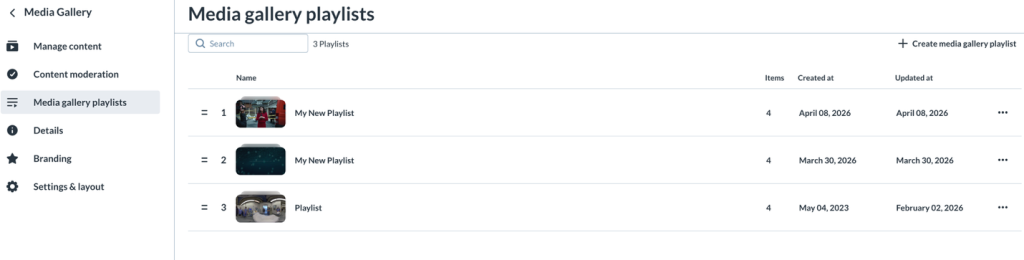
Click Create media gallery playlists to create playlists inside Media gallery. You can edit created playlists from the Media Gallery editing area. See Kaltura Media Gallery – Playlists.
Details
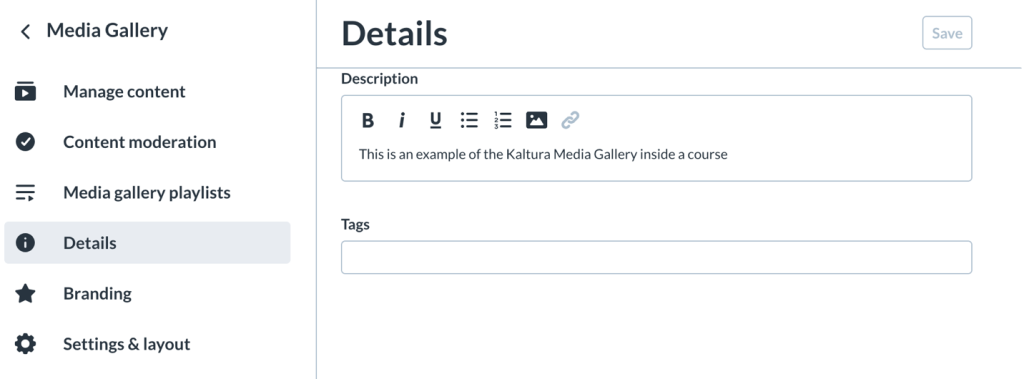
Edit basic information that appears in your Media Gallery using Details. This option allows you to change the title and sub-title, both of which appear on the display banner and Learn More tab in the front page of the Media Gallery.
Branding
Customize the look and feel of your course Media Gallery with the Branding option. You can apply a banner image, logo or video to your course Media Gallery to give it a unique look and feel. See Kaltura Media Gallery – Branding.
Settings and layout
Customize how content appears inside your course Media Gallery using Settings and Layout. Settings allows you to control which sections appears as well as apply CTAs to external resources you may wish to share with viewers. See Kaltura Media Gallery – Settings and Layout.
Related Posts
