


Kaltura Media Gallery – Playlists
Playlists are a great tool for organizing your content, such as videos, audio files and even documents. Media Gallery allows the creation of playlists which can be used in the Media Gallery itself or embedded into course content using one of the Kaltura Browse and Embed tools.
Create playlists
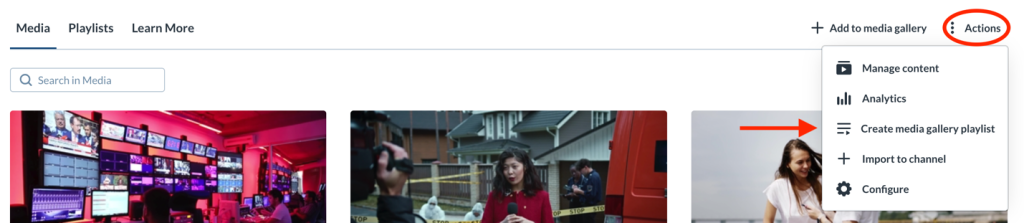
To create a playlist first access the course Media Gallery and then from the Actions menu choose Create media gallery playlist.
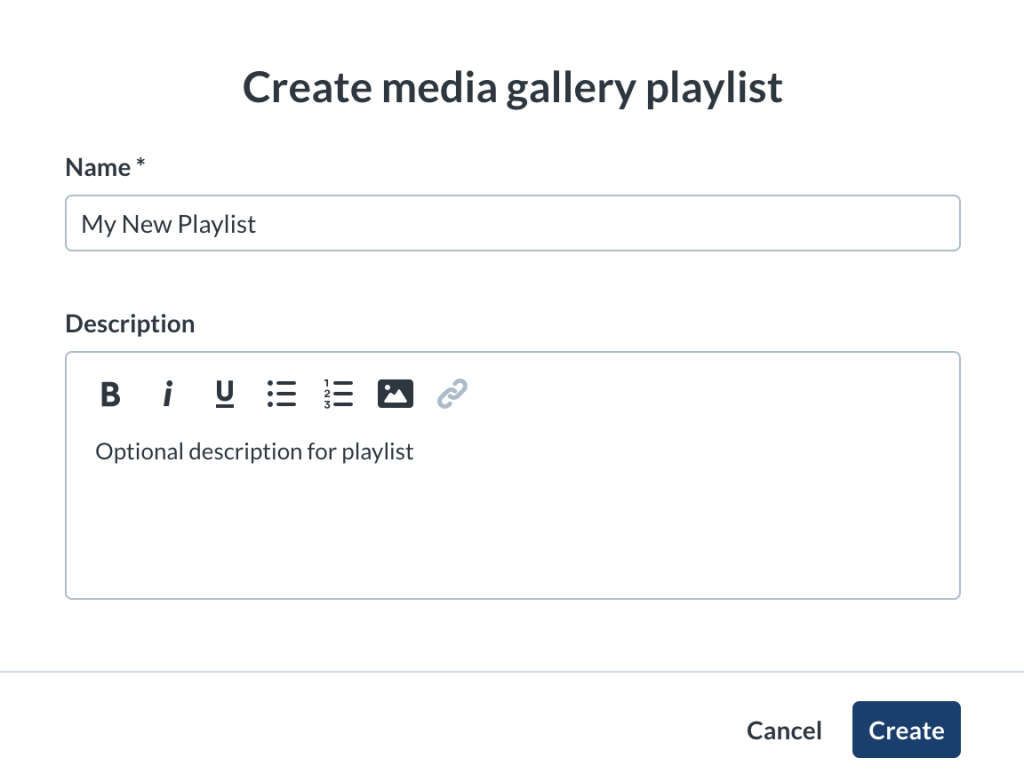
The ‘Create media gallery playlist’ window opens. Add a name and optional description and then click Create.
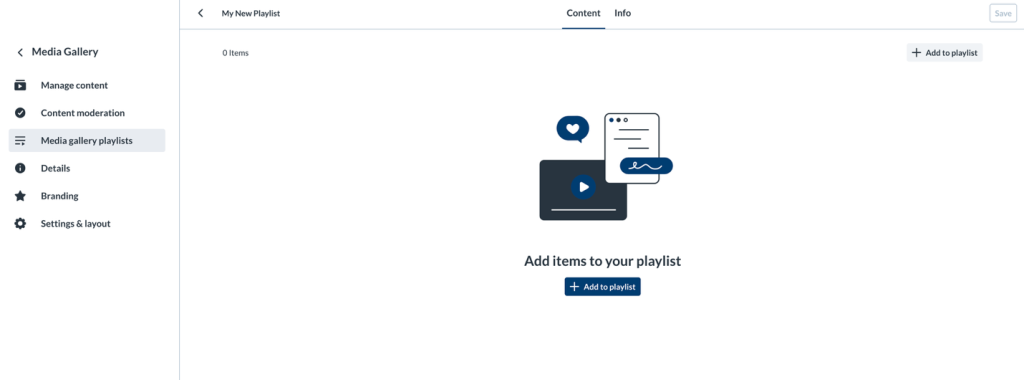
You will be redirected to the Media gallery playlists area of the Media Gallery editing area.
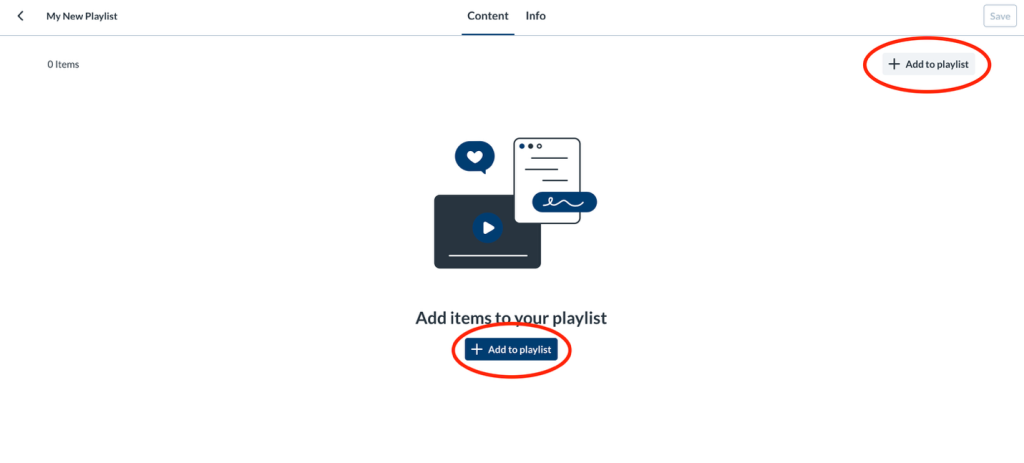
Add Items to your playlist
- Click Add to playlist (top right or center of the page).
 The ‘Select media’ window opens.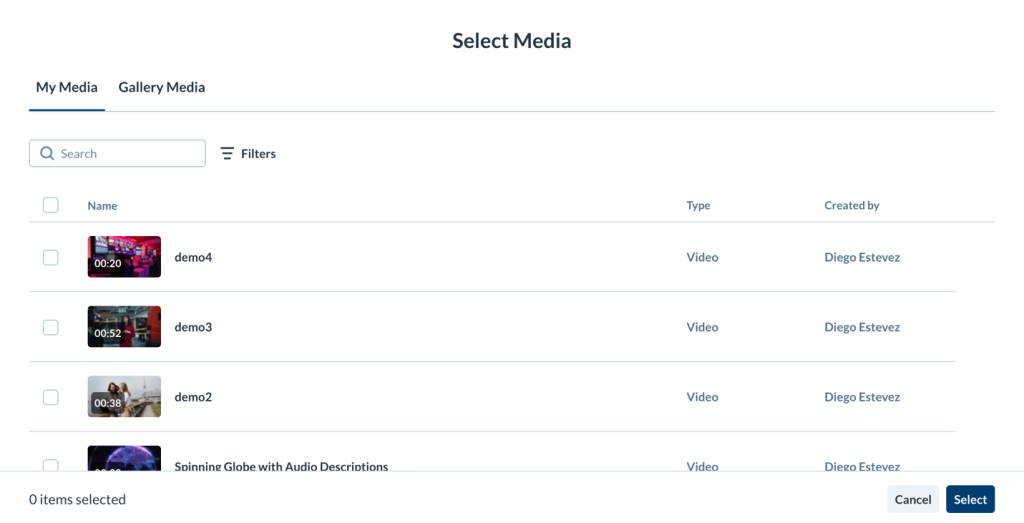
- Check the boxes next to the items you want to add in the tabs:
- My Media – add media from My Media
- Media Gallery – add any items published inside the course Media Gallery
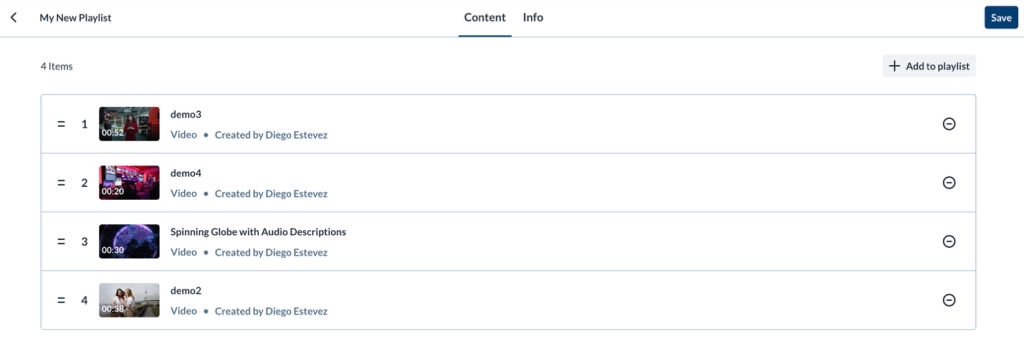
- You can use the search function to find the media. Click Select (bottom right). The playlist Content tab displays.
- When you’re happy with your playlist, click Save (top right).
Change order of items
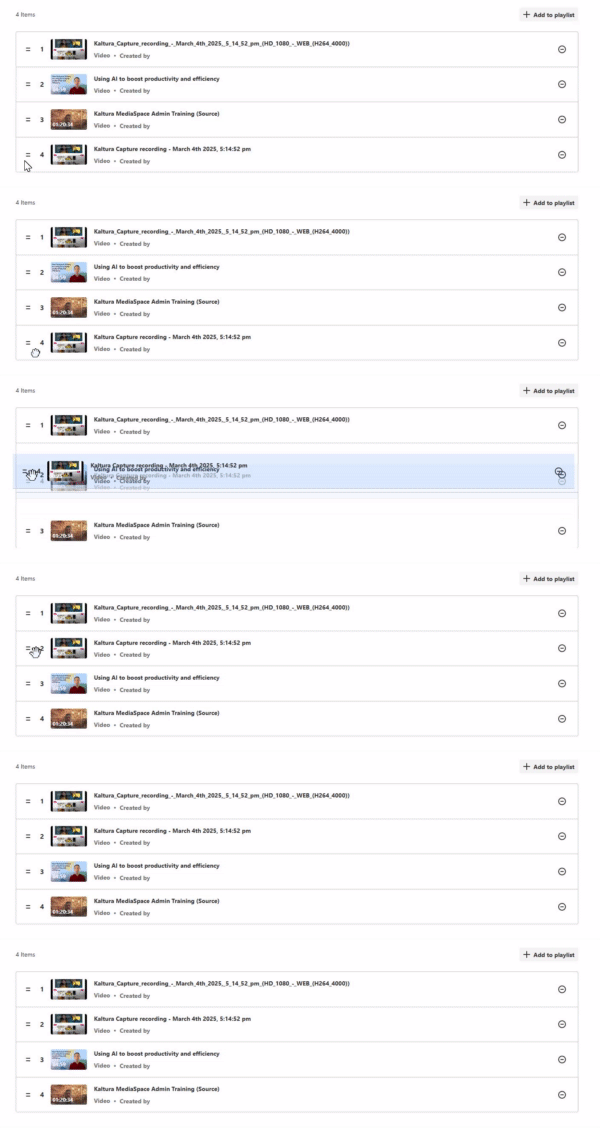
- Mouse: Drag the handles (two lines) to the left to move the item.
- Keyboard: Tab to the handle → Space/Enter to pick up → ↑/↓ to move → Space/Enter to drop (Esc cancels).
Remove items
Click the remove icon next to an item to take it out of the playlist.

Playlist thumbnails
- The playlist thumbnail defaults to the first item in the playlist. If you change the order, it updates after you save.
- For an empty playlist, no thumbnail is shown until you add items.
Edit Playlists
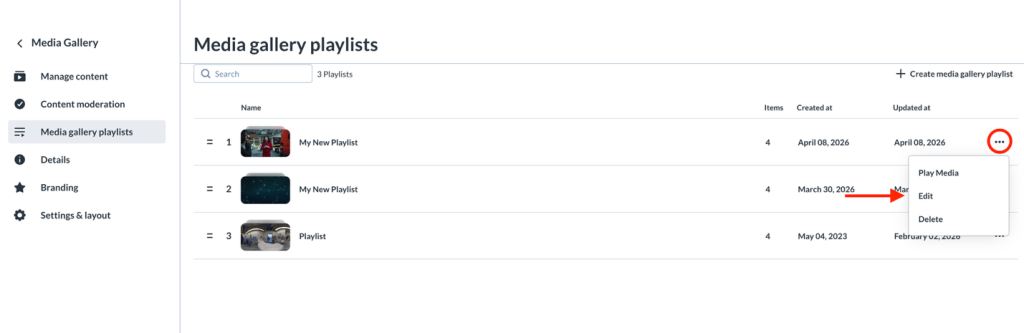
To edit a playlist, access Media gallery playlists in the Media Gallery editing area. Next to the select playlist click on the Ellipses menu and select Edit.
Content tab
Use the Content tab to add, review, reorder, and remove items.
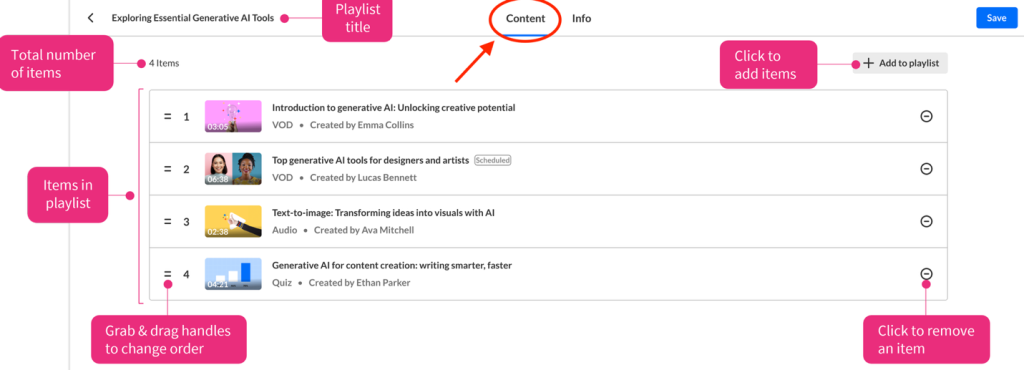
Reorder
- Mouse: Drag the handles (two lines) on the left to move the item.
- Keyboard: Tab to the handle → Space/Enter to pick up → ↑/↓ to move → Space/Enter to drop (Esc cancels).
Remove
Click the remove icon to the right of an item to take it off the playlist. This does not delete the media from your account.

Add Media
Click on Add to Playlist and the follow the exact same steps mentioned above in the Add Items to your playlist subsection.

Info tab
Use the Info tab to update the playlist name and optional description.
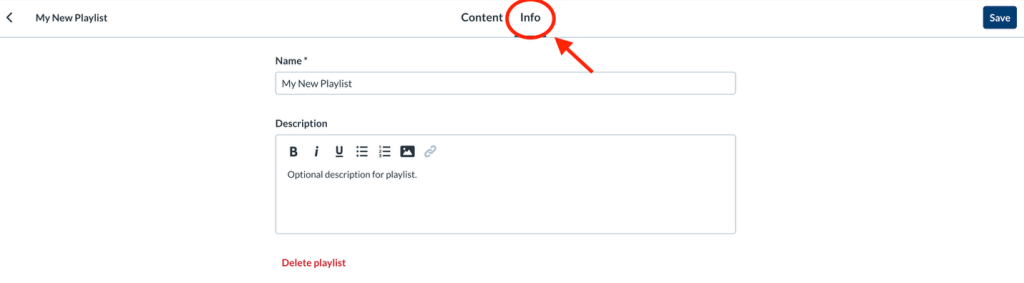
Edit details
- On the Info tab, update the playlist name and description.
- Click Save (top right).
Delete playlist
- Click Delete playlist.
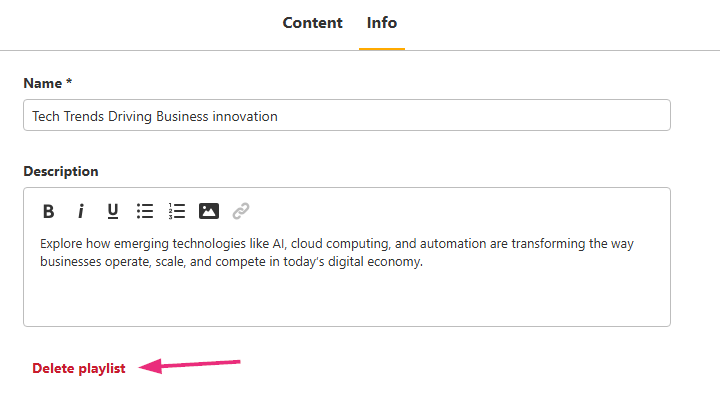
A message will prompt asking you to confirm the deletion.
- Click Delete to continue.
- The playlist will be deleted (but not the entries themselves).
Delete Playlists
To delete a playlist, access Media gallery playlists in the Media Gallery editing area. Next to the select playlist click on the Ellipses menu and select Delete.
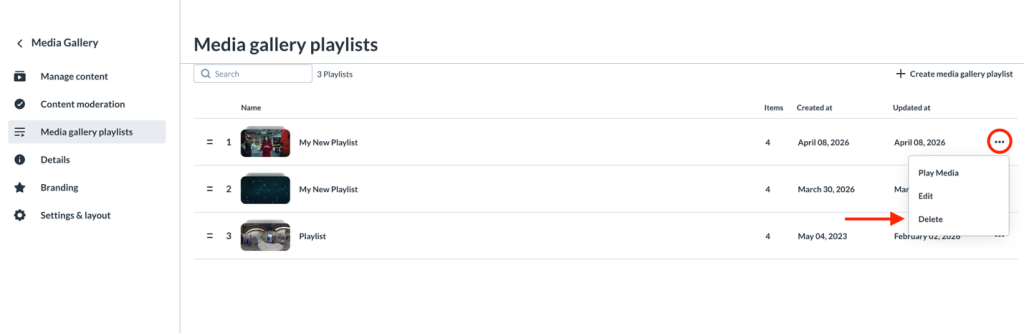
A message will prompt asking you to confirm the deletion.
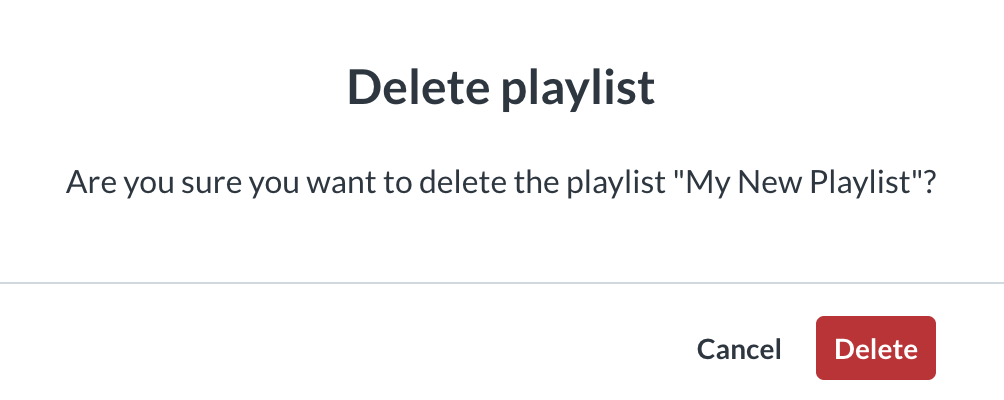
Click Delete again to delete the playlist. The playlist will be deleted (but not the entries themselves).
Preview Playlists
To preview a playlist, access Media gallery playlists in the Media Gallery editing area. Next to the select playlist click on the Ellipses menu and select Play Media.
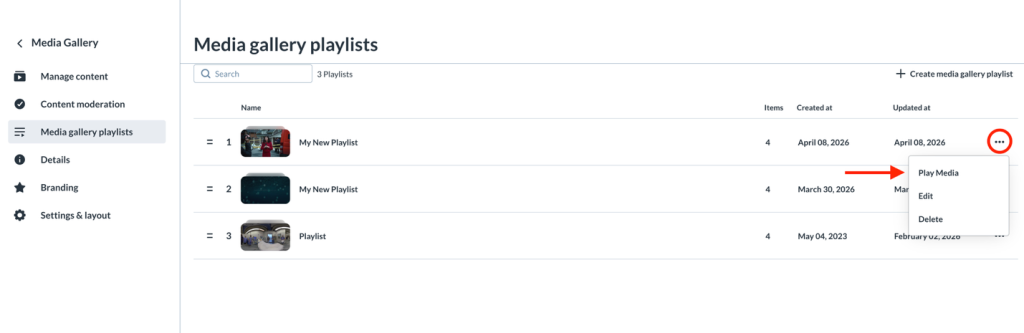
From here you will be able to preview what the playlist looks like to viewers in its current iteration through Kaltura’s preview page (See Kaltura – Preview Page).
Related Posts
