


Kaltura My Media – Attachements
The Attachments Tab an entry’s Edit page allow you to attach files to your media allowing viewers to download them before, during, or after watching the content.
Upload attachments
- Click the Attachments tab.
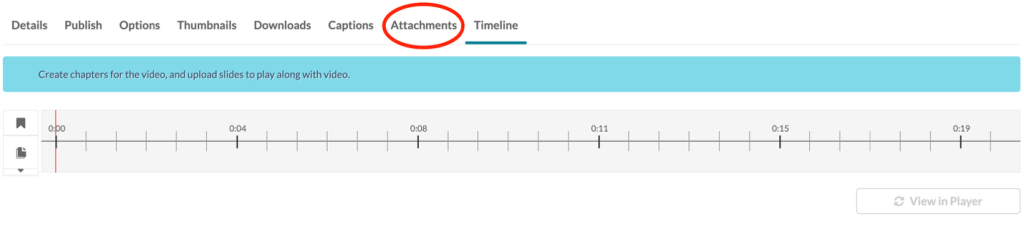
- Click Upload File.

- The Upload Attachment window displays.
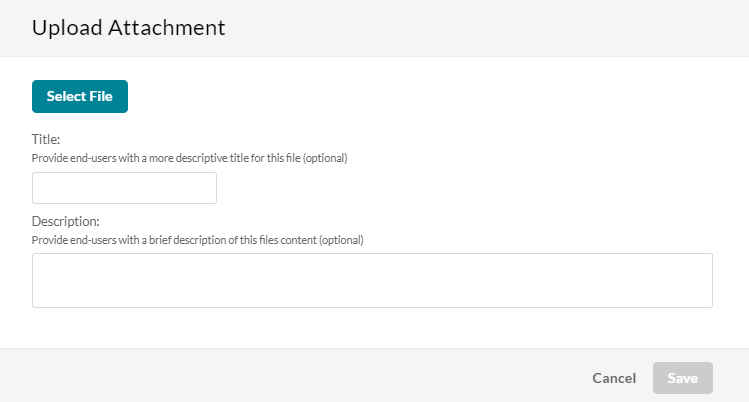
- Click Select File.
- Select the file you want to upload as an attachment and click Open.
- Once the file has uploaded, a success message displays: Upload Completed.
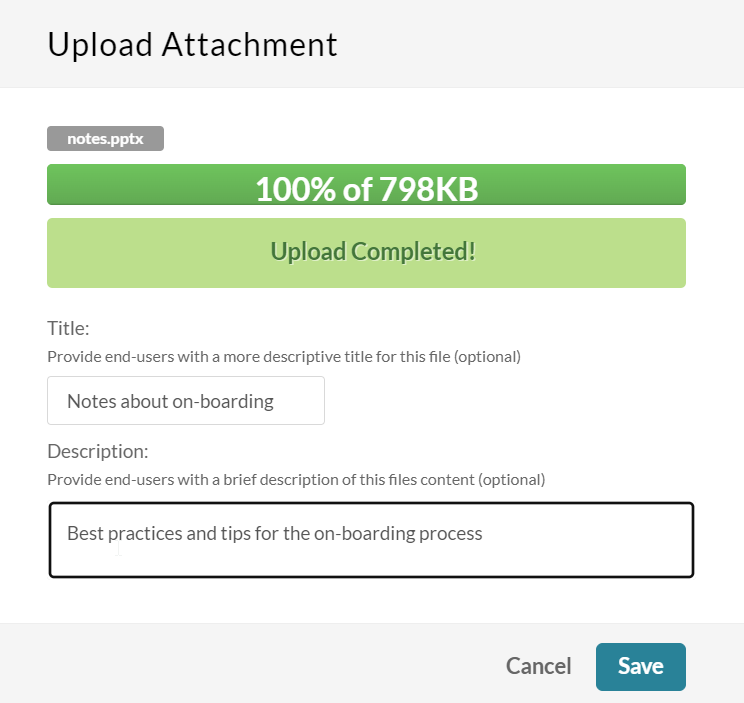
- Type in a title and a description for the attachment (optional).
- Click Save.
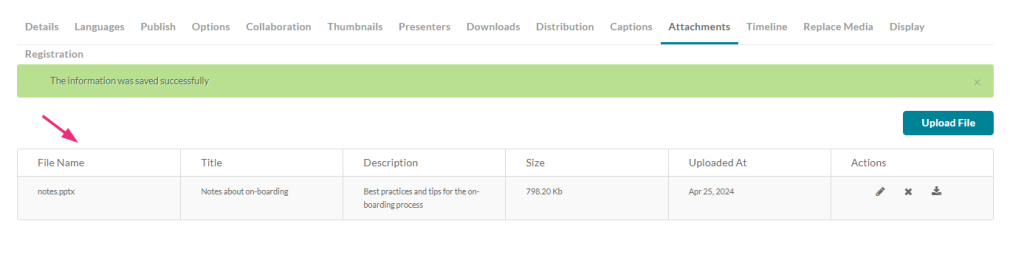
- A success message displays: The information was saved successfully.
- The file is saved as an attachment to your media file. Information about the attachment appears in a table.
- To upload another attachment, repeat the steps above.
Actions
You can use the options in the Actions column to perform various actions.

Edit the title or description of the attachment
- Click the pencil icon. The Change File window displays.
- Modify the title and description as desired.
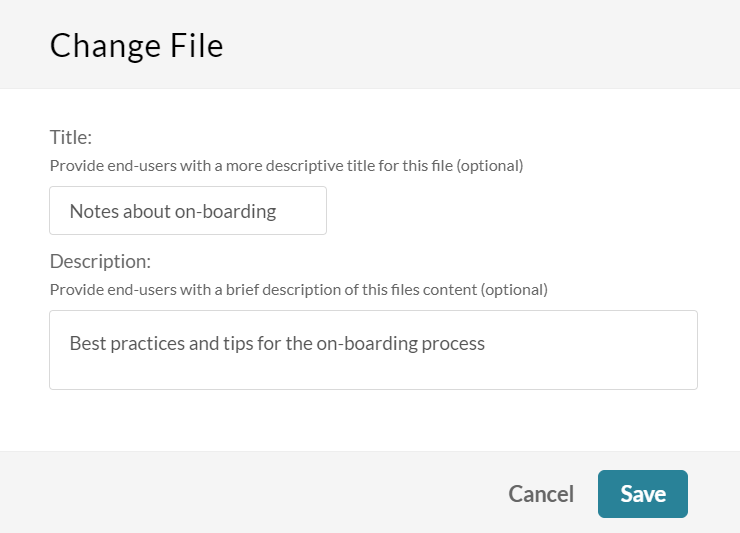
- Click Save.
Delete the attachment
- Click the X
- A Delete Confirmation window displays.
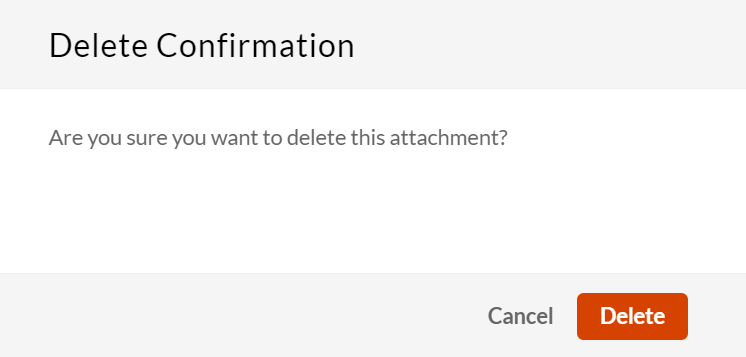
- Click Delete.
Download the attachment
- Click the download icon.
- The file downloads to your computer.
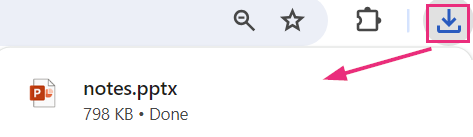
Download from the Preview Page
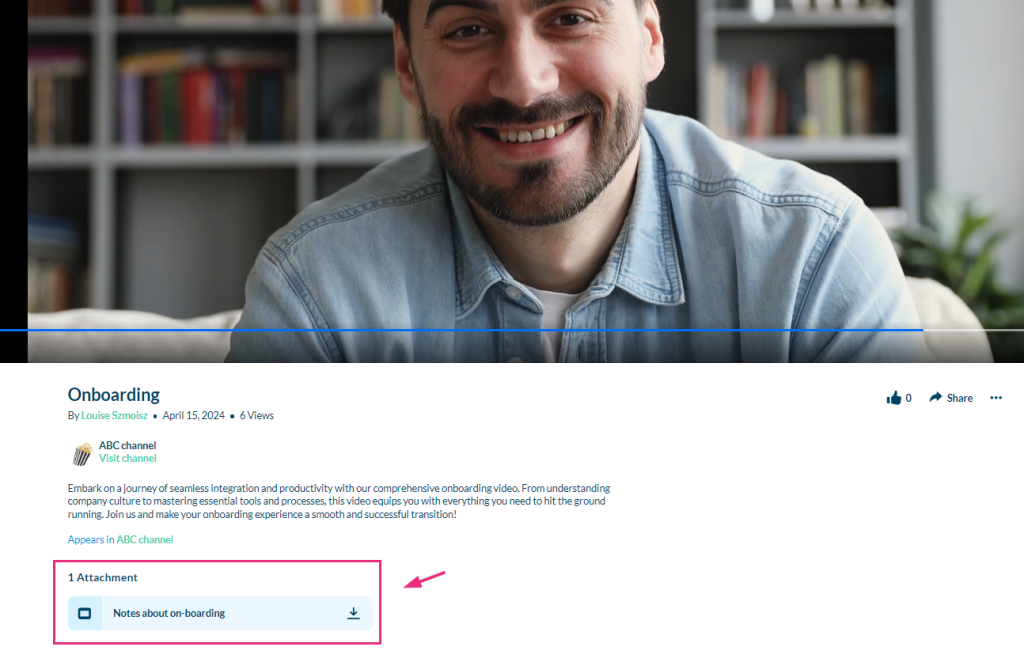
To see the attachment(s) you added, click Back to Media page (Preview Page).
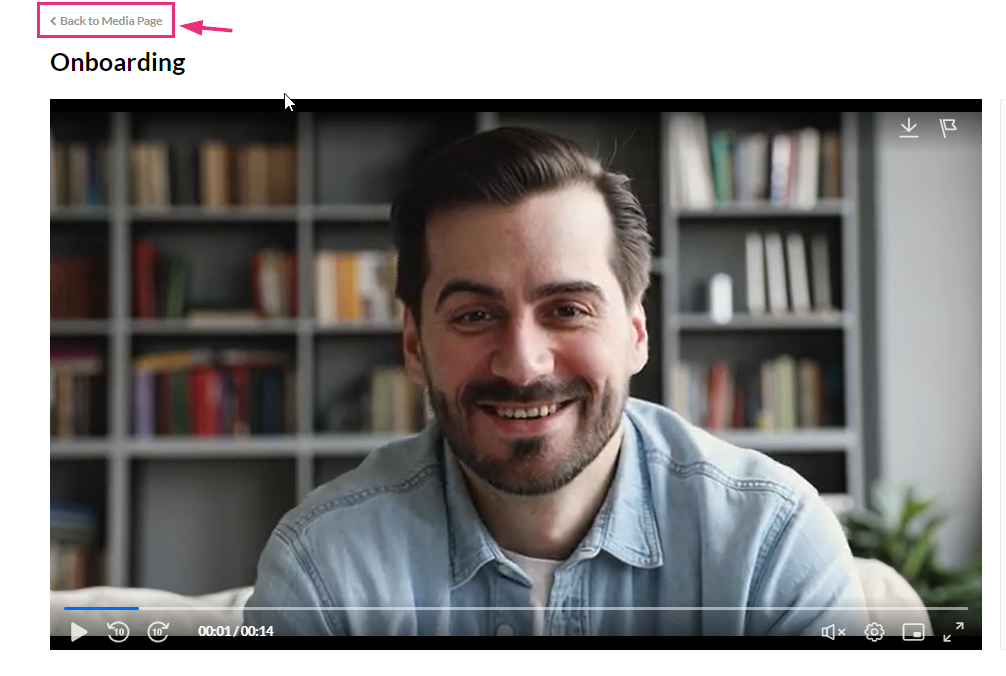
Below the media details, the attachment displays along with a download icon, enabling viewers to easily download the attachment from the Preview Page of an entry.
Supported Files
The supported file types for media attachments can be documents, spreadsheets, presentations, audio/video files, and images. Including;
- Media files– *.mts;*.MTS;*.qt;*.QT;*.mov;*.MOV;*.mpeg;*.MPEG; *.avi;*.AVI;*.mp4; *.MP4; *.vob;*.VOB;*.flv; *.FLV; *.f4v; *.F4V; *.asf;*.ASF; *.wmv;*.WMV;*.m4v;*.M4V;*.3gp;*.3GP; *.mkv;*.MKV;*.arf;*.ARF; *.webm;*.WEBM; *.mxf;*.MXF
- Document files– ‘doc’, ‘docx’, ‘docm’, ‘dotx’, ‘dotm’, ‘xls’, ‘xlsx’, ‘xlsm’, ‘xltx’, ‘xltm’, ‘xlsb’, ‘xlam’, ‘ppt’, ‘pptx’, ‘pptm’, ‘potx’, ‘potm’, ‘ppam’, ‘ppsm’, ‘odb’, ‘odc’, ‘odf’, ‘odg’, ‘odi’, ‘odm’, ‘odp’, ‘ods’, ‘odt’, ‘otc’, ‘otf’, ‘otg’, ‘oth’, ‘oti’, ‘otp’, ‘ots’, ‘ott’, ‘oxt’,’swf’,’pdf’
- Image files– “jpg”, “jpeg”, “bmp”, “png”, “gif”, “tif”, “tiff”
Related Posts
