


Kaltura BSE – Kaltura Quiz (Grading)
This document provides course faculty with step-by-step guidance on how Kaltura video quizzes are graded in the Learning Hub, including when automatic grading applies and when you must create and manage custom grade items.
Before you begin
Before proceeding, ensure that you have already:
- Created a Kaltura video quiz
- Embedded the quiz into a module in your Learning Hub course using the Embed Kaltura Media tool
If you have not completed these steps, review the following job aids before continuing:
Best Practice: Creating a Copy
Create a backup copy of your quizzes. See the Clipping section in the Kaltura Editor – Video Editor job aid.
How Kaltura Quiz Grading Works
When a student submits a Kaltura video quiz, the system automatically creates a grade item worth 100 points in the Learning Hub gradebook.
Automatic grading rules:
- True/False and Multiple Choice questions are graded automatically
- Short answer questions are not graded automatically
No additional setup is required if your quiz only uses automatically graded questions and you are satisfied with the 100-point default.
To change the point value or grade short answer questions, you must attach a custom grade item. If you are unsure how to do this, please see Grades – Setting Up Grades in the Learning Hub.
Grading Short answer questions
Short answer questions require manual grading and are not scored automatically by Kaltura. To assign grades you must enter scores directly into the associated grade item in the Grade Tool. Please refer to Grades – Entering Grades In Your Course for detailed instructions.
Reviewing Short answer questions
To review student responses for Kaltura quizzes you must access the Quiz tabs from the Analytics page for each quiz. Please refer to the Quiz Questions & Quiz User tab sections in Kaltura Quiz – Analytics job aid for further details.

Attaching a Custom Grade Item (Classic Content Experience)
If you are using the default experience settings in your Learning Hub course, please use the following steps below. If you are using a course with the New Content Experience enabled, then ignore this section and please follow the steps listed in the next section.
- Open your course module and click the embedded Kaltura Quiz

- Locate the Assessment panel on the bottom-right of the page.

- Click the tab beneath the Assessment panel.
- Attach the custom grade item you created in the Grade Tool.

Once attached, the quiz will send scores to the selected grade item after the student submits their attempt.
Attaching a Custom Grade Item (New Content Experience)
Use the following steps if you are using a course with the New Content Experience enabled.
- Navigate to the unit containing the Kaltura quiz.
- Click Edit Activity

- In the Edit page click on Add and Manage Grade Items under Grade Items.
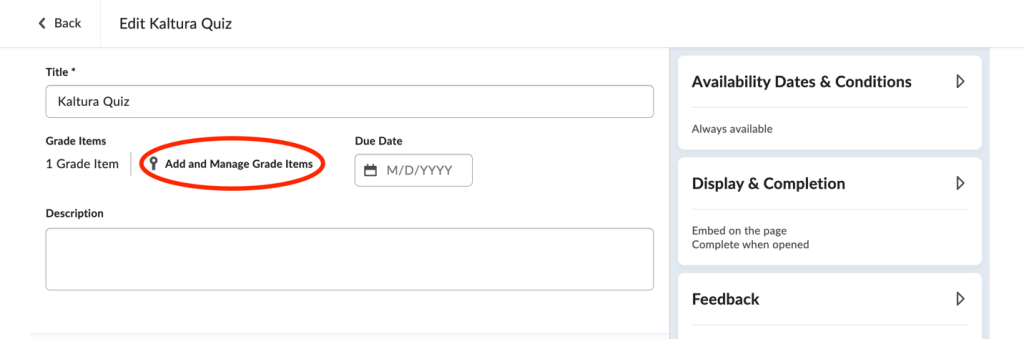
- Choose In Grade Book, then select Edit or Link to Existing and adjust the point value if needed.

- Select Link to an existing grade item and choose your custom grade item.

- Click Ok
- Click Save and Close
Related Posts
