


Kaltura My Media – Express Capture
Express Capture lets you record content directly from your browser that you can upload as an entry into My Media.
Before Starting
- Express Capture is only supported on Chrome, Firefox, Safari and Opera browsers.
- Express Capture is not supported on mobile iOS devices other than Safari
- If unsure we recommend performing a test of your setup using the following URL https://webrtc.github.io/samples/src/content/peerconnection/constraints
Recording with Express Capture
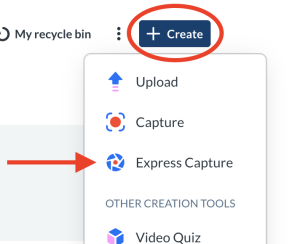
Inside My Media, from the +Create drop-down menu, select Express Capture.
 The record media page displays.
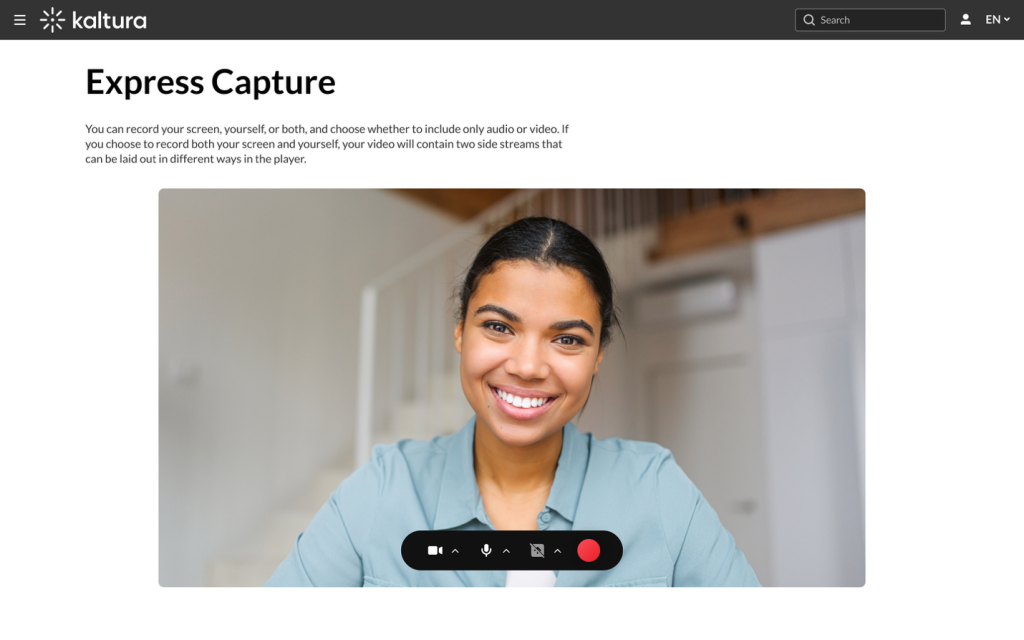
Camera
- Click on the arrow next to the camera icon to display the available cameras and the on/off toggle for the camera.
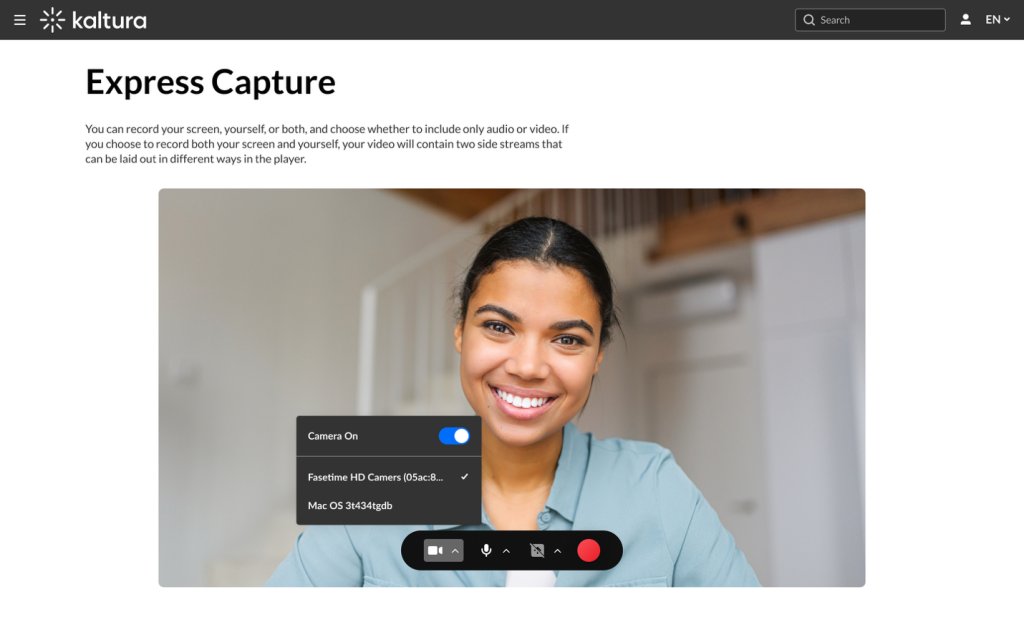
- Select the camera type, or toggle off the camera if you don’t want to record yourself.
Audio
- Click on the arrow next to the microphone icon to display the available microphones and the on/off toggle to record audio.
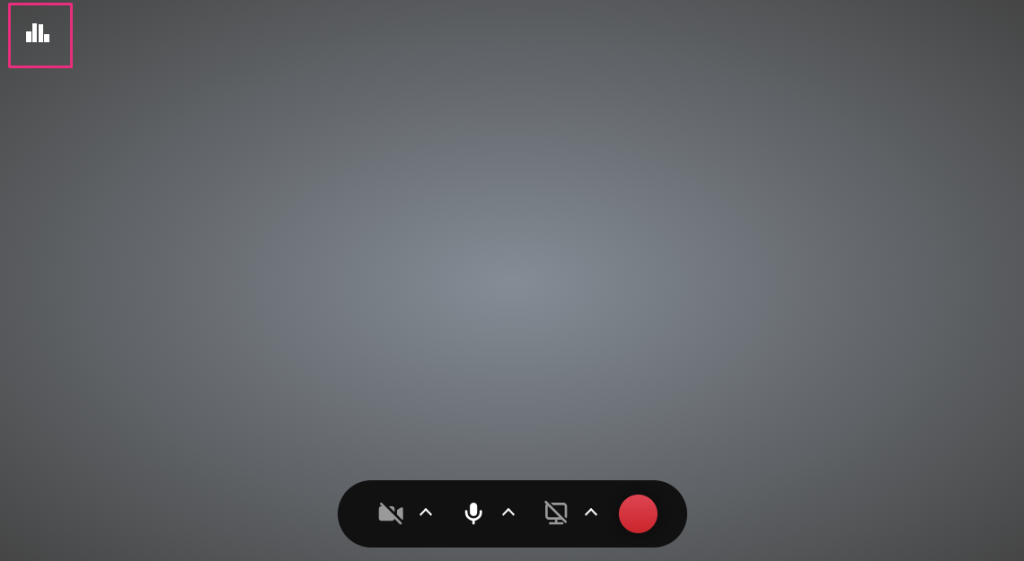
- Toggle the audio off if you want to create a visual-only recording. The audio indicator displays on the top left of the screen if you’re recording audio only.
Screen
- Click on the arrow next to the screen icon to display the on/off toggle for the screen share.
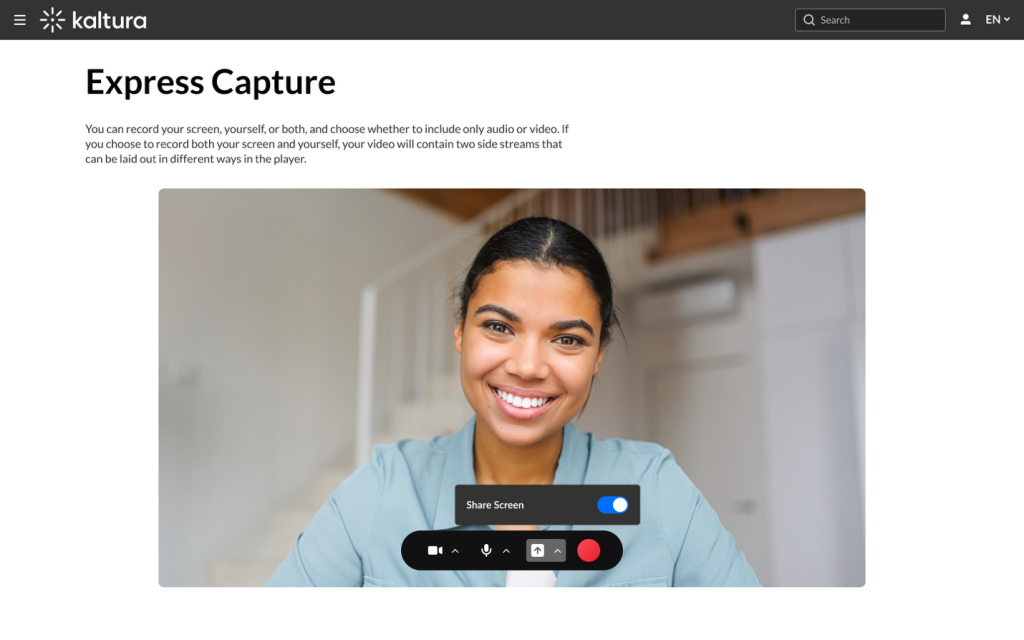
- Toggle on (blue = on) to open the screen share window.
- Choose the browser tab, window or entire screen you want to share.
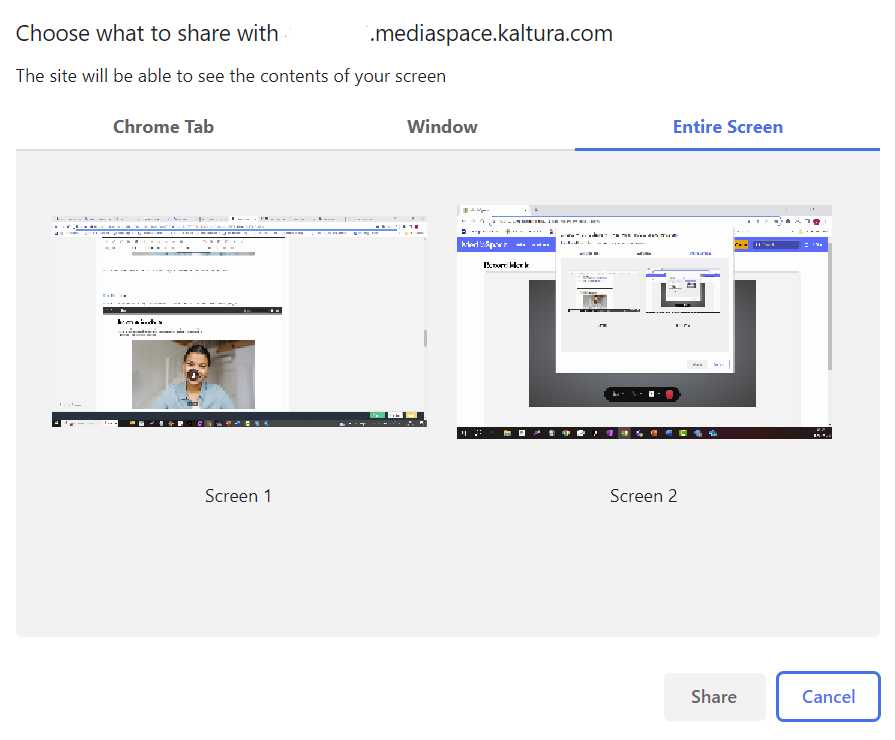
- Click Share. When you share a tab, a notification displays at the top of your browser.

When you share a window or screen, the following notification displays at the bottom of your screen.
- Click Stop sharing to stop the screen share.
Start Recording
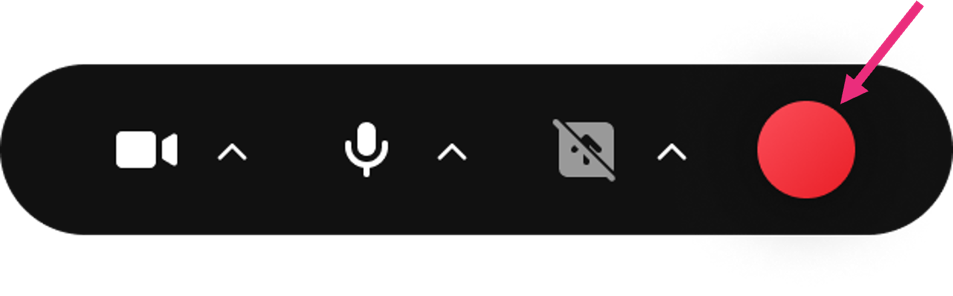
- Click the red button to begin your recording
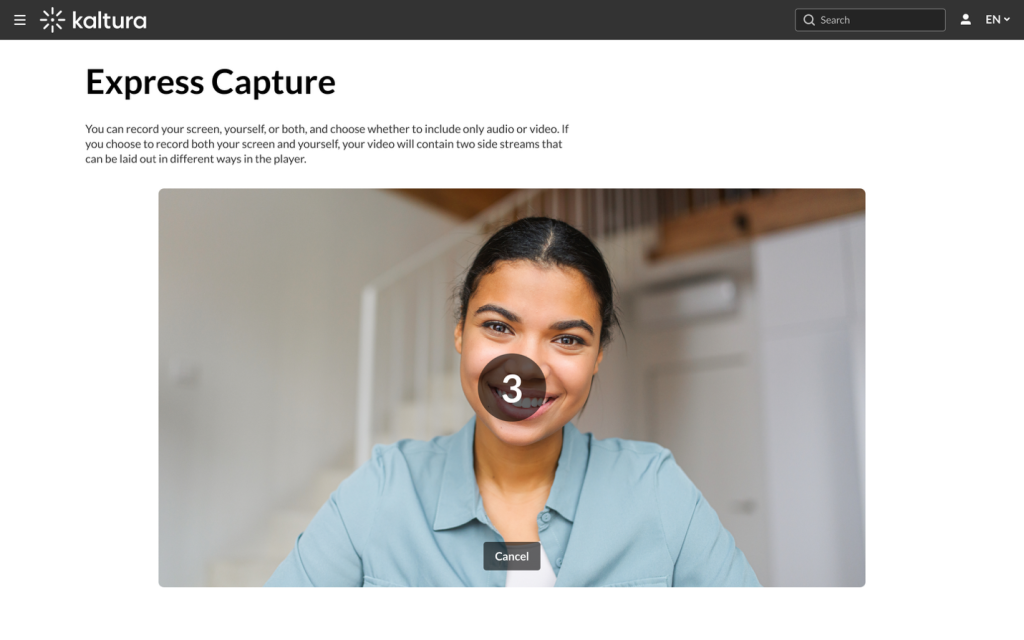
 A three second countdown displays on the screen.
  A timer displays next to the stop button as the recording is in progress.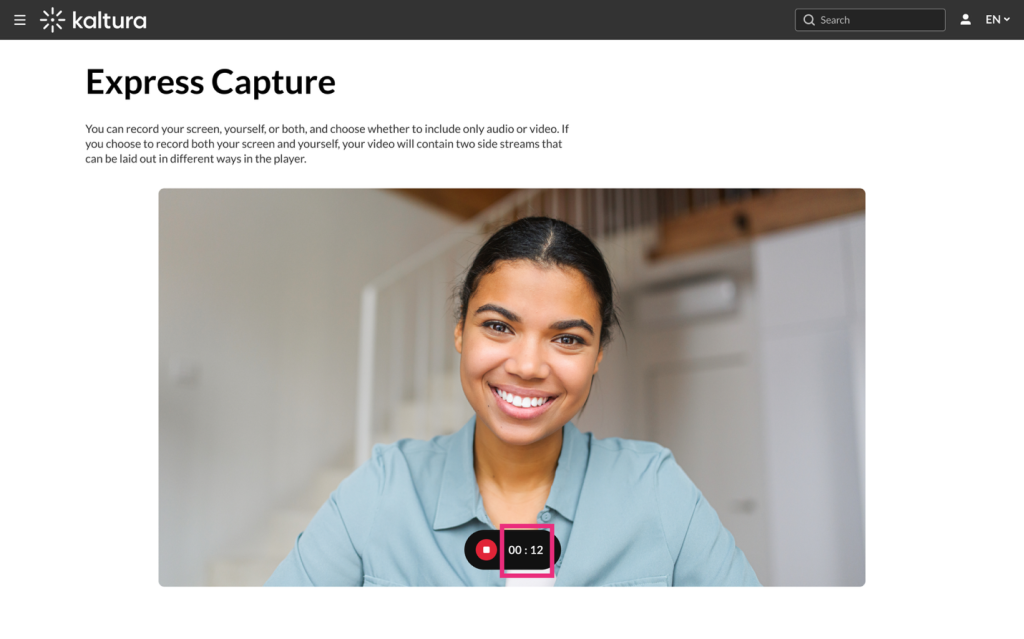
- Click the red stop button to end your recording. A confirmation window appears with options to record again, download a copy, or save the recording by clicking ‘Use this’.
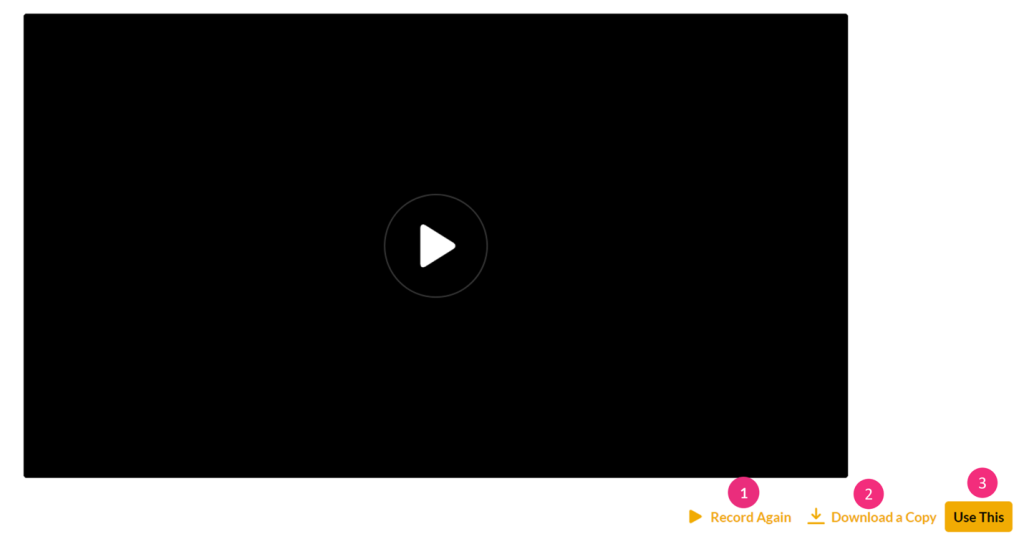
Click the play button in the middle of the screen to preview the recording. If there’s no audio, test your computer’s speakers by watching a YouTube video or adjusting the volume in the control panel. If the webcam isn’t showing, make sure it’s turned on. For built-in laptop cameras, ensure the screen is open and the camera is enabled. - If you’d like to discard the recording and do a new one, click Record Again (1). You’ll be reverted to the main screen where you can click the red button to record again.
Save your recording
When you’re satisfied with your recording (after as many retakes as needed), you can download the recording straight to your computer by clicking Download a Copy (2).
WebM file
Express Capture downloads video files in the WebM file format.
You can also save the recording to your My Media as follows:
- Click Use This (3).
The edit media window displays.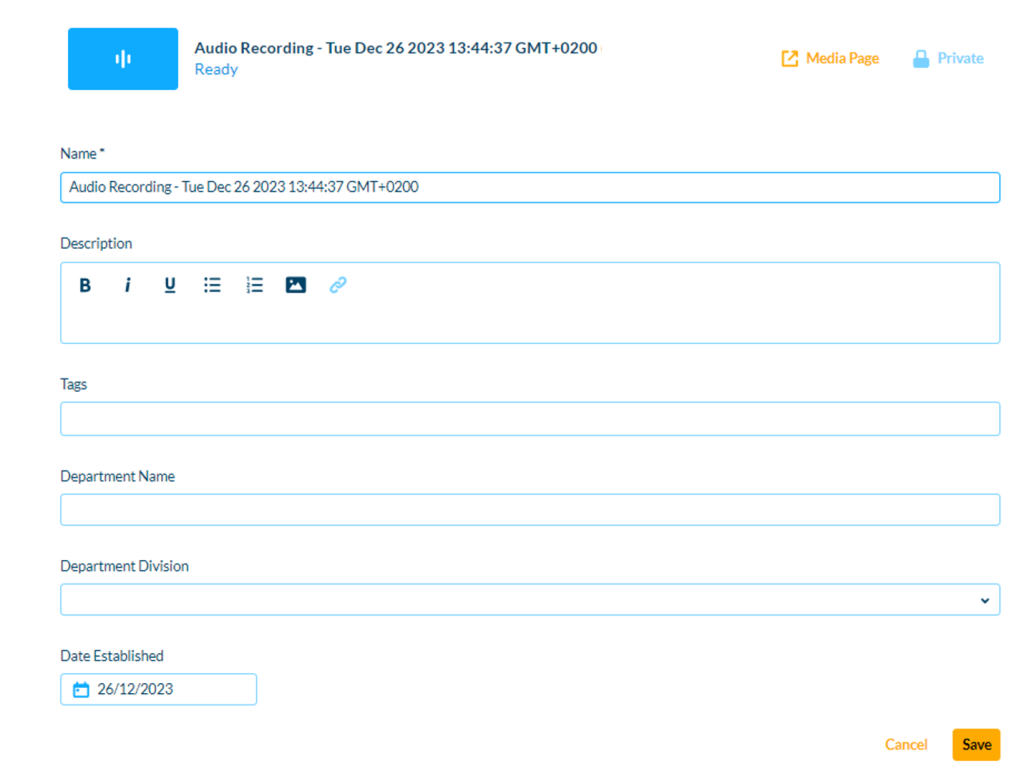
The uploaded file receives a default name and is saved automatically. The name is of the following format: “Video Recording – July 23, 2022 7:43pm EST” or “Audio Recording – July 23, 2022 7:43pm EST”. - Enter metadata information for the media: Name, description, tags, creator name, etc. Make sure to fill out all of the required fields otherwise you will NOT be able to share your recording.
- Click Save. (If you click Save before the file is completely uploaded, the media information is saved after the media is uploaded.)
To view the recording, click My Media at the top of the edit page, or navigate to Kaltura My Media from your course navigation bar.
Keyboard shortcuts
- Start Recording/Record Again – Shift+Alt+R || ‚åò+Option+R
- Stop Recording – Shift+Alt+S || ‚åò+Option+S
- Upload/Use Recording – Shift+Alt+U || ‚åò+Option+U
Related Posts
