


- Resource
- Uncategorized
- Kaltura My Media – Stitch Videos
Kaltura My Media – Stitch Videos
Would you like to combine multiple videos and images into one video? It’s very easy with Kaltura’s Media Stitching tool. This tool allows you to easily create new, original videos by stitching together existing content.
Stitching Videos
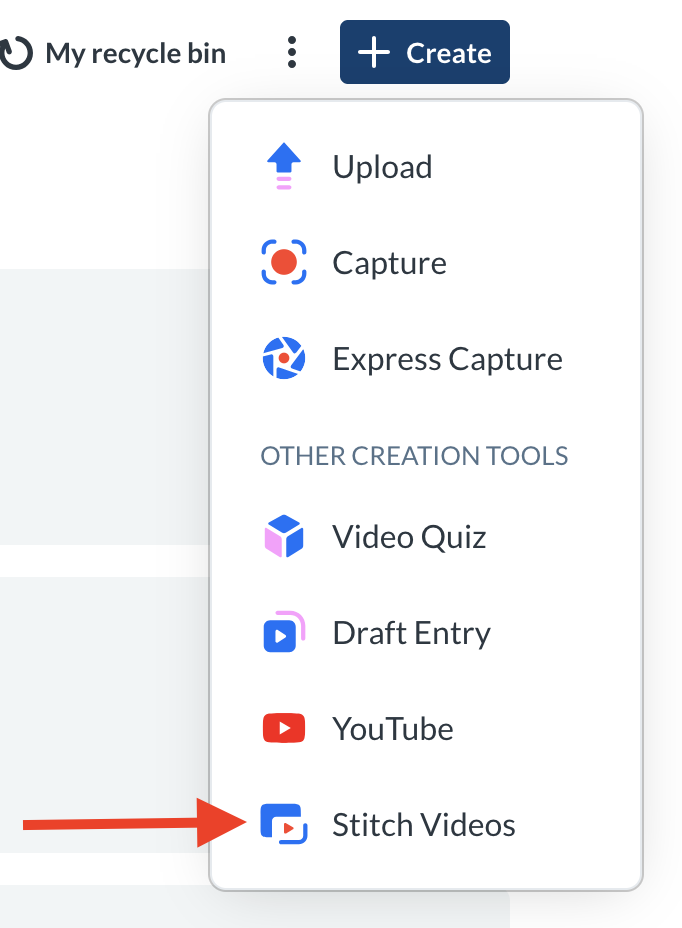
From the +Create menu inside Kaltura My Media, choose Stitch videos.
The Stitch video page will display.
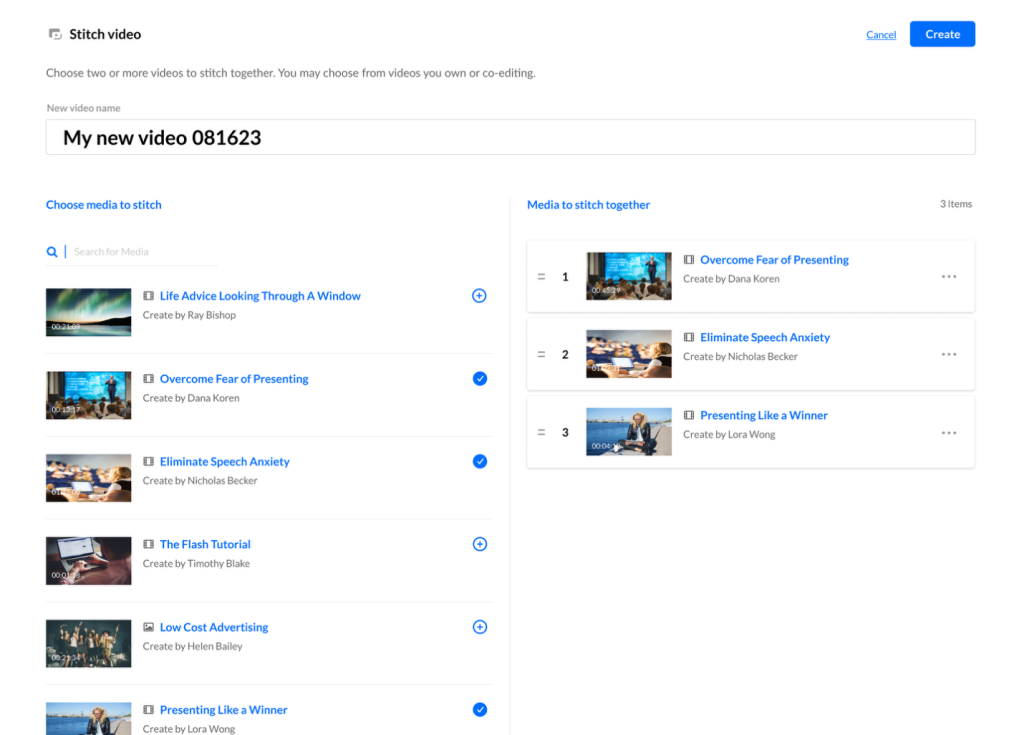
Complete the New video name field with a name for your new video (the default name is ‘My Combined Video’ + date).
In the Choose media to stitch section, choose the media that you want to stitch together by clicking the add buttons  next to the items (if you have a long list, you can use the Search option to locate items).
The selected items show a check symbol and move into the Media to stitch together section. If you decide you don’t want that item, just click check symbol
 again to remove it.
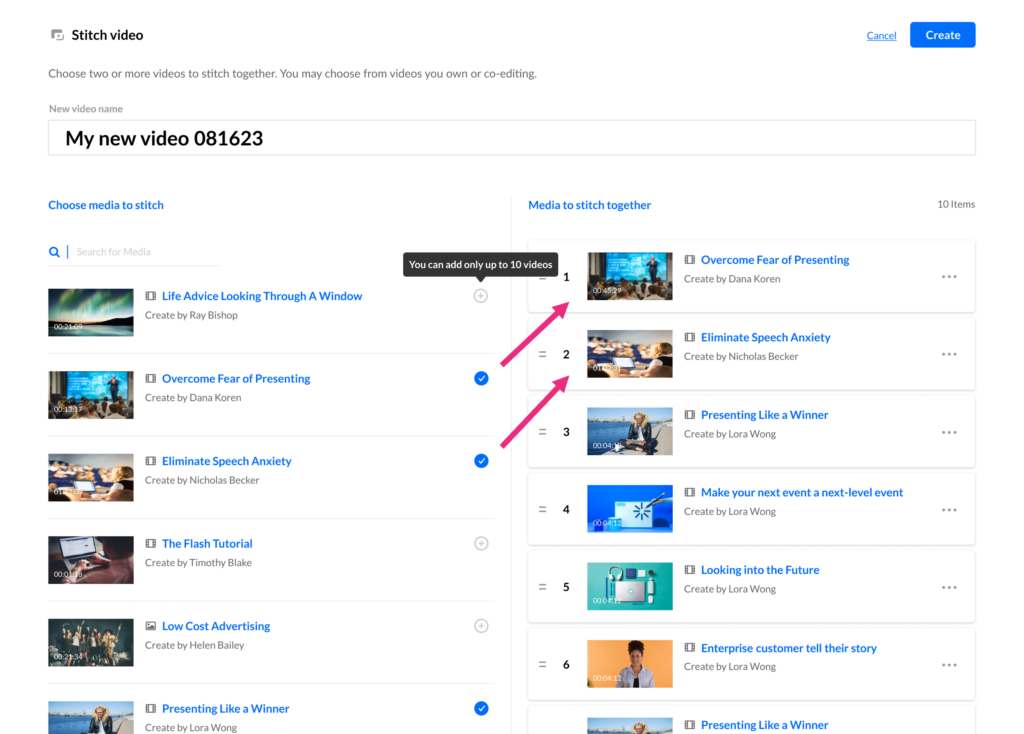
Selecting Items
You must select at least two items, and no more than five
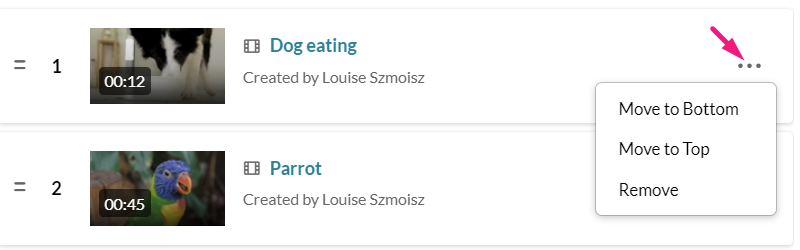
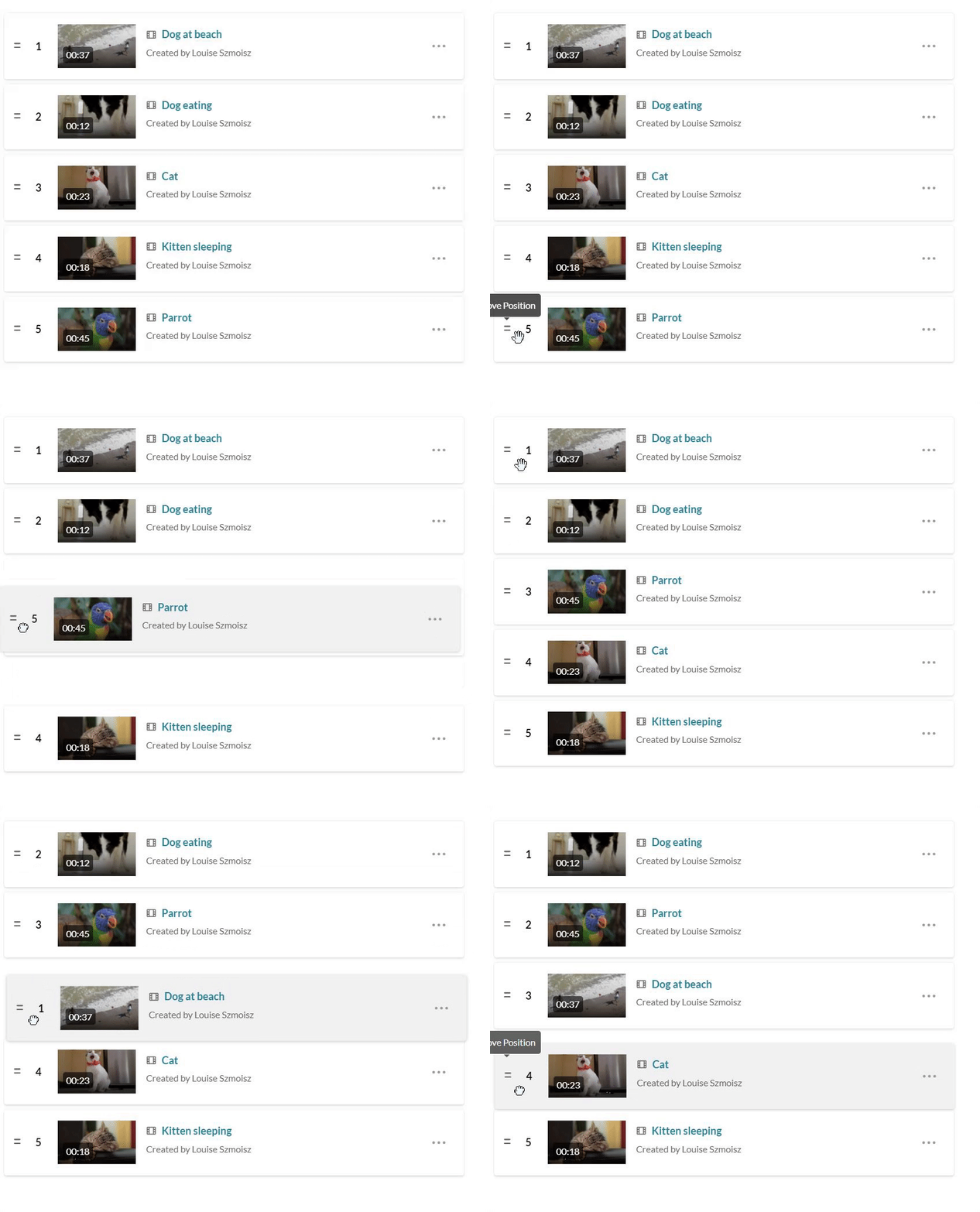 To manually reorder media in the list, grab the two lines to the left of the media and drag to the desired position.
You can also click the three dots next to an item to open a menu. You can move the item to the top or bottom of the list, or remove the item.
When you’ve added all your media, click Create.
You will be navigated to the Edit entry page where you can add a description and tags to your new video.
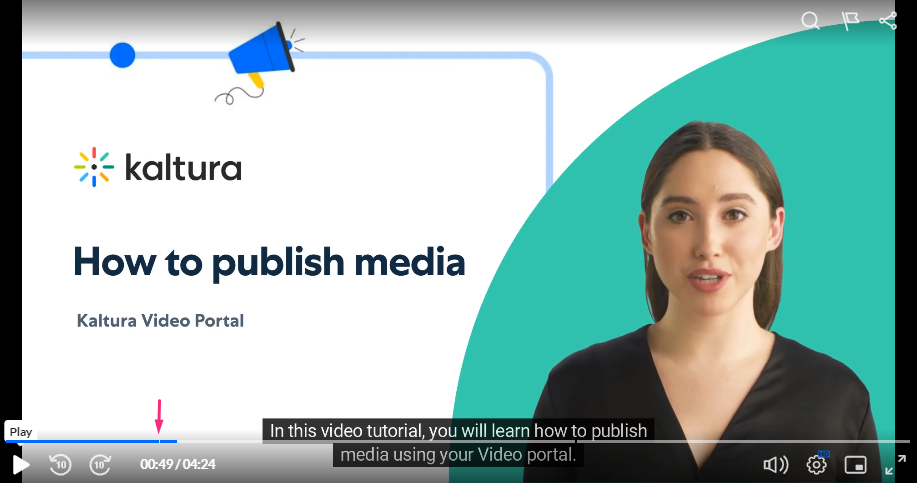
The image below shows a stitched video. A timeline break is visible as the player transitions from one segment to the next.
Notes
- If you delete an item after it has been added to a stitched video, it will remain in the stitched video.
- Please note that it is not possible to go back and change or reorder items in a stitched video once it has been saved. You will have to create a new stitched video from scratch.
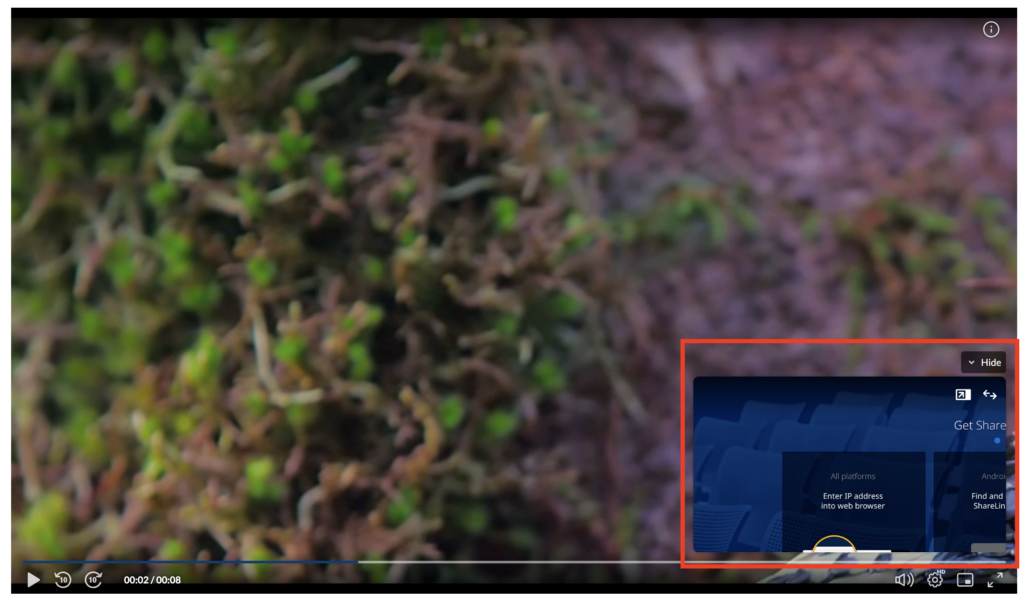
- Please note that if your video has either another video or image imbedded into it mediastitching cannot be performed.
Related Posts
