Kaltura – Submitting Video Assignments
Students submitting Kaltura Video assignments should follow the basic steps below. For specific questions, please ask your instructor.
Submitting an Assignment
1. Upload or record a video into Kaltura My Media
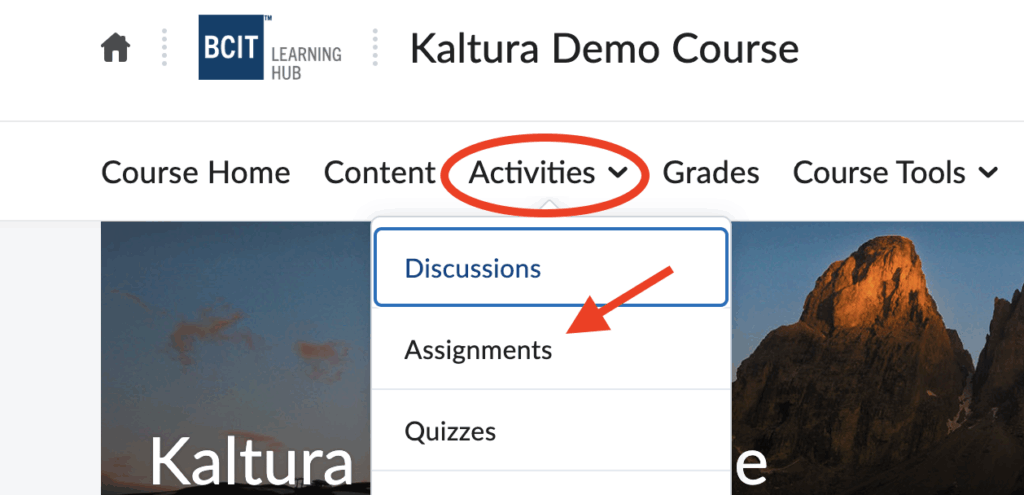
2. Click “Activities” on the navbar.
3. Select “Assignments”.
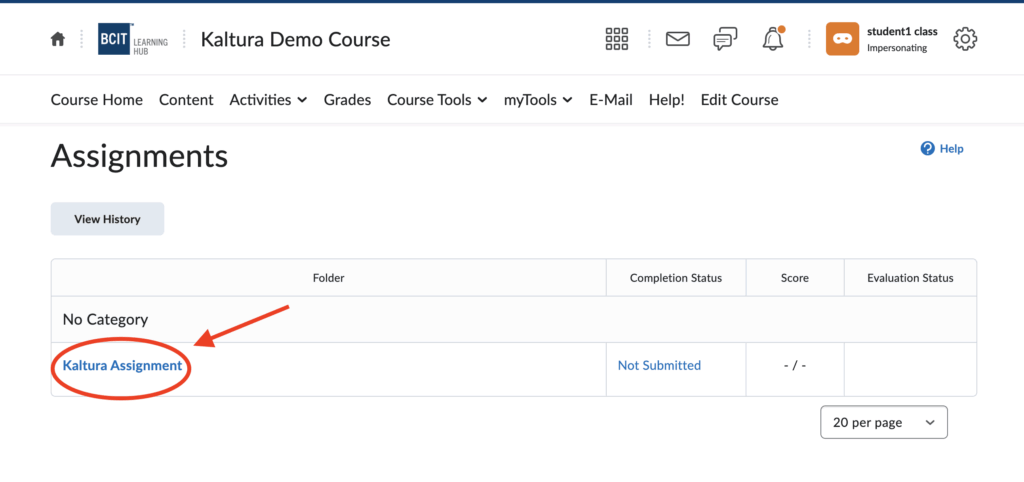
4. Click the assignment.
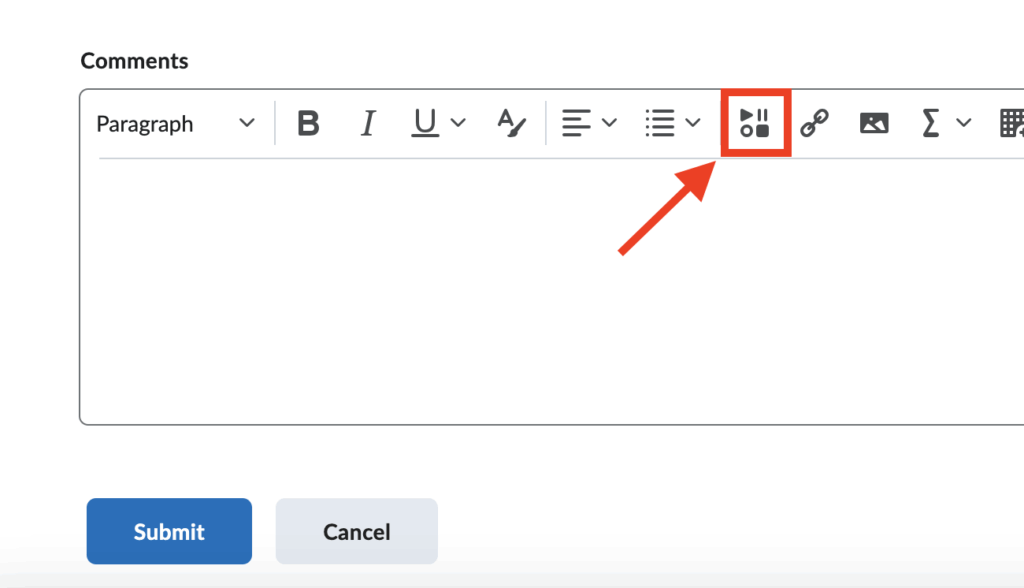
5. Click the “insert stuff” icon.
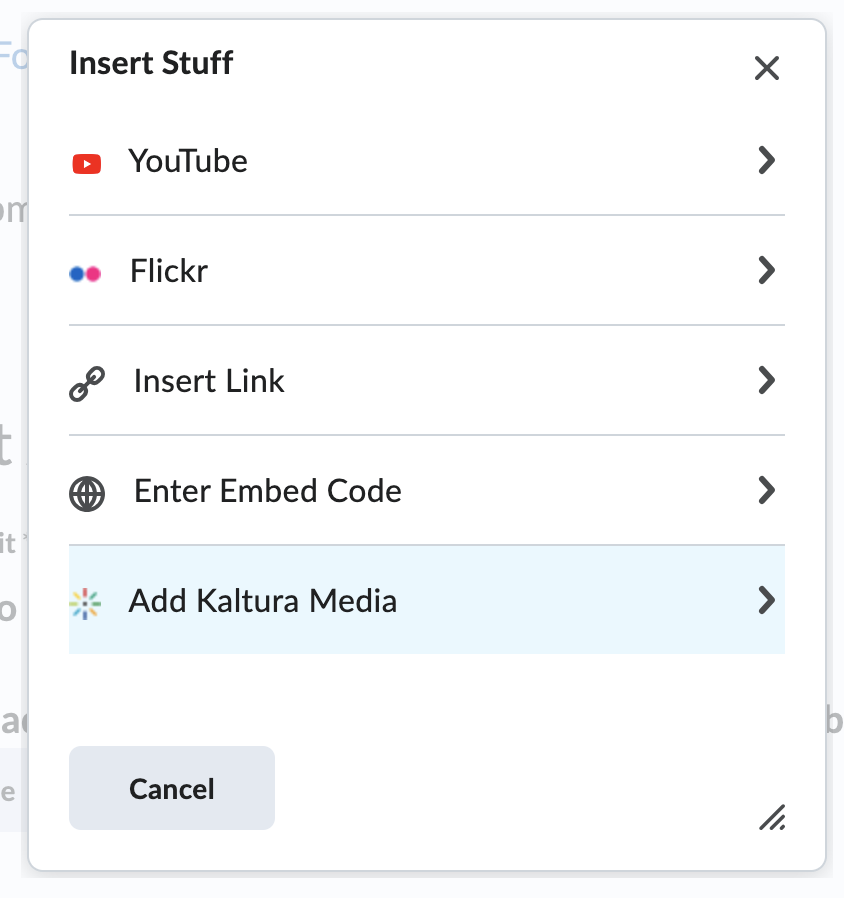
6. Click “Add Kaltura media”.
7. Click “</>Embed” beside the video you wish to submit.
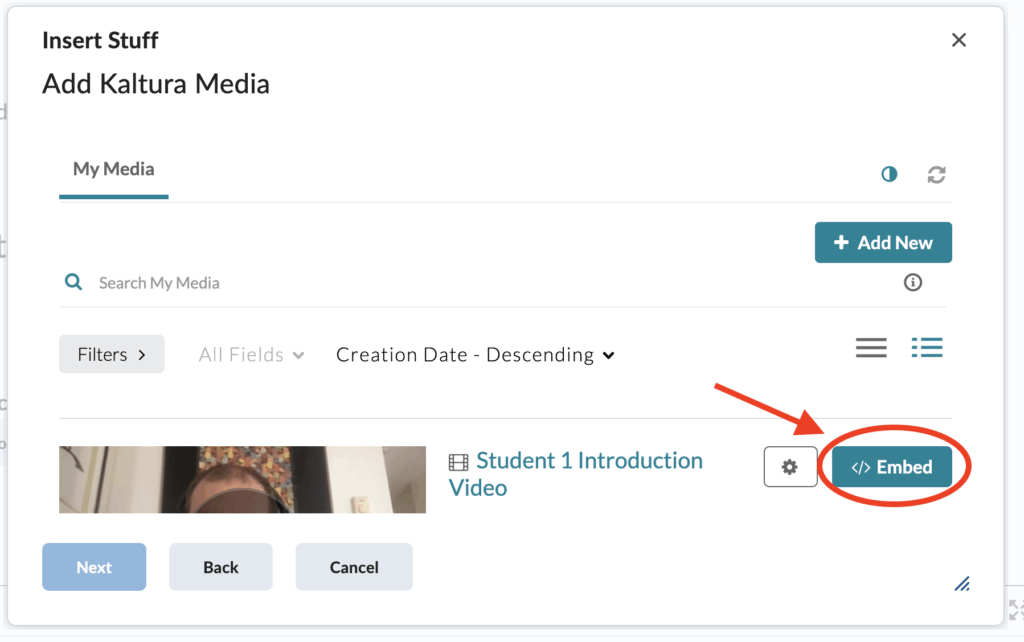
8. Click “Insert”.
9. Before clicking “Submit” you must add a generic text file or word document. If you do not, you will get an error.
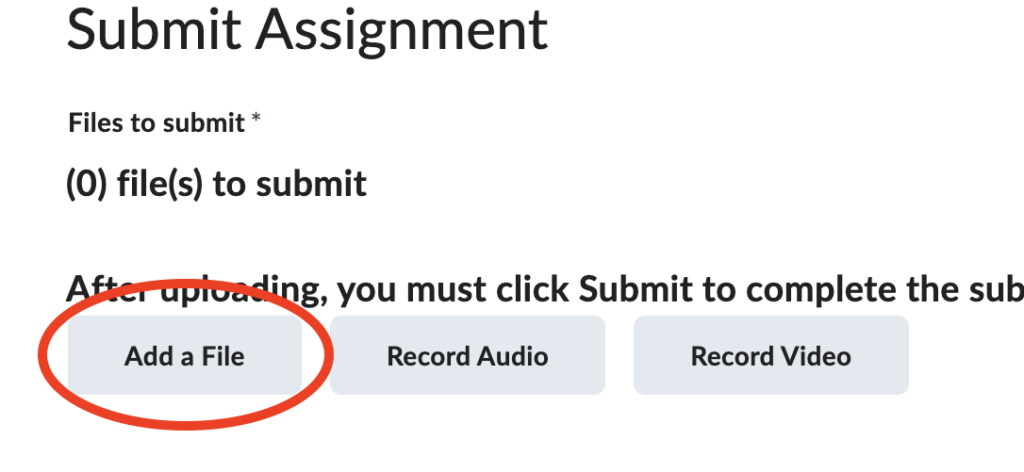
10.Once a document has been added, Click “Submit”.
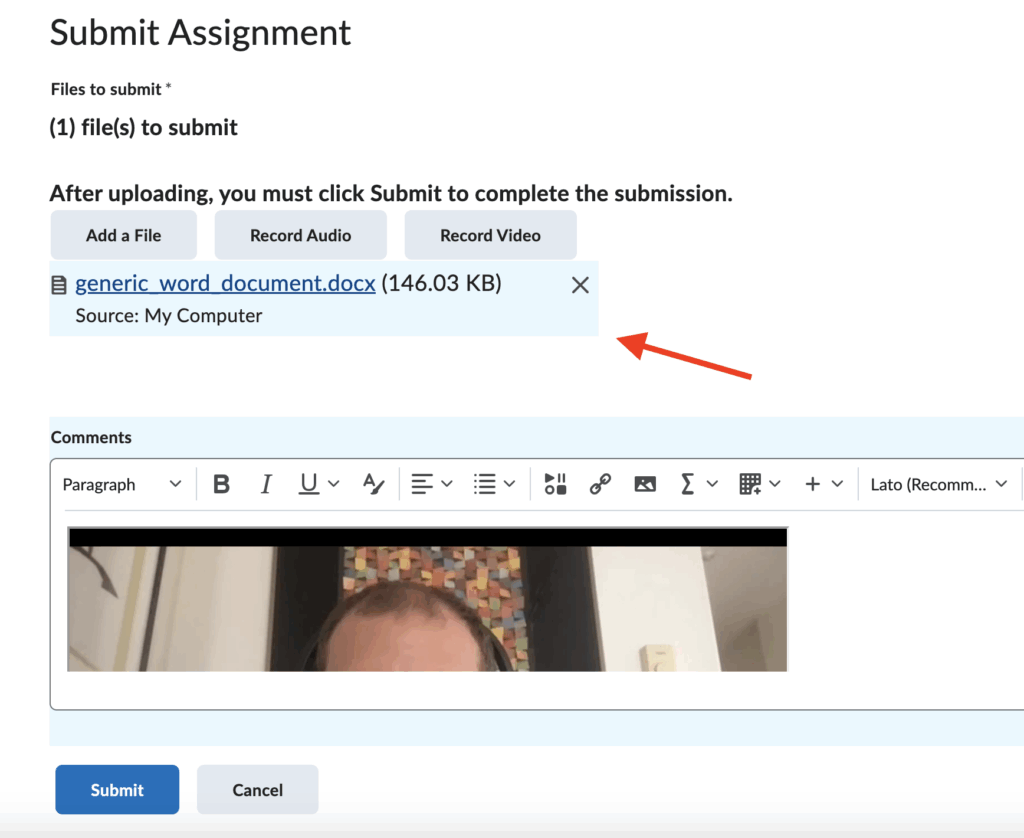
11. That’s it.
Posting a Discussion
- Upload or record a video into Kaltura My Media.
- Click “Activities” on the navbar.
- Select “Discussions”.
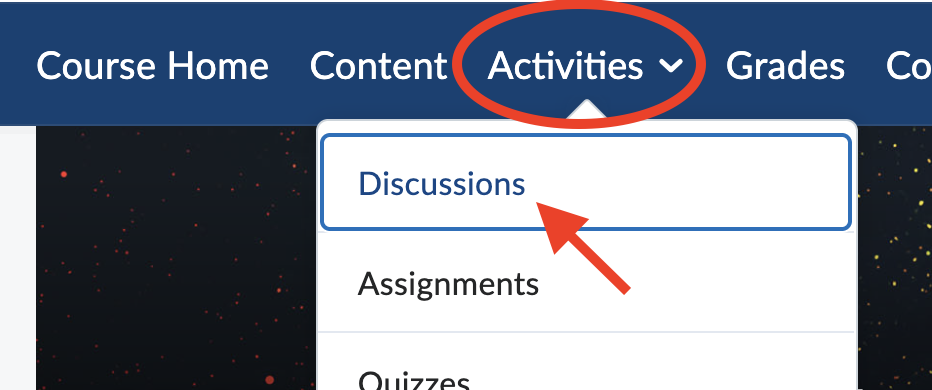
- Click the discussion topic.
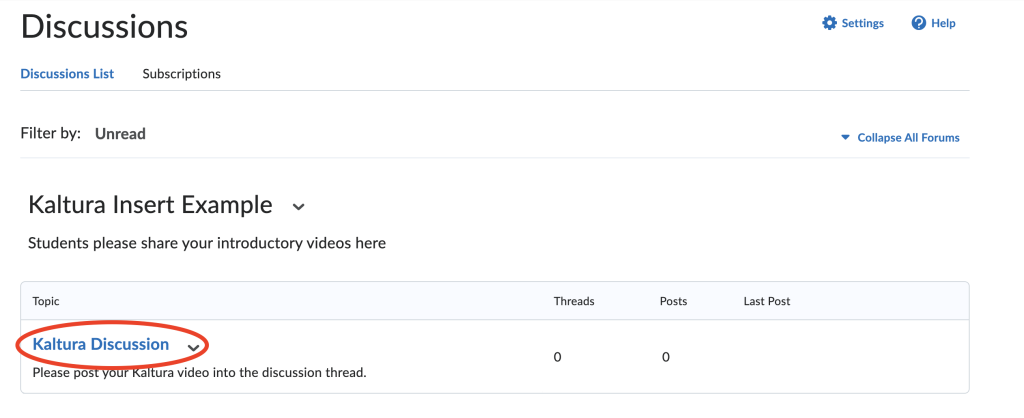
- Click the “Insert Stuff” icon.
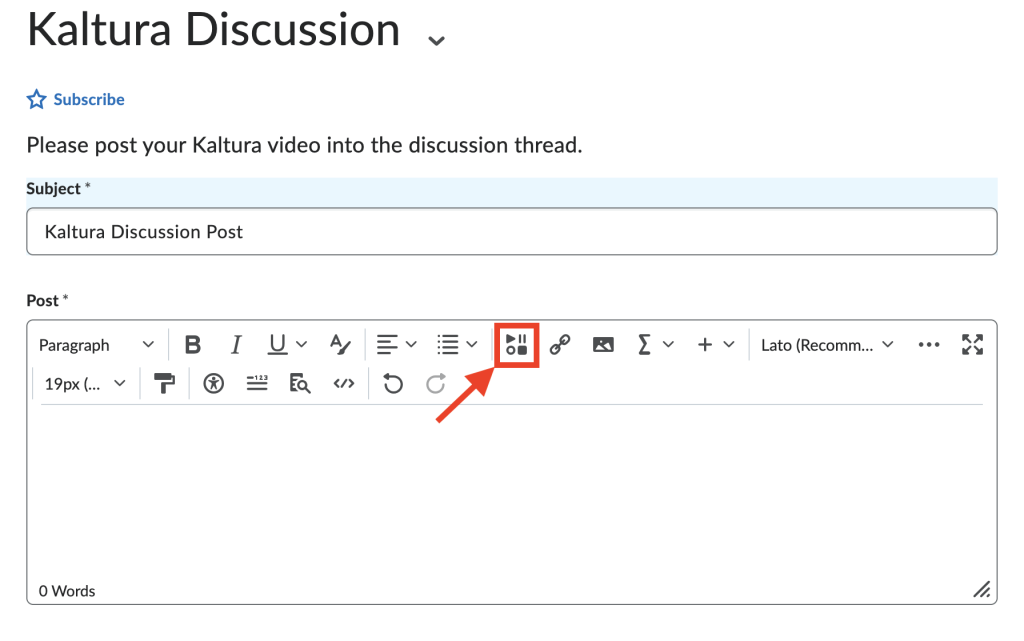
- Click “Add Kaltura media”.
- Click “</>Embed” beside the video you wish to submit.
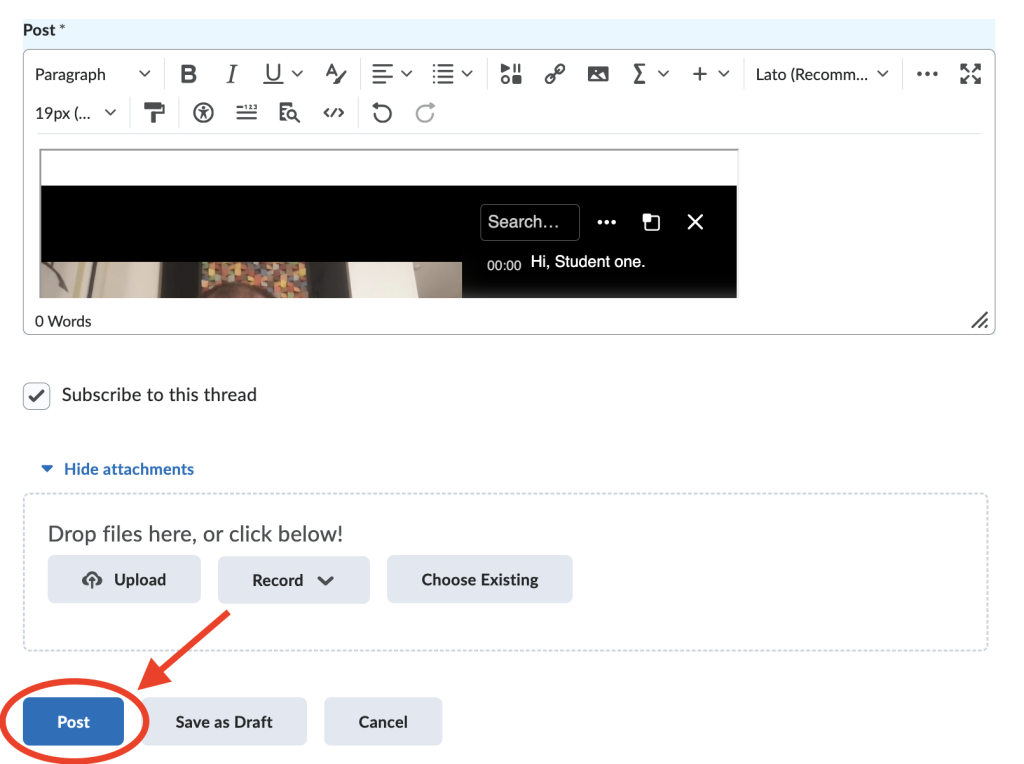
- Click “Insert”.
- Click on “Post” at the bottom to create your discussion post.
- That’s it.
Related Posts