


Kaltura My Media – Editing Captions
The Edit Captions tool allows you to review and correct caption files—whether they were auto‑generated or uploaded manually. All changes you make are immediately reflected in the video transcript. The editor includes features such as auto‑scroll, timestamp adjustments, and search‑and‑replace, giving you full control to fine‑tune accuracy and improve accessibility for learners.
To begin, select Edit Captions.

The closed captions editor will open.
Editor Layout
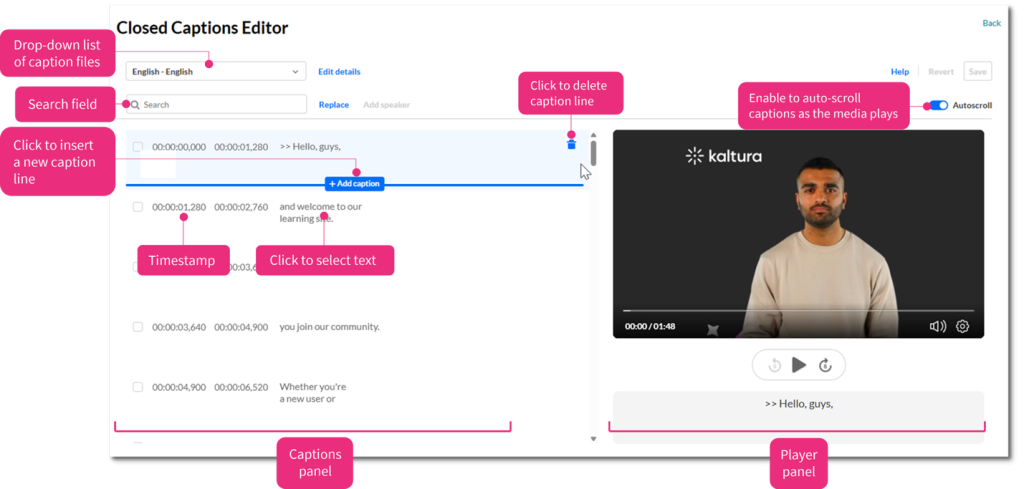
The editor includes two main areas – captions panel and player panel:
Captions Panel
The captions panel displays the captions and the editing options, including the following:
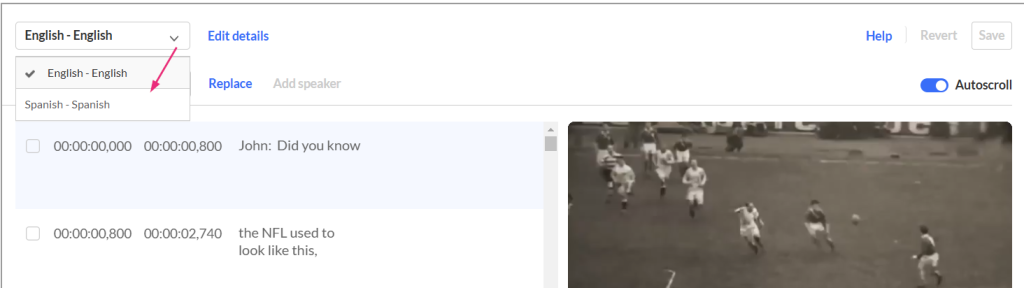
- Captions drop-down list – Choose a different caption file if your entry has more than on.
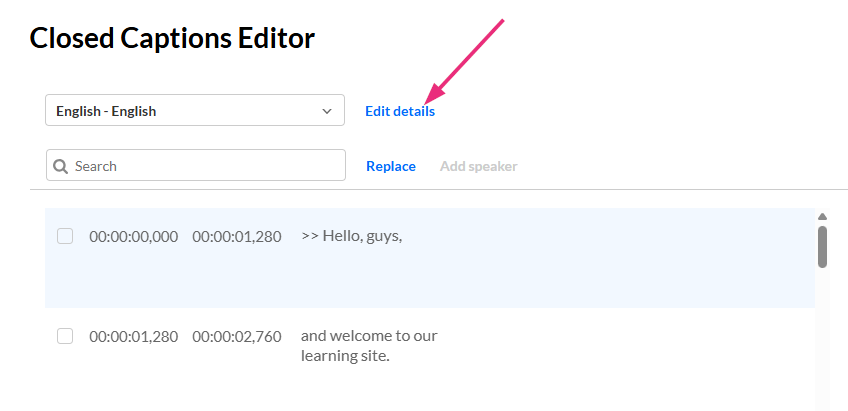
- Edit details – Update the caption’s language, accuracy, and label.
- Search field – Enter a term and press Enter to highlight all matches.

- Replace – Find specific words or phrases and replace them across the file.
- Add speaker – Insert a speaker’s name at the beginning of selected lines.
- Autoscroll – Automatically scroll captions as the video plays.
- Trash can icon – Click the trash can to delete that line (the trash can appears when you hover).
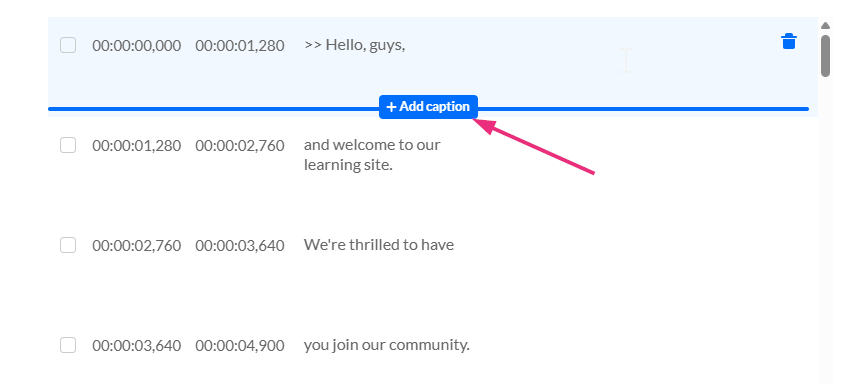
- Add caption – Click to add a new line of text (the +Add caption button appears when you hover).
- Timestamp – Click to adjust start and end times in SMPTE time format: hours, minutes, seconds, and milliseconds (hh:mm:ss,mmm)
- Caption text – Click any caption block to edit the text directly.
Player panel
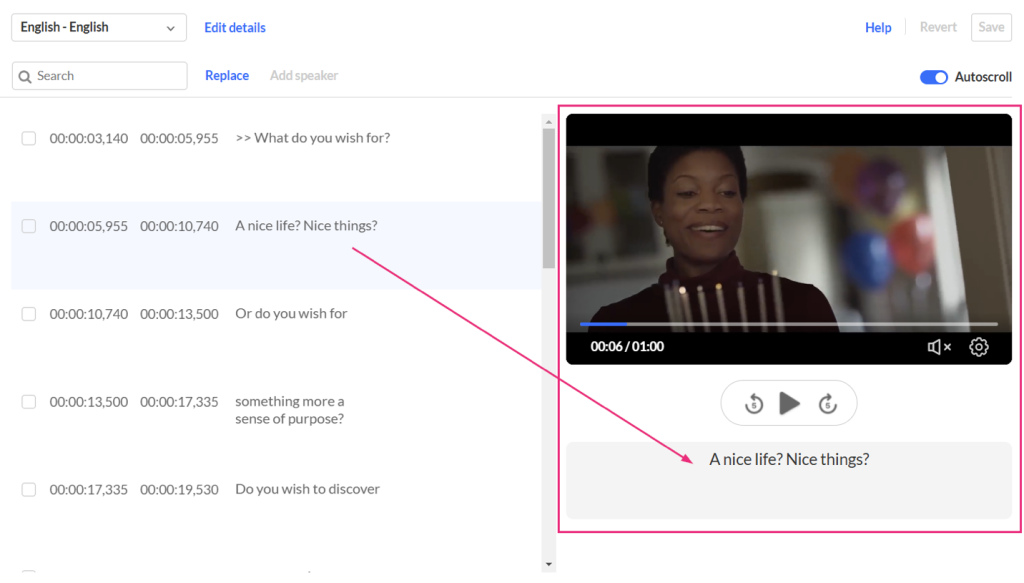
This panel displays the video and lets you verify timing as you edit.
When you select a caption line, the video jumps to the corresponding moment so you can sync text with audio and visuals accurately.
Editor options
Edit caption details
- Click Edit details.
- Update the language, accuracy, or label.
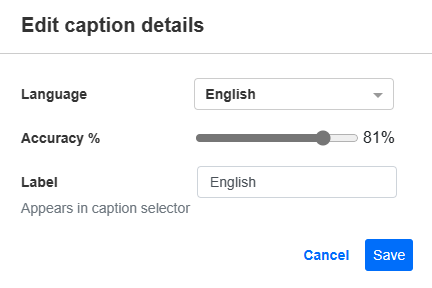
- Changes are applied immediately.
Find and replace text
- Click Replace.
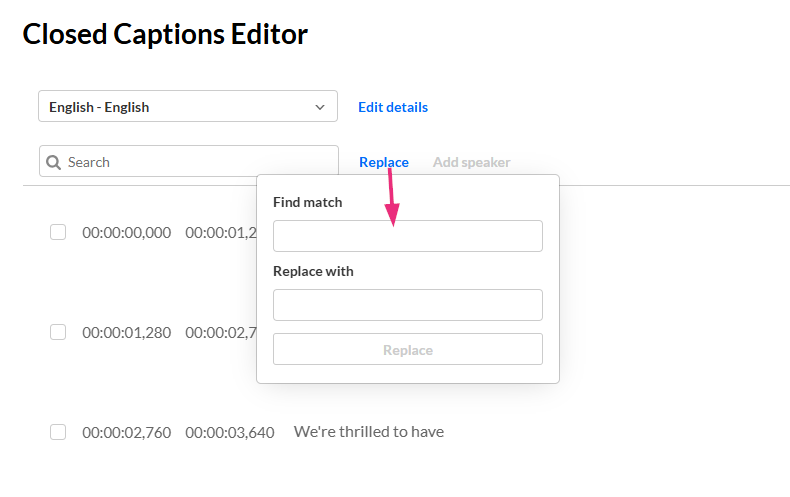
- Enter your search term in Find match.
- Enter replacement text in Replace with.
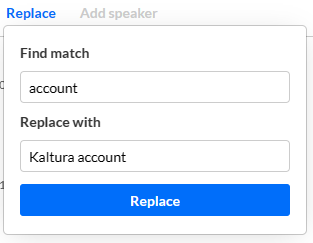
- Click Replace, then Save.
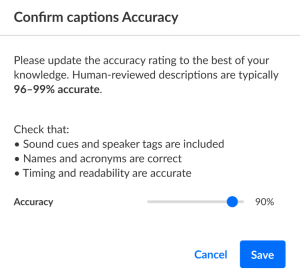
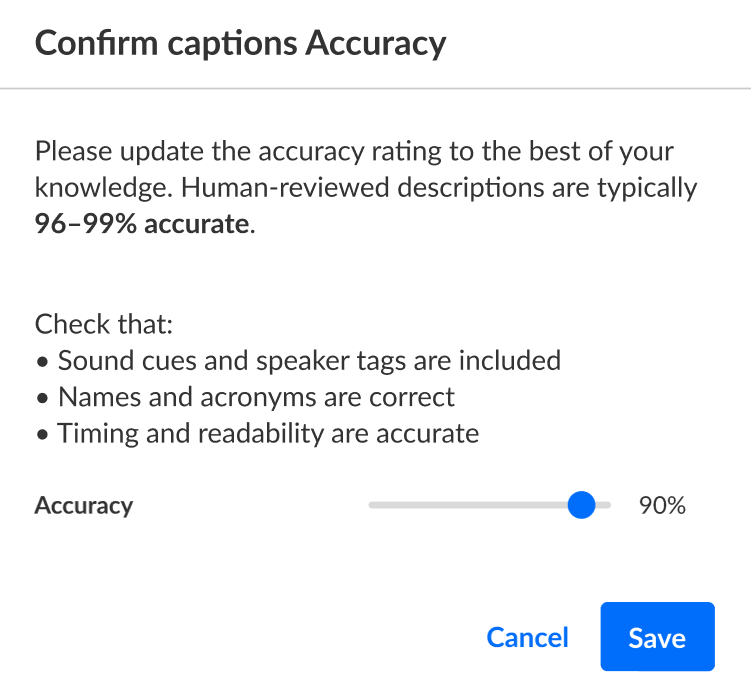
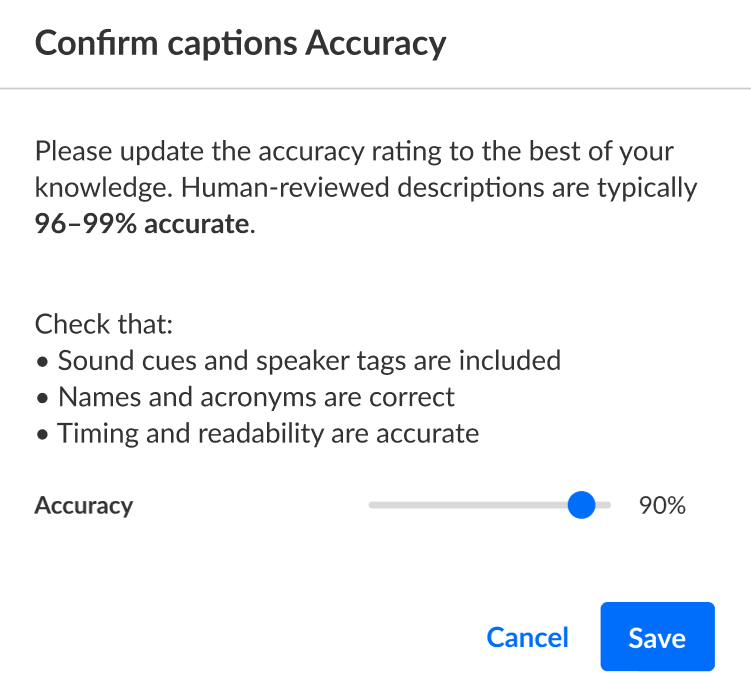
- When prompted to confirm accuracy, adjust the slider and click Save
Add speaker’s name
- Select one or more caption lines.
- Click Add speaker.
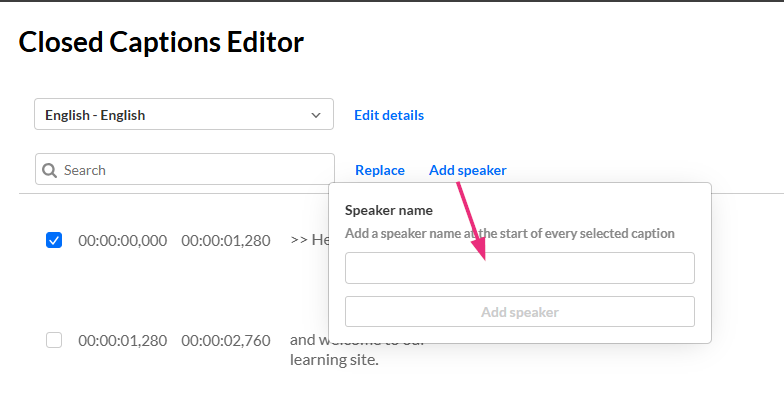
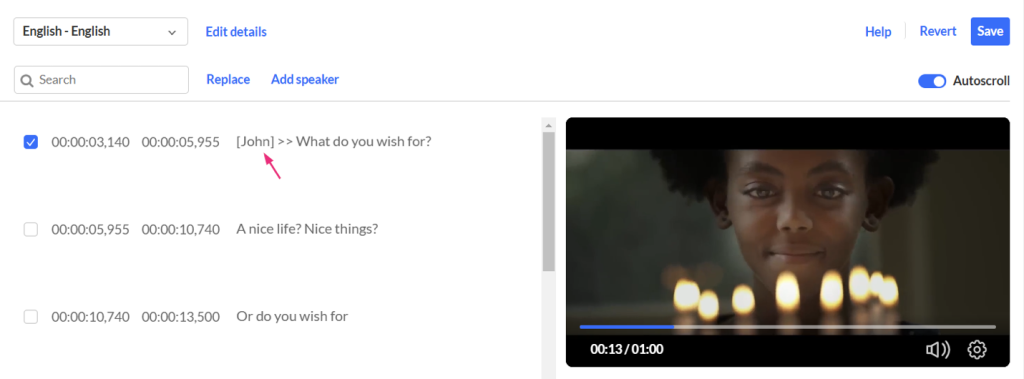
- Enter the speaker’s name and click the Add Speaker button.
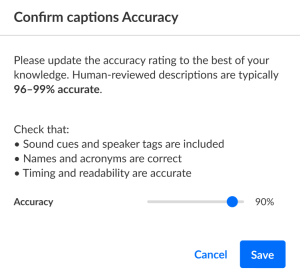
- When you click Save, you be prompted to confirm accuracy. Adjust accuracy if needed and then click the Save button at the bottom.
Add a caption line
- Hover over a row and click + Add caption.

- Edit the duplicated text.

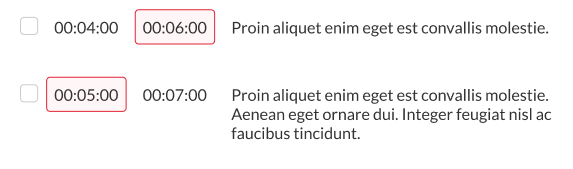
- Adjust timing to avoid overlaps, Kaltura highlights conflicts in red.
- Click Save, then confirm accuracy and Save
Edit caption line
- Click any caption line to activate the text field.
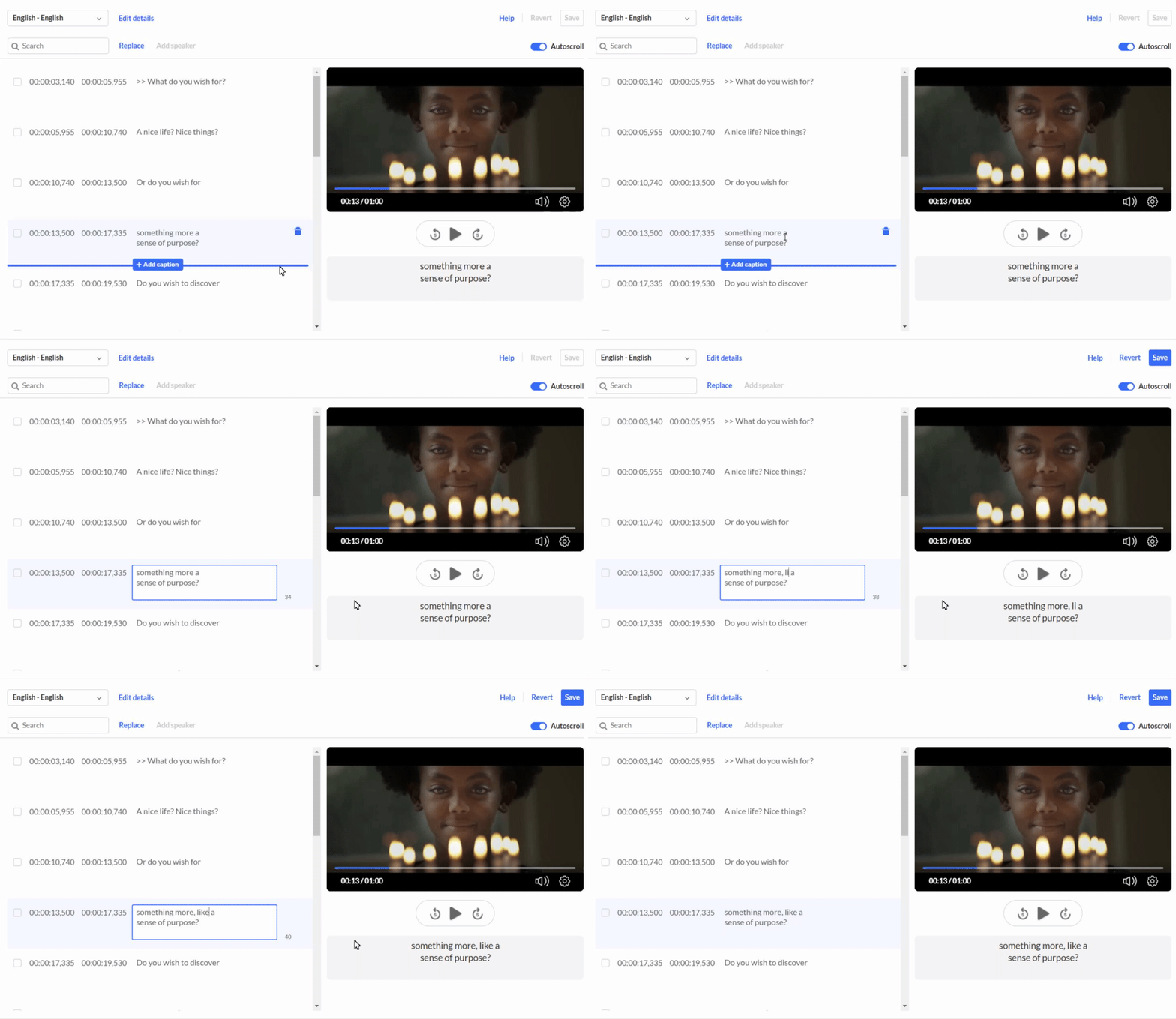
- Make your edits.
- Click Save, then confirm accuracy and Save
Revert and Save
- Revert restores the last saved version.
- Save commits all changes to the caption file.

Keyboard shortcuts
- Player seek 5S backwards = Ctrl <-
- Player seek 2S backwards = <-
- Player seek to 0 = Home and in Mac Command <-
- Player pause-play toggle = space
- Player seek 5S forward = Ctrl ->
- Player seek 2S forward = ->
Related Posts
