


Kaltura My Media – Thumbnails
Kaltura automatically generates default thumbnails for each video entry, capturing a frame at the three-second mark. You can modify this using the Thumbnail Tab found under the Edit Page for an entry (see Kaltura My Media – Editing).
YouTube Thumbnails
You cannot modify a YouTube entry thumbnail.
Access the thumbnail setting
- Access the Editing page of an entry.
- Click on the Thumbnails tab.
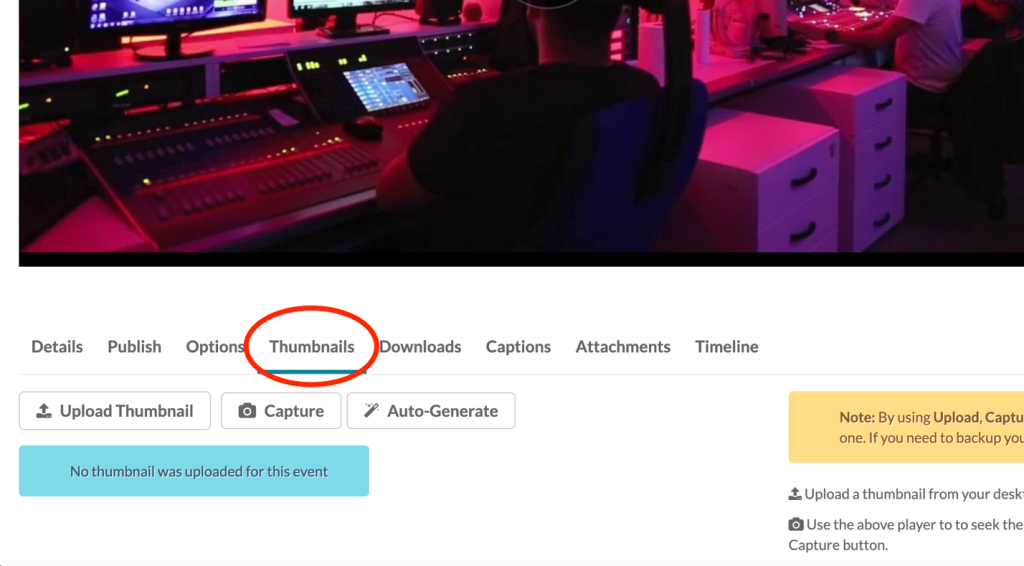
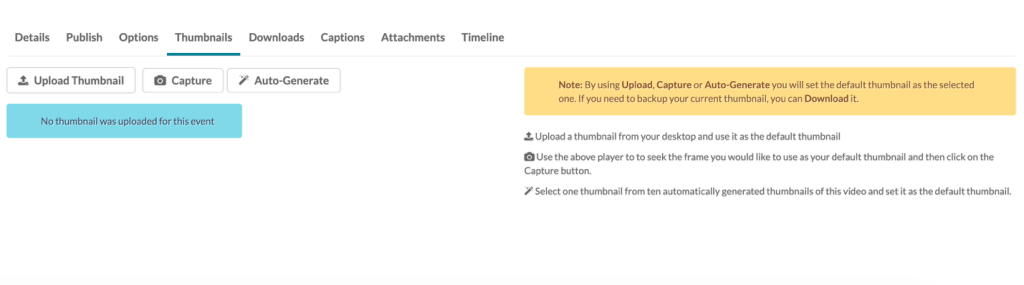
- The thumbnail settings display.
Set and Manage Thumbnails
There are four options for setting and managing a thumbnail:
- Upload Thumbnail – Upload a thumbnail from your computer and use it as the default thumbnail.
- Capture – Use the player to select the frame you want to use as your default thumbnail and then click on the Capture button.
- Auto-Generate – Select one thumbnail from ten automatically generated thumbnails of the selected video and set it as the default thumbnail.
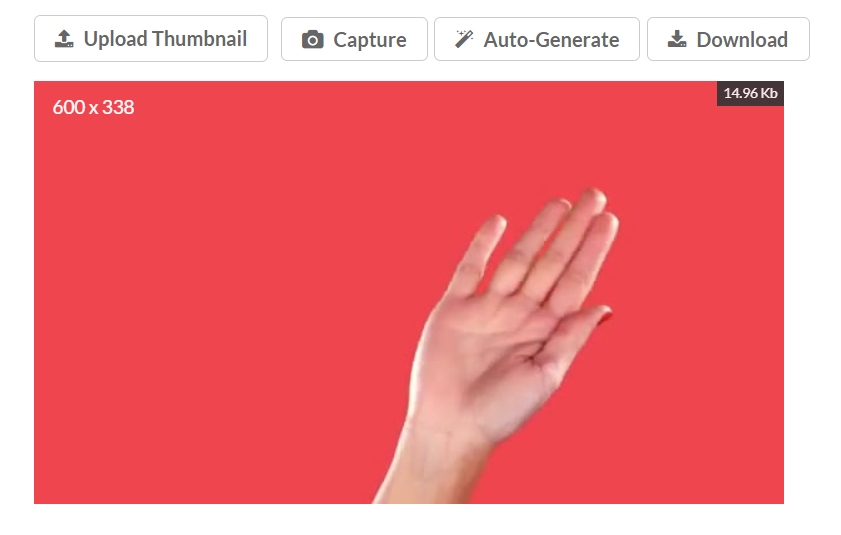
- Download – Download a thumbnail to back up your current thumbnail.
Upload a Custom Thumbnail
- Click Upload Thumbnail.
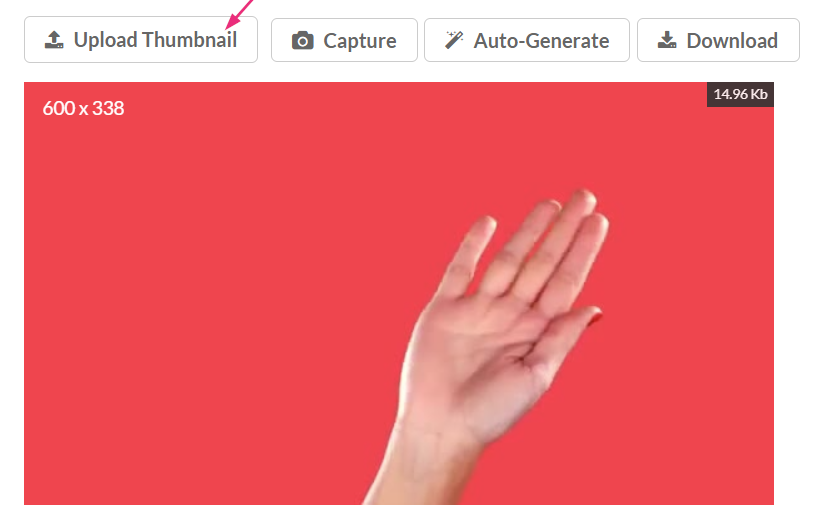
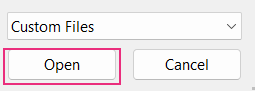
- Select a file from your computer and click Open.
- The new thumbnail displays with a success message: Thumbnail saved successfully.

Capture a frame from the content
- Click the play button on the player of the video itself.
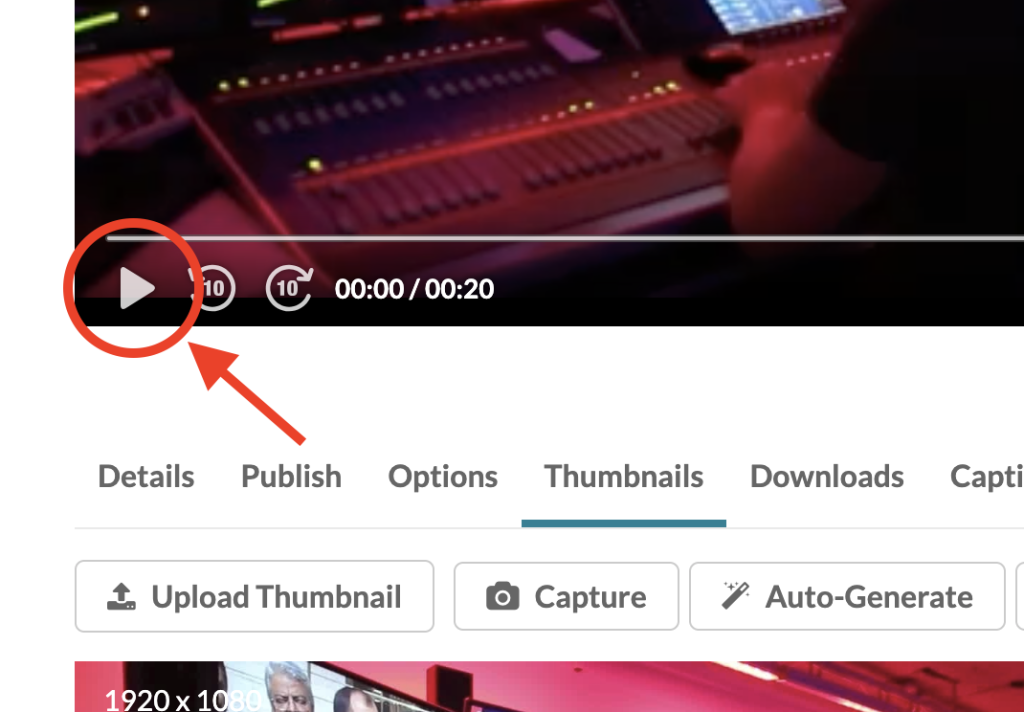
- Click Capture at the frame of the video that you want to use as a thumbnail.
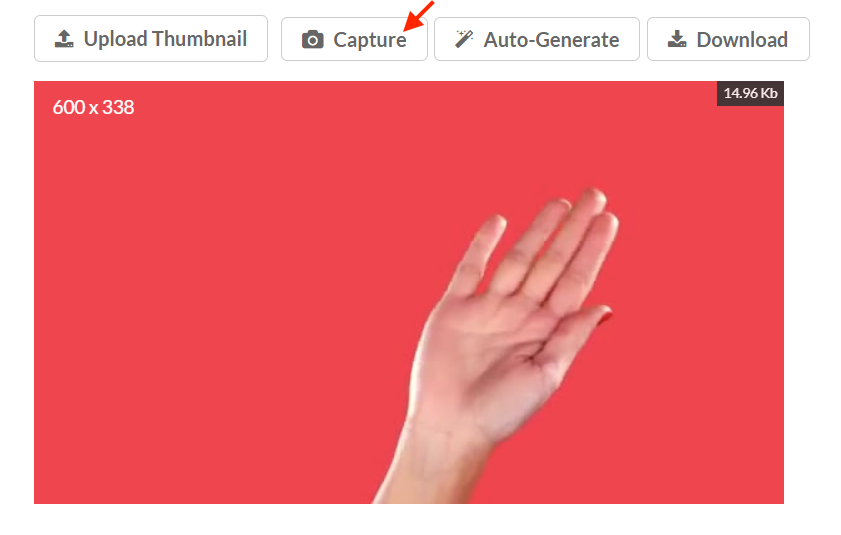
- The captured frame is saved automatically and displays as the thumbnail.
Select an automatically generated thumbnail
- Click Auto-Generate.
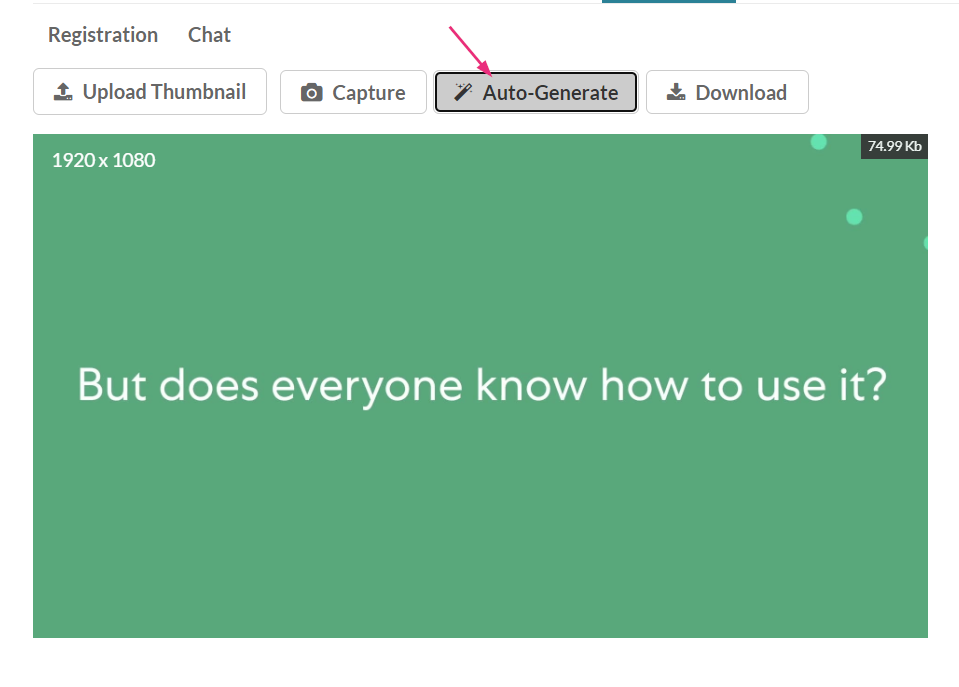
- Choose a thumbnail from a window that displays with automatically generated thumbnails.
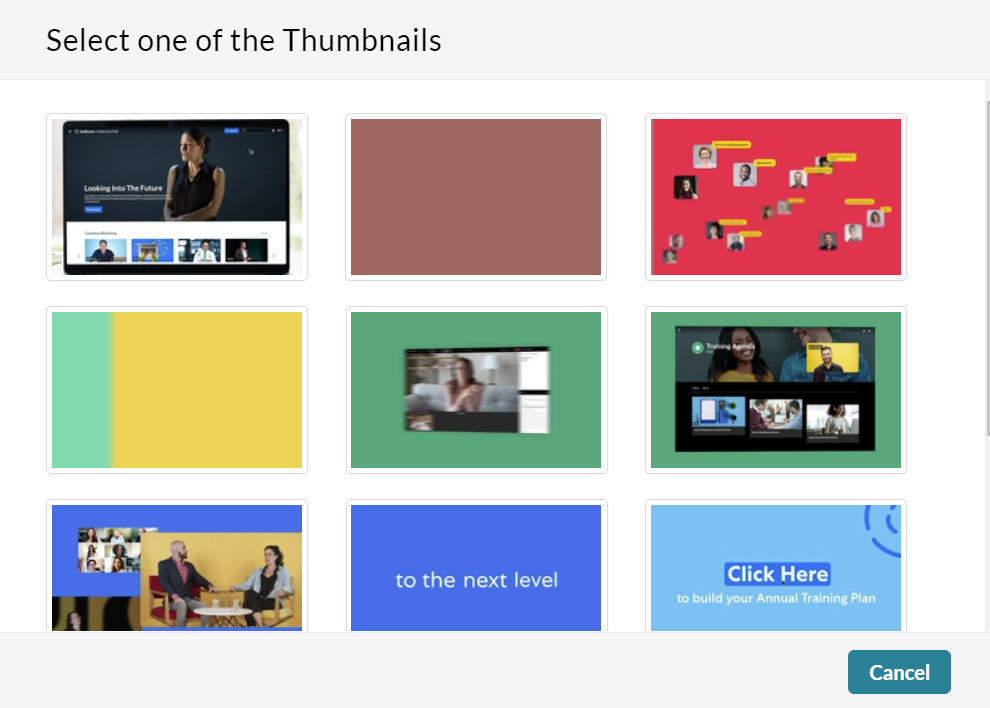
- After clicking a thumbnail, the new thumbnail will display.
Download a thumbnail
- Click Download
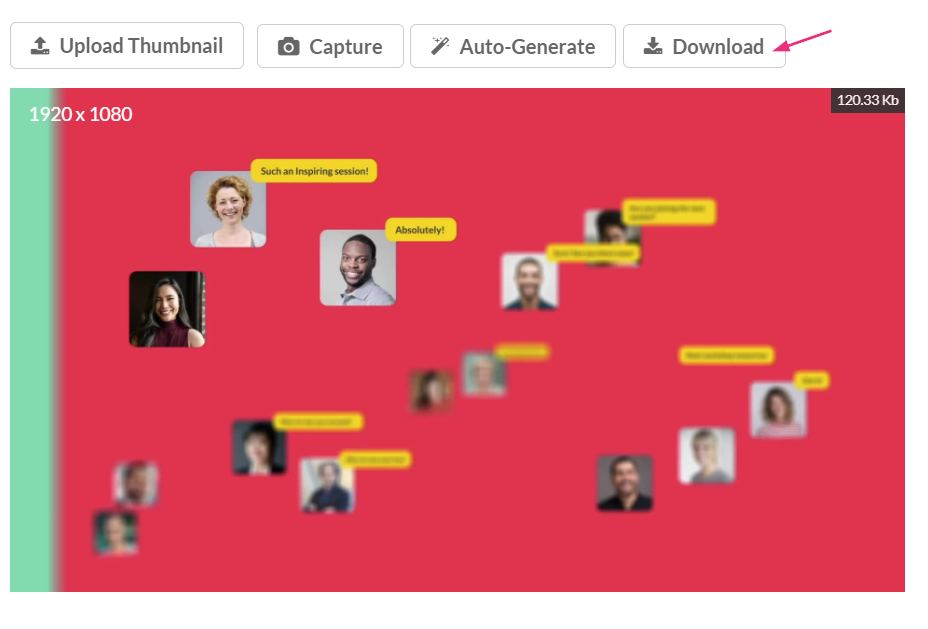
- Save the image of the thumbnail to your computer.
Related Posts
