


Kaltura Capture – Install Capture for Mac
This guide walks you through downloading and installing Kaltura’s desktop recording app, Capture, on a Mac.
Desktop Only
Kaltura Capture is not supported on mobile or tablet devices
Where to find the app
Capture isn’t available in app stores or public download sites – you download it directly from the Capture page found inside My Media. Go into your Learning Hub course, then from the top navigation bar, select My Tools and then Kaltura My Media. Click +Create and then select the Capture option
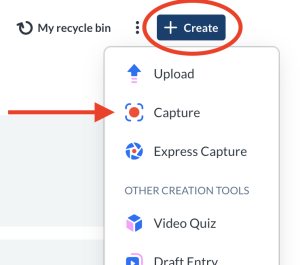
After clicking Capture in the menu, you’ll be directed to the page to download the application.

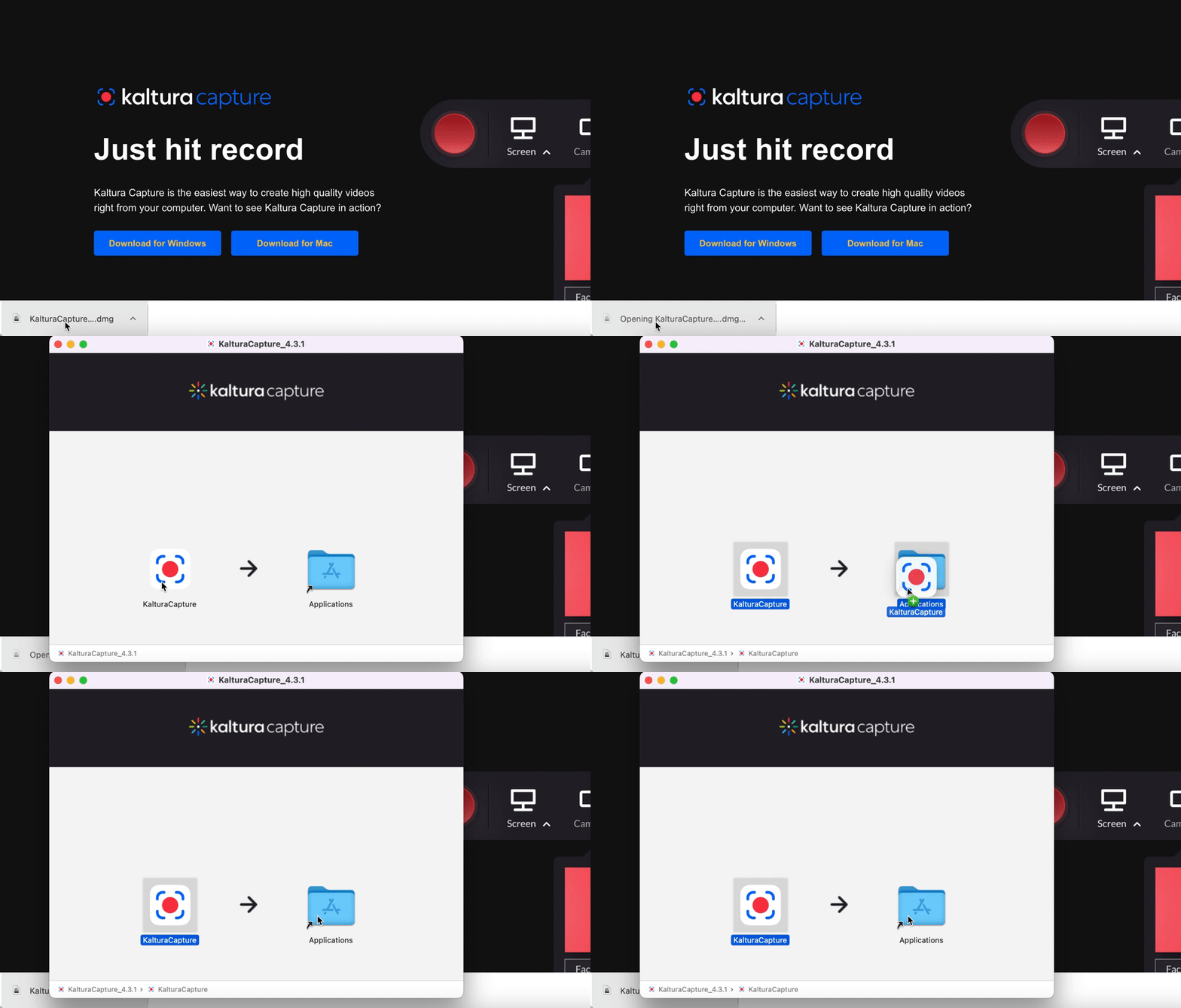
Select Download for Mac to download and install Kaltura Capture. A .dmg file will begin downloading into your Downloads folder.
Installing Capture
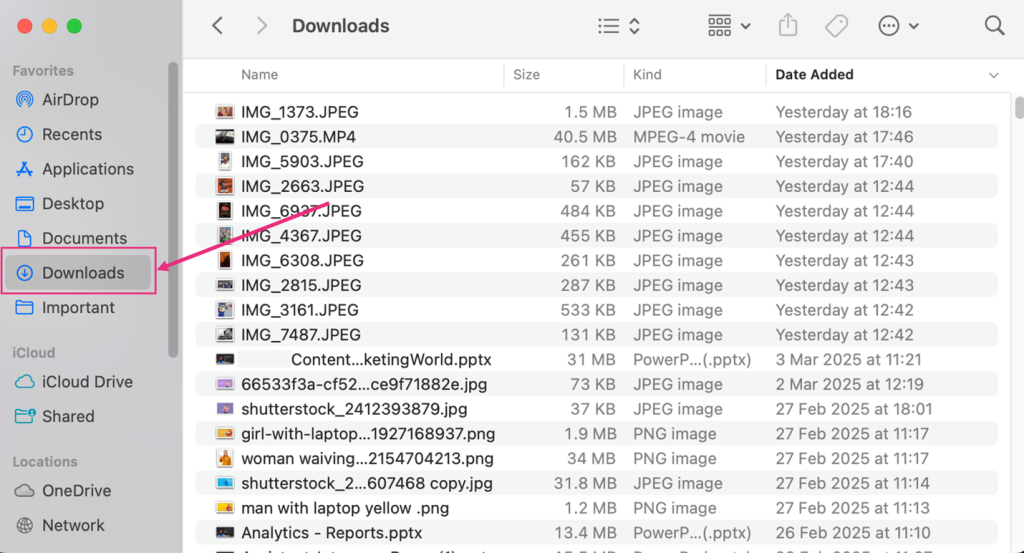
After the .dmg file downloads, open your Downloads folder and double-click the file to open it.
Downloads Folder
Your Downloads folder is located in the left sidebar of Finder and may also appear in the Dock on the lower right side, next to the Trash.
The following window displays:
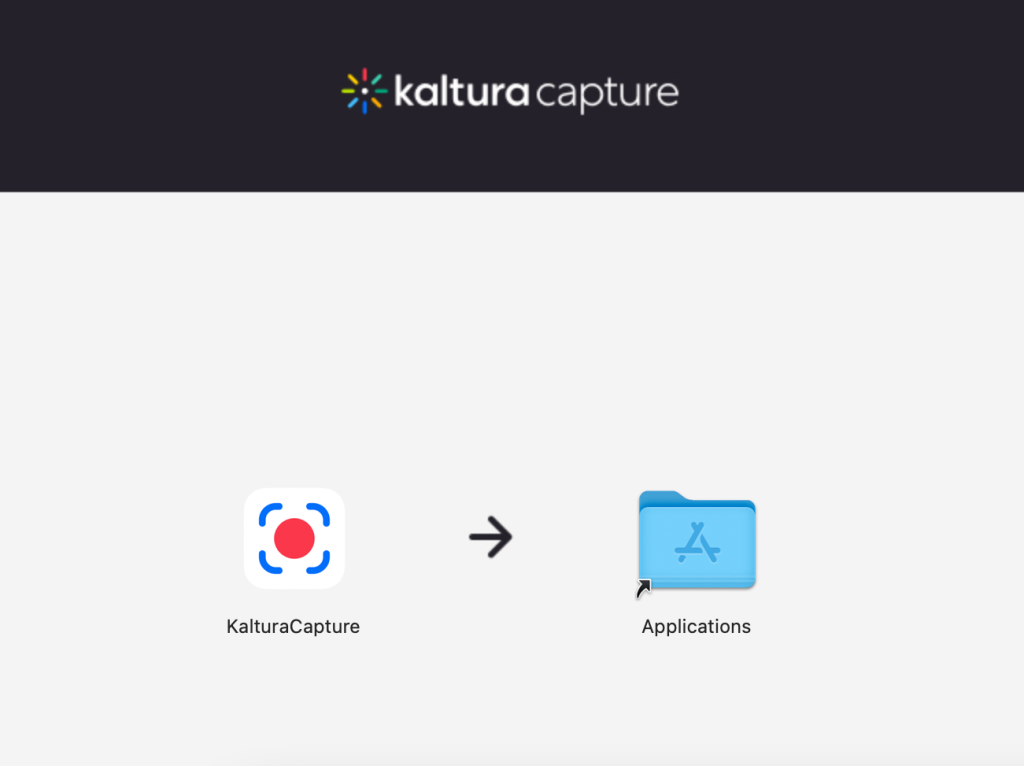
Click and drag the KalturaCapture icon into the Applications folder.
Enabling Permissions
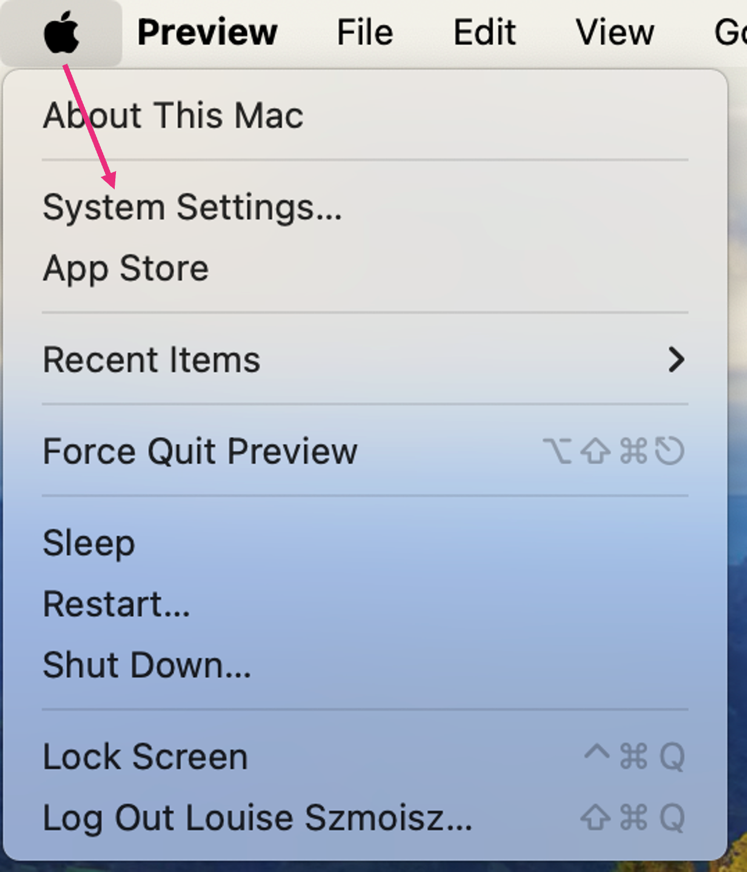
You need to give Capture permission to record your screen, as follows. Under the Apple menu, click System settings.
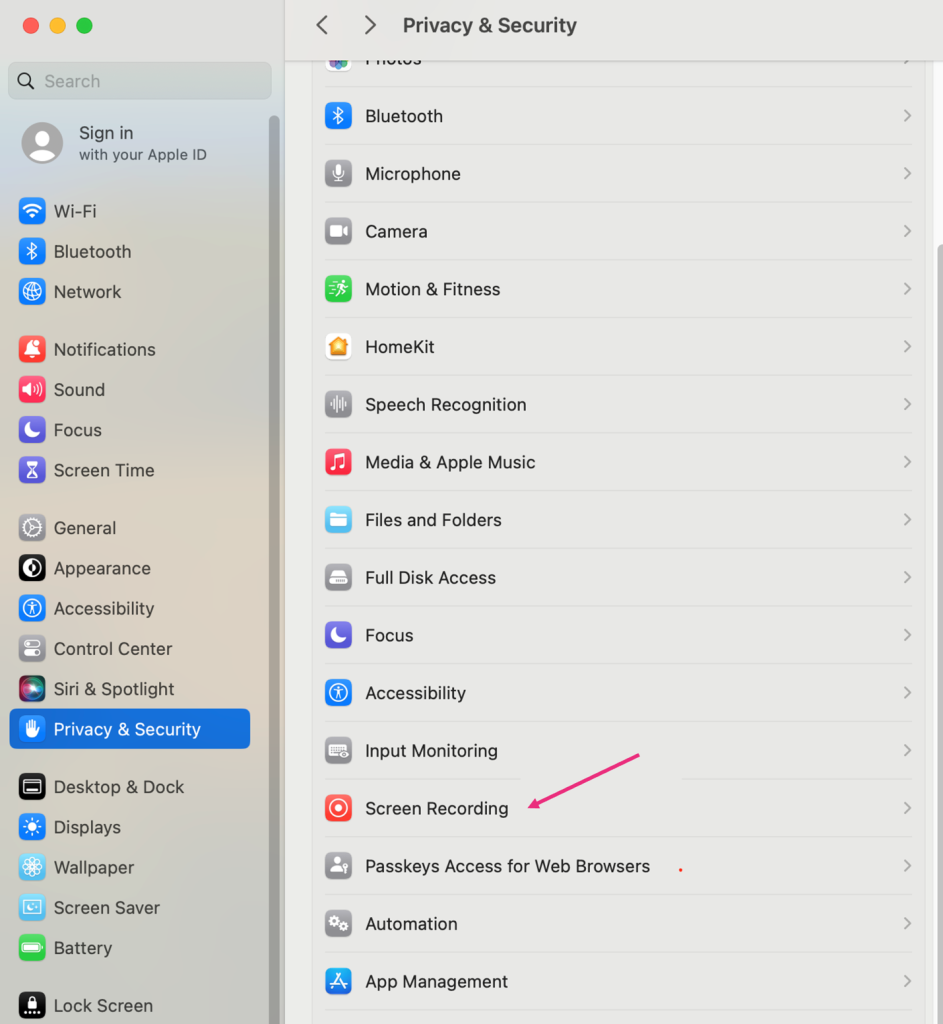
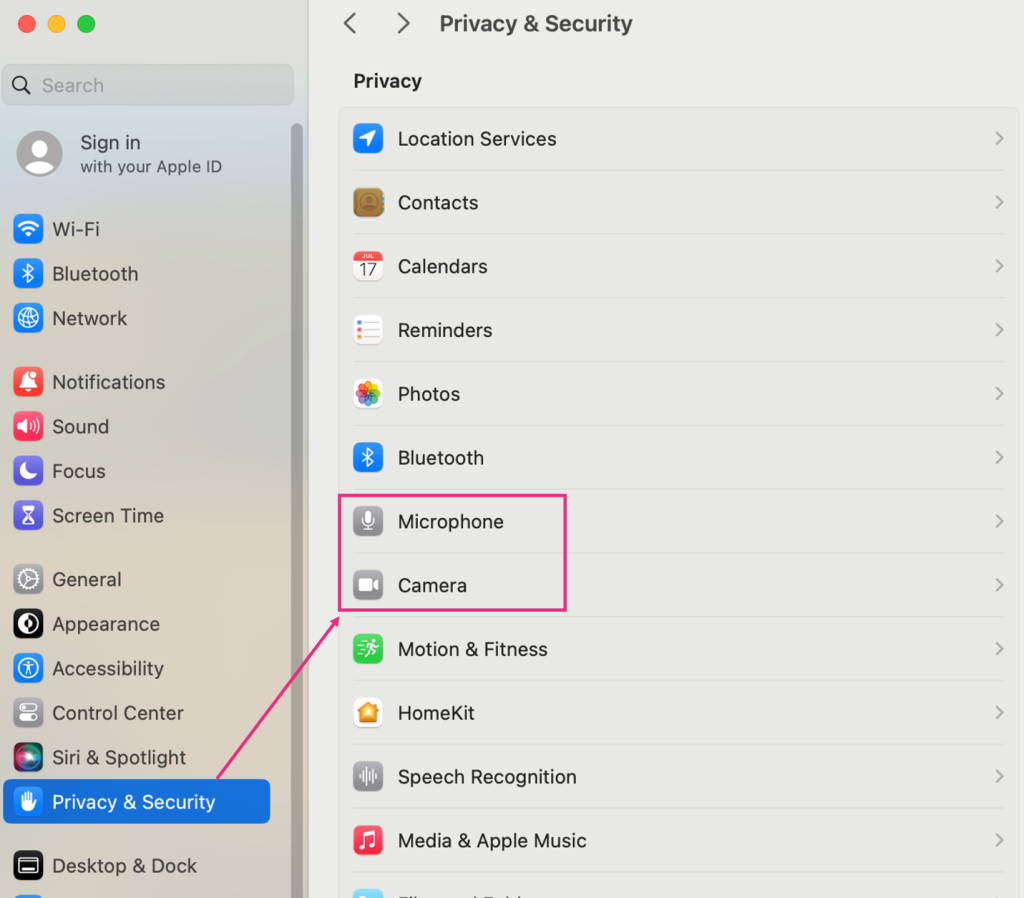
In the panel on the far left, click Privacy & Security.

To the right, under Privacy & Security, select Screen recording.
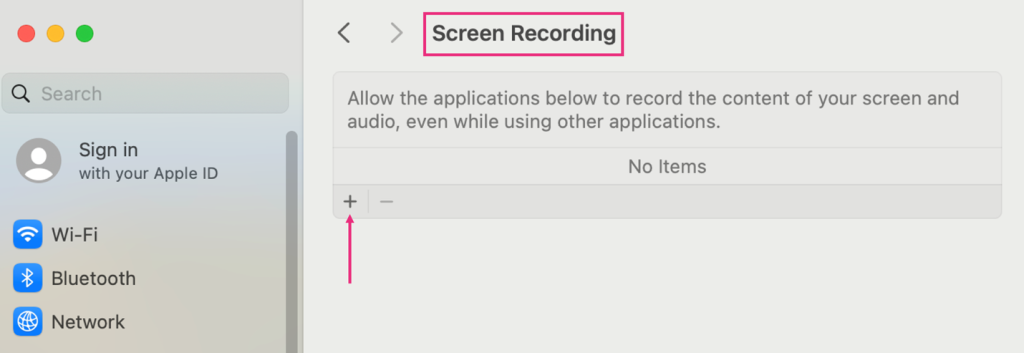
The Screen Recording tab displays. Under Screen Recording, click the + sign to add an app to the list of allowed applications.
You might get a Privacy & Security message: “Privacy & Security is trying to modify your system settings”. In this case, enter your user name and password, then click Modify Settings to continue.

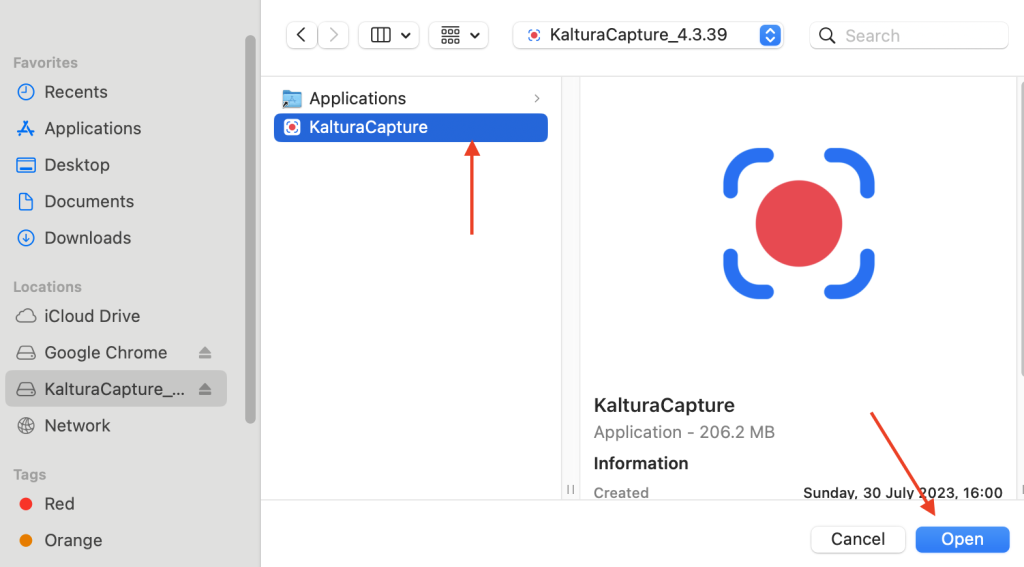
In the far left panel, click KalturaCapture, and the application will then appear on the right.

Click on the KalturaCapture app so it displays in a window on the right, then click Open.
The app now appears in the list of allowed applications with permission to record your screen and audio content.

Additional Permissions
When launching Capture for the first time, pop-up messages will prompt you to allow the application access to your microphone and camera (as shown in images below):
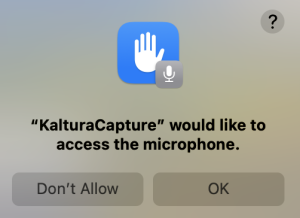
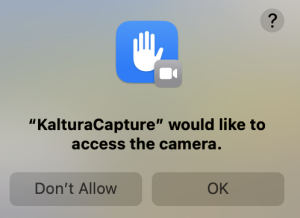 Click OK. This will grant access to your devices. If you still need to enable access manually, follow the steps in the section above to navigate to Privacy & Security > microphone / camera to add Capture to the allowed applications list.
Troubleshooting Capture
If you see error messages when trying to start or stop a recording, ensure that Capture has permission to access your camera and microphone. After adjusting permissions, restart your computer and try again.
Related Posts
