


- Resource
- How To - Instructors
- Set Your Time Zone to Pacific (Vancouver)
Set Your Time Zone to Pacific (Vancouver)
Why this matters: As of November 1, 2026, B.C. stays on daylight time all year (UTC−7). The Pacific Time (US & Canada) setting fell back to UTC−8, so it is now one hour behind B.C.
If your Learning Hub account or computer still uses that setting, due dates, end dates and quiz start times will show one hour off. Any dates you enter will also be saved one hour later than you intended.
Example
| You type a due date of… | Your time zone setting | Students in B.C. see… |
|---|---|---|
| 11:59 PM, Nov 20 | Pacific (US & Canada) ✗ | 12:59 AM, Nov 21 |
| 11:59 PM, Nov 20 | Pacific (Vancouver) ✓ | 11:59 PM, Nov 20 |
Part 1: Change your Learning Hub time zone
This setting is personal. It changes how dates display for you and how the dates you enter are saved. It does not change anyone else’s settings.
- Log in to the Learning Hub.
- Select your name in the top-right corner, then select Account Settings.
- On the Account Settings tab, scroll down to the Time Zone section.
- In the Continent list, select America.
- In the Time Zone list, select Pacific – Vancouver.
- Select Save and Close.
After you change it
- Open your course Calendar or an assignment’s due date. Times should now match B.C. time.
- Review the due, start and end dates on assignments and quizzes that you created while using the old setting. Correct any dates that are one hour off.
- Remind students to check their own time zone setting. They change it the same way.
Part 2: Check your computer’s clock (Windows)
The Learning Hub uses your account setting, not your computer’s clock. Still, your Outlook calendar, Teams meetings and the clock on your screen depend on Windows. Make sure your computer also shows B.C. time.
- Right-click the clock on the taskbar and select Adjust date and time. You can also go to Settings › Time & language › Date & time.
- Check the Time zone shown at the top right. It should read (UTC-07:00) Pacific Time (British Columbia).
- If it shows (UTC-08:00) Pacific Time (US & Canada):
- Turn on Set time zone automatically and Set time automatically, then select Sync now. Windows should switch to Pacific Time (British Columbia) on its own.
- If you can choose the time zone yourself, select (UTC-07:00) Pacific Time (British Columbia) from the Time zone list.
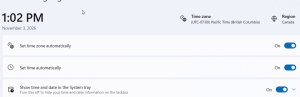
Before: Pacific Time (US & Canada), UTC−08:00. The clock is one hour behind.
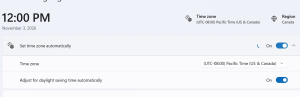
After: Pacific Time (British Columbia), UTC−07:00. The clock is correct.
Not seeing “Pacific Time (British Columbia)”? Your computer needs the October 2026 Windows update. Run Windows Update and restart. If it’s a BCIT-managed computer and the option is still missing, contact the ITS Service Desk.
On a Mac: Go to System Settings › General › Date & Time and set the closest city to Vancouver.
Related help
- Permanent Daylight Saving Time
- Assignment and Quiz Due and End dates display inconsistently
- New Content Experience not displaying quizzes with future start date
Need help? Contact the Learning Hub team at learninghub@bcit.ca or 604-412-7444 (option 2). Include your course name and number and a description of the issue.
Related Posts
