


- Resource
- Uncategorized
- Kaltura – Dual Screen
Kaltura – Dual Screen
Dual screen is feature that is automatically configured across all Kaltura video players. The dual screen allows you to watch two synchronized media sources in a single player. This can be either two videos or a video and a slide presentation.
This layout is called picture-in-picture, where one stream appears larger (primary) and the other smaller (secondary).
Dual screen supports multi-stream playback. A multi-stream entry includes:
- One primary (parent) entry
- Up to three additional (child) entries
You can also combine two video streams and slides.
Slides are supported in both VOD and pre-recorded sessions:
- In VOD, slides appear on the timeline based on their timing (See Kaltura My Media – Timeline for details)
- In pre-recorded sessions, slides behave the same way, but only slides beyond the live point appear on the timeline (Kaltura Capture – Recording PowerPoints for details)
Primary video – The primary video will be played with audio by default and viewed as the “main” video unless specified otherwise. The timeline reflects the duration of the primary video only.
Secondary video – The secondary video will be played without audio input by default and will be viewed as the “minimized” video unless specified otherwise.
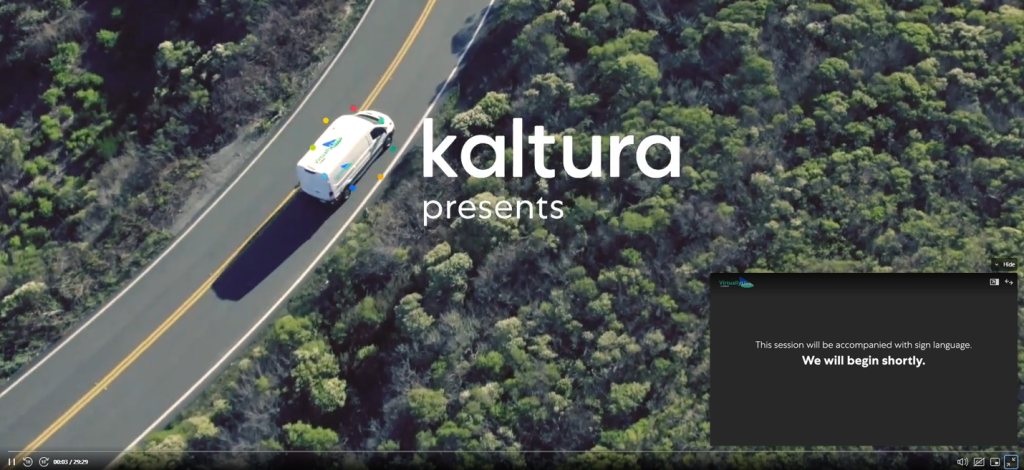
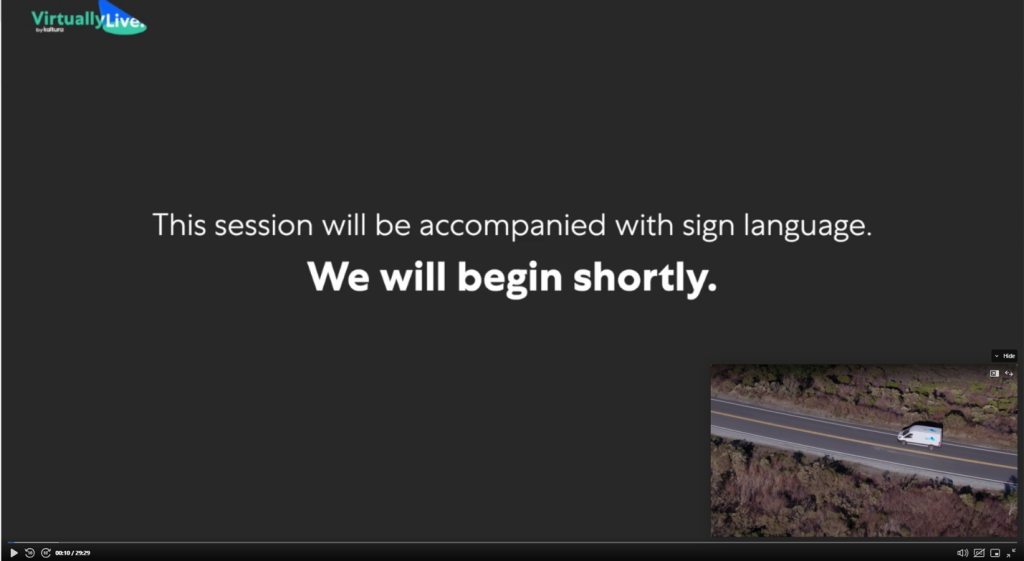
The following images demonstrate a picture-in-picture layout with the primary video as the main screen and then switched to the smaller screen.
Layouts
Picture in picture
This is the default layout in the Kaltura player:
- The primary video appears large
- The secondary source appears as a smaller overlay
You can:
- Swap the primary and secondary sources
- Drag the smaller player to any corner of the screen
- Show or hide the smaller player
To switch to side-by-side view, click the expand (two arrows) icon.
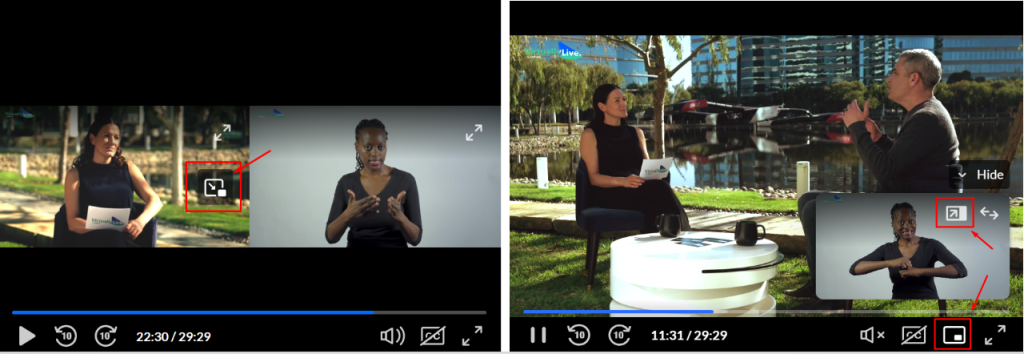
Pop out
There are two pop-out options:
- Picture-in-Picture button on the player’s lower bar (web browser feature supporting only the main stream).
- Dual / multi-stream feature on the player’s screen (a Kaltura feature supporting all streams).
Please note, pop-out behavior may vary across browsers, see examples below:
Side by side
This layout lets attendees split the screen to view two videos side by side. Drag the primary and secondary videos left or right as you like.
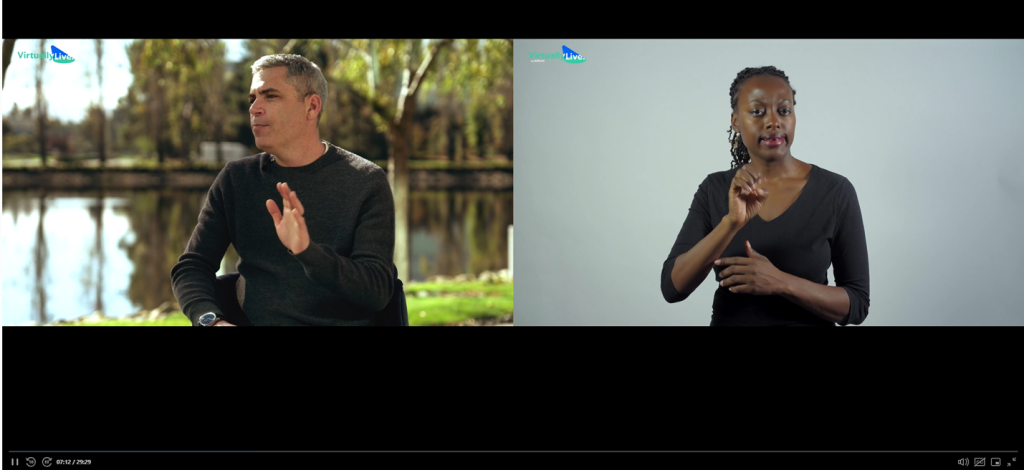
Click Hide to hide the smaller screen. If it’s hidden and you don’t hover over it, the view switches to a single video.
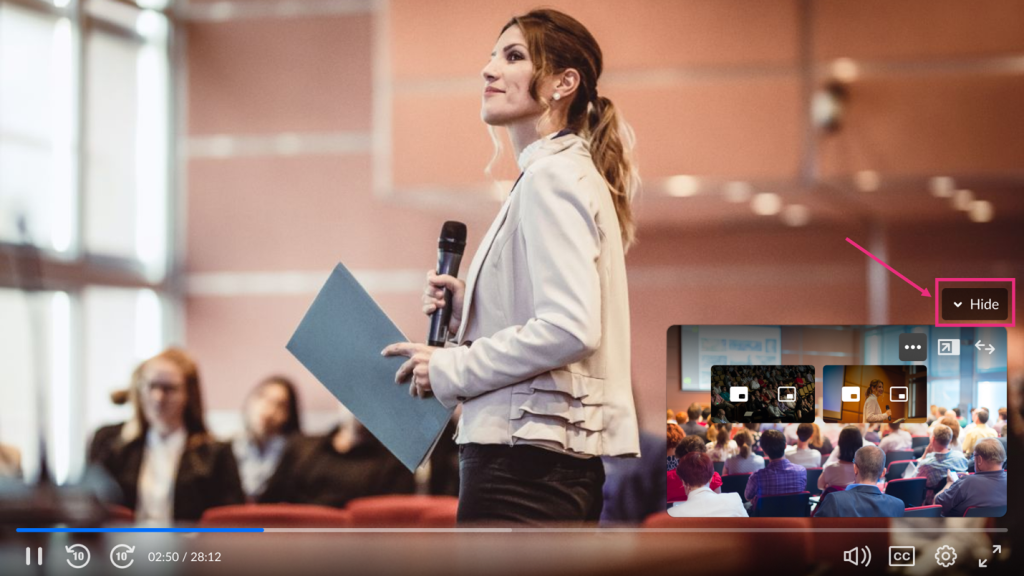
From the hidden view, switch media sources to return to a single video display.
Click Show to go back to Picture-in-Picture mode.
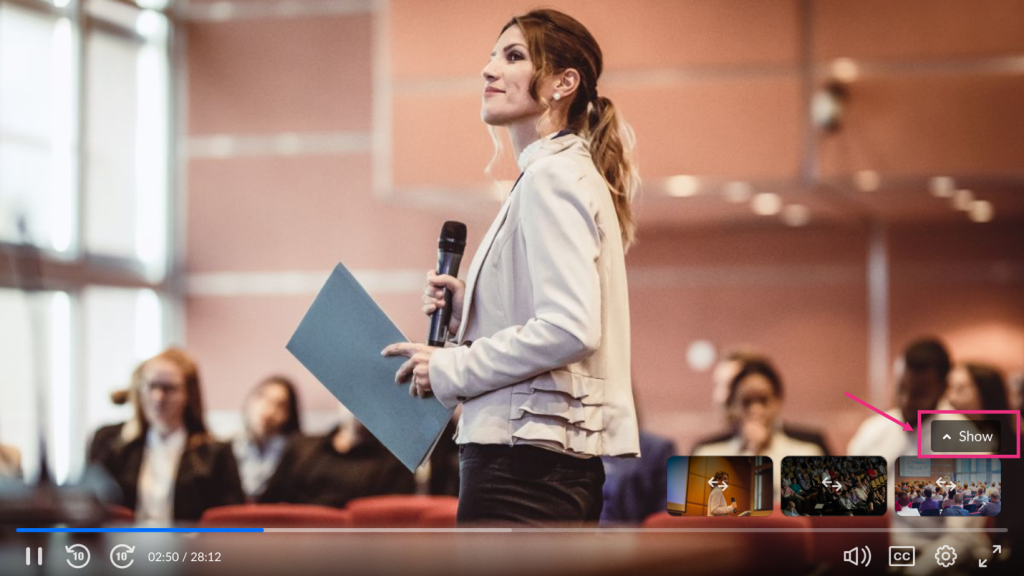
Working with multiple streams
For multi-stream videos with more than two streams, viewers can select which stream plays on each screen. The primary stream’s audio plays continuously, regardless of the selected streams on the screens.
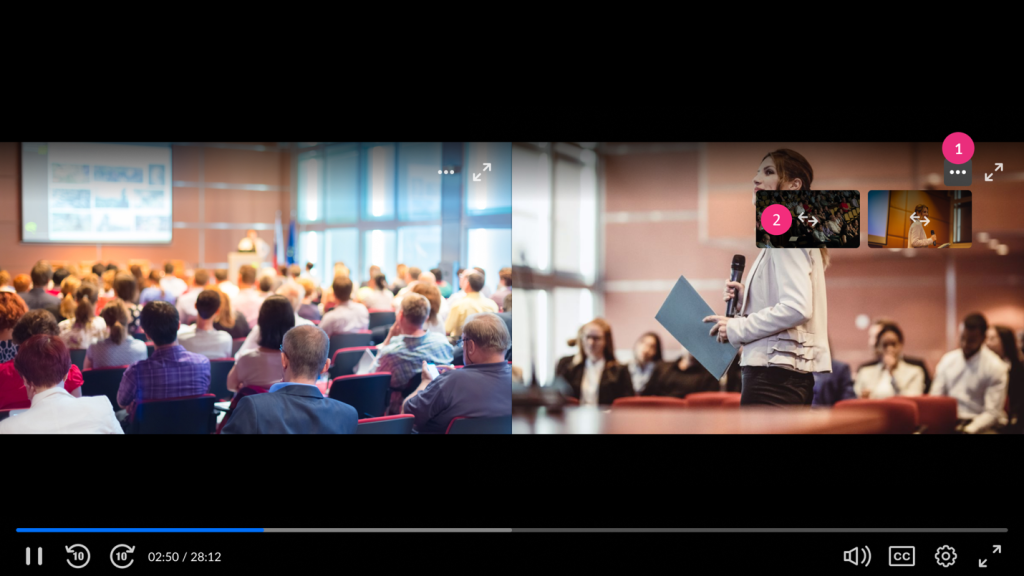
Side by side
Hover over the player and click the three dots (1) to select streams for the side-by-side view. Choose your desired stream using the switching arrows (2) on the video thumbnail.
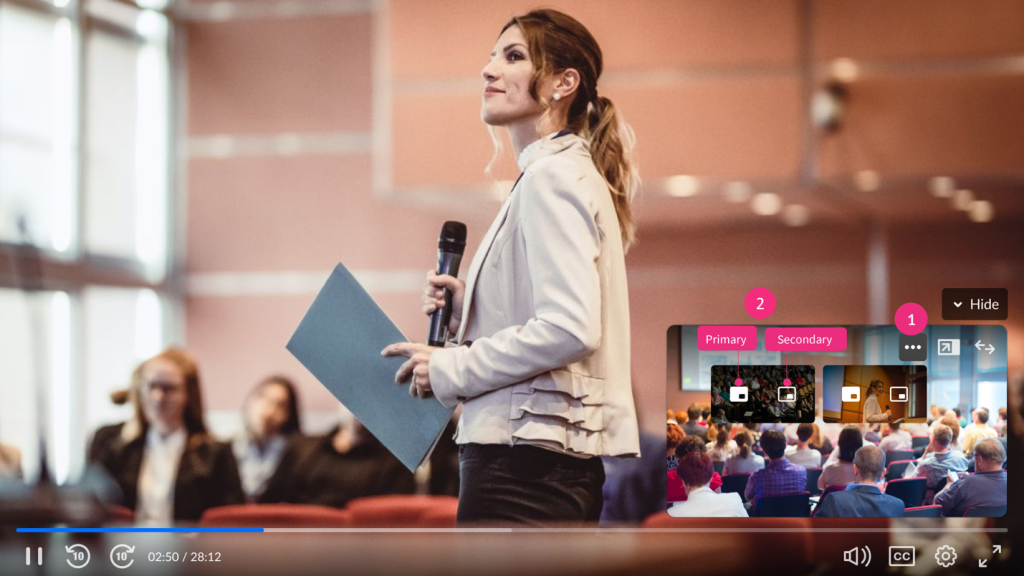
Picture in picture
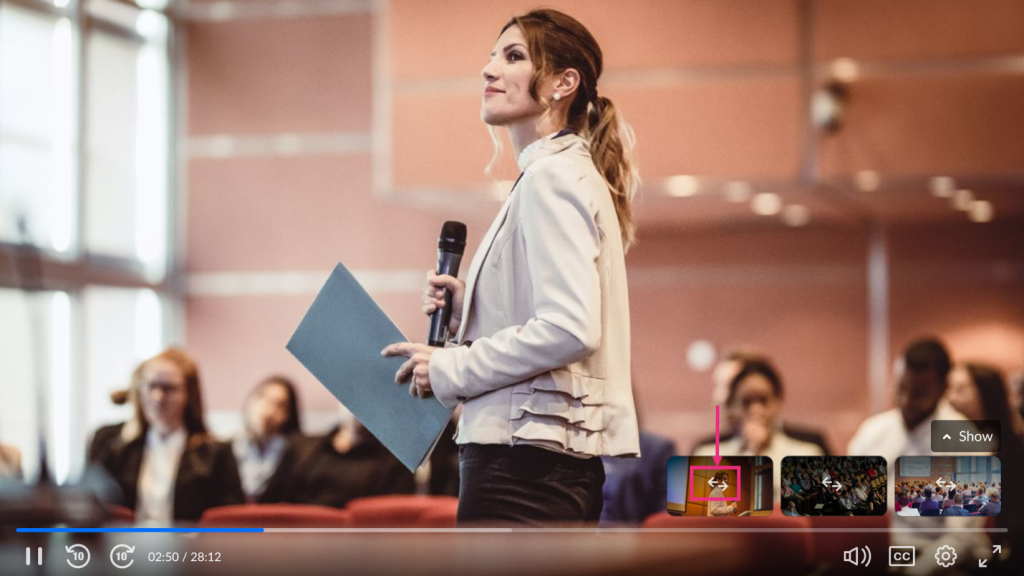
Click the three dots (1) on the smaller screen to display stream thumbnails. Then, select either the primary or secondary display button (2) to play your chosen stream.
Single Stream
When focusing on a single stream, use the switching arrows on any of the thumbnails to switch over to the selected stream.
Related Posts
