


Kaltura My Media – Uploads
Kaltura entries can be created by uploading video, audio or image files. You can upload these files into Kaltura as either a single entry or in bulk. Follow the steps below to get started.
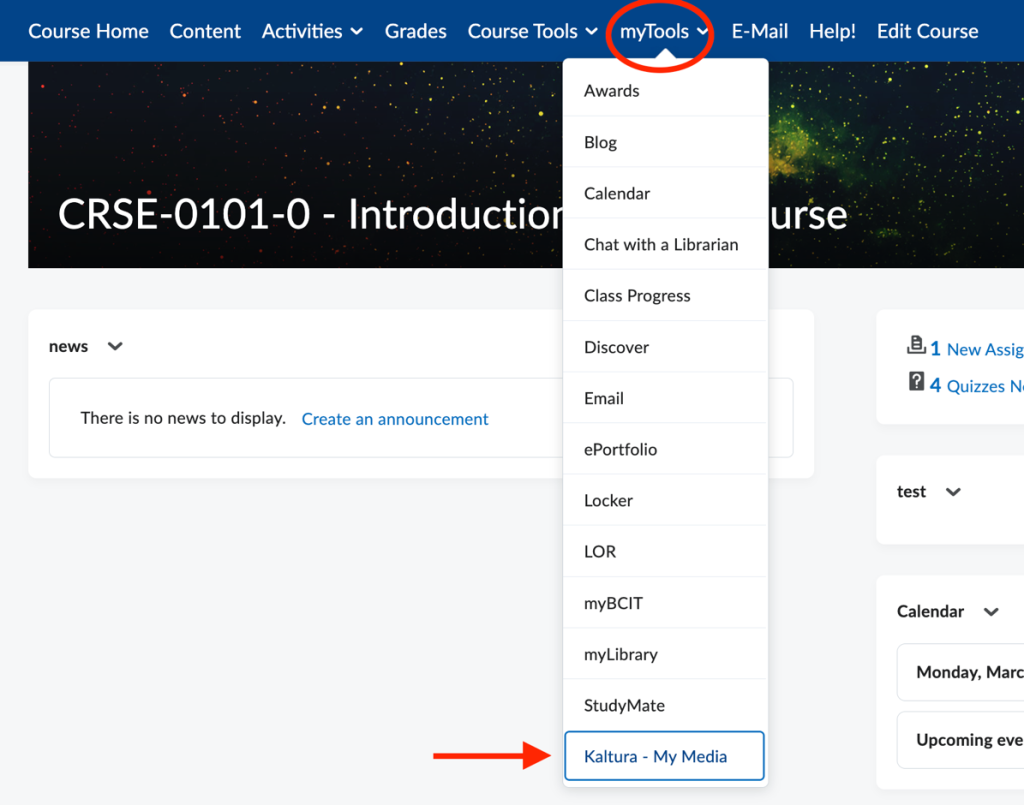
If you are not already in My Media, select myTools and then Kaltura My Media inside your Learning Hub course.
Click the + Create button and select Upload

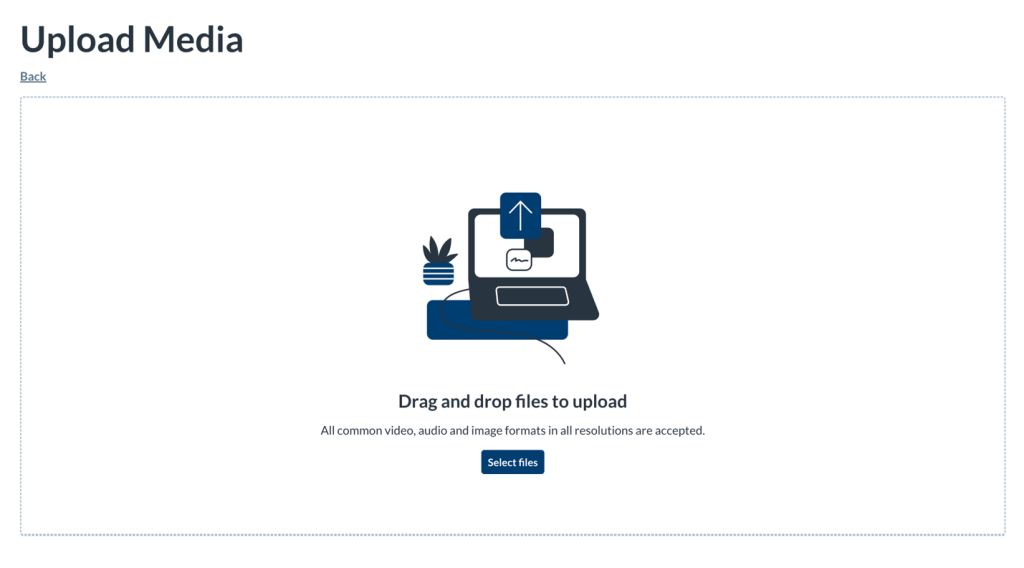
Click Select Files and choose one or multiple files, or drag and drop files inside the dotted area. Different types of files can be uploaded at the same time.
Keep the browser tab open
Keep the browser tab open! Closing or navigating away will cancel any media in the queue or currently uploading. This is important especially if you have very large files.
If multiple files were selected, one file starts the upload process, and the rest of the files are then added to the queue. The queue continues to upload content from bottom to top, skipping any canceled or errored-out media.
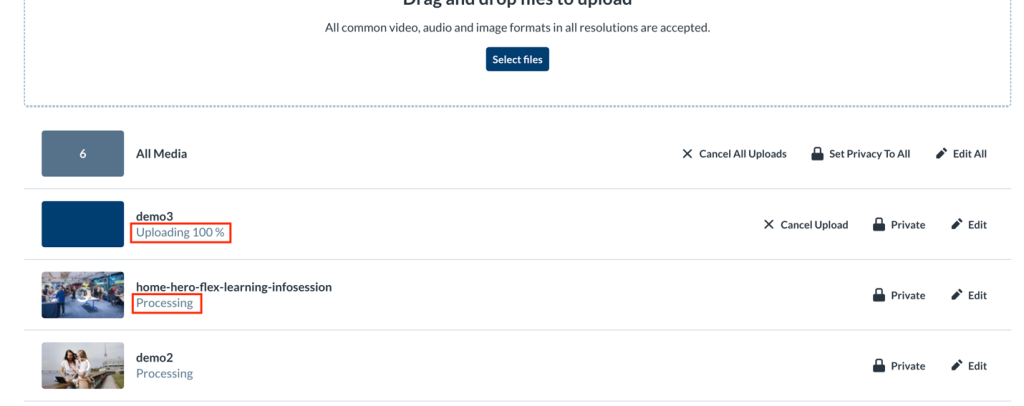
The status of the upload is indicated on the right of each item as well as the top left of the Upload Media window:
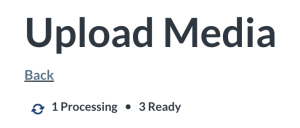
Upload Statues are:
- In Queue – Files waiting their turn to upload. You can cancel these before they start uploading.
- Uploading – Displays progress percentage. You can cancel uploads still in progress.
- Processing – The file is being converted. The cancel option is no longer available.
- Ready – The upload is complete, and the thumbnail is displayed. You’ll see a link to the media page.
- Failed – Indicates an upload error. These files cannot be edited or canceled.
- Cancelled – Previously canceled uploads can be removed from the list.
Bulk Actions
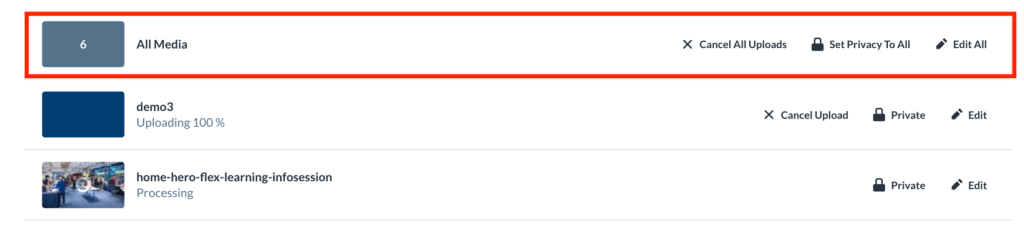
At the top of the upload list, you’ll find bulk actions for managing multiple files. The gray box displays how many files are in the upload list. Entries with the status ‘Canceled’ or ‘Failed’ are not counted here.
- Cancel All Uploads – Stop all uploads in progress or in the queue. ‘Processing’ or ‘Ready’ files are unaffected.
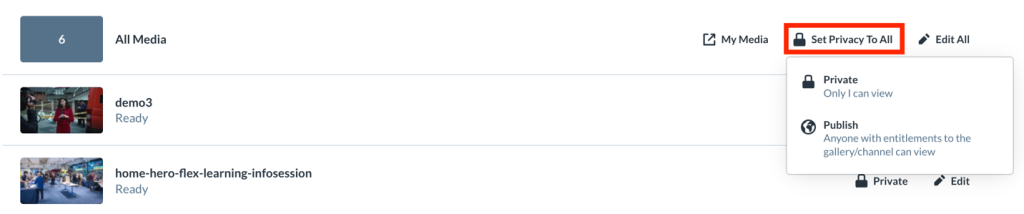
- Set Privacy to All– Publish or adjust the privacy status of your entries in bulk.
- Edit All – Modify details for multiple media files at once.
Edit Media
Edit a single entry
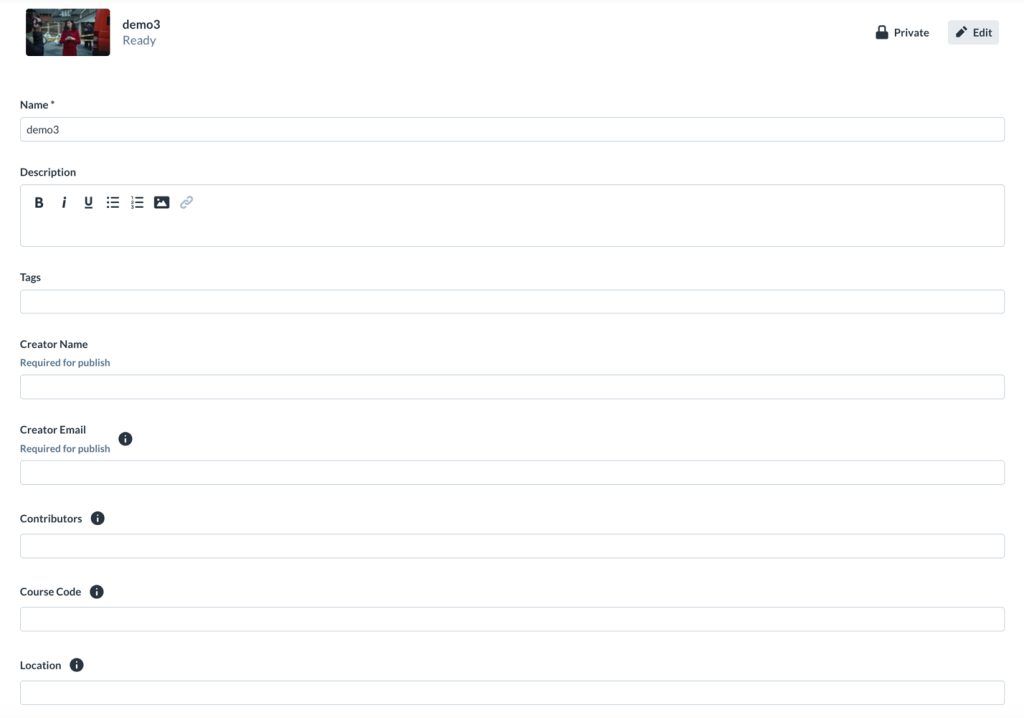
Click Edit to right of an entry.

You can edit the title, description, tags, and custom metadata for each uploaded file.
Required Metadata
Please make sure to complete the required fields otherwise you cannot publish or embed these entries inside your courses.
Edit multiple entries
Click Edit All at the top right.
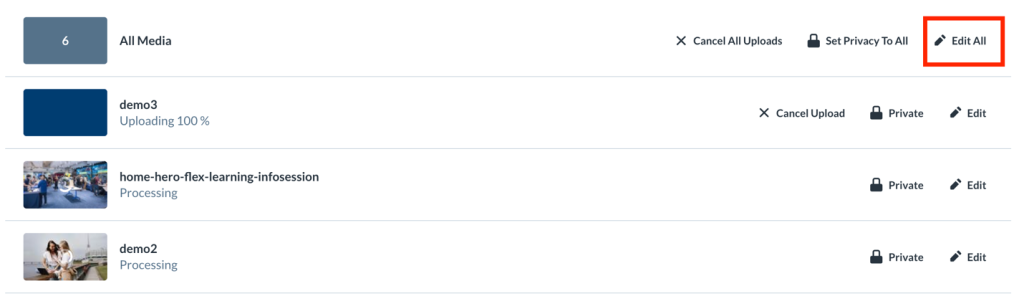
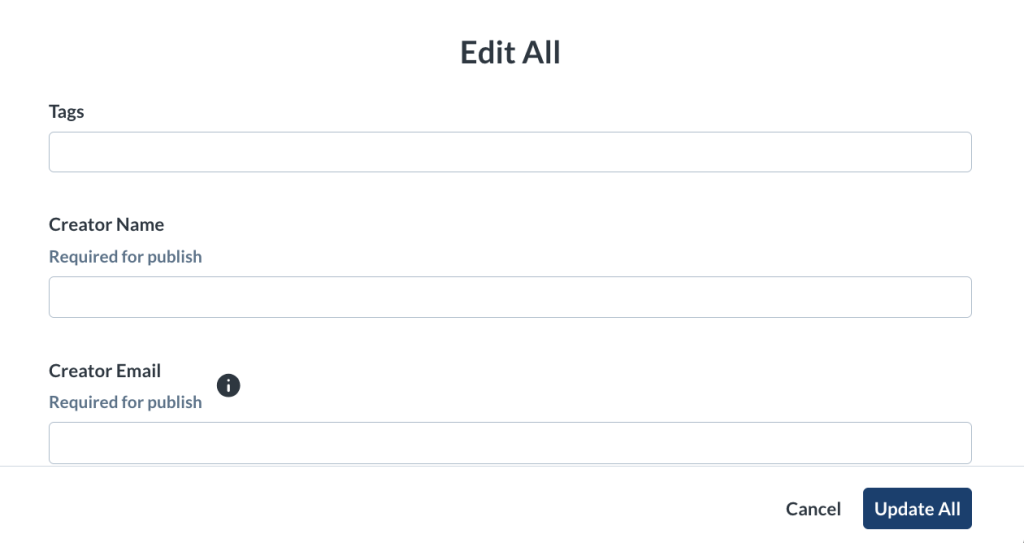
You can add tags and custom metadata for multiple media at once (don’t forget to scroll down). Please complete the required fields otherwise these entries cannot be published or embedded.
Publish Media
Publish a single entry
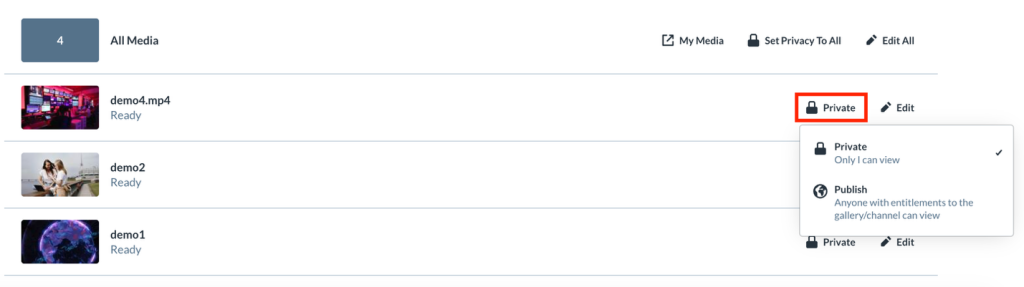
You can publish directly from the Upload Media page by clicking the publish status Private, then choosing Publish.
Publish multiple entries
Easily publish multiple media entries in bulk from the Upload Media page. Simply click Set Privacy to All at the top of the upload list, then select the Publish status for all entries.
View Media
To view your media when uploading is complete, select My Media or access Kaltura My Media again from the course navigation bar.

Related Posts
