


Kaltura My Media – Uploading Captions
You can upload caption files for any of your entries under the Captions Tab found in its Edit page. Kaltura supports the following file types for captions: SRT, DFXP, or VTT. You can upload multiple caption files to the same entry, for example if you wish to create subtitles in different languages or adds label to each file so learners can select the appropriate option in the player.
Uploading captions
- Click Upload captions file

- The Upload a captions file window opens.
- Click Browse and select an SRT, DFXP, or VTT file from your device.
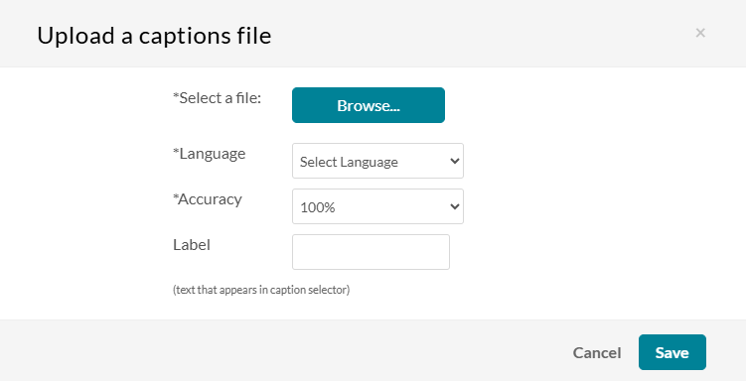
- Choose the appropriate Language from the dropdown menu.
- In the Label field, enter the name that will appear in the player’s caption selector.
- Click Save to upload the file.
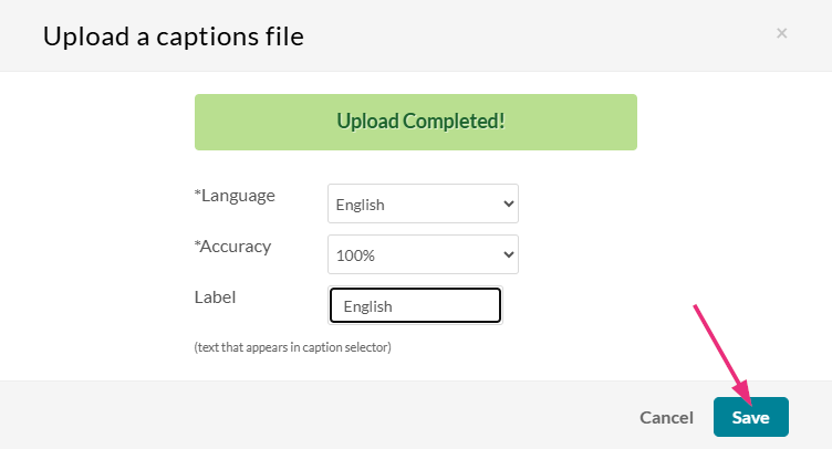
The uploaded captions file will now appear in the table under the Captions Tab. To upload additional files, click Upload captions file again and repeat the steps.
Actions
Set a default captions file
- In the caption row, click Set as default.

Delete a captions file
- Under Actions, click the X icon in the caption row.

- A confirmation message appears: Are you sure you want to delete this caption file?
- Click Delete to remove it.
Download a captions file
- Click the download icon in the caption row. The file downloads to your device (default name is typically “English.srt,” which you may rename).

Note
Kaltura-generated captions are available for download in SRT or DFXP format only.
Related Posts
