


Kaltura My Media – Timeline
Chapters and slides found in the Timeline Tab help organize your entry and make it easier for viewers to follow along. Chapters act like bookmarks for quick navigation, while slides show synced visuals alongside your content. Viewers can explore chapters and slides directly as they appear on the Kaltura media player.
To learn more about how this works in the dual-screen layout, see Kaltura – Dual Screen.
Creating chapters
- Access the edit media page and click on the Timeline Tab.
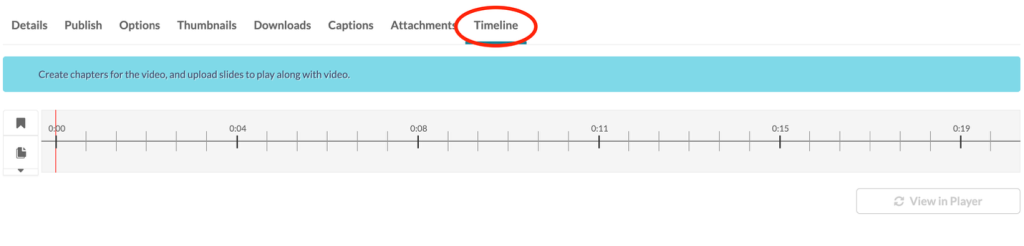
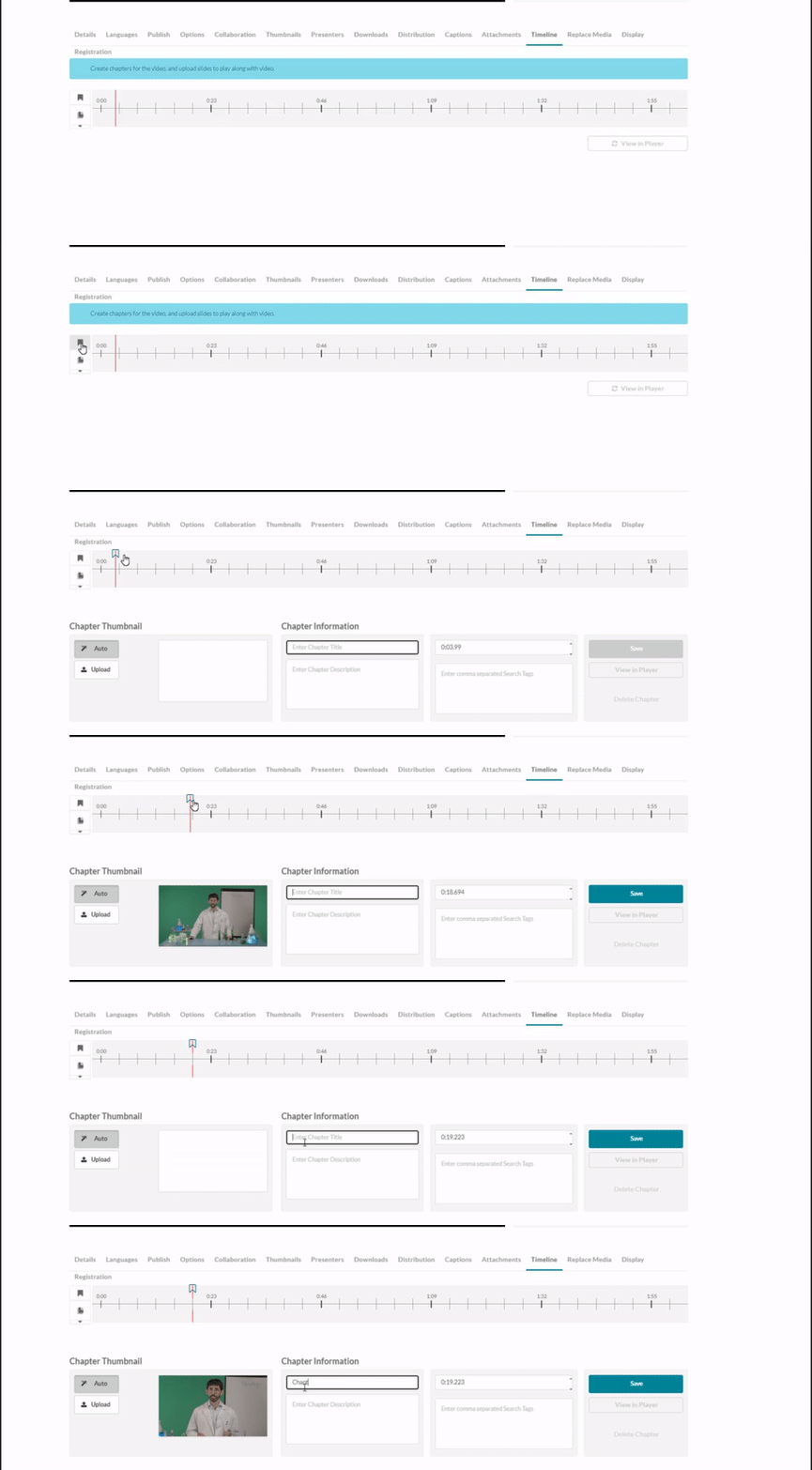
- Click the Create New Chapter icon.

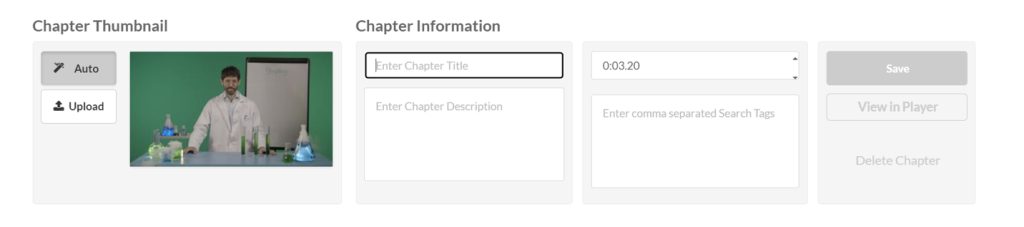
- The chapter settings display.
- Move the cue point to the desired position of the first chapter.
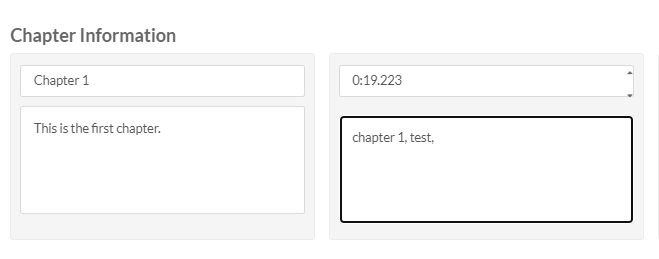
Chapter information
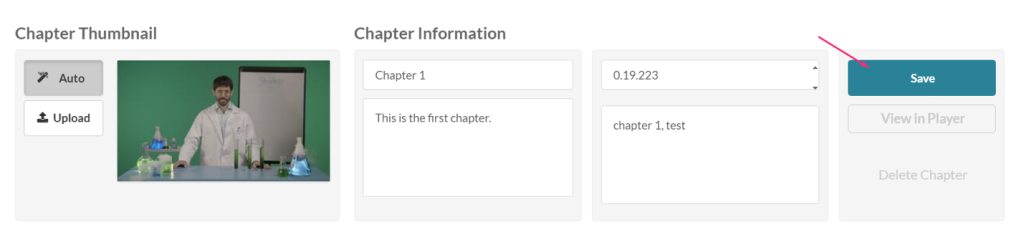
Enter name, description, and tags (optional). The exact time of the cue point is shown, and you can modify it if necessary.
Thumbnail
A default thumbnail is set for the chapter, but you can change it using Auto or Upload.
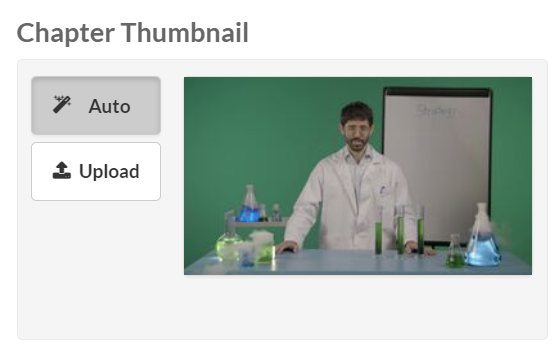
Auto
Pick a moment in the video for the thumbnail image and click Auto to create it automatically.
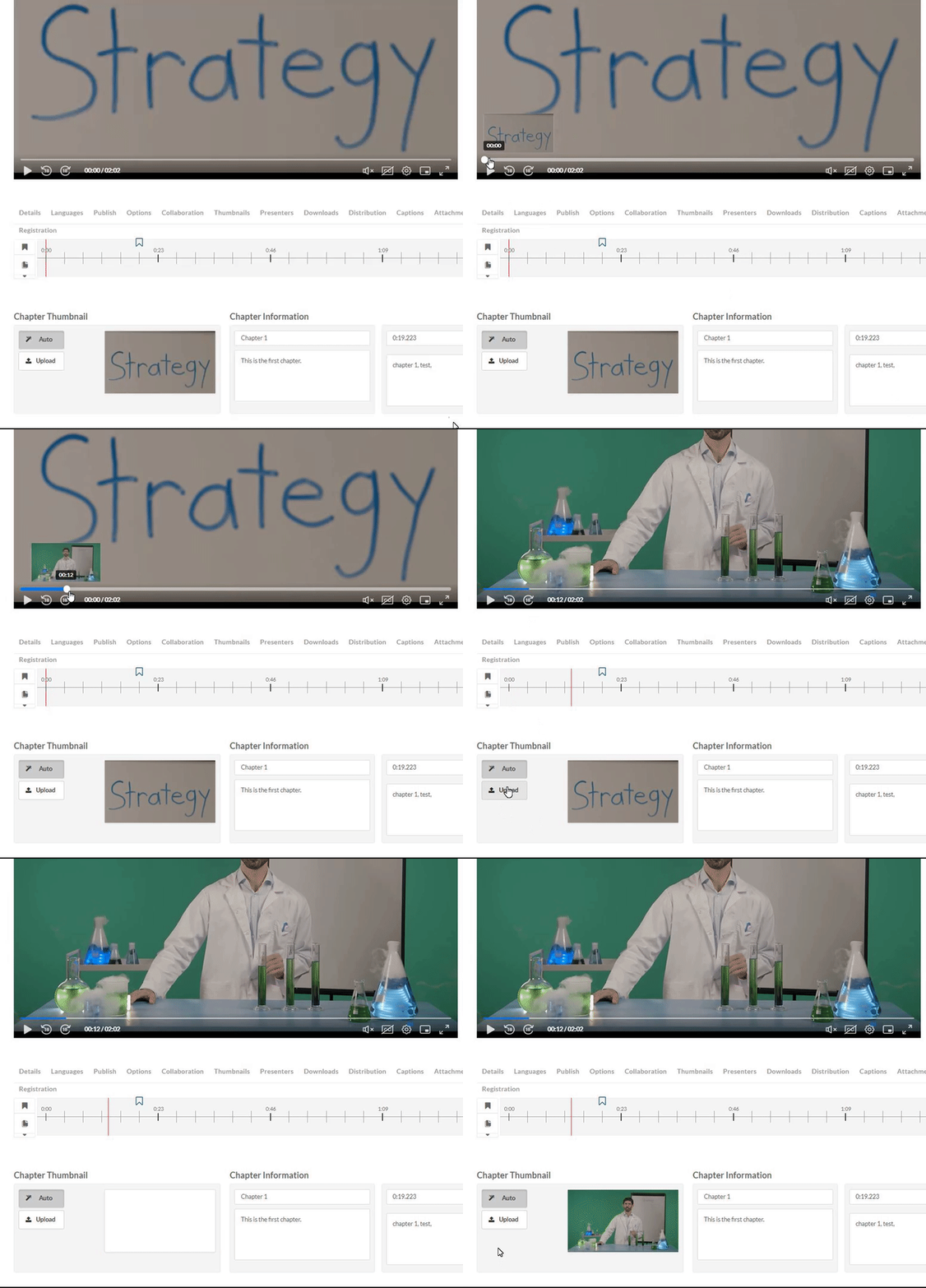
Upload
- Click Upload (or click on the thumbnail).
- The Thumbnail upload window displays.
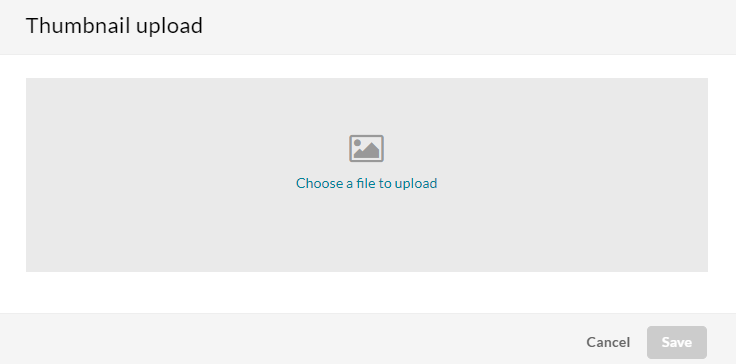
- Choose a file to upload.
- Click Save.
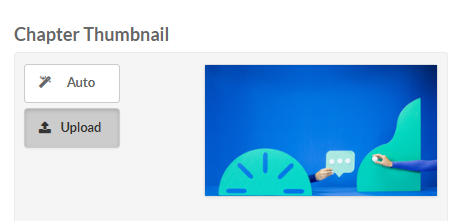
- The image displays as your new thumbnail for that chapter.
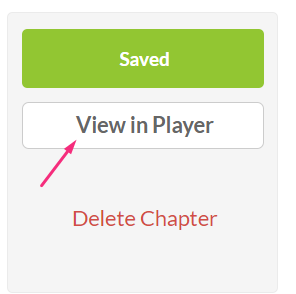
- At any time, you can preview the chapters in the player by clicking View in Player.
- When you have finished configuring your first chapter, click save.
- To create another chapter, click the Create New Chapter icon and repeat the steps above.
Delete Chapters
- Click on the cue point of the chapter you want to delete.

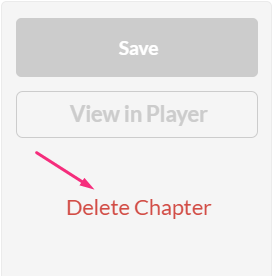
- Click Delete Chapter.
- A confirmation message displays: ‘Are you sure you want to delete this chapter?’
- Click Delete to confirm.
Click View in Player any time to see your changes.

Create Slides
- Move the cue point to where you want to add the slide(s).
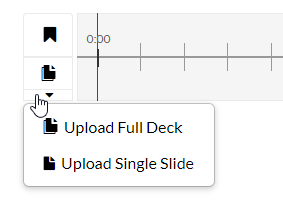
- Click the arrow below the slides icon and select Upload Full Deck to add a series of slides (the supported formats are PPT, PPTX, and PDF), or Upload Single Slide to upload one slide (image file types only are supported).
Upload full deck
- Click the upload icon.
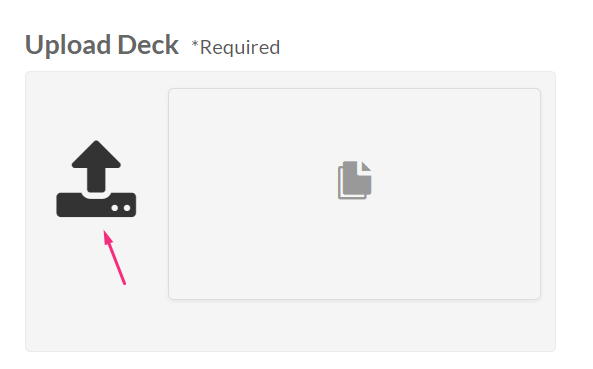
- The Deck upload window displays
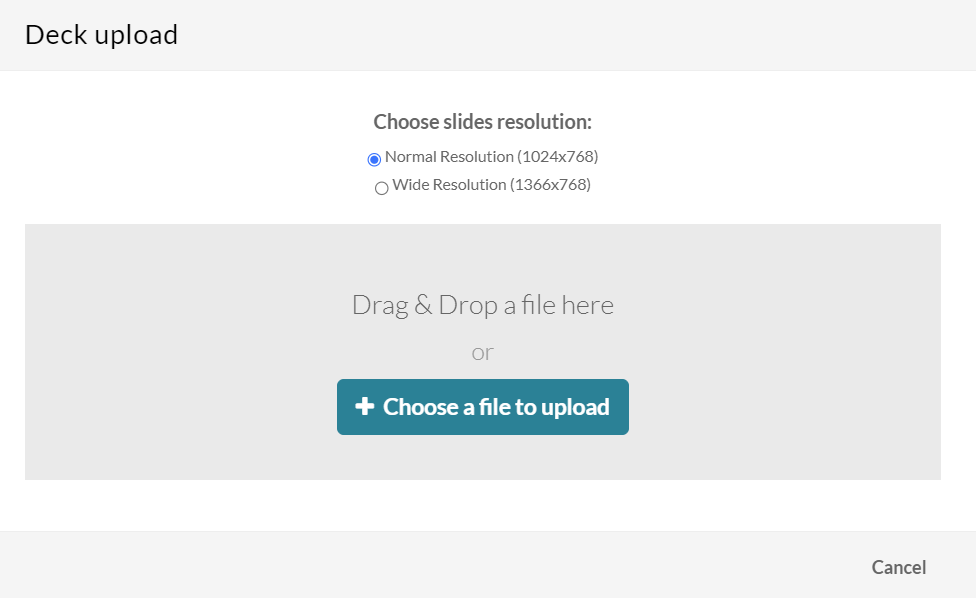
- Choose the resolution (default is Normal), then drag and drop the desired file or click +Choose a file to upload.
- You can return to the timeline while the upload is processing by clicking Back to Timeline.
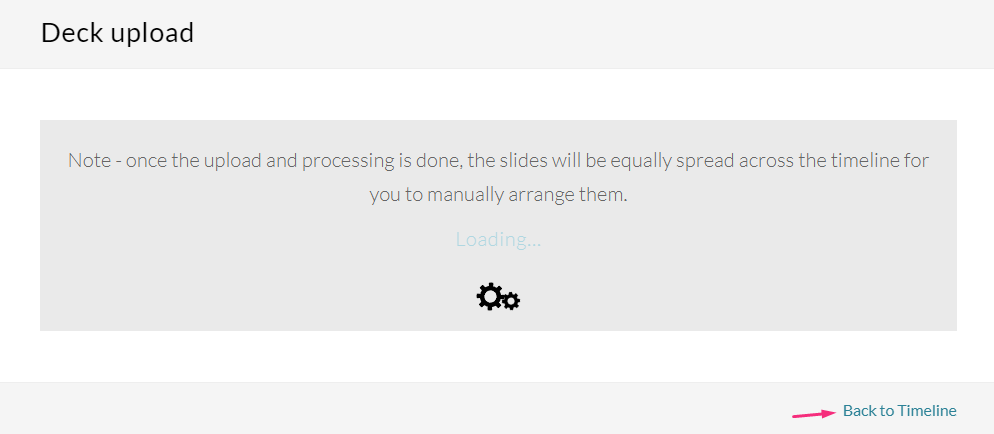
- After the upload and processing have finished, the slides will be equally spread across the timeline and you can manually rearrange them.
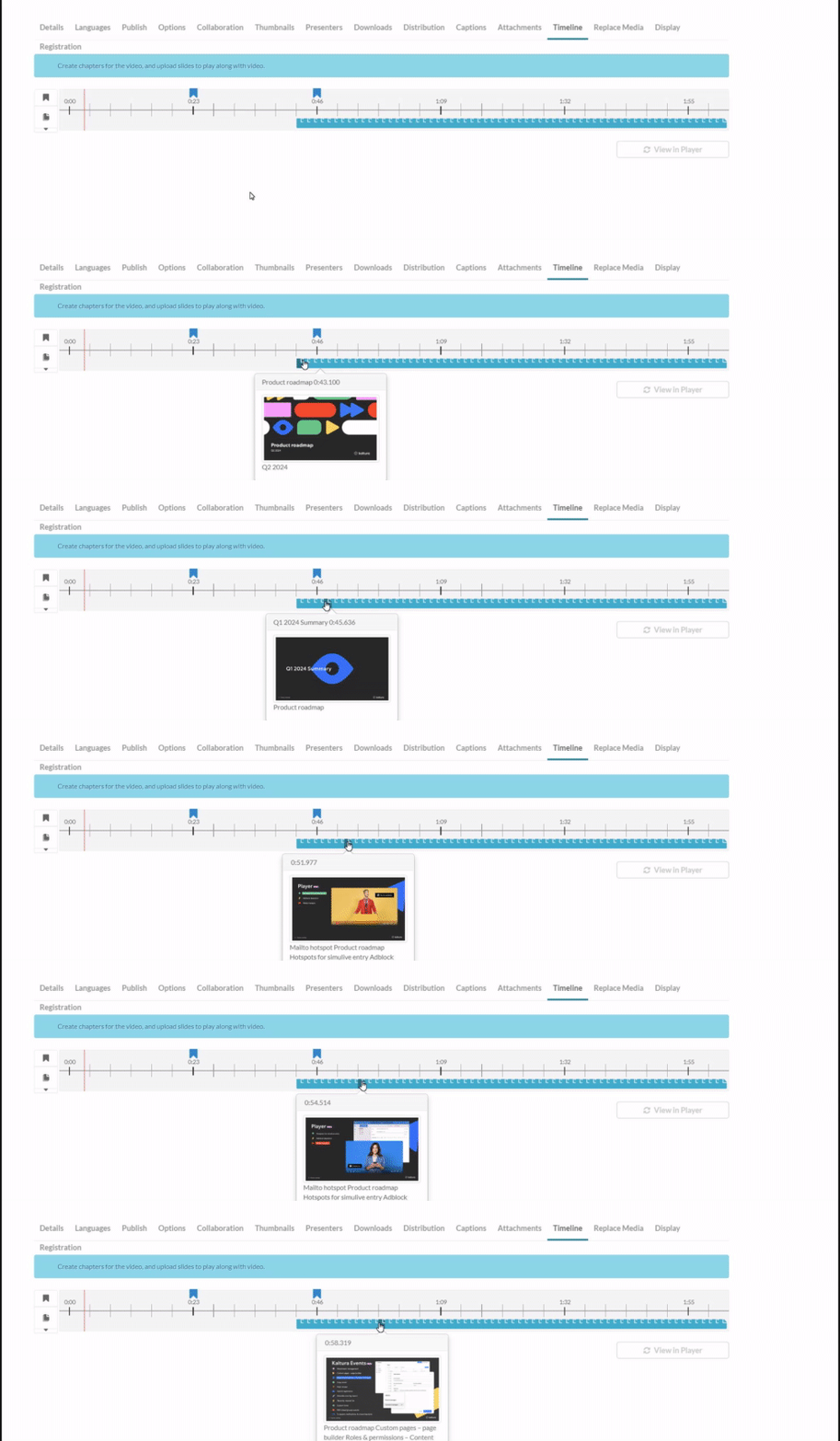
Arrange your slide deck
- Click and drag the slide to the desired position in the timeline.
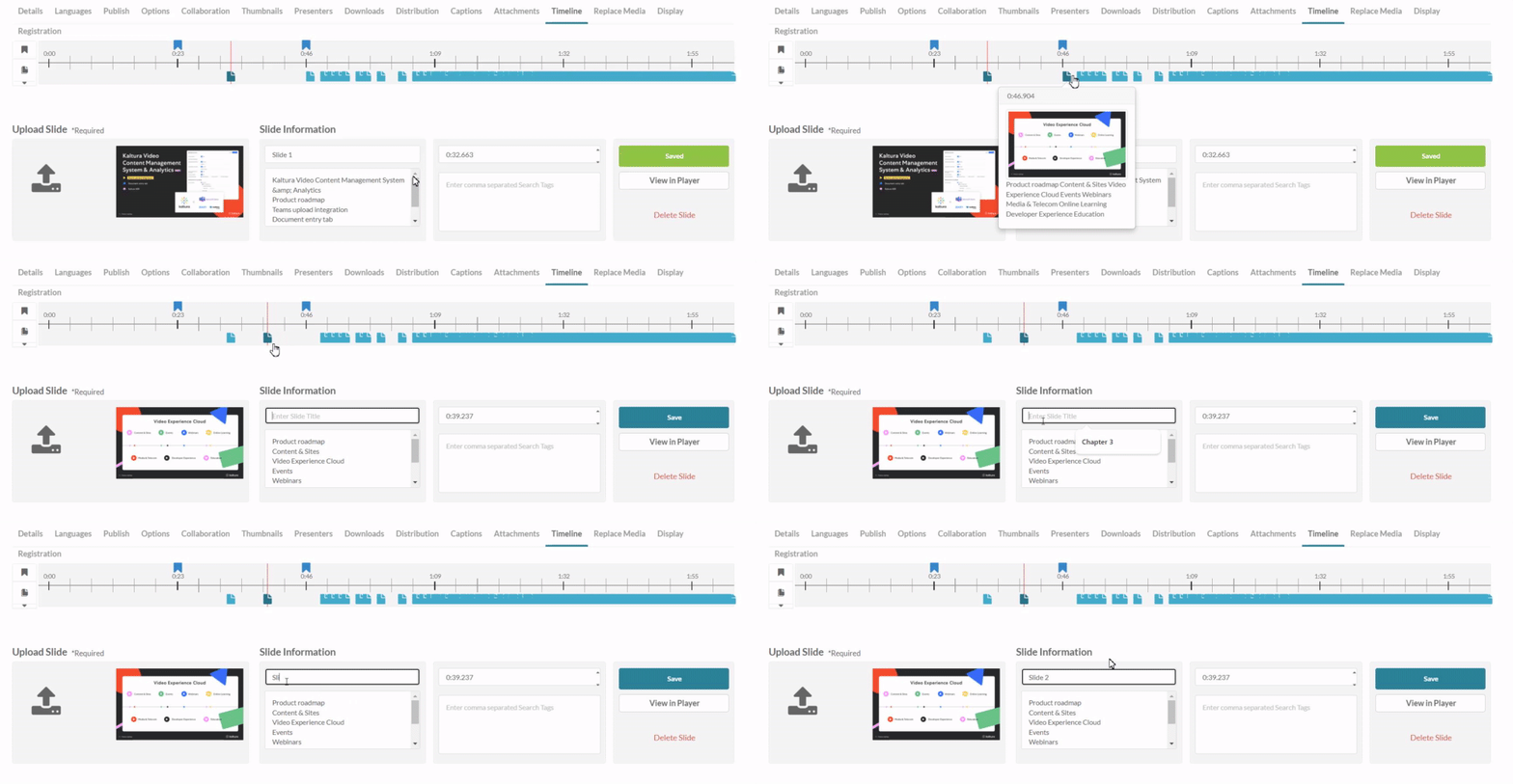
- In the slide information section, enter a name, description and tags (optional) for the slide.
- Click Save.
- Repeat this process for each slide.
Upload single slide
- Click the upload icon.
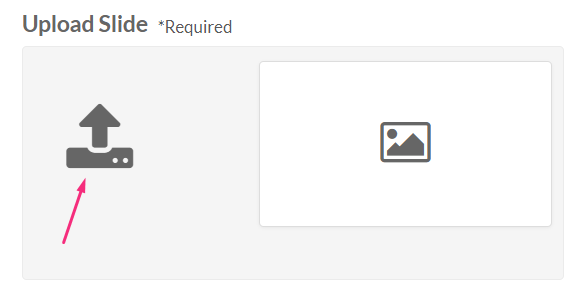
- The upload window displays.
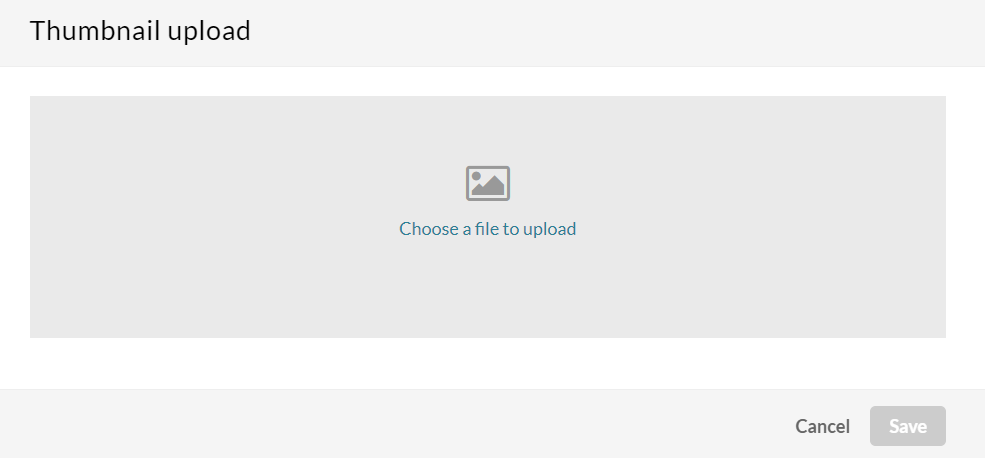
- Choose a file to upload (image file only).
- Click Save.
- Enter name, description, and tags (optional). The exact time of the cue point is shown, and you can modify it if necessary

- Click View in Player any time to see your changes.
- When you are happy with all your configurations, click Save.
The slides will not appear on the player. To learn more about viewing slides on the player, please see Kaltura – Dual Screen.
Delete Slides
- Click on the slide you want to delete. (You can only delete one slide at a time.)
- Click Delete Slide
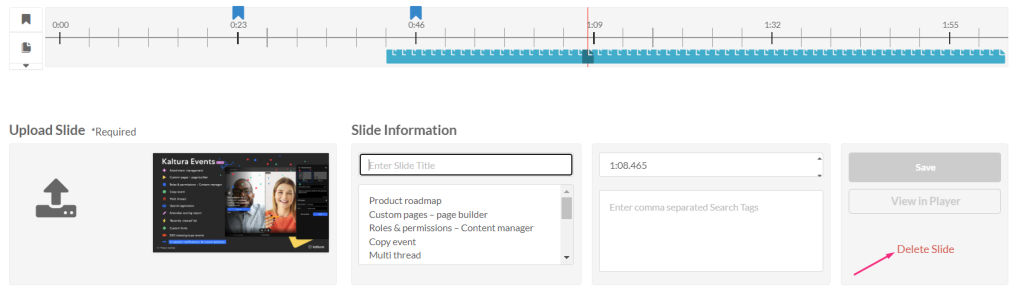
- A confirmation message displays: ‘Are you sure you want to delete this slide?’
- Click Delete to confirm.
Related Posts
