


Kaltura Media Gallery – Search and Filter
The Media Gallery offers search and filter tools to help you quickly find and organize content. These intuitive features will make finding your course media effortless. Only users enrolled inside a course will be able to view and search for media published into the course Media Gallery. To learn more about Kaltura Media Galleries, see Kaltura Media Gallery – Overview.
About Search Functionality
Searching course Media Gallery content is predicated largely on which type of view you have set for the course Media Gallery. This will either be the Tabs view (default) or the Vertical view. You can set the gallery view type in the Settings and Layout configuration option, see Kaltura Media Gallery – Settings and Layout.
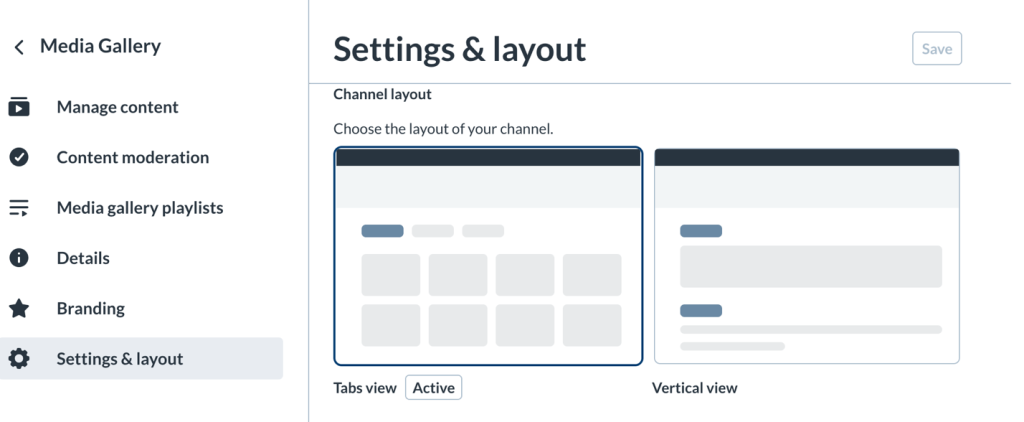
Tabs View
Media tab search
Under the Media tab, use the search field to quickly find specific media. The search scans key details like titles, descriptions, and tags.
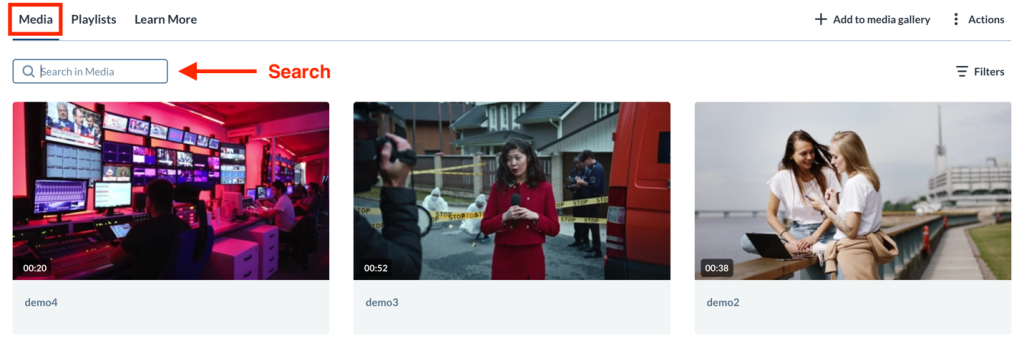
Start the search by typing in a search term and pressing Enter, then use the gear icon to refine your search by field.
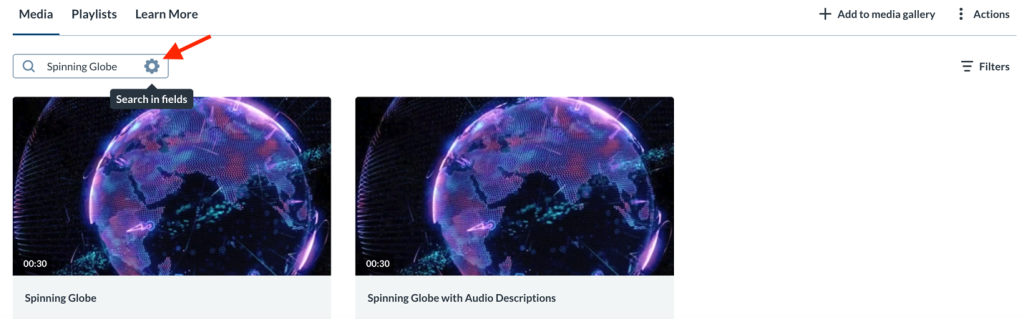
Available fields:
- All fields
- Name
- Description
- Tags
- Chapters / Slides
- Captions
- Quiz (results from quiz questions and answers)
Filters
The filters button appears on the right side of the page. Click to open the Filters window.
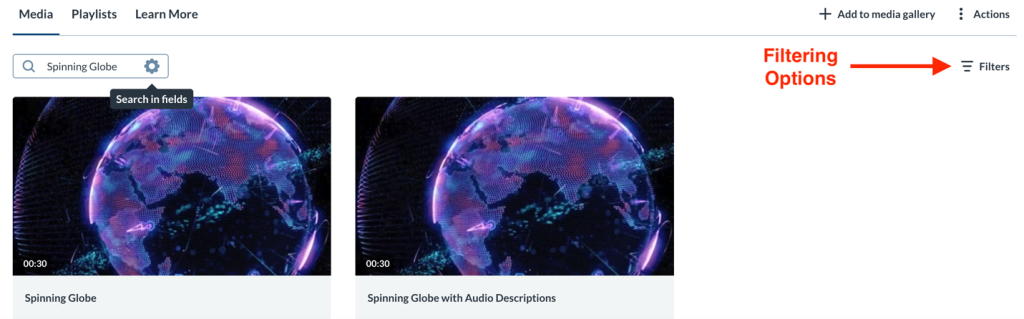
Click the arrows to the right of the filter type to expand the section and select your filter options.
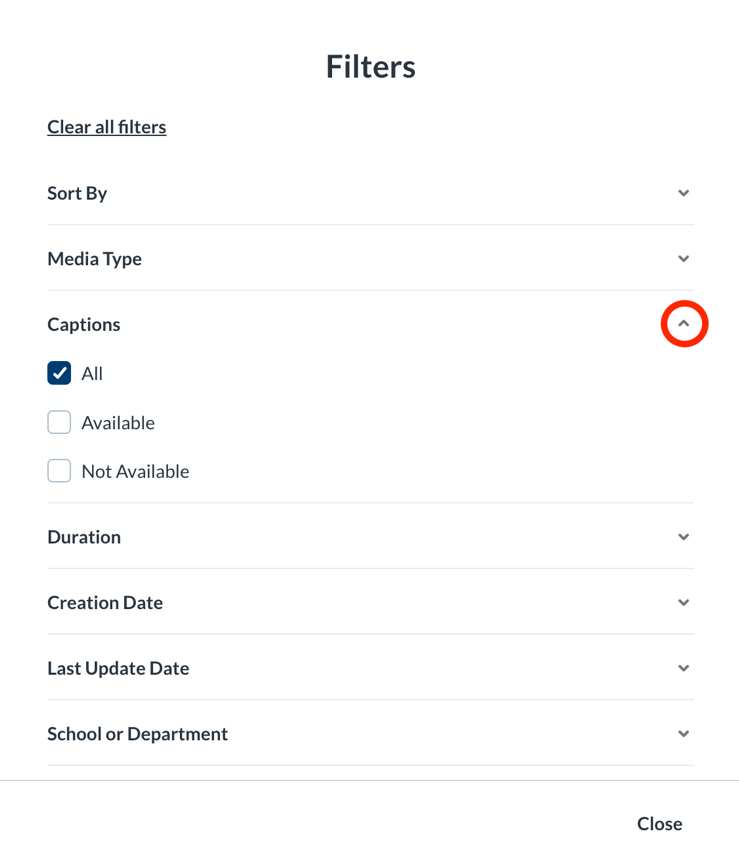
The filter window will allow you to filter media according to the following types below:
Sort By
Available Sort by filters:
- Relevance – scored according to how well search results match the query and its context
- Creation Date
- Update Date
- Alphabetically
- Views
- Plays
Media Type
Available Media type filters:
- All media
- Video
- Quiz
- Audio
- Draft
- Image
Captions
Available Captions filters:
- All
- Available
- Not Available
Duration
Available Duration filters:
- 0:00-10:00 min
- 10:00-30:00min
- 30:00-60:00 min
- Custom Duration
Creation Date
Available Creation Date filters:
- Any date
- Last 7 days
- Last 30 days
- Custom
Last Update Date
Available Last Update Date filters:
- Any date
- Last 7 days
- Last 30 days
- Custom
School or Department
Available School or Department filters:
- School of Business + Media
- School of Computing and Academic Studies
- School of Construction and the Environment
- School of Energy
- School of Health Sciences
- School of Transportation
- Learning and Teaching Unit
- Student Services
- Information Technology Services
- Library Services
- Other
Copyright Permission
Available Copyright Permission filters:
- With Permission of the Copyright Holder(s) or Myself if I created the video
- The use of the materials falls within the Fair Dealing Exception
- The Material is in the Public Domain
Create Commons Licence
Available Creative Commons Licence filters:
- Not Applicable
- CC BY Attribution
- CC BY-SA Attribution-ShareAlike
- CC BY-ND Attribution-NoDerivatives
- CC BY-NC Attribution-NonCommercial
- CC BY-NC-SA Attribution-NonCommercial-ShareAlike
- CC BY-NC-ND Attribution-NonCommercial-NoDerivatives
Free Text
Available Free Text filters.
- Creator Name
- Creator Email
- Contributors
- Course Code
- Location
- Related Event
- Source
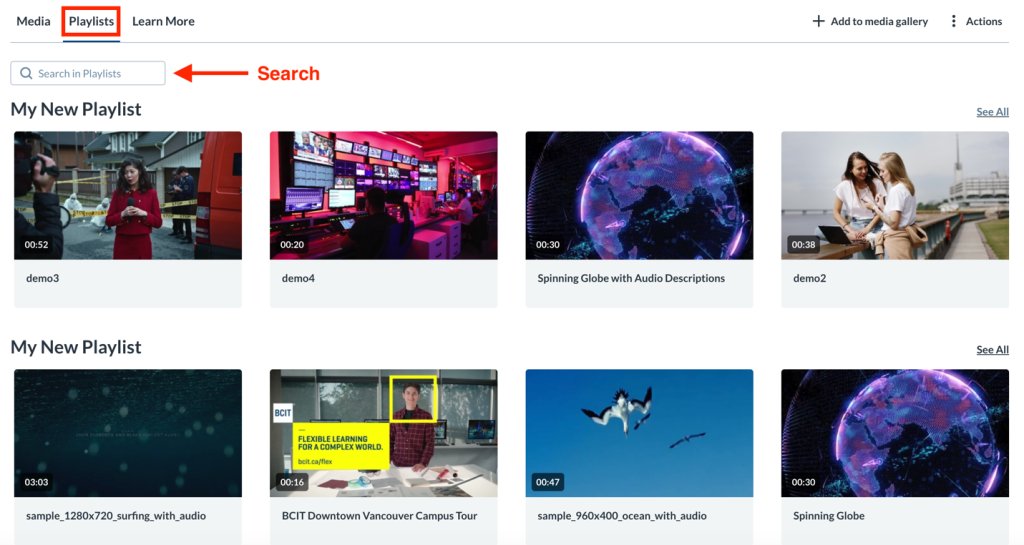
Search in Playlists
Under the Playlists tab, you can easily find playlists by entering keywords in the search bar. The search focuses on key details like titles, descriptions, and tags, ensuring that only playlists (not individual media within them) appear in the results.
Vertical View
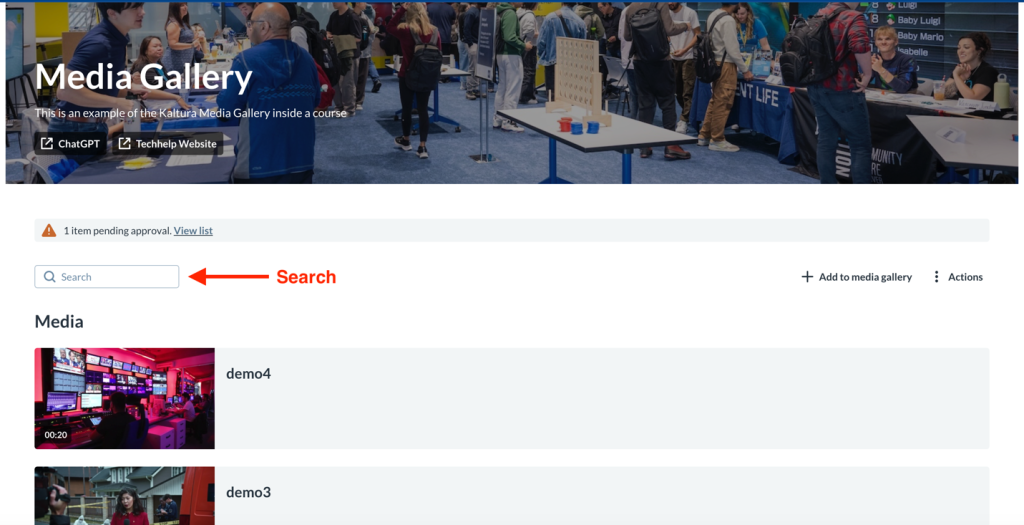
When you are in vertical view, you can quickly find media, and playlists using the search bar. Just type your keyword and press Enter to start searching. Filtering is not available in this view.
Related Posts
