Kaltura – Access Denied
It is possible that after the scheduled upgrades some Kaltura videos that have been embeded directly into your course may no longer work, instead displaying “Access Denied“.

To resolve this issue you will need to manually redeploy your videos using Kaltura – Embed Media.
How to access Kaltura – Embed Media
If the broken video is a Content item
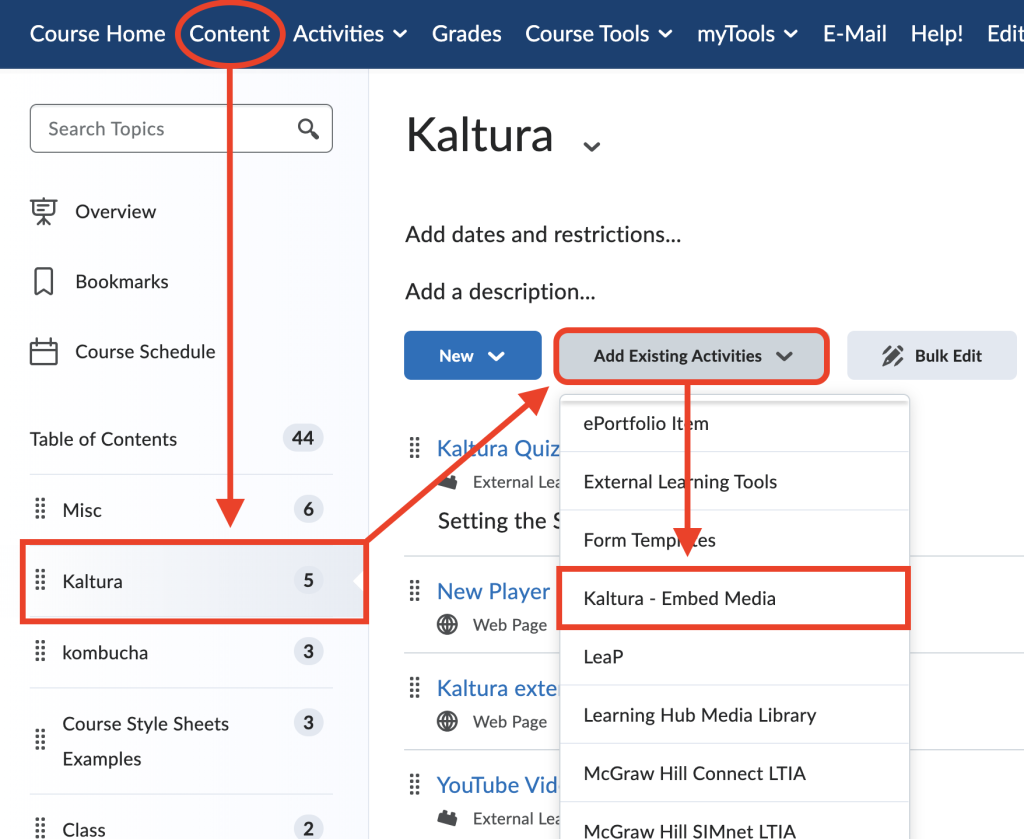
To access this tool, enter a Learning Hub course and select Content. Open or create a course module, click Add Existing Activities and then select Kaltura – Embed Media.
If the broken video is a Content item (New Content Experience)
If you are using the Learning Hub’s New Content Experience (NCE), you can access the Embed Kaltura Media tool by doing the following:
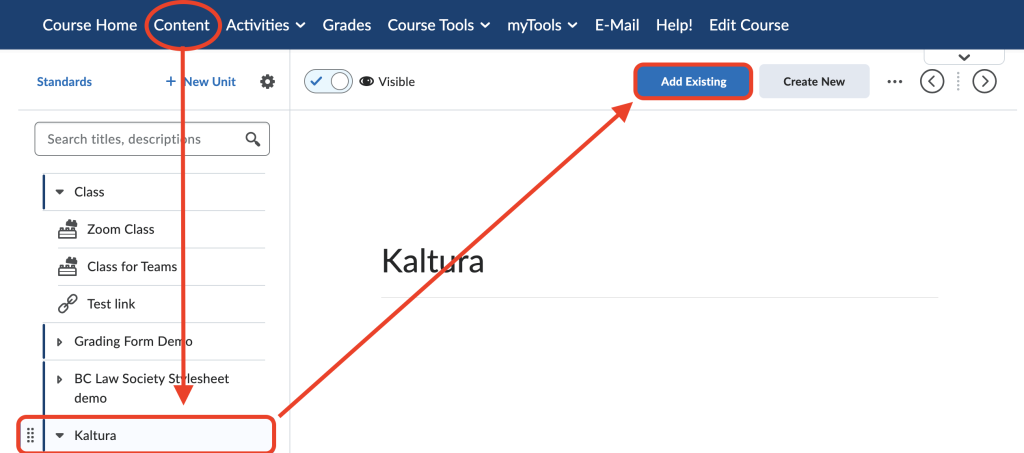
- Select Content from the navbar.
- Create a New Unit or access a previously created unit.
- Click Add Existing
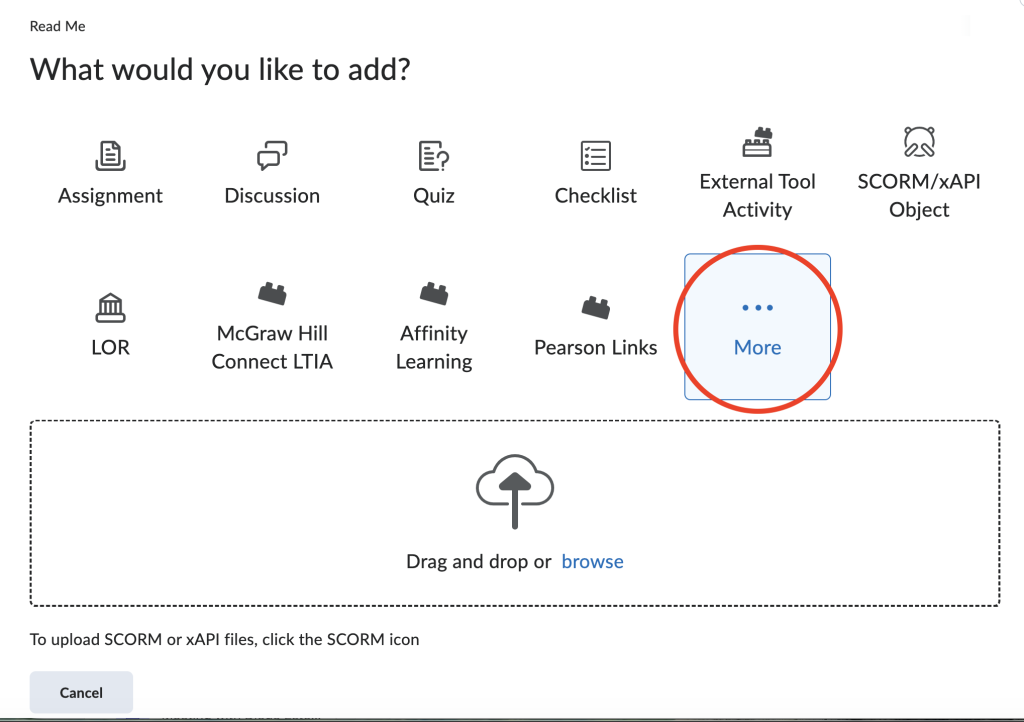
- Next from the What would you like to add? click on More.
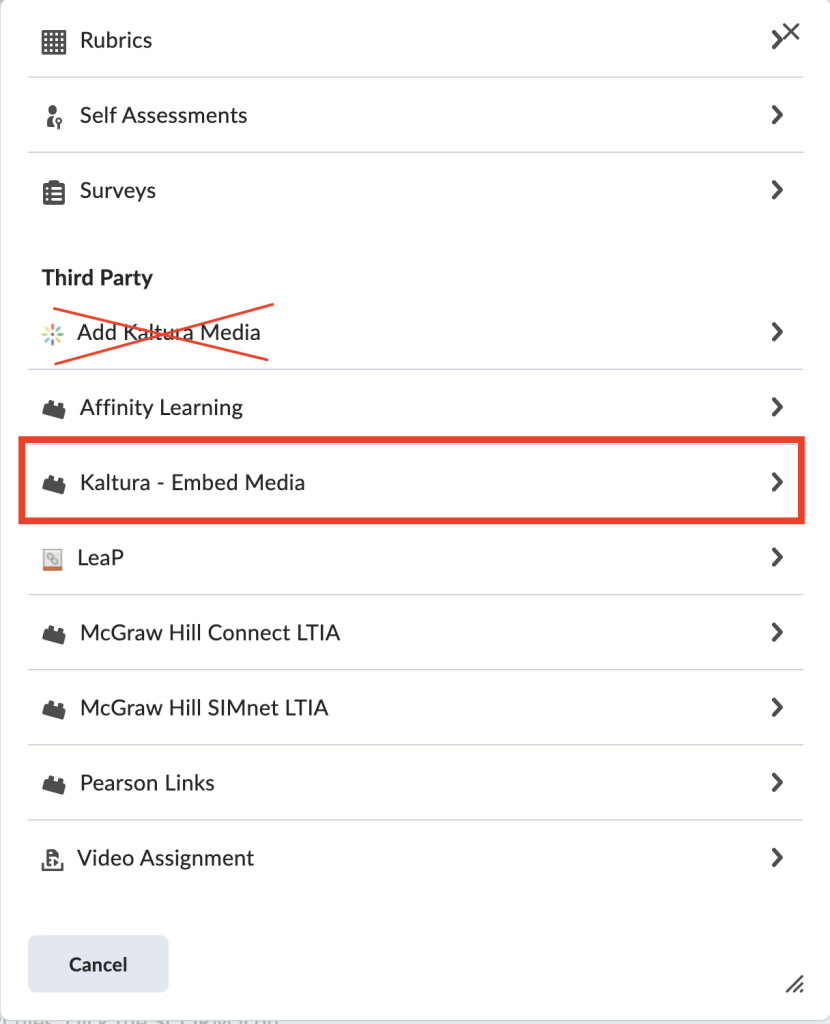
- Then under third party select Kaltura – Embed Media
(DO NOT USE – Add Kaltura Media).
If the broken video is direct HTML page embed
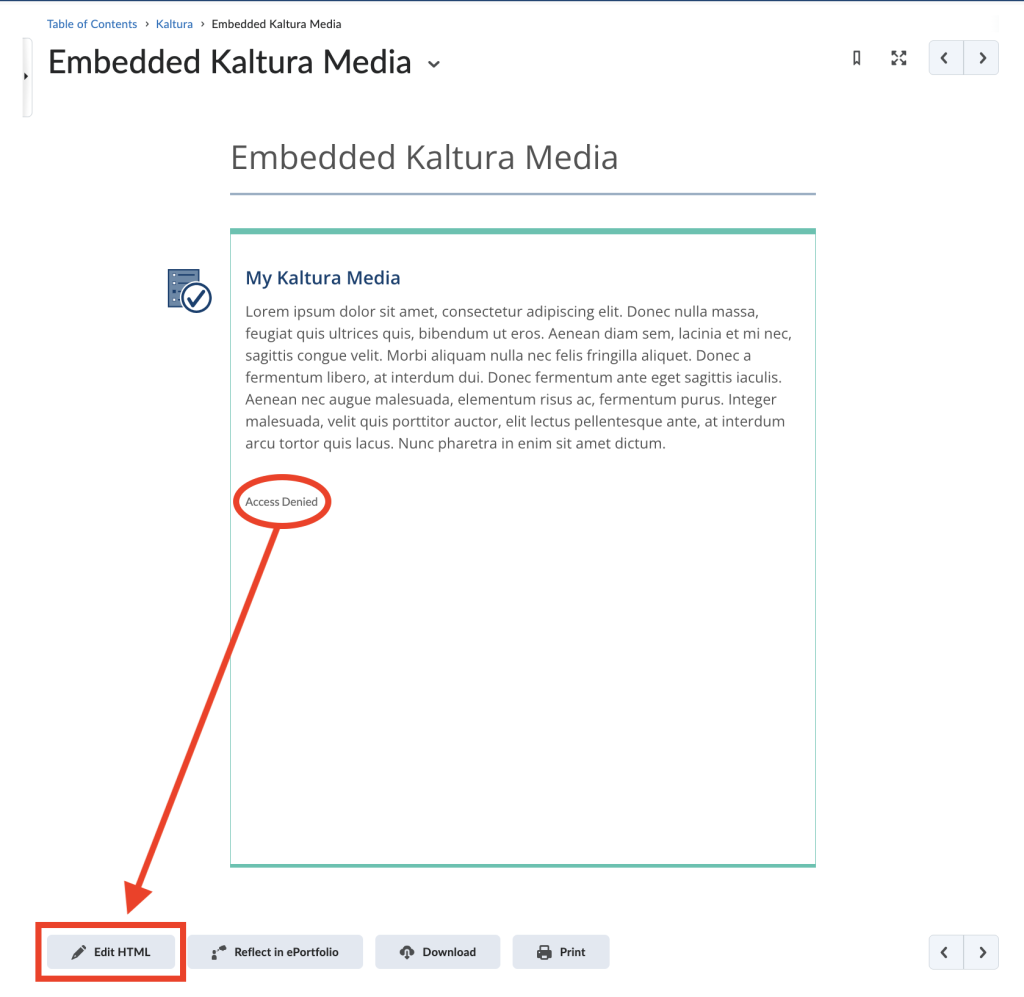
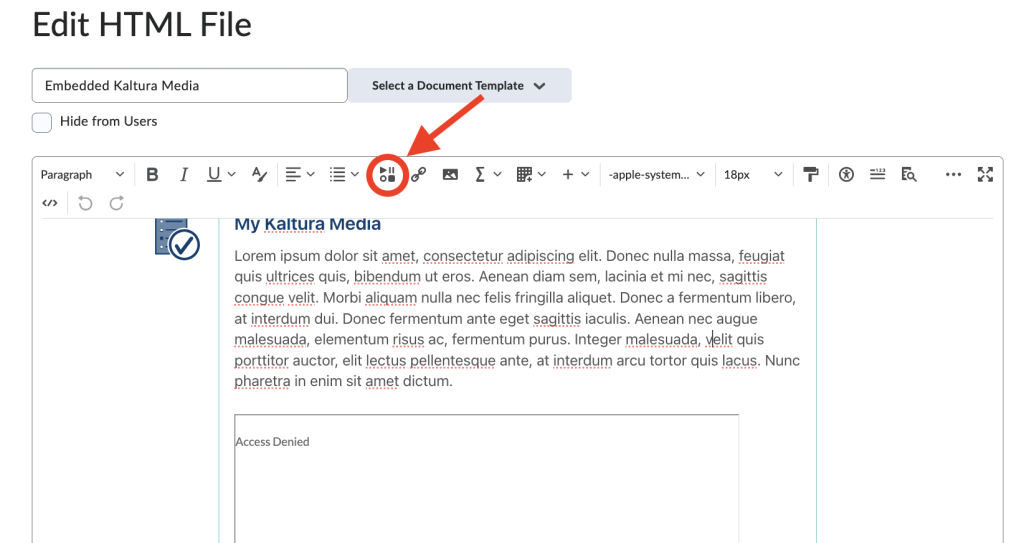
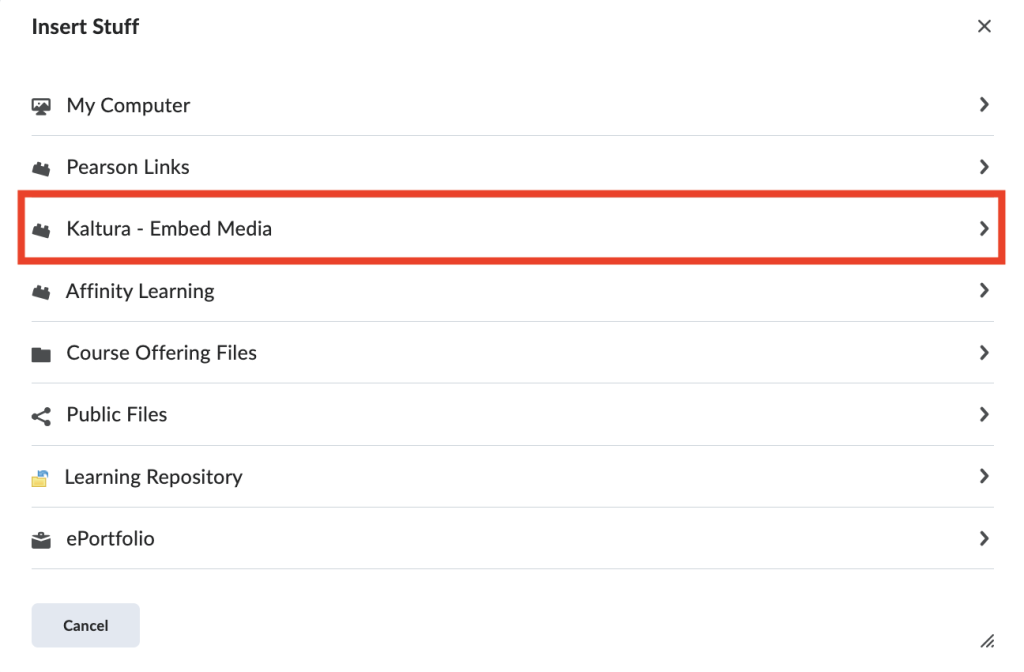
If you are seeing an “Access Denied” with a video that has been directly embedded into an HTML page, you can access Kaltura – Embed Media through the Insert Stuff tool.
- Click Edit HTML at the very bottom of the page.
- Next, click the Insert stuff icon.
- Select Kaltura – Embed Media
Re-deploying your videos
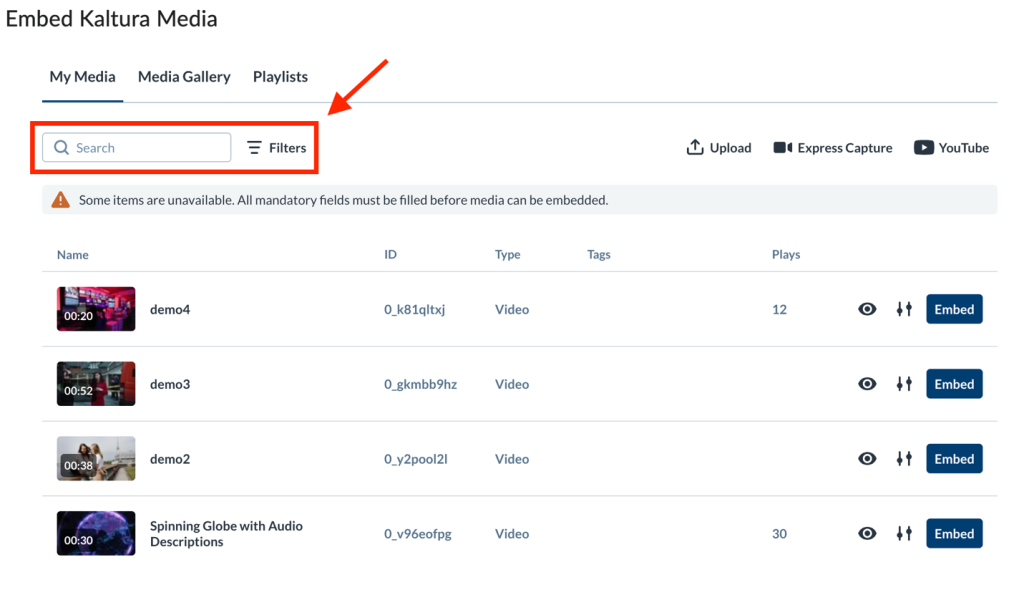
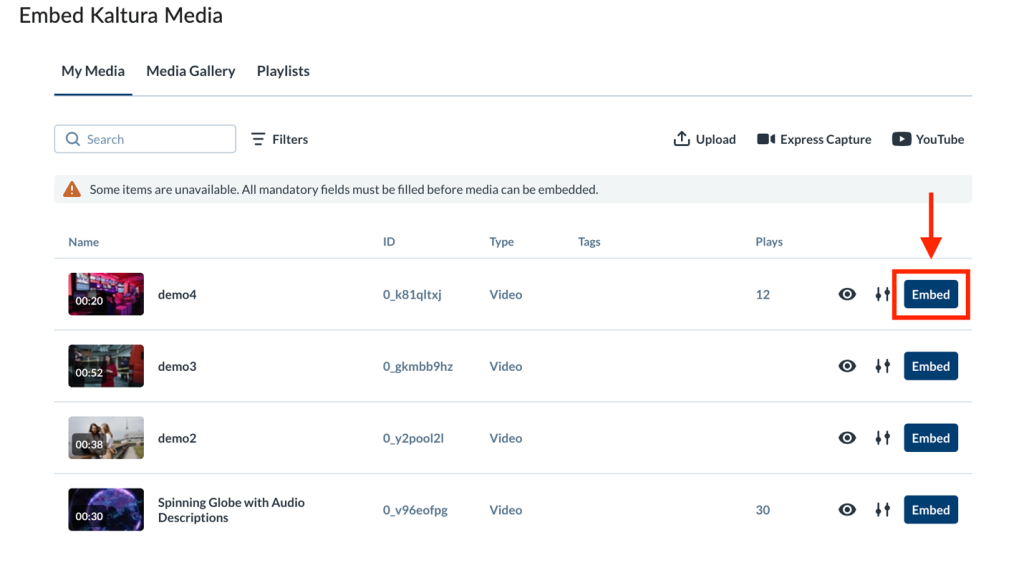
The Embed Kaltura Media window will open displaying your Kaltura media entries. Select your content if you see it below or use the search bar and filters to locate your content.
Greyed Out Embed
Please note that it is highly likely the embed button will be greyed out for most of your videos.
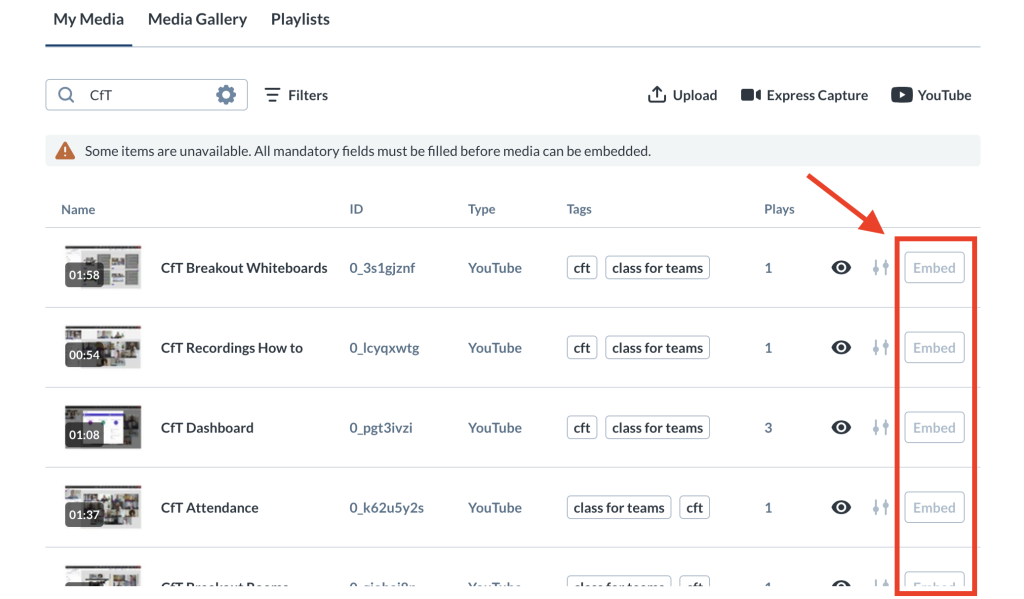
To resolve this issue you will need to apply the missing metadata for each video. To do so, please click on the link below and follow the directions before proceeding with the next step.
Next, click on the Embed button to redeploy your video.
Need Further Help?
If you require further assistance please contact ETS directly
- 604.412.7444 (option 2)
- learninghub@bcit.ca
Related Posts