


Kaltura My Media – Draft Entry
Drafting an entry offers users the convenience of generating an entry without the immediate need to upload content such as videos, audios, or images. During the creation process, users can specify the metadata of the entry, such as titles and descriptions. This is useful for creating entries in advance, or for collaborating with others on an entry.
Create a draft entry
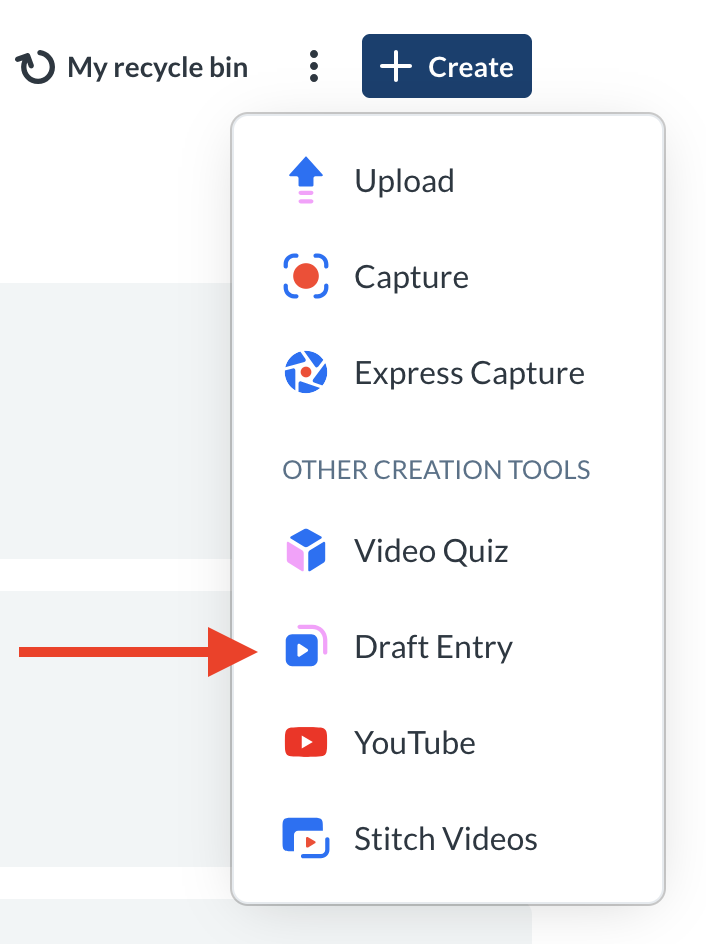
Select Draft Entry from the +Create menu inside My Media.
The Add New Draft Entry window displays.
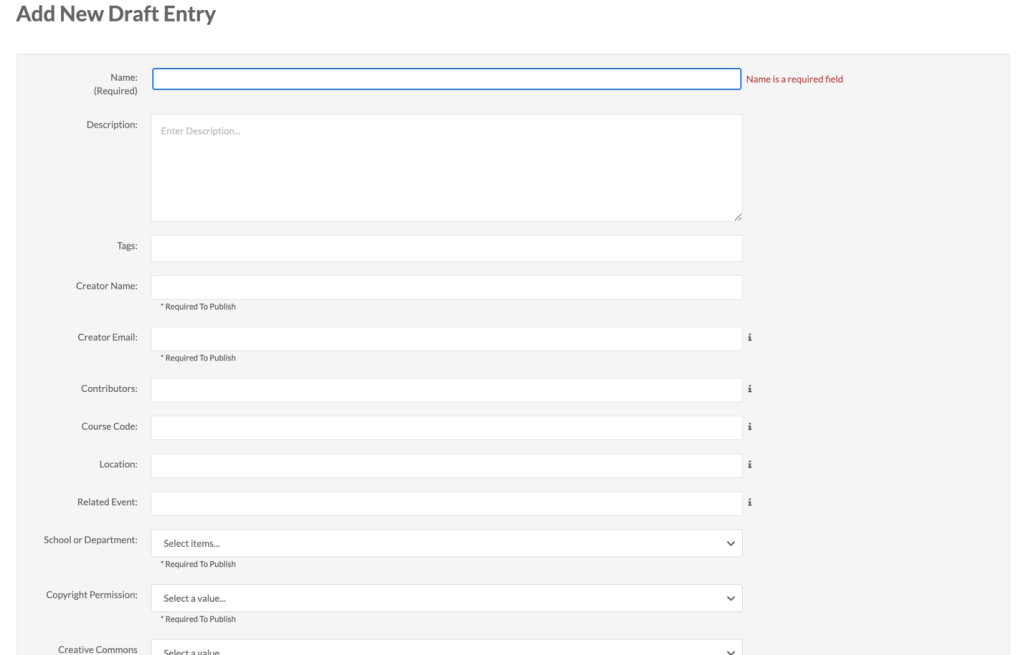
Enter a name for the new entry and fill in all the required metadata fields before clicking save at the bottom. Once saved you can optionally publish the entry into a course media gallery by changing the status at the bottom from private to published and then selecting your course.
Best Practice
As a rule of thumb we generally recommend returning to My Media to inspect the entry first before publishing it.
Until a file is uploaded, the draft entry displays a generic thumbnail or banner inside My Media.
Edit a draft entry
To edit a draft entry first access Kaltura My Media. Next, find the draft entry. On top right of the entry click the ellipses and select the Edit option.
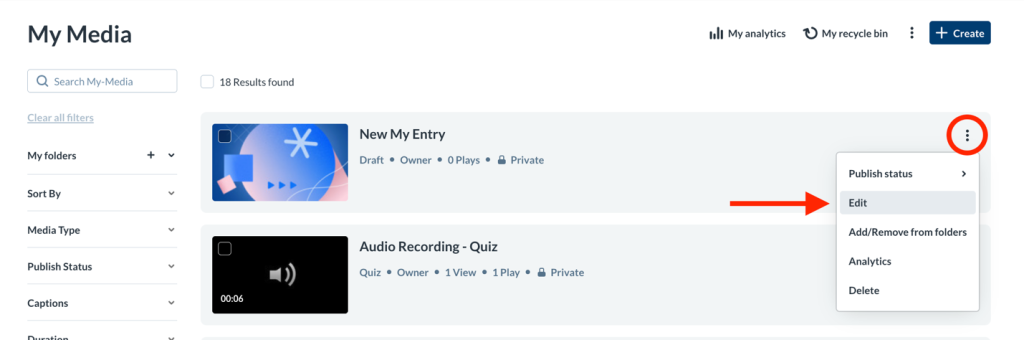
The Edit page will display.
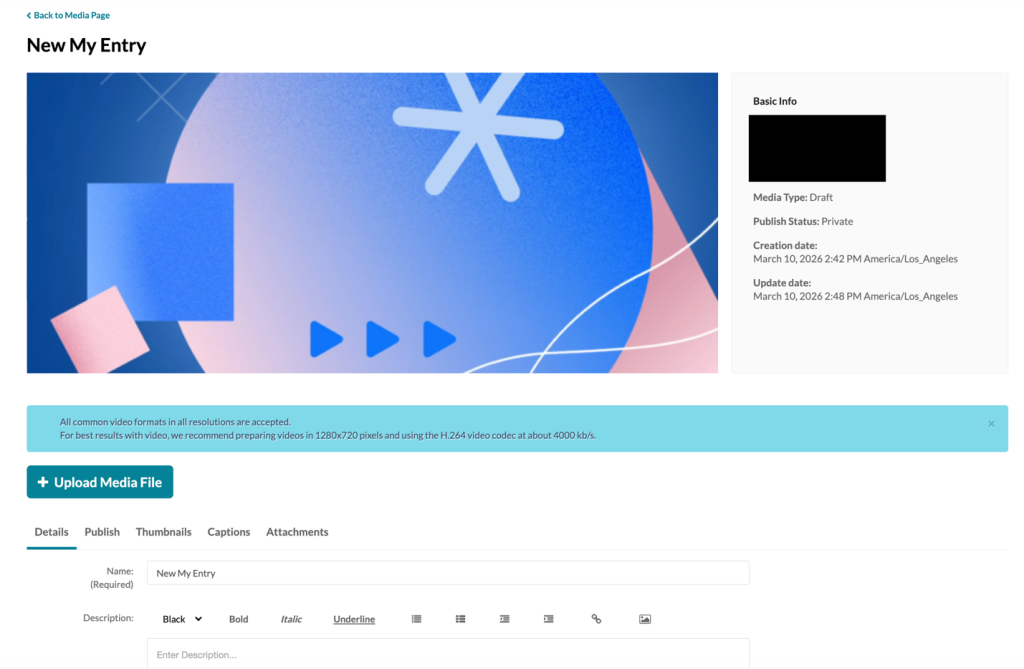
From the Edit page, you can modify the following aspects of your entry:
- Details – Update metadata (required for publishing)
- Publish – Publish the entry to selected courses
- Thumbnails – Upload, capture, or auto‑generate a thumbnail
- Captions – View or edit captions
- Attachments – Upload supporting files (PDFs, Word docs, etc.)
Or you can choose to upload a media file into your entry.
Upload into a draft entry
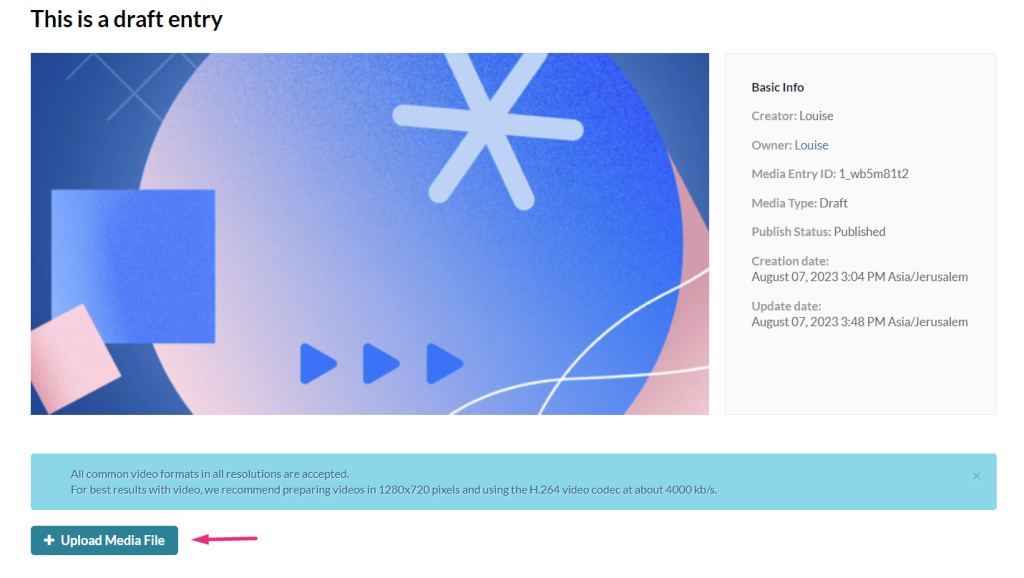
Click + Upload Media File and then from your desktop, locate the media file that you would like to upload into the entry.
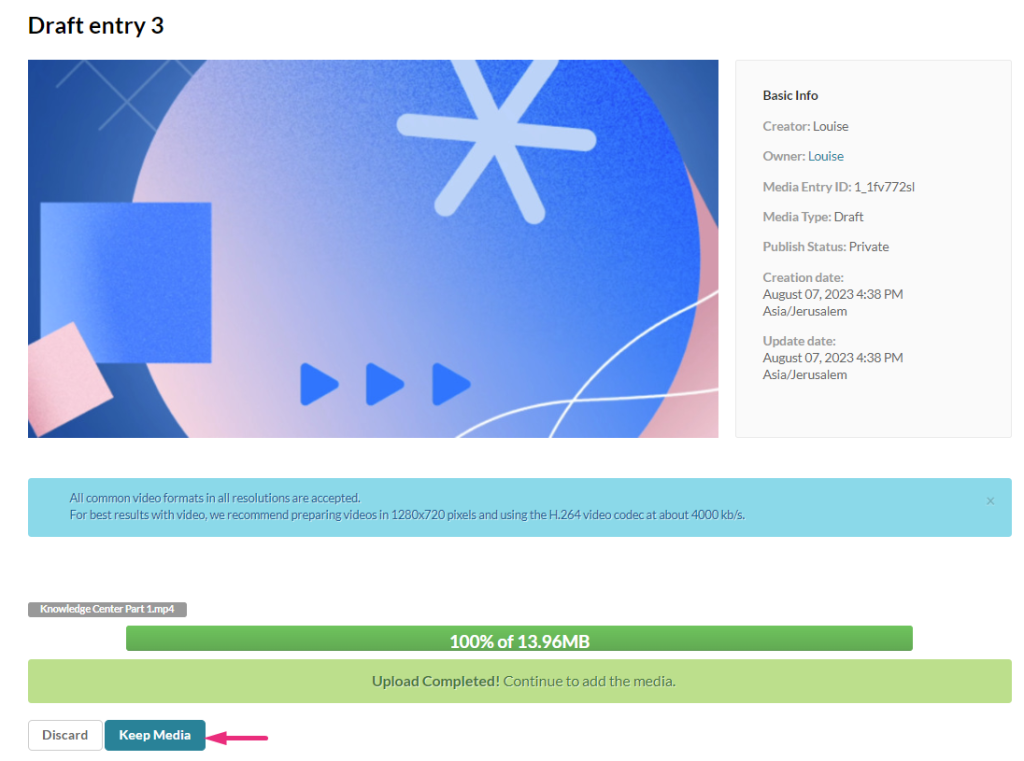
Once uploaded a success message will display: Upload completed! Continue to add the media. Click Keep Media to continue or Discard to discard it.
Then Click Save. After saving you can click Go to Draft to see the status of the media as it processes.
If you want to make any changes to the entry’s details, you can click the blue Edit details button and this will take you back to the Edit page.
Related Posts
