


Kaltura Media Gallery – Moderation
Kaltura’s content moderation feature allows instructors to approve or reject media from students before it becomes accessible to the class inside Media Gallery.
Enabling Moderation
Moderation is enabled in all Kaltura Course Media Galleries by default. If for some reason this is not enabled in your gallery or if you would like to disable moderation please follow these steps:
- Open the Kaltura Media Gallery inside your course
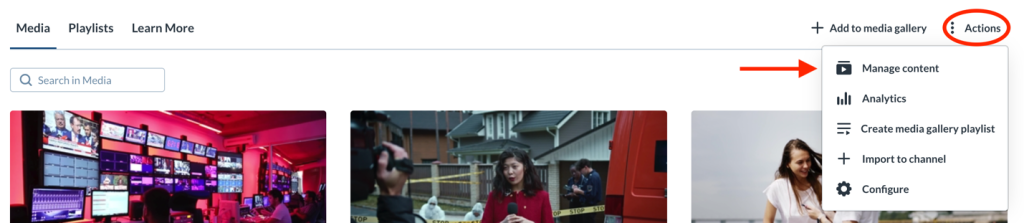
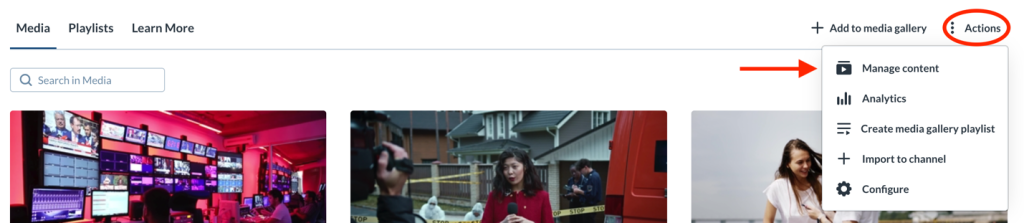
- From the Actions menu select Manage Content
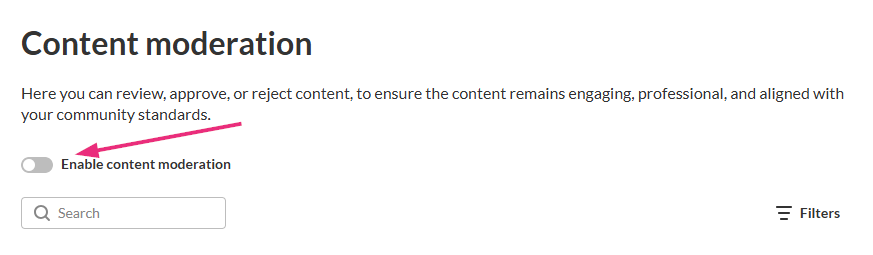
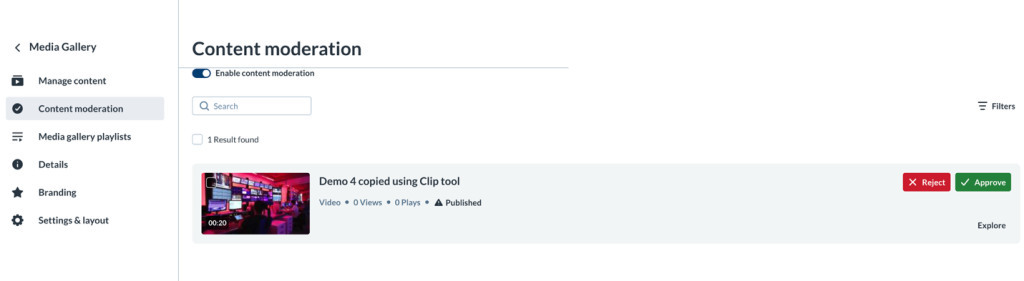
- From the left column select the Content Moderation
- Toggle the slider labelled Enabled content moderation
Access Media Pending Moderation
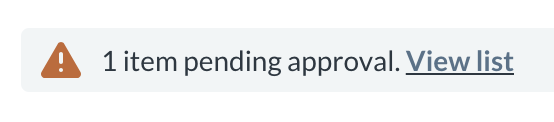
Once a student submits an entry they would like published into the Course Media Gallery, the following notification displays underneath the gallery banner: [x] items pending approval. View list.
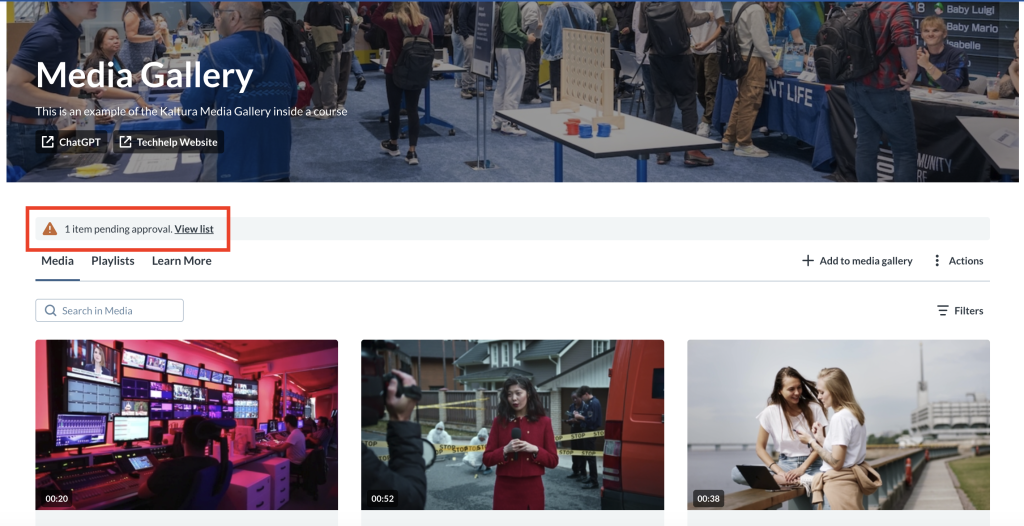
There are two ways to access content that is pending moderation:
- The first is to click View List in the notification message.
- The second is through Manage Content from the Actions
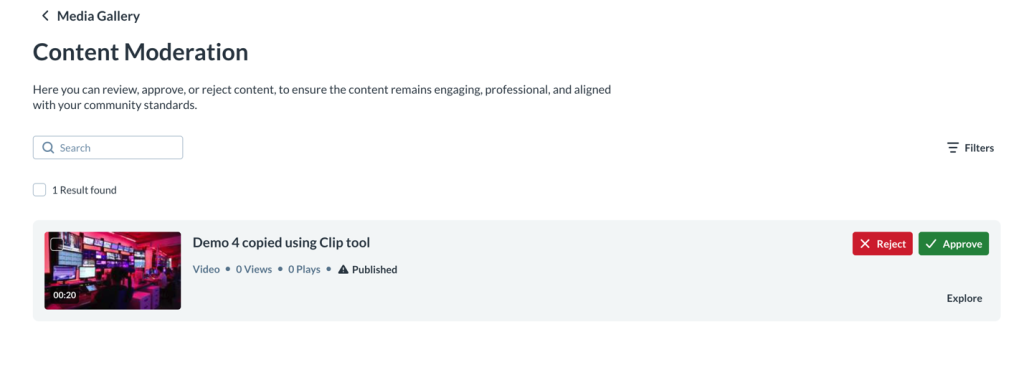
If you have chosen the first option, you will be taken to a page titled Content Moderation.
If you have chosen the second option, you will be taken into the configuration area of the gallery under the Content moderation option.
Moderating Media
Filter pending content (optional)
Use filters to narrow the moderation list and focus on the content you want to review. Filters are especially useful when moderating large volumes of media.
- Click Filters.
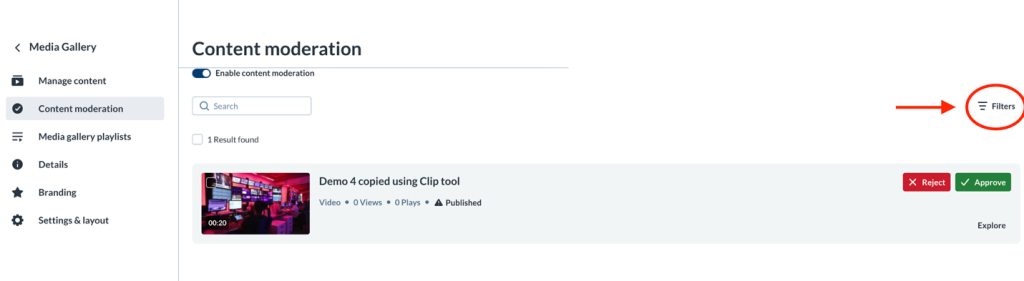
- Select one or more filter options.
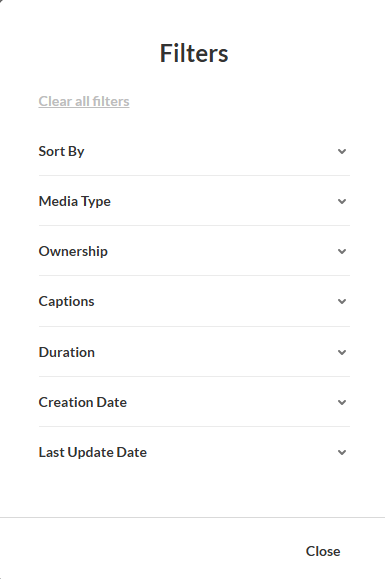
The moderation list updates automatically based on your selection.
Review media
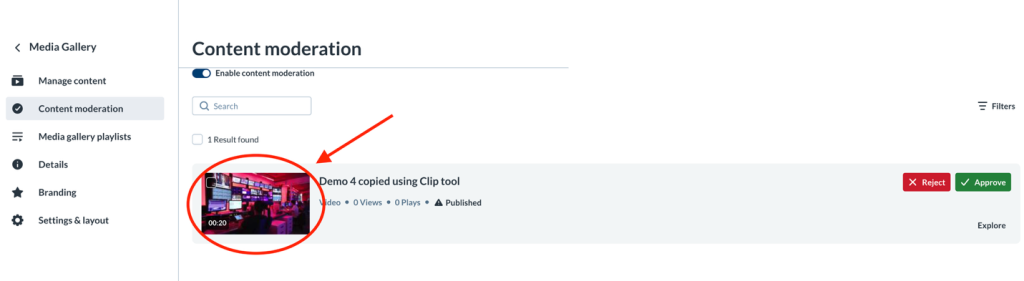
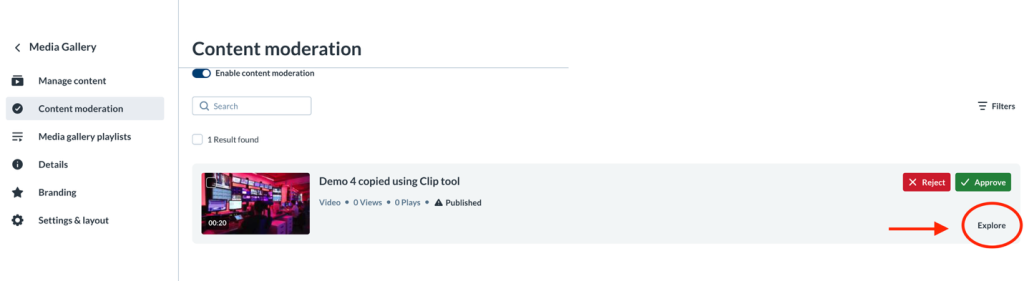
To review media in detail before making a moderation decision, open it in preview mode by clicking on the Thumbnail image
or by clicking Explore
Approve or Reject media
After reviewing you can either Approve or Reject each item.
Approve
Clicking Approve and confirmation box will appear.
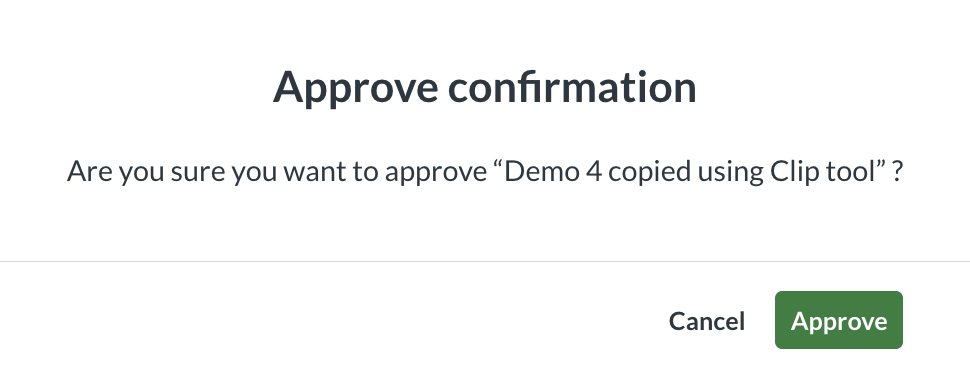
Click Approve again to add the entry into the Media Gallery.
Reject
Clicking Reject and confirmation box will appear.
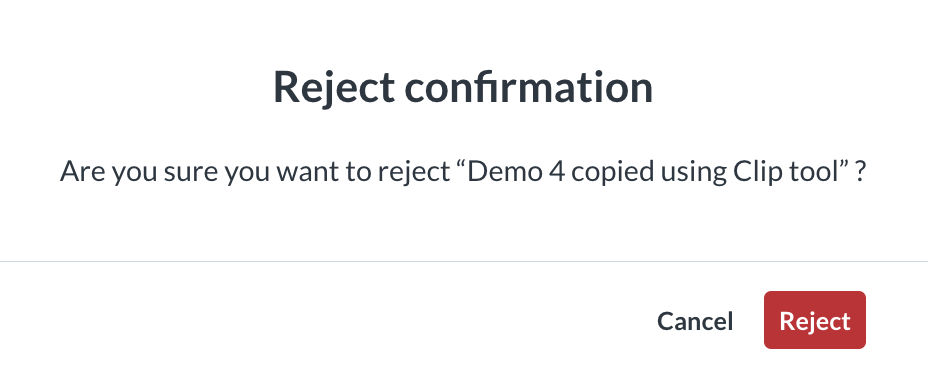
Click Reject again to remove the entry and send it back to the student.
Bulk approve or reject media
You can approve or reject multiple media items at the same time.
- Select one or more media items using the checkboxes.
- Click Approve or Reject at the top of the page.
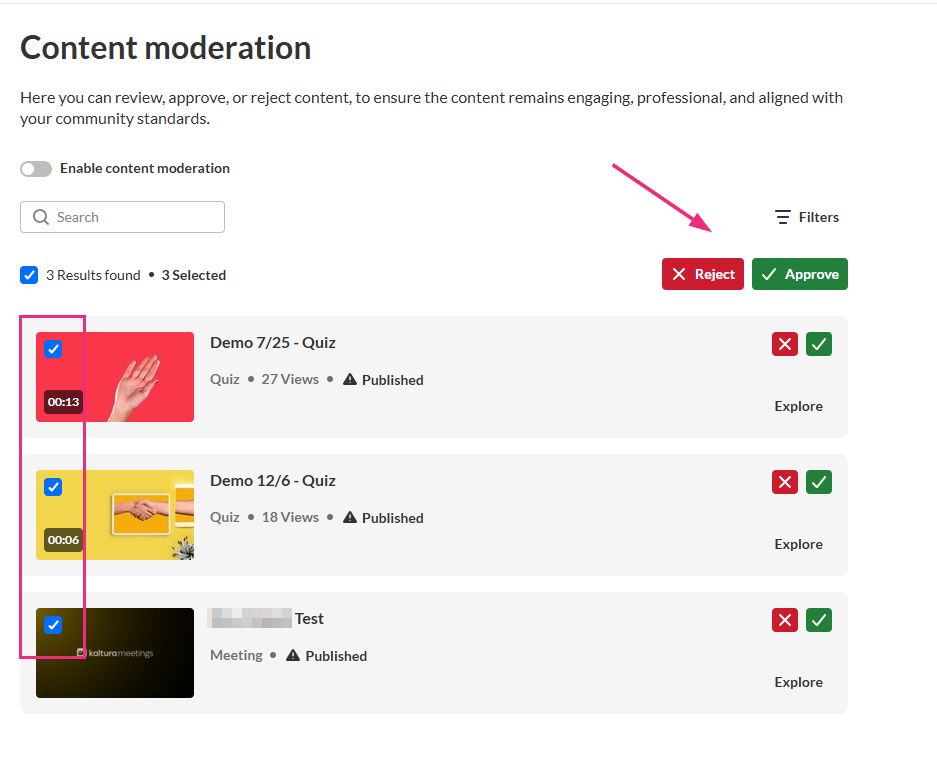
- A confirmation message displays: Are you sure you want to approve [number] media?
- Click Approve (or Reject).
After bulk moderation, a success message confirms: [number] media approved & [number] media rejected.
Related Posts
