


Kaltura Media Gallery – Import
Instructors can use the Import Tool to copy media from the Media Galleries of other learning hub courses they teach. This is especially useful when transferring media from a previous semester’s course into a new one.
Import Affects Media Gallery Content Only
The Import Tool only copies media stored within a course Media Gallery. It does not transfer Kaltura media or quizzes that are embedded in other areas of a course such as Content or Discussions. If you are looking to rollover embedded media of this nature from one course into another, please refer to to Kaltura – How to Roll Over Media.
Please also note that the Import Tool copies all media from one course Media Gallery into another. If you are looking to only copy some, and not all items, you will have to remove any unwanted media after importing them manually (see Kaltura Media Gallery – Managing Media). For this reason you wish to consider publishing individual entries into the new course Media Gallery from My Media instead (see Kaltura – Publishing Media).
Importing content
- Inside the course Media Gallery, click Actions and select Import to Channel.
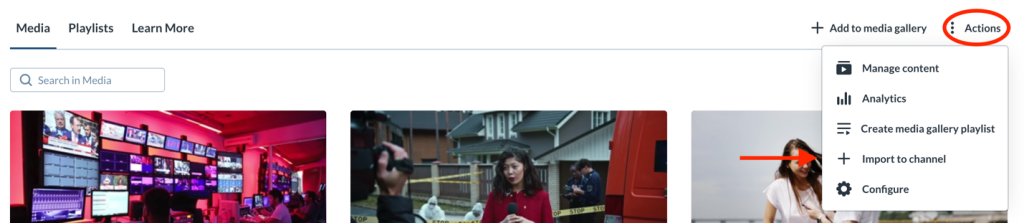
- A list of all the media galleries you manage displays.
- Choose a gallery from the list
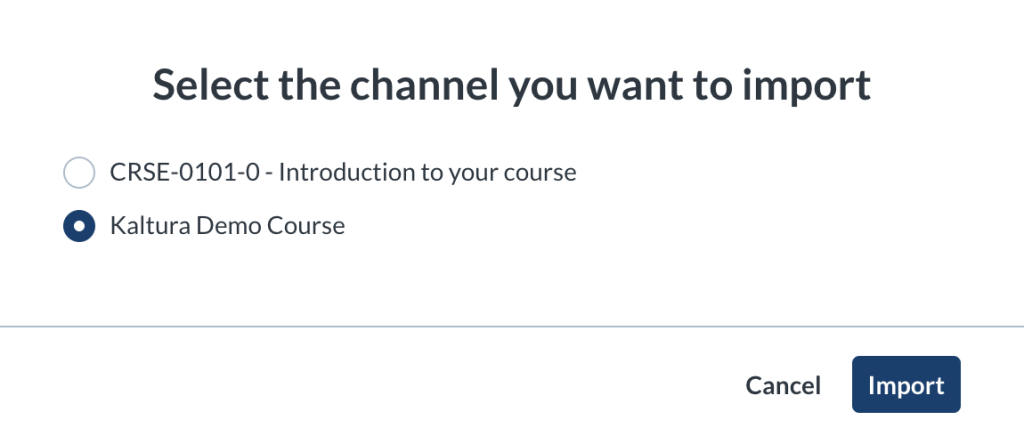
- Click Import
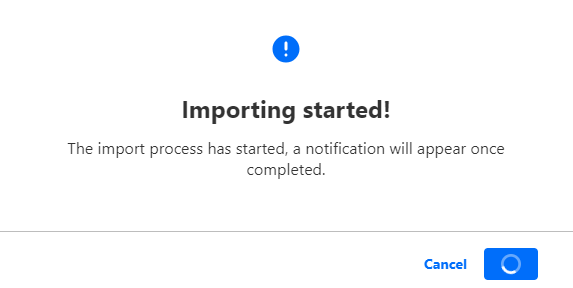
- A confirmation message displays: Importing started!
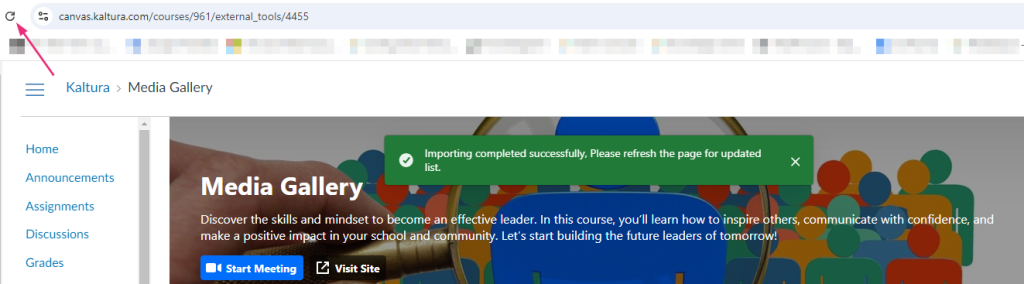
- When importing has finished, a success message displays: Importing completed successfully. Please refresh the page for updated list.

- Imported entries may not appear right away. Click the refresh symbol at the top of your browser to refresh the page. You should see the imported entries in your Media Gallery.
Related Posts
