


Kaltura Quiz – Adding Questions
This guide shows you how to add multiple choice, True/False, open-ended, and reflection questions to your video quiz, making it more interactive and engaging.
First, launch the video quiz editor (see Kaltura Quiz – Setting Up a Quiz)
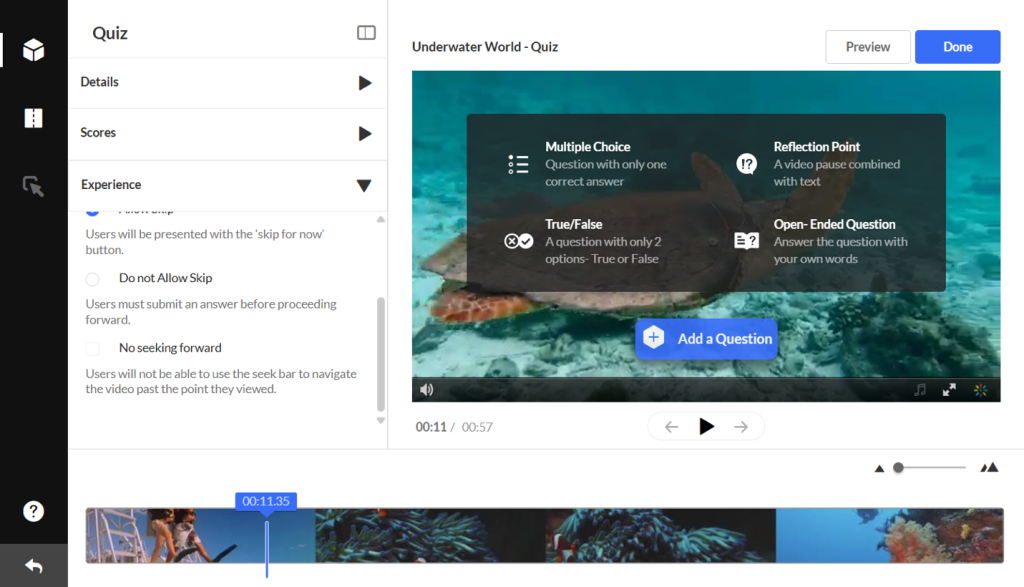
Click +Add a Question, then choose a question type:
- Multiple Choice – up to four answer options and only one correct answer
True/False – two answer options – True or False - Reflection Point – a pause in the video combined with a question for quiz takers to reflect on
- Open-Ended Question – participants type in their own words (400-character limit for questions, 250 for answers).
Open Ended Questions
Open-ended questions aren’t auto-graded and do not sync with the Learning Hub’s Grade tool. You’ll need to review and score these questions manually. For this please see the job aid titled Kaltura Quiz – Reporting and Analytics.
Please also see Kaltura BSE – Kaltura Quiz (Grading) for information on how these questions can be graded.
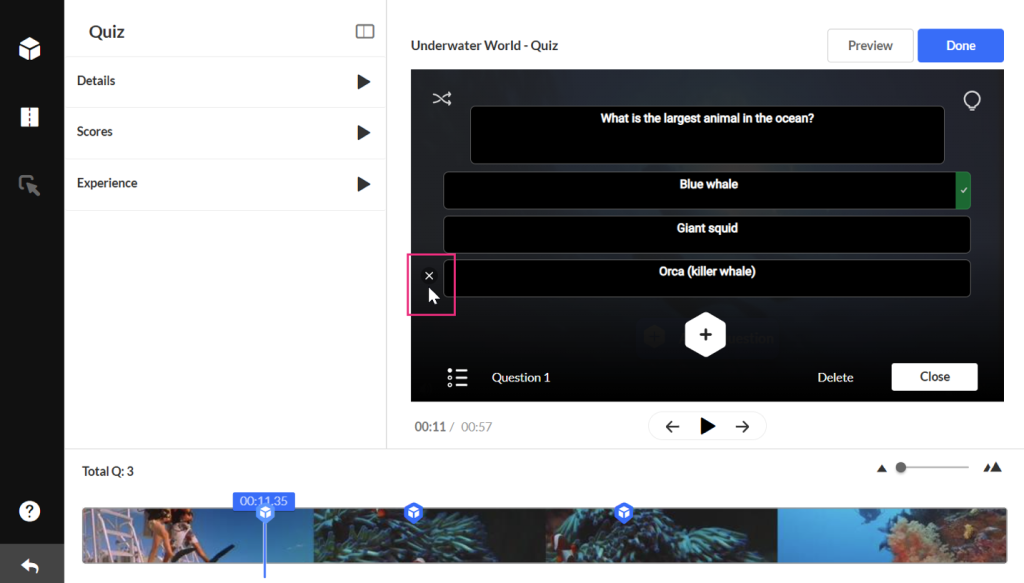
Enter the question text in the Add a Question Here field.
In the Add the CORRECT Answer Here field, enter the correct answer.
In the Add Additional Answer Here field, enter other possible answers to choose from (at least two answers are required).
Click the + icon to add more answers if you want.
To delete an answer, hover and click the x that appears next to it. The correct answer can’t be deleted, only modified.
Hints and Whys (optional) – You can give the participants a hint or a justification for an answer (a ‘Why’). See the Add Hints and Whys section down below to read more about this option.
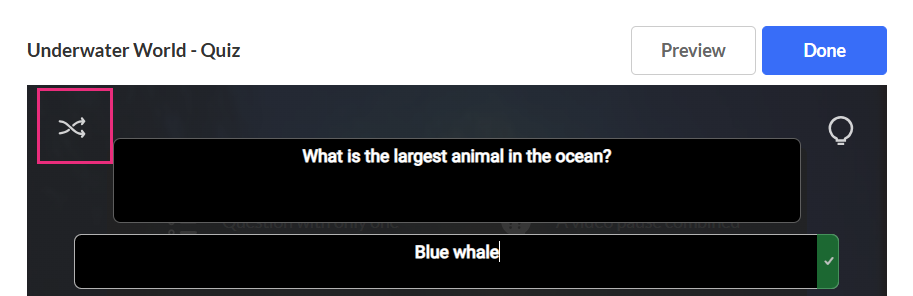
After you have typed in the answer options, use the shuffle icon to shuffle the answers.
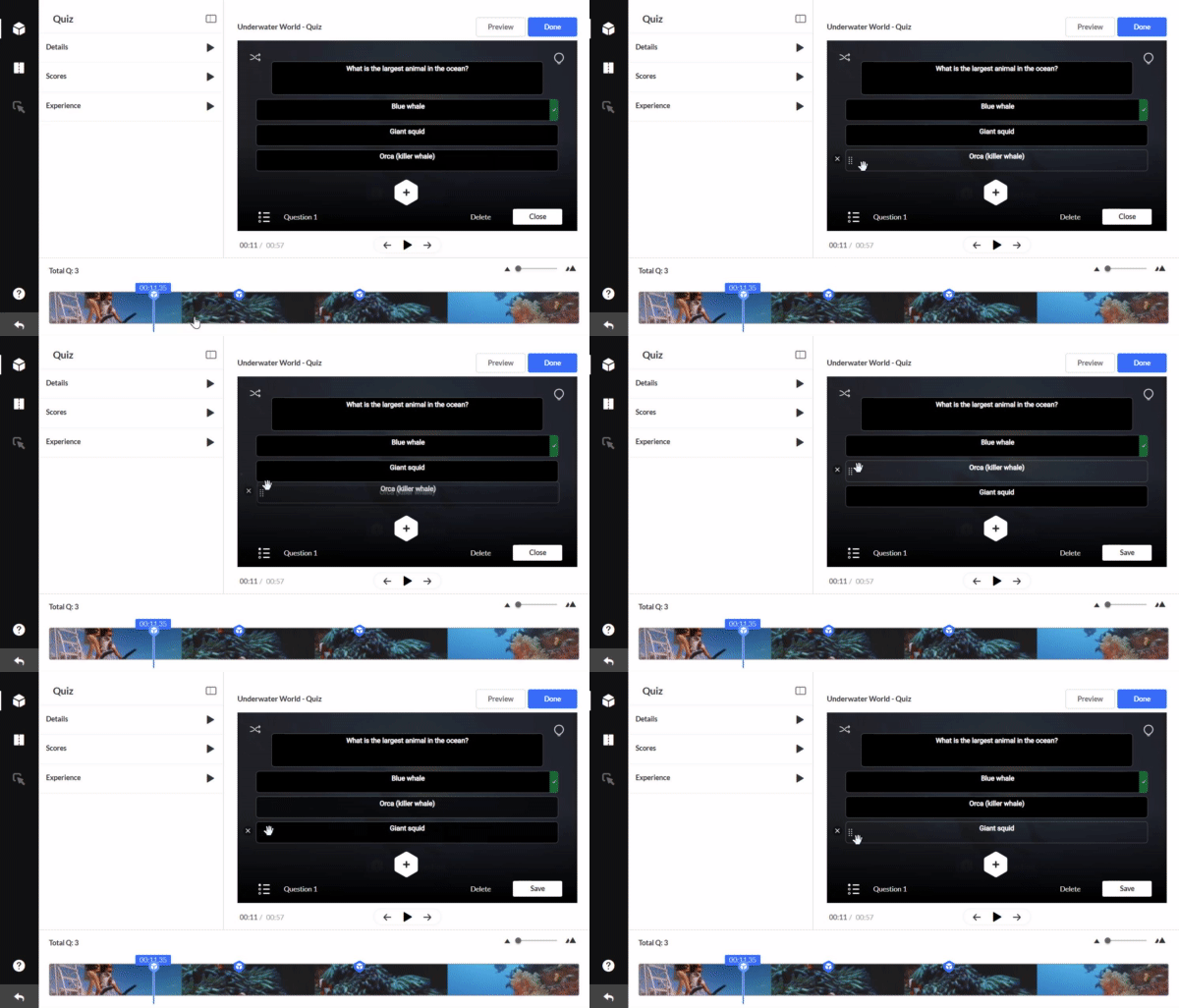
You can also shuffle manually by hovering over the dots next to the answers and dragging them to re-order them. The correct answer always has a checkmark in green at the end of it.
Click Save to save the question or Delete. Your quiz saves automatically as you go.
The questions appear on the real-time marker, indicated by blue quiz icon.

Hover over a question icon to preview it or click to edit. Drag the icon to change its position on the timeline.
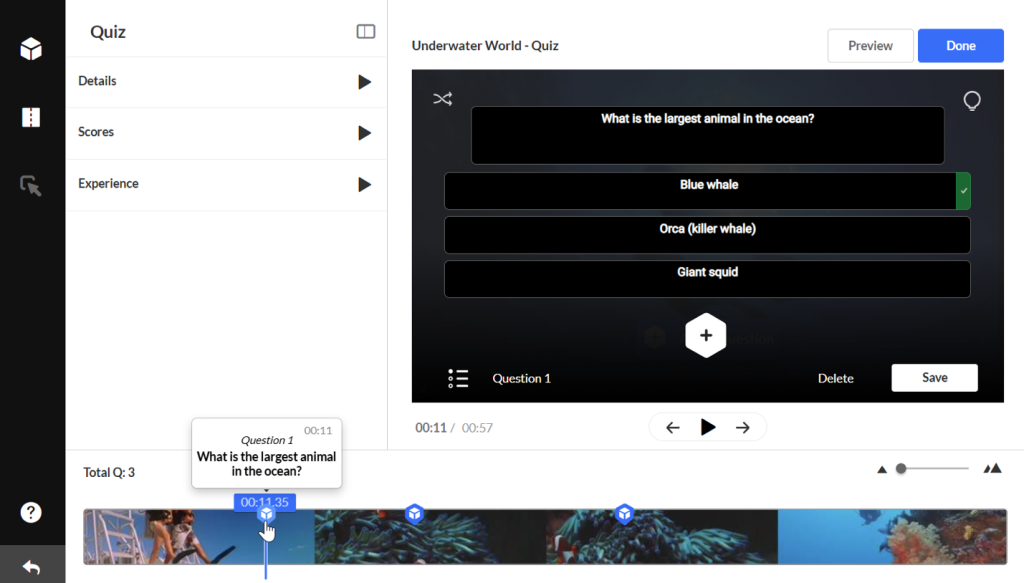
For the next question you want to add, move the real-time marker to the point in the timeline where you want the question to appear. Avoid placing questions too close together as cue points may overlap.
Repeat the steps for every question.
When you have finished entering all the questions and answers, click Done.
Preview
To test out your quiz, click Preview.
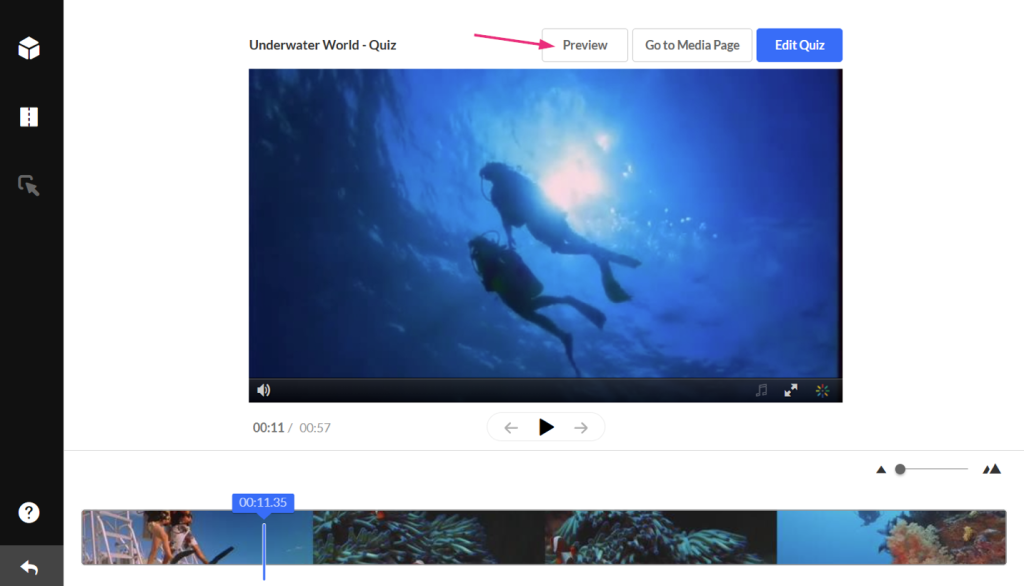
Click Start quiz to preview your quiz.
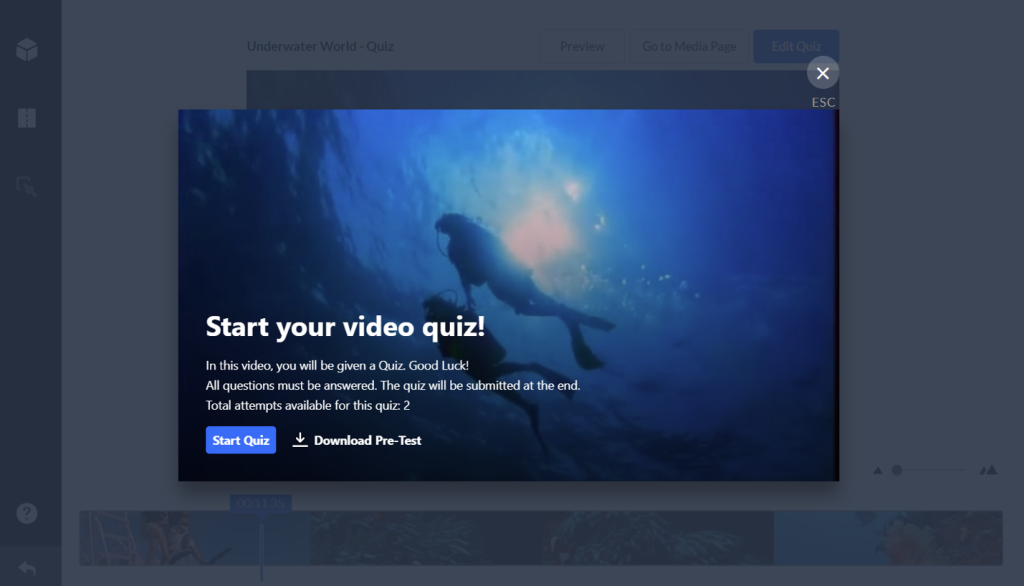
Click X Esc to exit preview.
Click Go to Media Page to see the quiz you created.
Add Hints and Whys
You can help your students by adding a Hint or a Why. A Hint contains additional information that can help answer the question (and it doesn’t affect the score). The Why can give a justification for an answer (explain why it’s the correct answer).
Hints
To add a Hint, click the lamp icon and then the Hint icon.
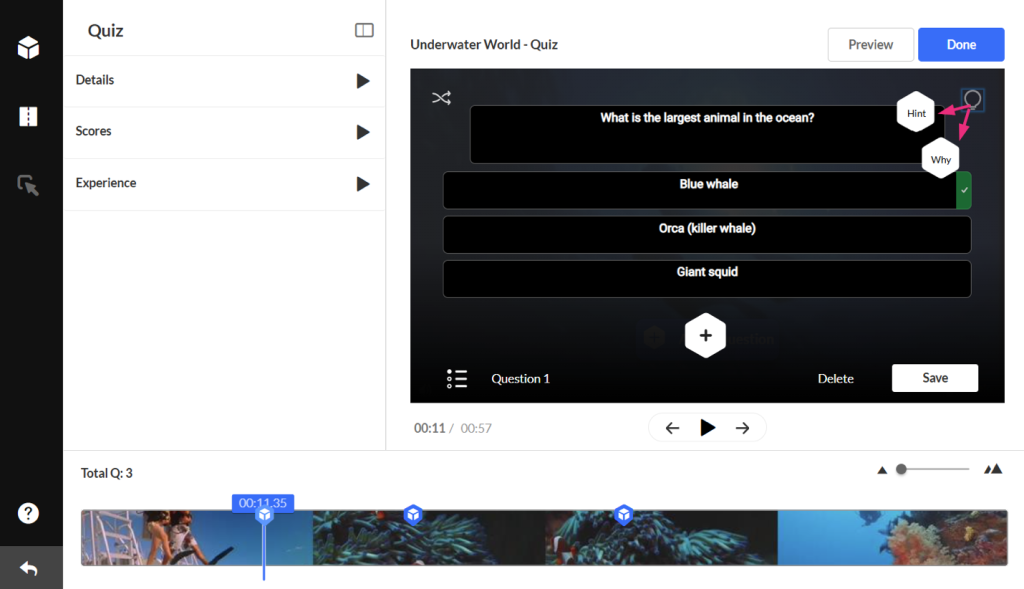
Enter the text in the box that appears.
Click Apply or Remove.
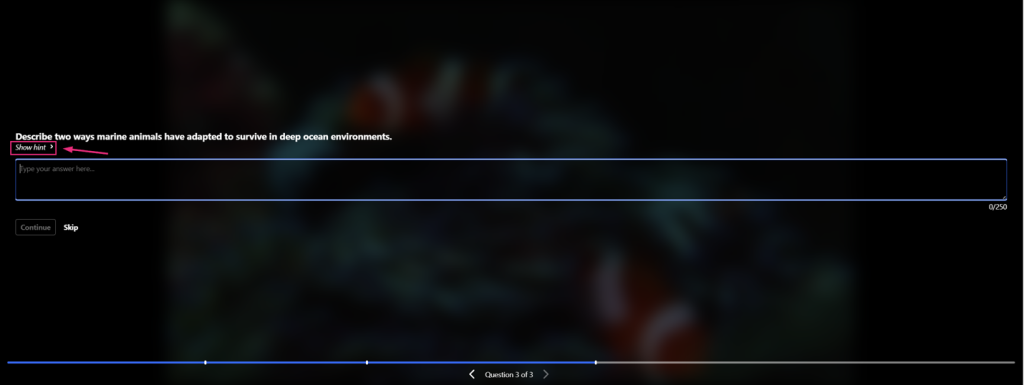
In the quiz, questions with a hint will say “Show hint” under the question, as shown below.
Whys
The Why comes up only at the end of the quiz and only when the option to Include Answers is checked in the Scoring tab.
To add a Why, click the Why icon and enter the rationale in the box that appears. Then click Apply or Remove.
Related Posts
