


Kaltura My Media – Download
The Download Tab on the Edit page of an entry will enable downloads for that specific entry from its Preview Page.
Before Starting
This method enables downloading only from the Preview Page of Kaltura entries.
If you need a quick way to make Kaltura media downloadable for students (or colleagues) consider embedding a Kaltura video using a custom Download Player instead. See Kaltura BSE – Custom Players for more details.
- Open My Media.
- Locate the entry and select Edit from the ellipses
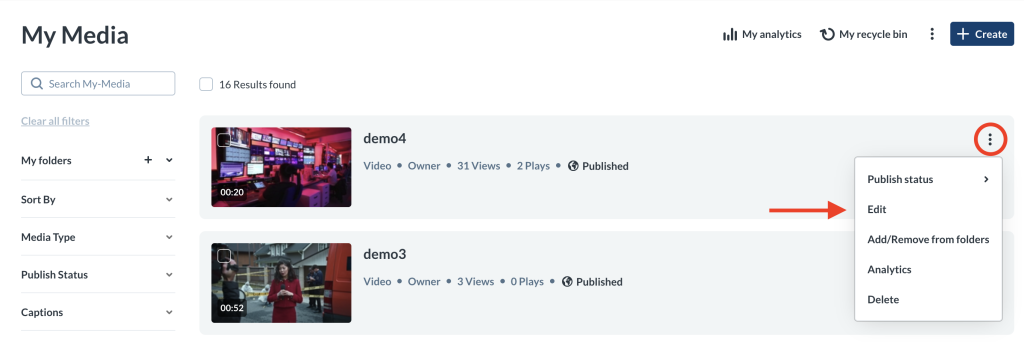
- Navigate to the Downloads Tab.
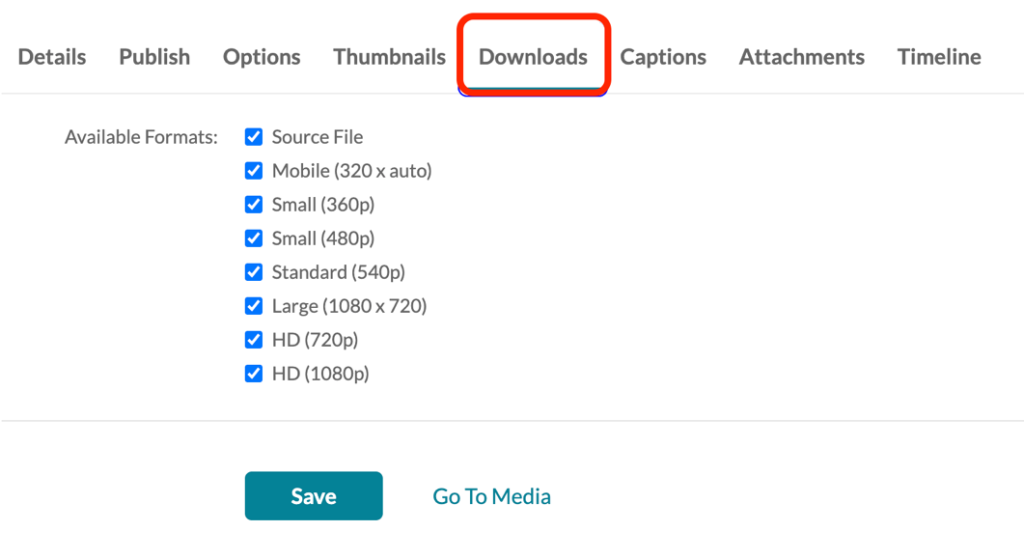
- Select the file formats you want to make available for download.
- Click Save.
Once enabled, downloads can be accessed from the entry’s Preview Page
Download a Private Entry (My Media Only)
- Return to My Media.
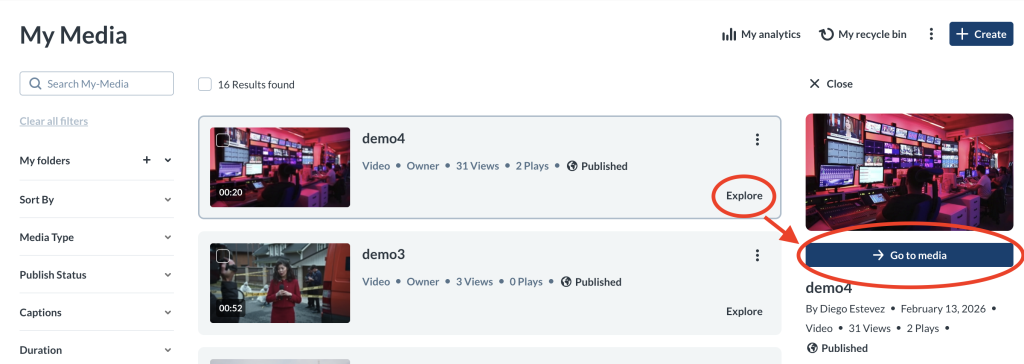
- Select Explore → Go To Media to open the entry’s Preview Page.
- Click the ellipses.
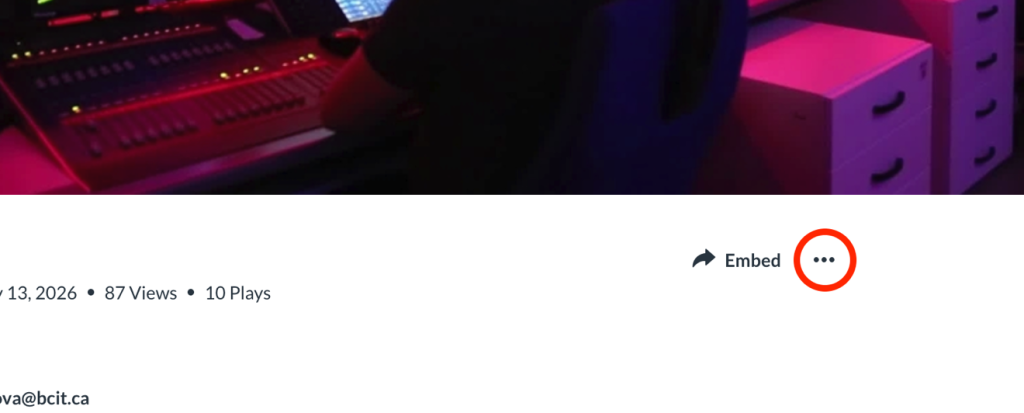
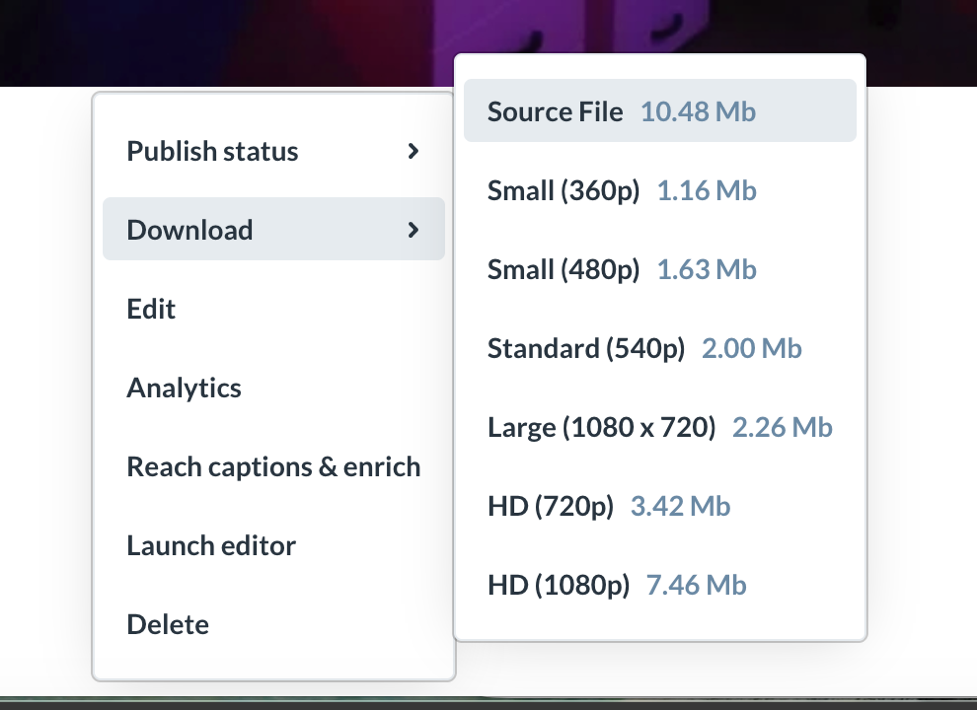
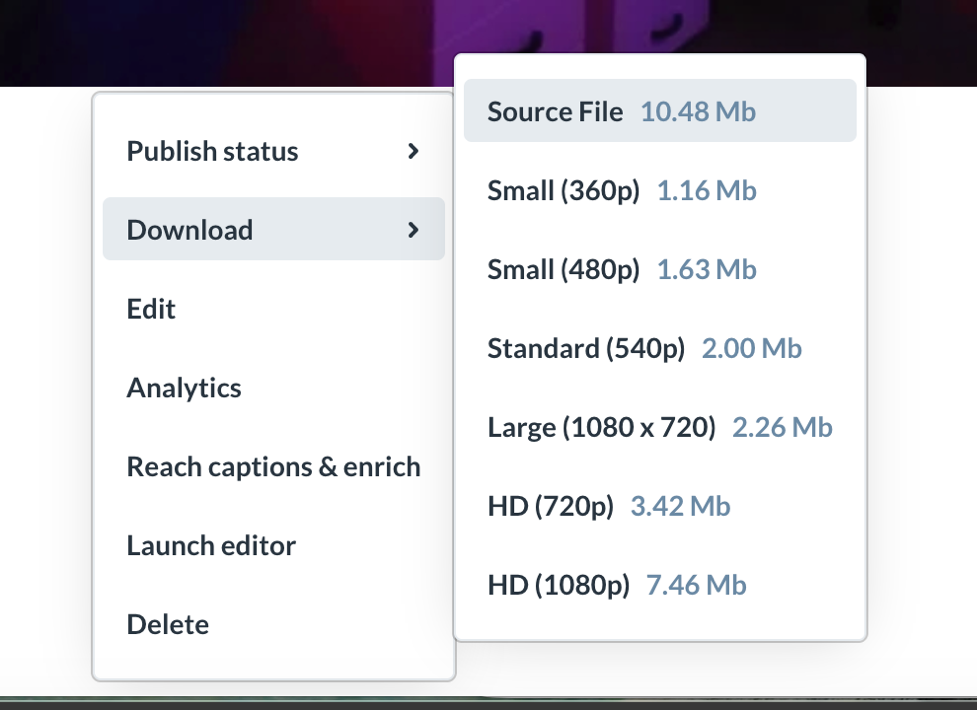
- Select Download.
- Choose a format to download the file to your computer.
Download a Published Entry (Media Gallery Only)
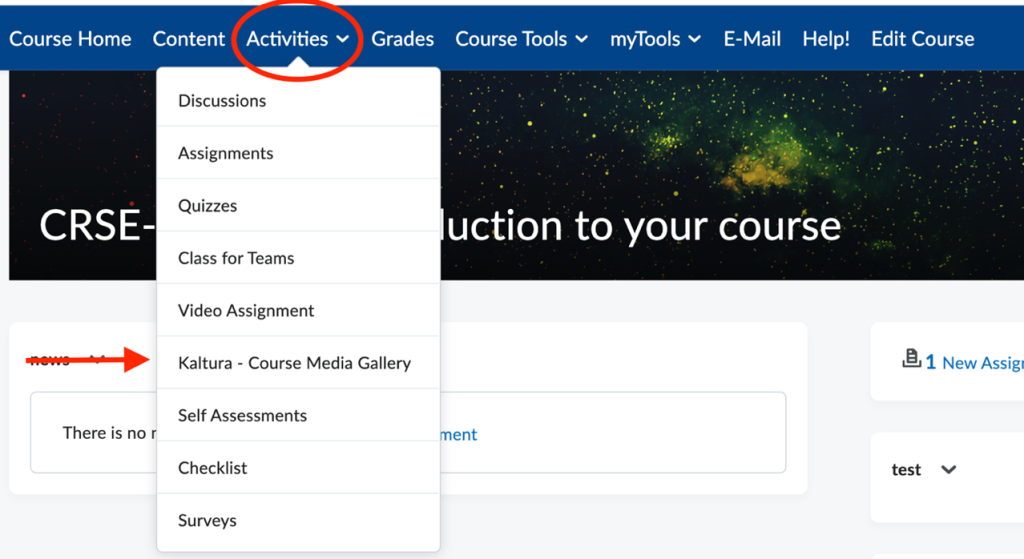
- Navigate to the course and from top navbar click Activities → Kaltura Media Gallery.
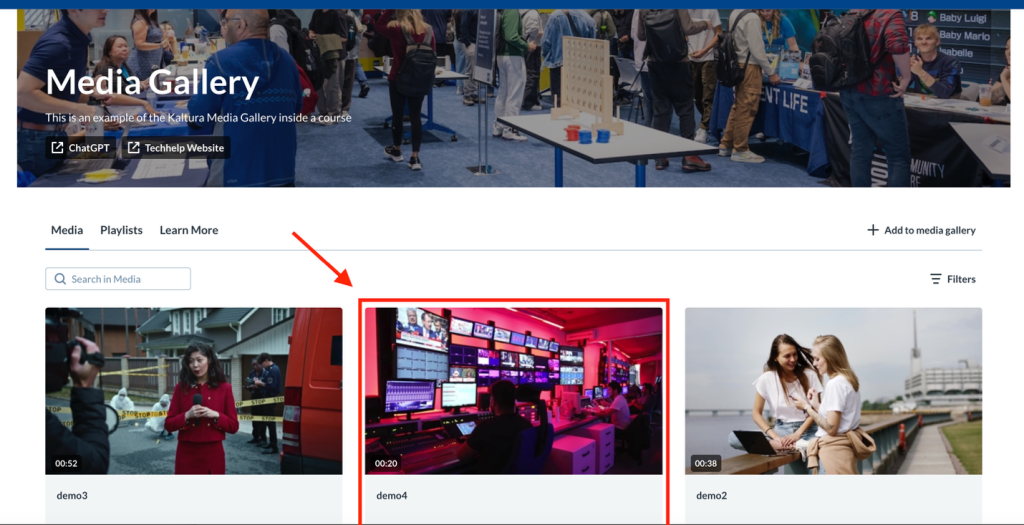
- Select the desired entry and click on it to open its Preview Page.
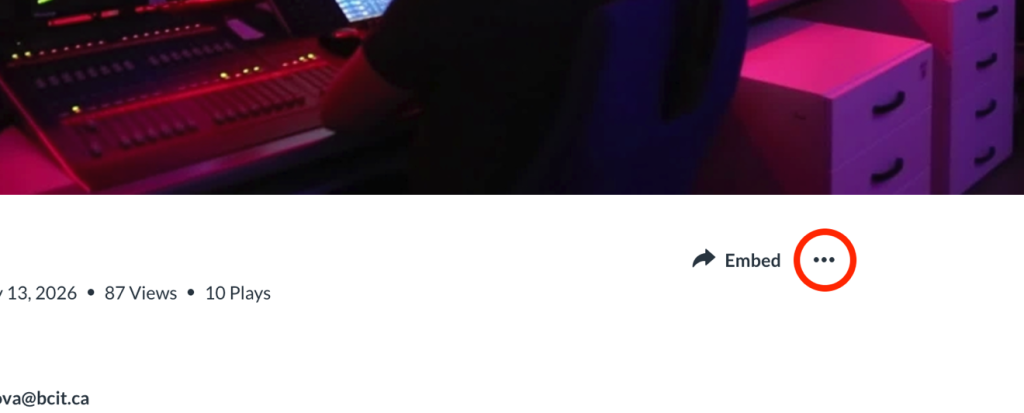
- Click the ellipses.
- Select Download
- Choose a format to download the file to your computer.
Related Posts
